
Prepaid expenses review
The two separate prepaid workbooks — general prepaid (GL 14000) and prepaid POS maintenance (GL 14600) — their formula mechanics, and the required pre-posting check.
"Prepaid" on the close checklist is actually split across two entirely separate workbooks, each tied to its own GL account.
Treating them as one file is a mistake. They have different tab structures and different owners of the underlying data.
Source: Rackson_RRS_RCY_Review_Process.docx sections 12, 39, and 27.2. Owner: Jeff — the only adjustments made personally are for insurance endorsements/changes when they arise.
The general review points
- Insurance and real estate tax prepaids are supported entirely by client-provided schedules (from Caitlin). Update each period and true up to actual invoices and payments.
- If a discrepancy appears where an amount was recorded in the GL out of sequence with when it should have hit — e.g. posted later than the period it relates to — flag it for follow-up rather than resolving it in the moment, if it isn't blocking the close.
New store openings are the single biggest driver of errors on these allocated accounts. When a new store opens, the cost allocation basis across location groups must be updated and the prior allocation basis removed, or the new store will not correctly pick up its share of insurance, real estate tax, and similar allocated costs.
Standard practice: review side-by-side, and when a new allocation is needed, go in, update the allocation, and delete the old one rather than layering a correction on top.
Prepaid rent
Watch for stores that prepay several months of rent in advance of opening — in some cases five to ten months. Confirm:
- The expense is recognized in the correct period as each month passes.
- Any partial-period credit the landlord issues back for a mid-period opening is applied correctly rather than left sitting in the prepaid balance.
Illustrative example. Store 1354's opening was the trigger for reviewing whether its rent allocation had been set up correctly. Separately, store 1498 had zero sales that period because it was not yet open — relevant both here and in the P&L closed/not-yet-open check.
On the RCY side, prepaid rent is refreshed by pulling the GL detail directly to populate a schedule showing each month's payments and credits by store, rather than maintaining it as a fully manual schedule. In the simplest case the balance is zero; where it isn't, the balance should tie to the current period's debit activity. This has historically required manual adjustments from the reviewers, but the preparer has gotten better at catching the two adjustments a typical period requires without escalation.
Step-by-step checklist
Insurance and real estate tax prepaid schedules with the current period's detail.
Invoices and payments received during the period.
If a store opened, update the location-group allocation basis and remove the prior basis.
Each store's monthly expense recognition is on schedule, and any landlord credit for a partial opening period has been applied.
To the schedule and to the GL before marking the item reviewed.
Workbook #1 — general prepaid (GL 14000)
File: 14000 Prepaid Expenses P[n].xlsx
Tabs: Prepaid Schedule · PTM by Location · GL Detail · Fiscal Accounting Periods
This is the general prepaid expense roll-forward — the parent schedule that everything else, including the PT&M sub-schedule, ties back into.
What "PTM" means here. PTM is the preventive-maintenance vendor program, tracked separately because the invoice-to-invoice amounts are small and inconsistent by store.
Formula mechanics — useful for troubleshooting
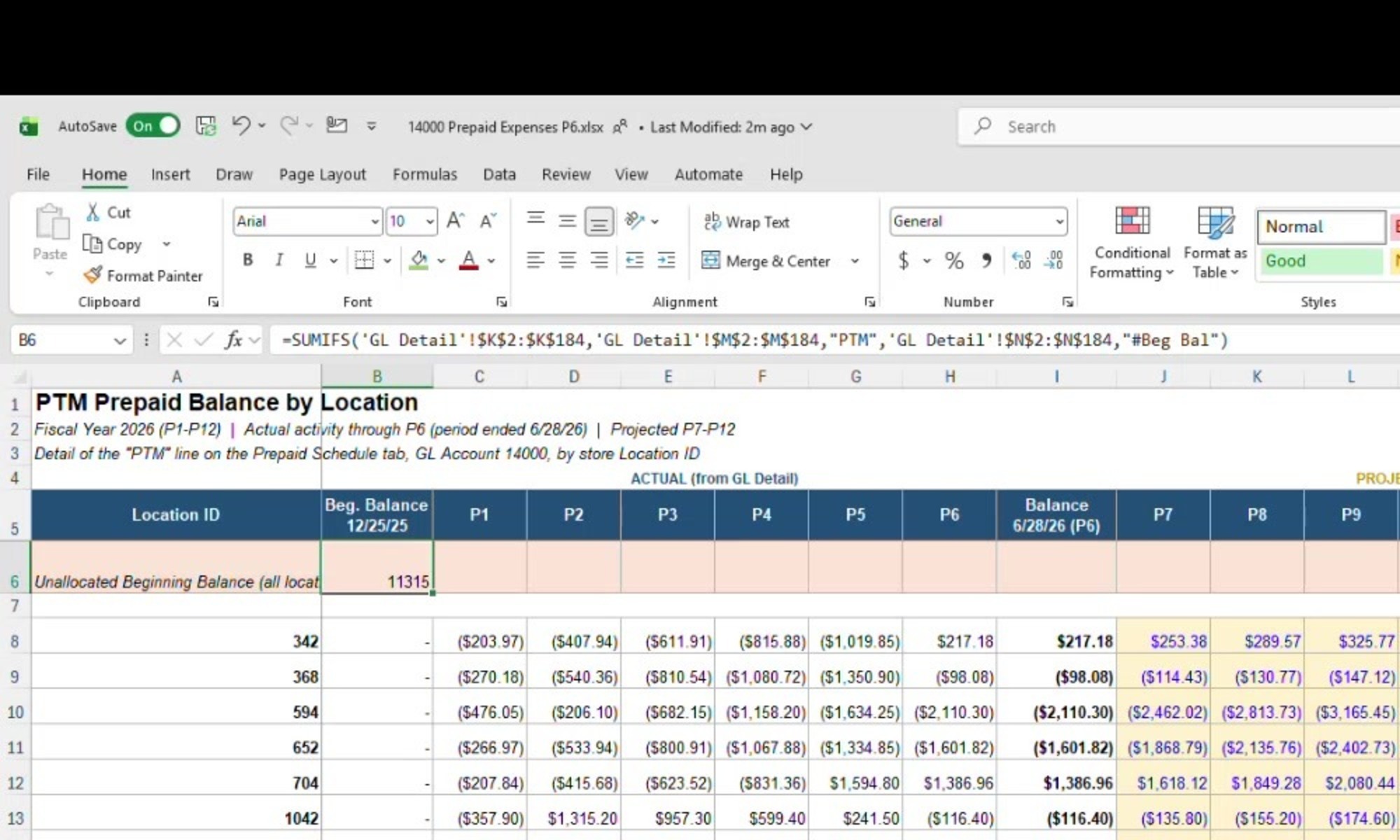
On the PTM by Location tab, the beginning balance and each period's activity are pulled with a SUMIFS off the GL Detail tab, filtered to the PTM category and to the specific row type:
=SUMIFS('GL Detail'!$K$2:$K$184,'GL Detail'!$M$2:$M$184,"PTM",'GL Detail'!$N$2:$N$184,"#Beg Bal")
If a new store's balance isn't flowing through, check that its GL Detail rows are tagged PTM in column M and carry the correct row-type flag in column N. A missing or mistyped tag is the most likely reason a location won't summarize correctly.
Layout
A Beginning Balance column (as of the prior fiscal year-end), then one column per period (P1, P2, P3…) showing that period's actual activity from GL Detail, a running Balance column at the most recently closed period, and then projected columns for the remaining periods of the fiscal year — visually distinguished by colour from the actual columns to their left.
Workbook #2 — prepaid POS maintenance (GL 14600)
File: 14600 Prepaid POS Maint - Xenial, Tillster and BKC Training P[n].xlsx
A separate prepaid account from general prepaid (14000), covering point-of-sale and loyalty-platform software maintenance contracts for four named vendors: Xenial, Tillster, Stratacache, and BK Training.
Header block on the Reconciliation tab
| Field | Value |
|---|---|
| Prepaid Account | 14600 |
| Expense Account | 75300 |
| JE Description | "Adjust Prepaid POS Fees to Actual" |
| Journal Type | GJ |
Tabs, left to right: 2026 POS Summary → Instructions → Setup → Reconciliation → GL Input → RJE Worksheet → JE Review → JE Import
Reconciliation tab columns
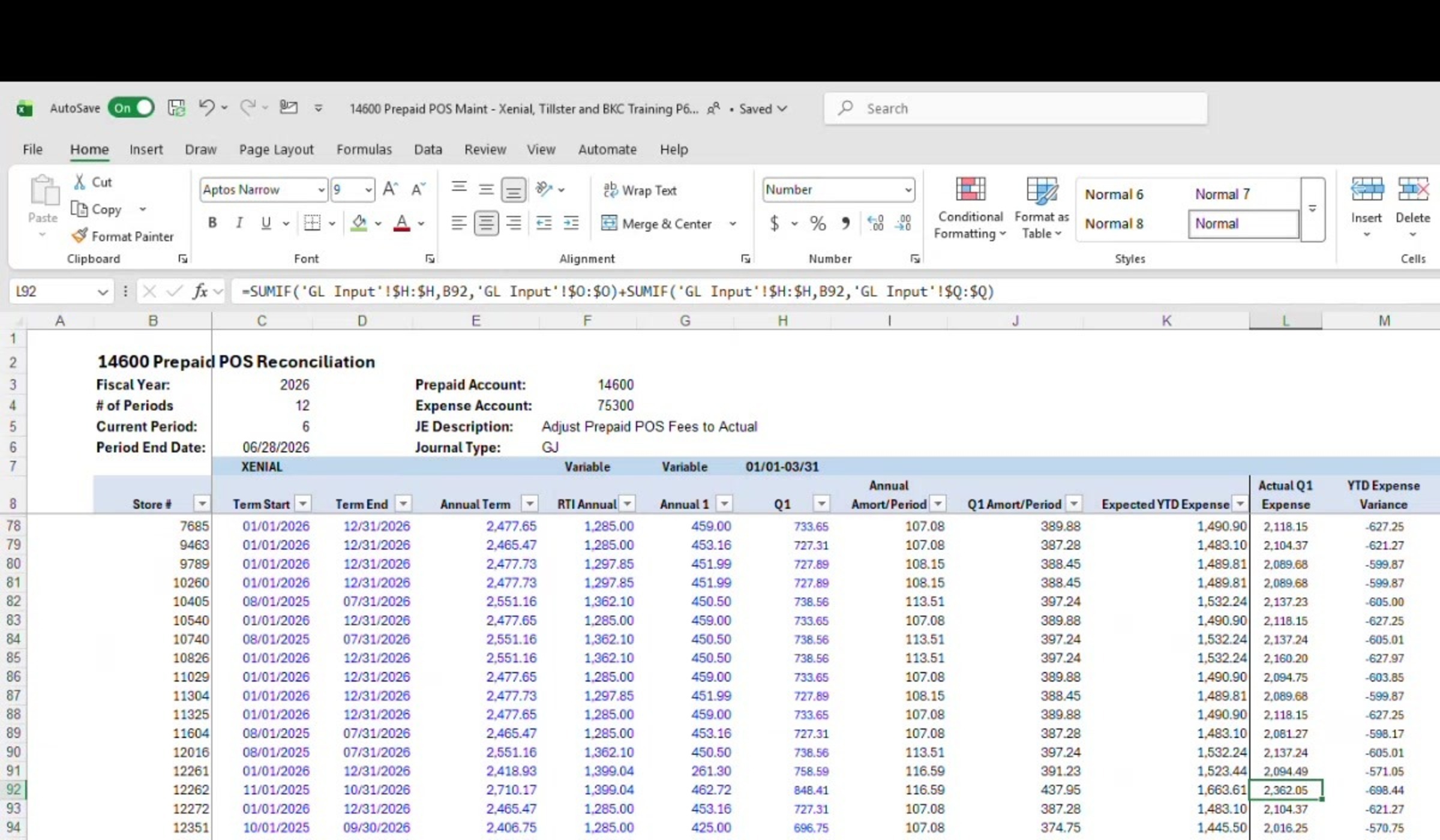
Store # · Term Start · Term End · Annual Term · RTI Annual · Annual 1 · Q1 (pattern repeats for Q2–Q4) · Annual Amort/Period · Q1 Amort/Period (etc.) · Expected YTD Expense · Actual Q1 Expense (etc.) · YTD Expense Variance
Formula mechanics
The Actual Expense column for each store is a two-part SUMIF off the GL Input tab, matched on store number, summing two separate columns — because a store's actual charge can land in either column depending on billing type:
=SUMIF('GL Input'!$H:$H,B92,'GL Input'!$O:$O)+SUMIF('GL Input'!$H:$H,B92,'GL Input'!$Q:$Q)
If a store's actual expense looks wrong, check both of these GL Input columns, not just one.
Term dates are not uniform across stores. Most stores run a calendar-year 01/01–12/31 term, but several instead run 08/01–07/31. Confirm each store's actual term dates rather than assuming the whole portfolio renews on the same date.

What "expected vs. actual" actually means
| Side | How it's calculated |
|---|---|
| Expected YTD Expense | A straight calculation off the contract terms — annual or quarterly amount × periods elapsed. It does not look at the GL at all — a pure "what should have been expensed by now" number. |
| Actual | Pulls from the GL Input tab, fed by the live GL Detail, via the SUMIF above. |
If a vendor's fee structure changes mid-year, the Expected-side formula must be manually adjusted for that period. The workbook will not detect a fee-structure change on its own.
Illustrative example: a Q1 vendor fee included a one-time quarterly charge that then went away after Q1. The RJE for that vendor was not updated for several periods, producing a meaningfully sized true-up when it was finally caught.
Where variances usually come from. A large variance almost always traces back to the RJE not having been updated for a vendor billing change, rather than a data-entry error in this workbook. Check the recurring journal entry template in Intacct for that vendor before assuming the workbook is wrong.
Every vendor's YTD expense variance on the Reconciliation tab rolls up into the JE Import tab, which is fully formula-driven — you should not need to type figures directly into it.
The required check before posting
Pivot the journal entry you're about to post on the JE Review tab and confirm the net debit/credit hitting account 14600 matches the total variance calculated on the Reconciliation tab.
This is a hard stop, not a nice-to-have. If the pivoted JE total doesn't tie to the Reconciliation tab's variance, do not post — go back and find the mismatch first.
The 2026 POS Summary tab and the blue-cell rule
- Source: the client sends an updated POS summary roughly every two to three months with the latest per-store rates for these vendors.
Paste new data directly into the existing "2026 POS Summary" tab at the front of the workbook — never add a new tab for a refreshed summary. The Reconciliation tab's formulas are wired to that specific tab by name; a new tab in a different position breaks every downstream link.
The blue-cell rule. Cells fed by the POS Summary tab are shown with a blue font/fill as a visual flag that they are formula-linked, not hard-typed. If you see blue and are tempted to type over it, stop — you are about to sever the link back to the source data.
Factura note. A meaningful volume of invoices for these vendors — order of 100+ per period — now route through Factura AI directly rather than through a manual process. This was initially a concern (whether PBI could get an EDI feed or Excel export instead of relying on OCR), but Factura's AI read these invoices well during training, so no separate integration has been required.
Timing
The full 14600 reconciliation across all four vendors takes roughly 30 minutes once you're used to it. On the close checklist, Prepaid Insurance [14300] is a WD5 task.
Related
- Prepaid insurance — GL 14300, a third and separate workbook
- RRS inventory and prepaids workpapers — the 14000, 14100/24200, 14300, 14500, and 14600 preparer steps
- Accrued expenses and occupancy — property tax and percentage rent