
Set Up a Basic Check-Matching Rule Set in Intacct
Create a rule set and a basic check-matching rule in Sage Intacct so checks auto-match during bank reconciliation.
Sage Intacct lets you create custom matching rules that speed up the bank reconciliation. This guide sets up the simplest useful case: a basic rule to auto-match checks.
Source: Technical/Intacct Bank Rule Sets 4.18.24.docx. For the full configuration — create rules, journal entry templates, and the complete sample rule library — see the SOP Bank transaction automation: rule setup.
Start with just this basic check-matching rule. Get it working, confirm checks auto-match on a real reconciliation, then add more rules from the sample rule library.
Create the rule set
Go to Cash Management → Rule Set and add a rule set.
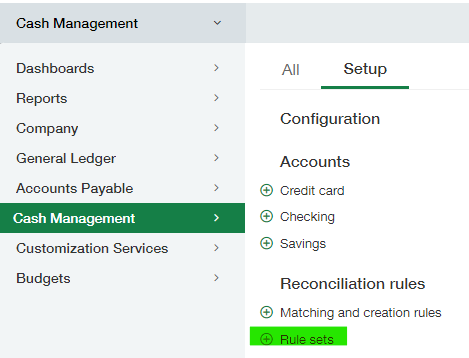
You can have a rule set for each bank account, or one rule set applied to all bank accounts.
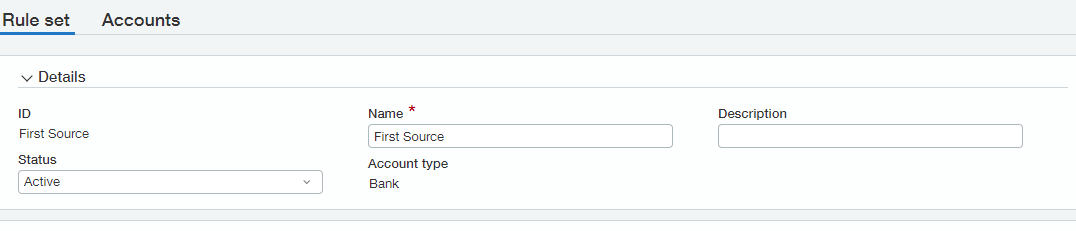
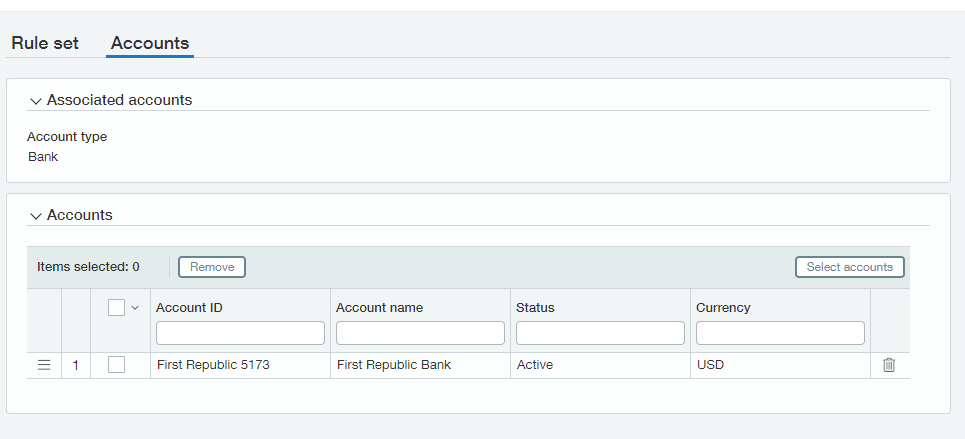
Create the specific rule to assign to your rule set.
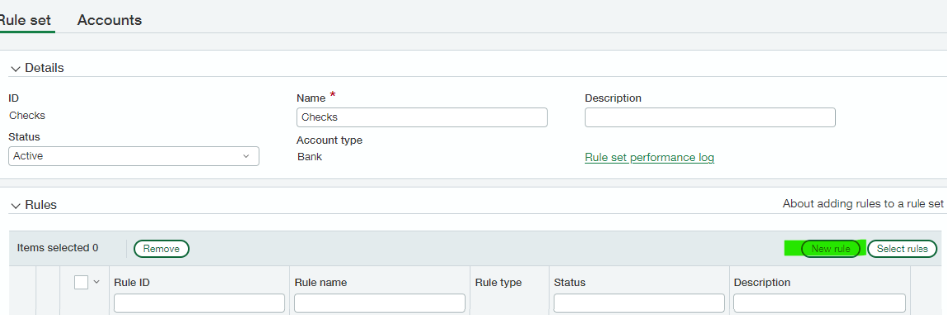
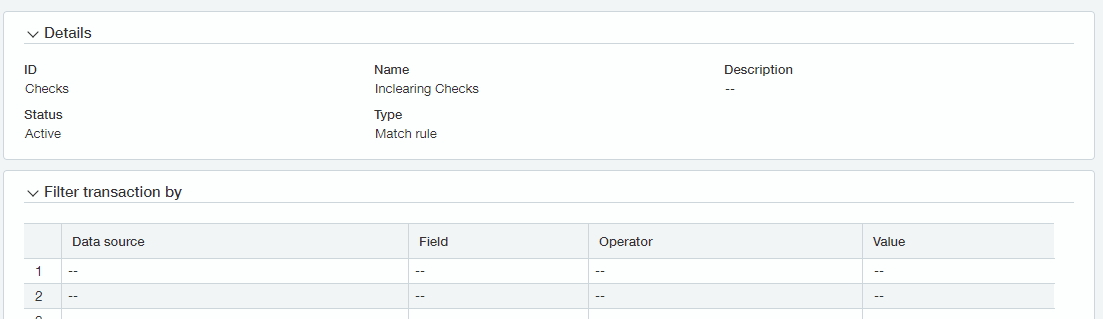

A match rule needs at least two matching conditions, and one of them must be Amount. For checks, use the document number (or date) plus the amount.
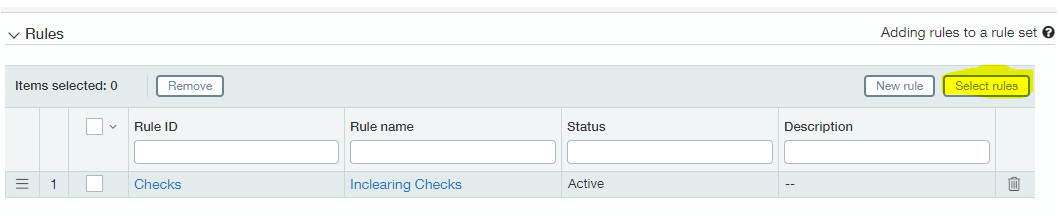
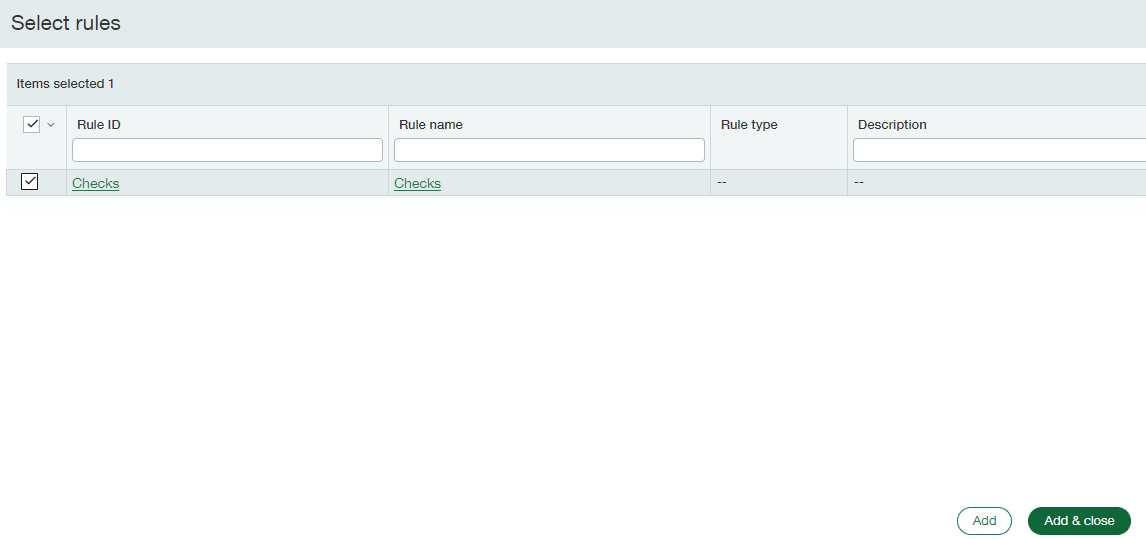
After saving the rule, click Select Rules and add the rule you created. Save the rule set.
Verify the rule set is applied to the bank account
You can check whether a rule set is applied from the bank setup. Open a bank account, and on the Details tab scroll to the bottom for the accounting information section.
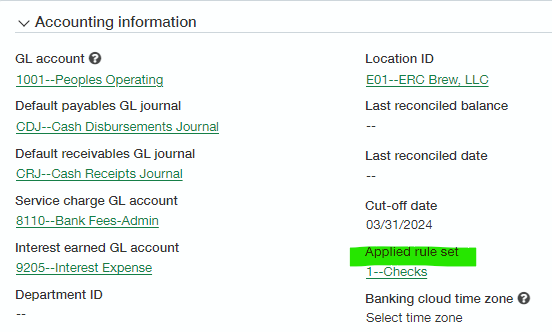
If no rule set is applied, auto-match will not be available during bank reconciliation. This is the first thing to check when auto-match appears to be missing.
Related
- Bank transaction automation: rule setup — the full manager-level configuration
- Reconcile with bank automation rules — using the rules day to day
- Intacct bank reconciliation — the manual alternative, including the auto-match file import