
Export Payroll from Aloha Enterprise
Run the Profit Builders Payroll Export from Aloha Enterprise and forward it to your Customer Success Manager as approval to process payroll.
This guide is written for client store operators, not PBI staff. It shows how to run the Profit Builders Payroll Export from Aloha Enterprise and deliver it to your Customer Success Manager (CSM).
Source: Technical/Profit Builders Payroll Export Instructions_Aloha Enterprise.docx
Aloha Enterprise credentials come from corporate, not from PBI. If you don't have login credentials, request them through your corporate contact.
Procedure
Log in using the credentials provided by corporate.
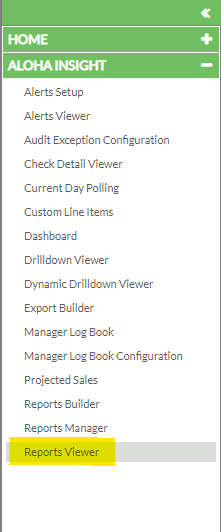
Navigate to Aloha Insight → Reports Viewer on the left navigation pane.
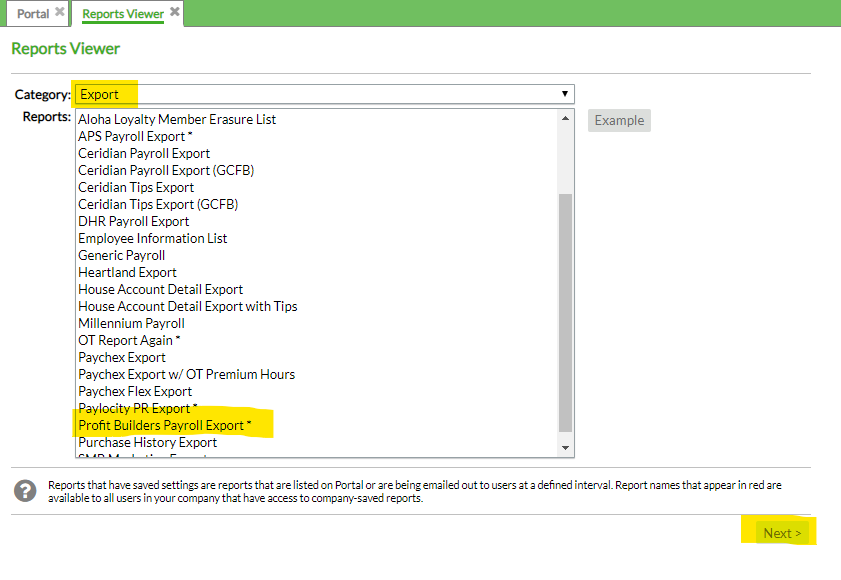
On the Reports Viewer page, change the Category dropdown to Export, then find and click the report titled Profit Builders Payroll Export. Click Next.
Work through each tab:
Store Selection tab — select All Stores.
Report Settings tab:
| Section | Setting |
|---|---|
| Report Date Range Options | Select Use Custom Date Range and enter the start and end date of the current payroll pay period you are approving |
| Report Send Options | Check Email Me the Report Now |
| Other Report options | Confirm it shows Comma-separated values |
| Report name | Include the pay period end date of the payroll you're working on |
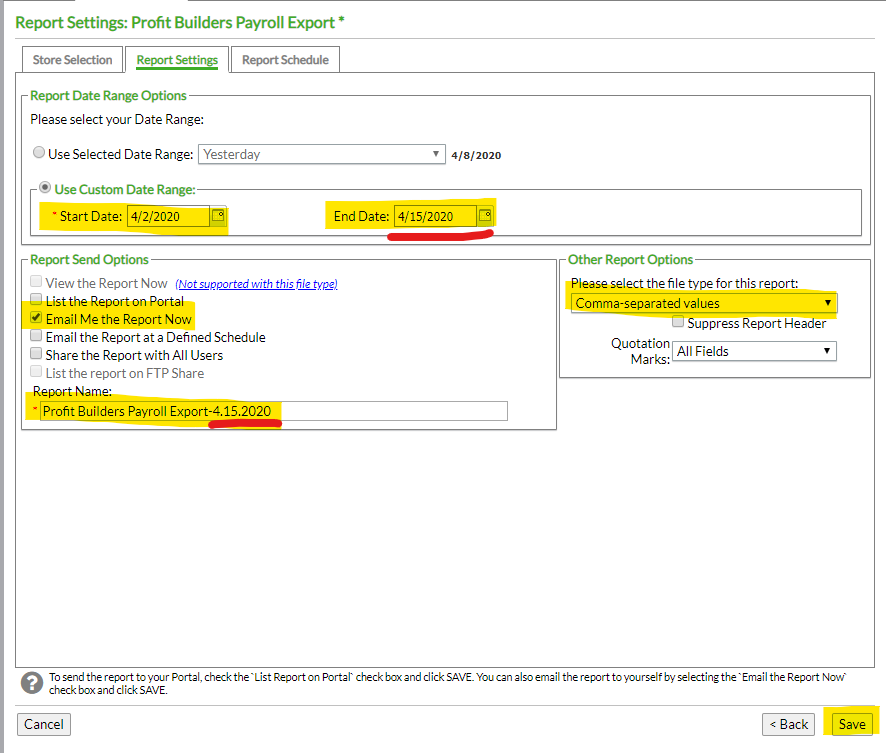
Double-check the date range covers the pay period you are approving, not the current calendar week. An export for the wrong period means payroll gets processed against the wrong hours.
Once all settings look correct, click Save. The payroll file is sent to you by email.
Forward the email and attachment to your Profit Builders Customer Success Manager.
Forwarding this email is your approval for PBI to begin processing payroll. Review the hours before you send it.
Expected outcome: your CSM has the CSV export for the correct pay period and can begin processing.
Related
- Payroll concepts — what happens to these hours once payroll is processed
- Set up GL exports in ProWork — how the resulting payroll reaches the general ledger