
Set Up GL Exports in ProWork
Copy the GL export reports from the client template, schedule automated delivery, and configure GL codes, formats, and override mapping.
This guide sets up the automated payroll GL export from ProWork into Intacct or R365 — copying the report templates, scheduling delivery, and configuring the GL mapping.
Source: General Accounting/11 - Accrued Payroll/GL exports in PRO WORK.docx. Related SOP: Payroll concepts.
Copy the reports from the client template company
Log in to ProWork Admin and navigate to Maintenance → Processes → Reports → Reports Settings Maintenance.
Apply these filters:
Company:ShortName= ClientTemplateSetting Type= Intacct Data
Check the box next to the two reports and click Copy To. Select the new companies you want to copy the reports to, and copy them as a company level report.
Schedule report delivery
Log in as SA to the client company.
Navigate to My Saved Reports. Make sure the Show Other's Settings box is checked, then filter on Saved as Name like Intacct (or R365). You should see the two reports listed.
Edit each report, change the report ownership to My Personal Setting, and click save.
Do this for each of the two reports.
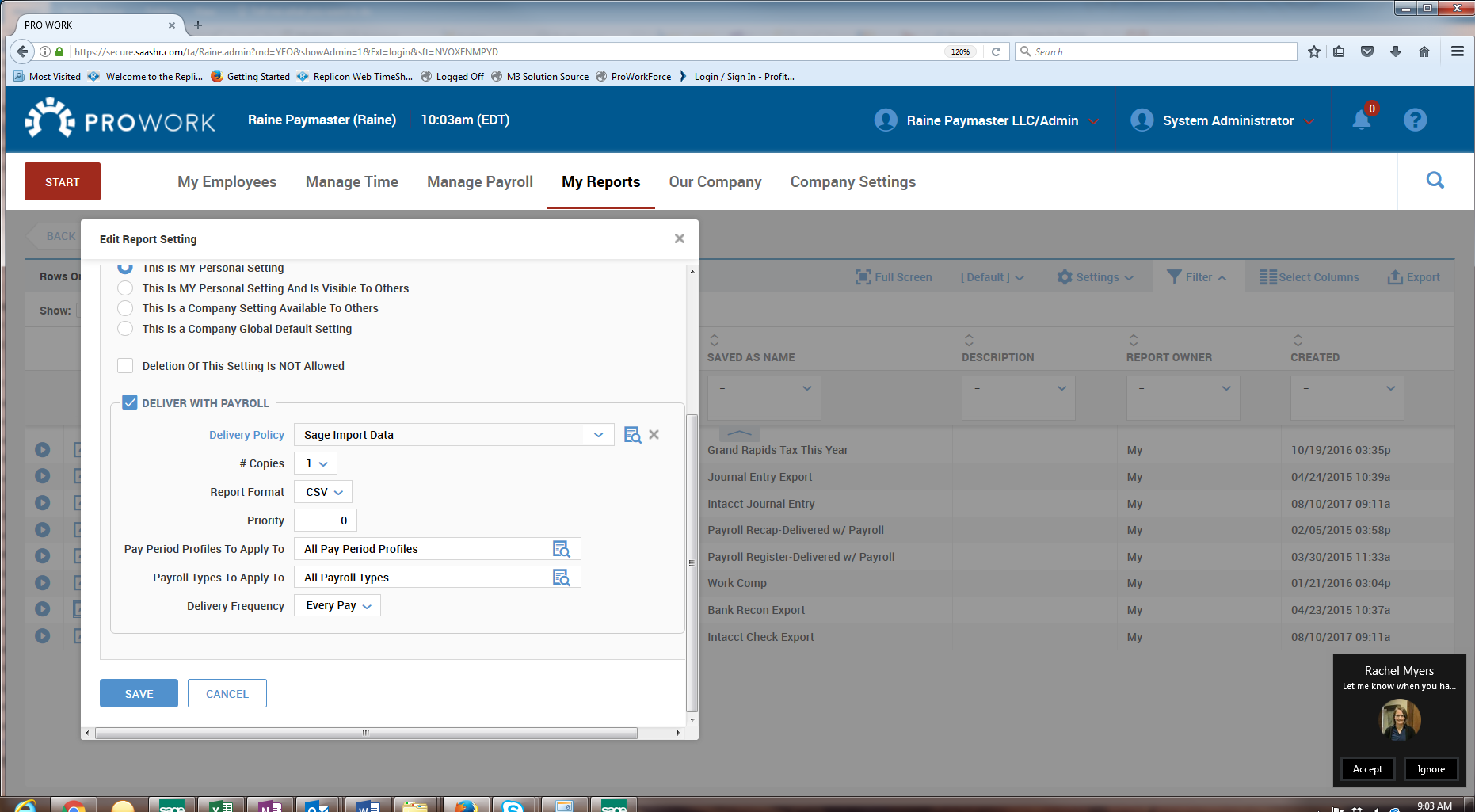
- Click the email envelope icon next to the report name.
- Click Add New Email Configuration.
- Enter a name for the schedule — for example
Intacct Export – Every 2 Weeks. - Change the Weekdays dropdown to Days Profile, then select the days profile you set up.
- Enter the time you want the reports sent.
- Uncheck the Send to Me box.
- Add the recipients in the Send to Emails section.
- Confirm the Run As field is set to Me.
- In the email section, set:
| Field | Value |
|---|---|
| Report Format | Excel 2007 |
| Display Header/Footer | Unchecked |
| From Email Address | noreply@yourprowork.com |
| Message Title | Intacct Data |
| Maximum Rows to Send | 3000 |
GL mapping
GL mapping in ProWork happens in two sections: GL Codes and GL Settings.
GL Codes
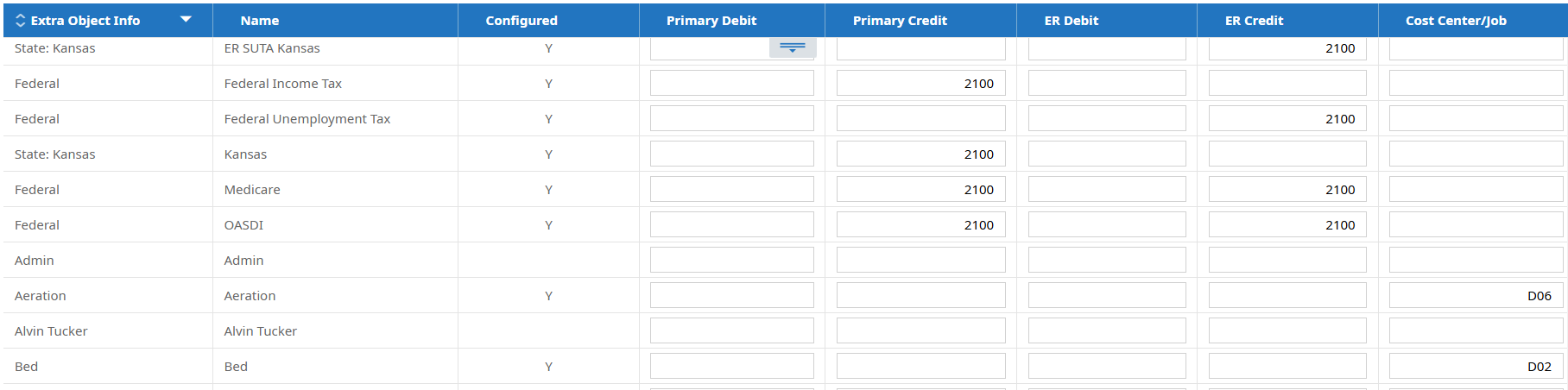
Access at Payroll Setup → General Ledger → Codes. This section handles two scenarios:
| Scenario | Description |
|---|---|
| Simple GL mapping | One GL is used for each ProWork item. A single-entity business codes all payroll taxes to the same GL 2100-E01, regardless of employee department, location, or position. |
| Modified mapping | Entering the Intacct or R365 location number in the Cost Center/Job column allows mapping payroll items to different cost centers based on default or GL employee information. |
GL Settings
This is where most mapping happens. Access it from Payroll Setup → General Ledger → Codes.
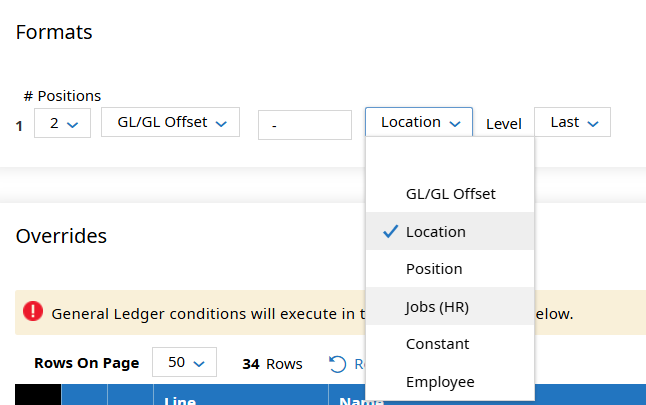
Formats — dictates what information is created for each section of the GL entry. The example below has an entry with two sections: the first holds the GL code, the second holds the location.
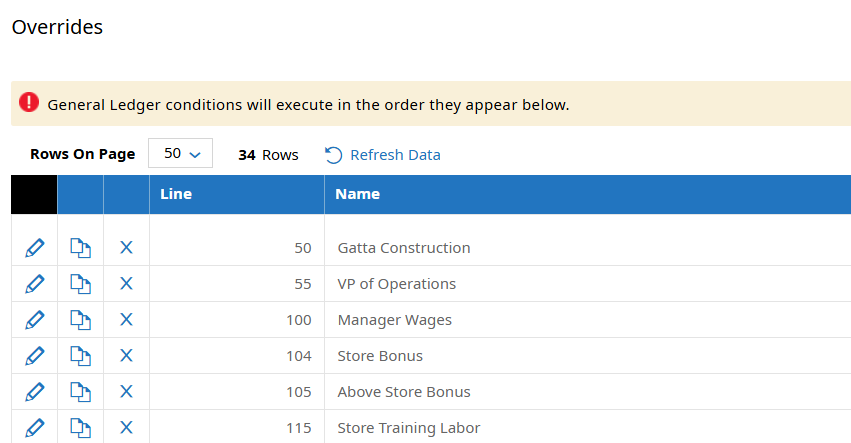
Overrides — mapping rules for any items that couldn't be mapped in GL Codes. Items are sorted in line order, which determines the order conditions execute.
Debits must always be numbered before liabilities for items like taxes and work comp. Getting the order wrong produces an entry that doesn't balance the way you expect.
Use this numbering system to ensure conditions execute correctly:
| Range | Category |
|---|---|
0–199 | Earnings |
200–299 | Deductions |
300–399 | Taxes |
400–499 | Work comp |
500–1000 | Net pay, invoices, suppress |
Creating an Intacct GL entry
Accounting for entities and dimensions — if the client is multi-entity or uses any dimensions, both reports need editing to account for this.
On the check export report, adjust the offset accounts at Settings → Custom Settings, then adjust the formula for Offset Account.
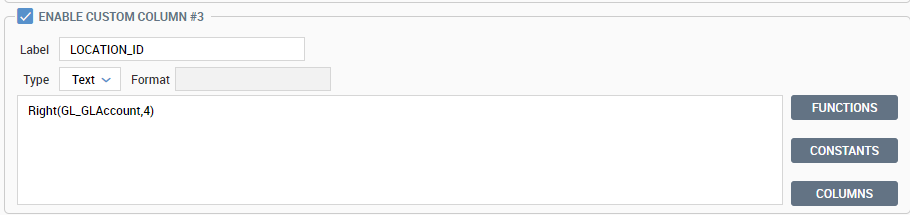
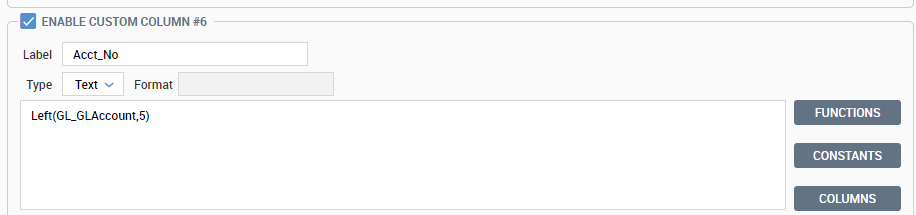
Useful field references for these formulas:
GL_CostCenter1Abbrev
BankAccount_BankAccountFirstName
BankAccount_BankAccountWorkPhone
Related
- Payroll concepts — the entries this export produces
- Export payroll from Aloha Enterprise — how hours get to the CSM in the first place
- Positive pay file policy — ProWork also generates the payroll positive pay file