
Run the A/R Aging Report in Sage Intacct
Run the standard period-end customer aging report in Sage Intacct, then customize the aging periods, filters, formatting, and columns.
This guide covers two things: the quick settings for the standard month-end A/R aging report, and the full reference for customizing it. If you just need the period-end report, the first section is all you need.
Source: General Accounting/05 - Receivables/Intacct - AR Aging Report.docx. Related SOP: Accounts receivable and bad debt.
The period-end report
Navigate to the Accounts Receivable aging report.
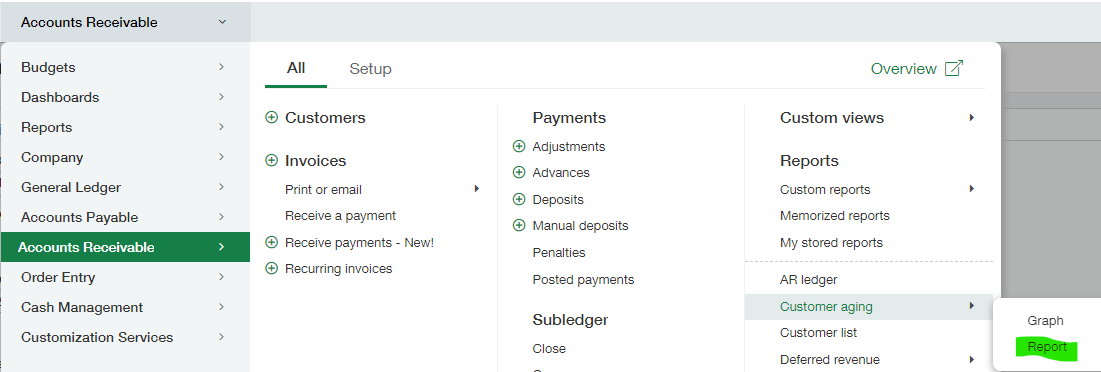
Choose the period-end date and set Based on to GL Posting Date.
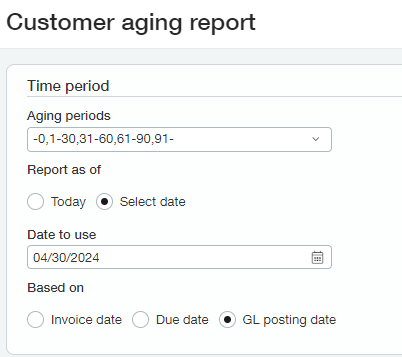
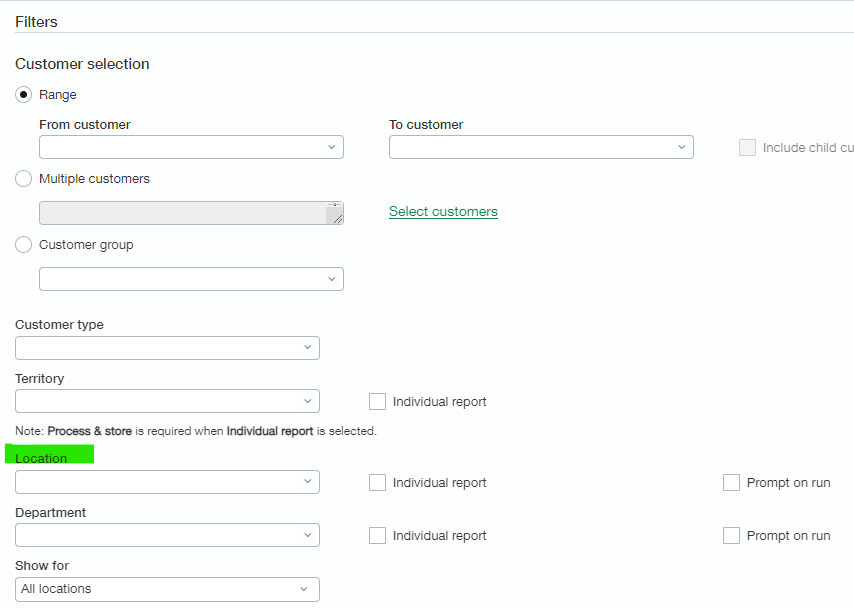
If this is a multi-entity instance, choose the applicable entity.
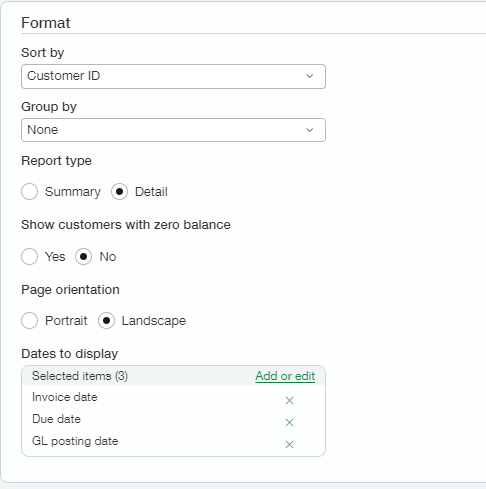
Use these format settings.
Click View in the top right corner.
Customizing the report
On the report settings page, click View to run with defaults, or Customize to refine it.
Use trial and error. Fill in the fields you want, click View, and if the results need refining click Customize to return to the setup page. Repeat until you're satisfied — then Memorize the report so next time you only need to change the As of date.
Running the report with no selections at all returns every result for every category. It might take a long time to run and return too many results to be useful. As a general rule, more filters produce fewer and more precise results.
A note on reversed transactions
The Customer Aging report displays reversed transactions by default. You can change this at Company → Admin tab → Subscriptions → Accounts Receivable → Configure.
If you turn off reversed transactions, be aware that your subledger and GL might not balance.
Time period options
| Setting | Notes |
|---|---|
| Aging periods | Currently the only selection is -0, 1-30, 31-60, 61-90, 91-. |
| Report as of | Either Today or Select date. If you choose Select date, you must specify the date in Date to use. |
| Select date | The date on which to list the outstanding amounts customers owe. |
| Based on | Sets and displays the date the report is based on: invoice date, due date, or GL posting date. The type appears at the head of the report. |
Online reports can cover up to 60 periods. PDF reports can cover up to 12 periods.
Filters
Three approaches:
- Range — set a specific customer or range using the From customer and To customer dropdowns. Blank by default, meaning all customers. With this option you can also Include child customers.
- Multiple customers — add multiple customers and ranges to better target results.
- Customer group — filter for all customers within a particular customer group.
The Include child customers option is only available when filtering by range.
Customer type — returns data only for the type you specify. Blank by default, meaning all types.
Territory — select a specific territory if you organize sales geographically, or select predefined groups of territories by clicking the icon. Selecting the group US TERR includes WEST and EAST, for example.
Optionally select Individual reports to print each department or location on its own report — all individual reports are contained in a single report or Excel workbook. You must select Process and store when using Individual reports.
Transaction currency — specify the currency. Clear by default, meaning all currencies.
Exchange rate types — specify the exchange rate to use when calculating the amount. Default is Intacct daily rate.
Both only appear for multi-currency, multi-entity companies.
Location — limit results to a specific location. Enter the name of the region, country, state, territory, or city, or select from the list. Enter or select a location if you want to run this report at the top level; the location determines the appropriate currency.
Department — limit results to a specific department.
Individual report — give each entity, department, or location its own report page. Due to potential size, these can be run offline only, so you can click only Process and store.
Prompt on run — require anyone using this report to enter an entity or location and department before it runs.
Displays transactions for certain locations regardless of the location selected in the Location dropdown:
- All locations — transactions for all locations within the location specified
- This location — transactions for the entity's location within the location specified
- Child locations — transactions only for areas subordinate to your entity's location
Example: if your location is USA > California > Bay Area > San Francisco, then All locations shows transactions for California > Bay Area > Los Gatos, This location shows transactions for California, and Child locations shows transactions for Bay Area and Los Gatos only.
Formatting
| Setting | Notes |
|---|---|
| Sort by | Sort by customer ID, name, amount, or GL posting date. desc after an option means descending order. Default sort is Customer ID; available options change depending on summary vs. detail. |
| Report type | Summary (default) condenses all account details to a single line. Detail displays one line per customer per account and includes additional columns. |
| Show customers with zero balance | No is the default. |
| Page orientation | Portrait or Landscape. |
| Dates to display | Include columns for invoice dates, due dates, or GL posting dates. Default includes all. To hide one, select it and click the left arrow to move it to Available. |
Titles and footer
Titles, subtitles, and footers apply only to the PDF version. Click Print to get the PDF.
- Report title 1 — appears in large type at the top of the page, directly under the company name.
- Report title 2 — the subtitle, in smaller type directly beneath the main title.
- Footer text — appears at the bottom center.
Each field allows up to 80 characters, including spaces.
Output options
| To | Select |
|---|---|
| View the report now, in your browser | View |
| Display the report in PDF format to print or save locally | |
| Generate and store the report for later access (HTML, PDF, Excel, CSV, Text) — in Intacct, in My stored reports, or delivered to cloud storage such as Dropbox | Process and store |
| Add the report to your dashboard | Add to dashboard |
| Save the report in the Memorized reports list to refer back to, modify, re-run, or schedule on a recurring basis with automatic email or cloud delivery | Memorize |
| Export the report to a separate file to distribute or save locally | Export |
After running, you can also click Email to send it to others, or Customize to return to the setup page and refine further.
What's in the report
| Column | Description |
|---|---|
| Based on | The date filter the report is based on: bill date, due date, or GL posting date |
| Customer ID | The ID associated with the customer |
| Customer name | The customer's name |
| Invoice | The invoice ID (detail report only) |
| GL posting date / Invoice date / Due date | GL posting date is when the invoice posts to the GL; bill date is when the invoice was sent; due date is when it's due (detail report only) |
| Days aged | Days calculated from the as-of date to the due date (detail report only) |
| Txn currency | The transaction currency used (detail report only) |
| Txn amount | The transaction amount (detail report only) |
| -0 | Amount owed for invoices made during the current month |
| 1-30 | Amount 1 to 30 days past due |
| 31-60 | Amount 31 to 60 days past due |
| 61-90 | Amount 61 to 90 days past due |
| 91- | Amount over 91 days past due |
| Total | Total amount the customer owes — click it to see invoice detail |
Select any link to drill down to the details.
Forecasting with the aging report
You can use the standard aging report to show bills coming due instead of already due. Enter the aging groups using descending values:
60-31, 30-1, 0, 1-30, 31-60The groups appearing below zero contain bills that are not due yet.
When transactions drop off the report
A transaction no longer appears when:
- The aging due date is reached — for example, dropping off a 0–30 day report on day 31
- The invoice is paid
- A credit or advance is applied to the invoice
- The invoice is deleted or reversed
Related
- Accounts receivable and bad debt — how to review the aging report once you have it
- Financial analysis — period-end balance sheet support