
Find and Retire Inactive Vendors in Intacct
Build a list of vendors with no activity in a date range using the AP ledger report, then mass-update their status to prevent new transactions.
Over time a client's vendor list accumulates vendors that are no longer used. This guide finds them using the AP ledger report and then retires them in bulk.
Source: Technical/Inactive Vendors Reporting.docx. Related SOP: Add a new vendor in Sage Intacct.
Build the list of inactive vendors
From the AP menu, run the AP ledger report.
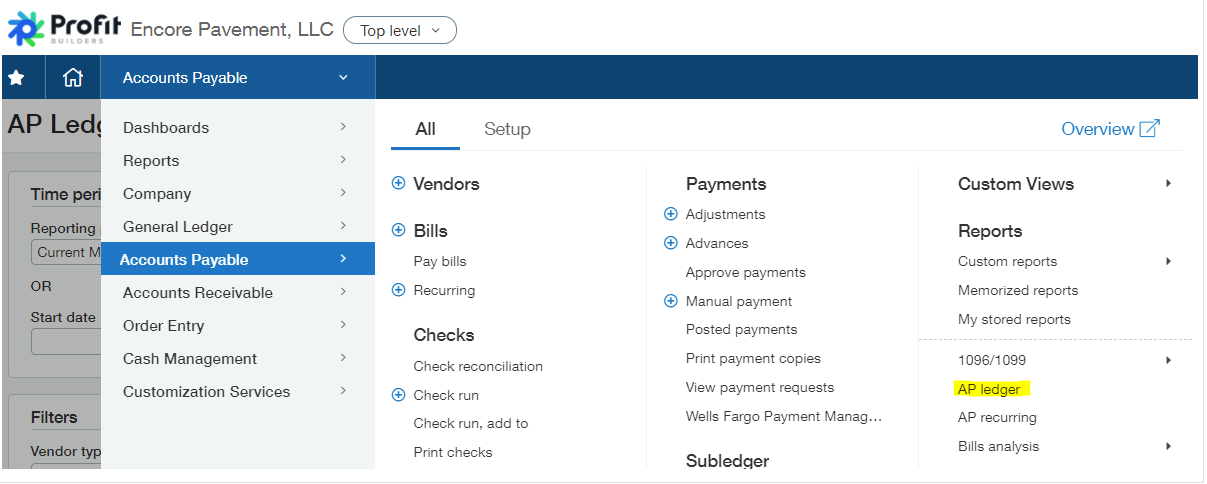
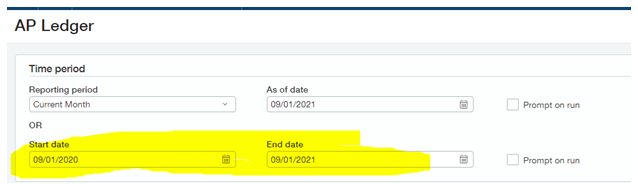
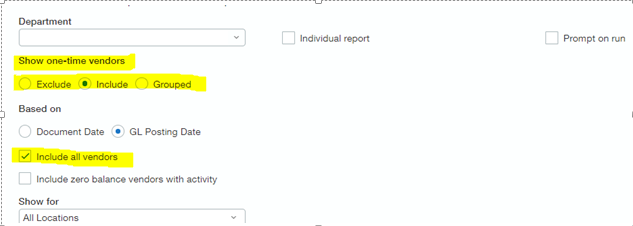
Run the report for the prior year, making sure to include all vendors and include 1-time vendors. Export the report in CSV.
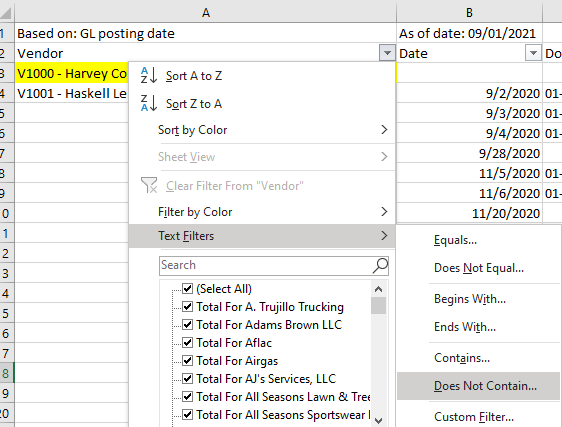
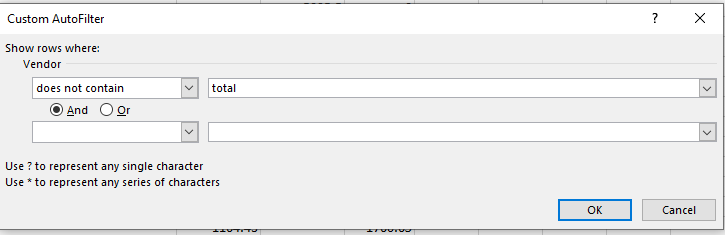
In the Excel file, add a filter in the header row (row 2). Filter the vendor column for does NOT contain → total.
Filter the Date column to show only blanks.
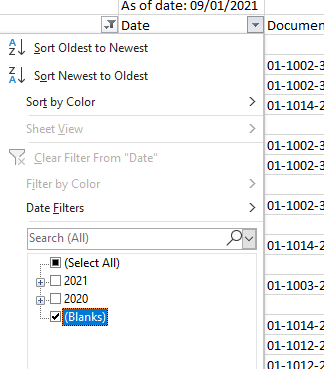
Expected outcome: the report now contains all vendors that had no activity for the date range selected. This is your candidate list.
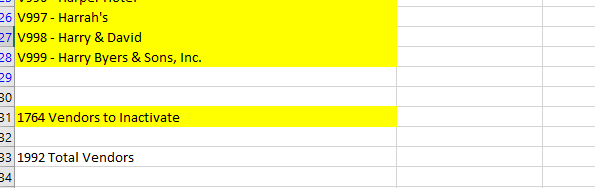
Vendor statuses can be mass updated through a vendor CSV import.
Choosing the right status
There are two approaches, and the difference matters for reporting.
Option 1 — Active non-posting or Inactive
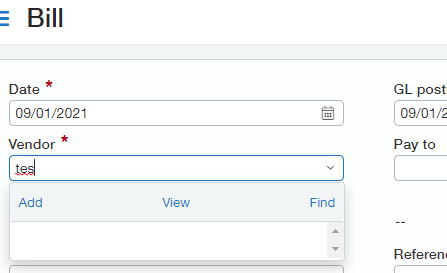
Both options prevent transactions and remove the vendor from the dropdown list when entering a bill.
| Status | Effect |
|---|---|
| Active non-posting | Restricts posting but still allows reporting on the vendor |
| Inactive | Restricts posting |
Prefer active non-posting when you may still need to report on the vendor's history. It's the safer default for a cleanup pass.

Option 2 — On hold and don't pay
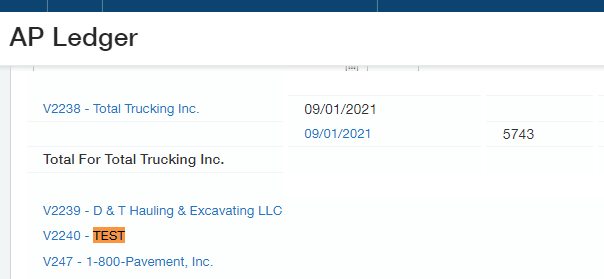
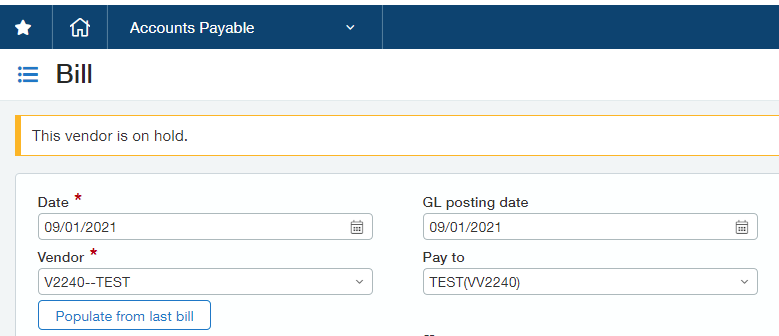
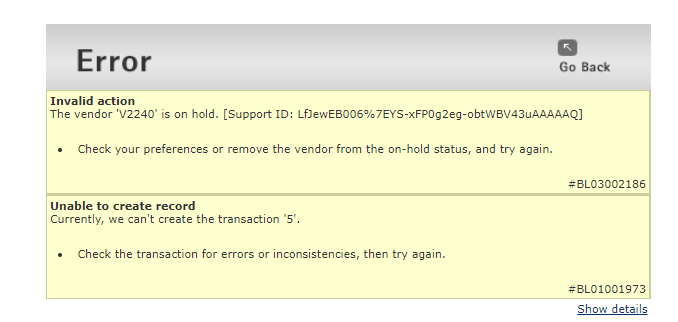
Mark the vendor as on hold and don't pay. The vendor still shows up when entering invoices, but Intacct won't allow posting.

Which to use
| Goal | Use |
|---|---|
| Remove the vendor from entry screens but keep reporting | Active non-posting |
| Remove the vendor from entry screens entirely | Inactive |
| Keep the vendor visible so staff can see it exists, but block posting | On hold + don't pay |
Related
- Add a new vendor in Sage Intacct — the vendor setup this reverses
- Day-to-day AP transactions in Sage Intacct