
Reconcile With Bank Automation Rules
Upload a bank file to Sage Intacct, work the two-tab reconciliation created by automation rules, and review unmatched transactions across all bank accounts.
| Field | Value |
|---|---|
| Owner | Unassigned — needs an owner |
| Department | General Accounting — staff accountants |
| Effective date | Not set in source |
| Scope | The day-to-day procedure for uploading a bank file and reconciling with create and match rules already in place. Assumes the rules and rule sets have been configured — see Bank transaction automation: rule setup. |
| Source | General Accounting/02 - Bank Reconciliation/Bank Automation - Staff Accountants.docx |
Once rules are configured, deposits, bank fees, and transfers are created automatically when a bank file is uploaded, and checks and ACH payments auto-match. Your job shifts from clearing transactions one by one to reviewing what the rules did and handling the exceptions.
Procedure
Go to Cash Management → All → Bank transaction import files.
Click add, then select the bank account. The last upload date is displayed.
Several file formats work: BAI2, CAMT053, OFX, ASO, QIF, CSV, XLS(X). Click Open file import guide for details on each type.
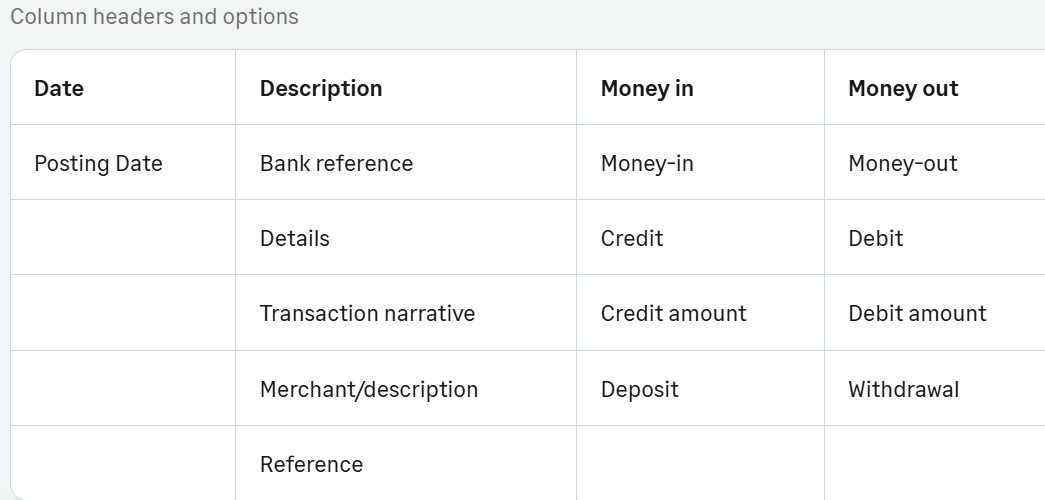
At a minimum the file must include Date, Description, and Amount — though several header variations are accepted (for example Posting Date instead of Date).
Once uploaded, Intacct takes 5 to 10 minutes to process.
On the Bank Transaction Import File screen you can see the status of pending uploads and the full upload history.
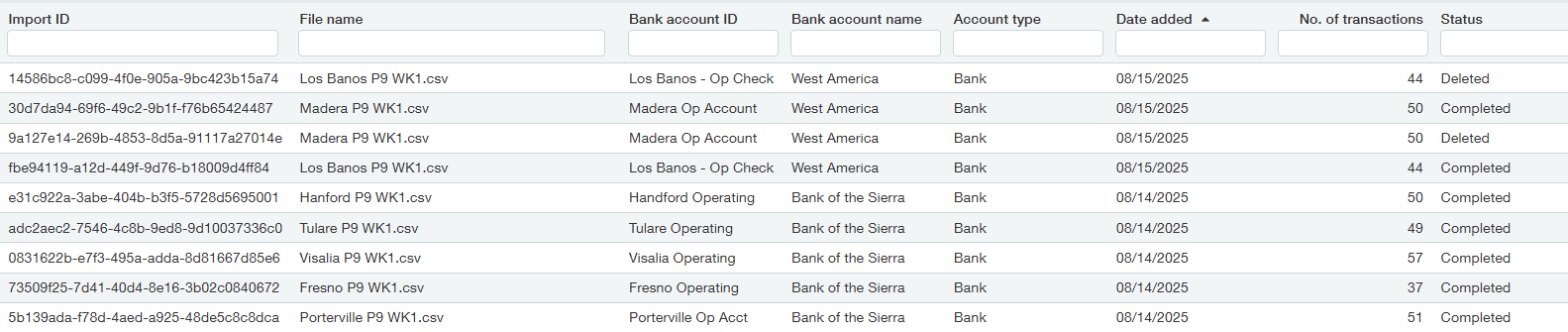
Wait until the file status changes to complete before starting the bank reconciliation. Starting early means working against a partially loaded file.
Start the bank reconciliation as usual. The rec now has two tabs — one for Intacct transactions and one for bank transactions.
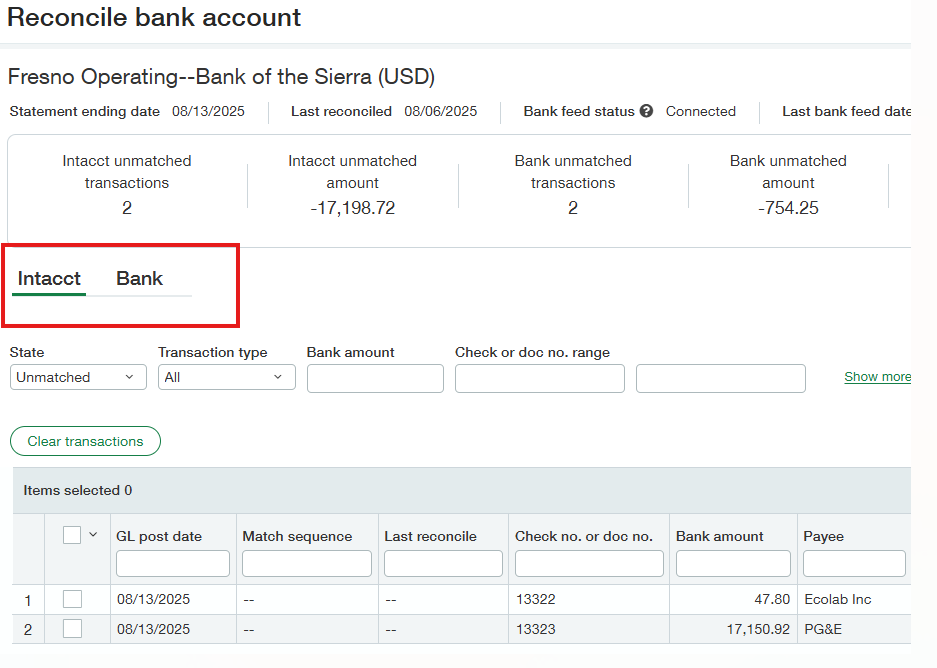
Review the Intacct transactions for anything that should have cleared — ACH payments and deposits — based on the create and match rules.
Transactions that exist in Intacct and on the bank activity screen can be cleared by clicking match at the far right of the transaction, on either the Intacct or bank screen, then selecting the corresponding transaction from the pop-up.
The bank tab defaults to filtering unmatched bank transactions.
Deposits, bank fees, and transfers can be reviewed and created directly from the bank screen, which also clears them from the bank rec.
Anything you create by hand on this tab is a candidate for a new rule. Review these transactions to determine whether an additional create or match rule should be built — that is how the automation improves over time.
Any remaining vendor payments are sent to the AP processor to enter.
The reconciliation is complete when the amount to reconcile is zero and the bank tab is cleared of unmatched transactions.
Expected outcome: both conditions met, with every rule-created transaction reviewed rather than assumed correct.
Review unmatched transactions across all accounts
Two views help you monitor the whole client rather than one account at a time:
- Go to Cash Management → Bank Transactions to review all bank transactions.
- Enter
unmatchedin the reconciliation status column to generate a condensed list of unmatched transactions across all bank accounts.
Related documents
- Bank transaction automation: rule setup — the configuration behind this procedure, plus sample rules
- Intacct bank reconciliation — the manual reconciliation procedure and how to read the reconciliation screen
- Bank reconciliation concepts — outstanding item rules that still apply