
Pull the corp and store level labor reports
Pull payroll GL detail from ProWork for each Rackson brand, split it into Corporate and Store level files, and save them to the period close folder.
This process pulls payroll General Ledger detail from ProWork for each Rackson brand and splits it into a Corporate level file and a Store level file. Each is exported as CSV, opened in Excel, and saved into the current period's Financials Prelims folder using the firm's naming convention.
Source: Prelim Reports - Store & Corp Labor Reports Process Doc - RRS & RCY.docx, with the accompanying recording Prelim Reports - Store & Corp Labor Reports - RRS & RCY.mp4 (9m 40s).
Systems: ProWork · Microsoft Excel · Rackson Group SharePoint
Before you start
- Confirm the current pay period number (for example
P05) and its pay date range before starting — both the report filter and the saved file name are based on it. - Access to ProWork for the Rackson Restaurants LLC (
RacksonRest) client with reporting permissions. - Access to the Rackson Group Documents library on SharePoint — specifically
Accounting > Rackson Restaurants > [Year] > Period Close > [Period] > Financials > Prelims. - This process is repeated once for each brand (Burger King, Dave's Hot Chicken) and, within each brand, once for the Store level file and once for the Corporate level file — four exports for two brands.
Steps
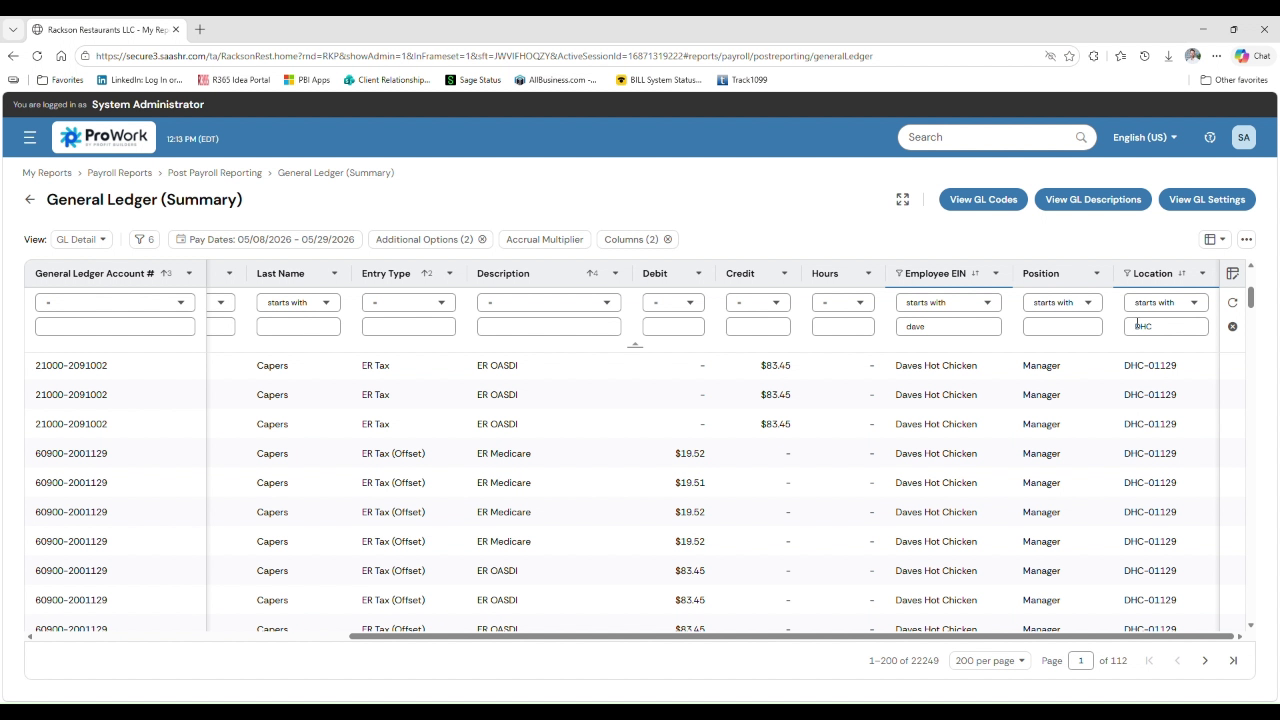
In ProWork, go to My Reports → Payroll Reports → Post Payroll Reporting → General Ledger (Summary). Change the View dropdown from the default FWW detail to GL Detail.
This view brings in the Employee EIN, Position, and Location columns that are used later to split the data by brand and by Corporate or Store level.
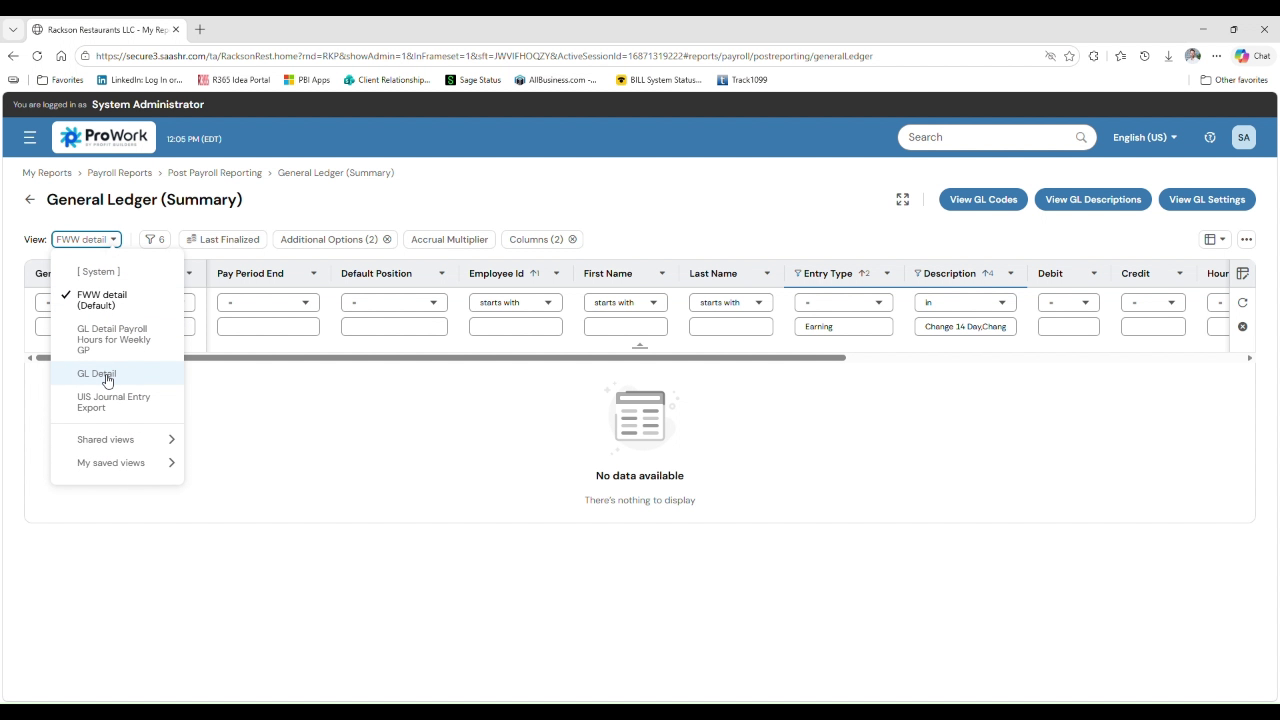
Open the Pay Dates filter and set the date range to match the pay period you are working on, then apply it. In the source example the range was 05/08/2026 through 05/29/2026, which is Period 05.
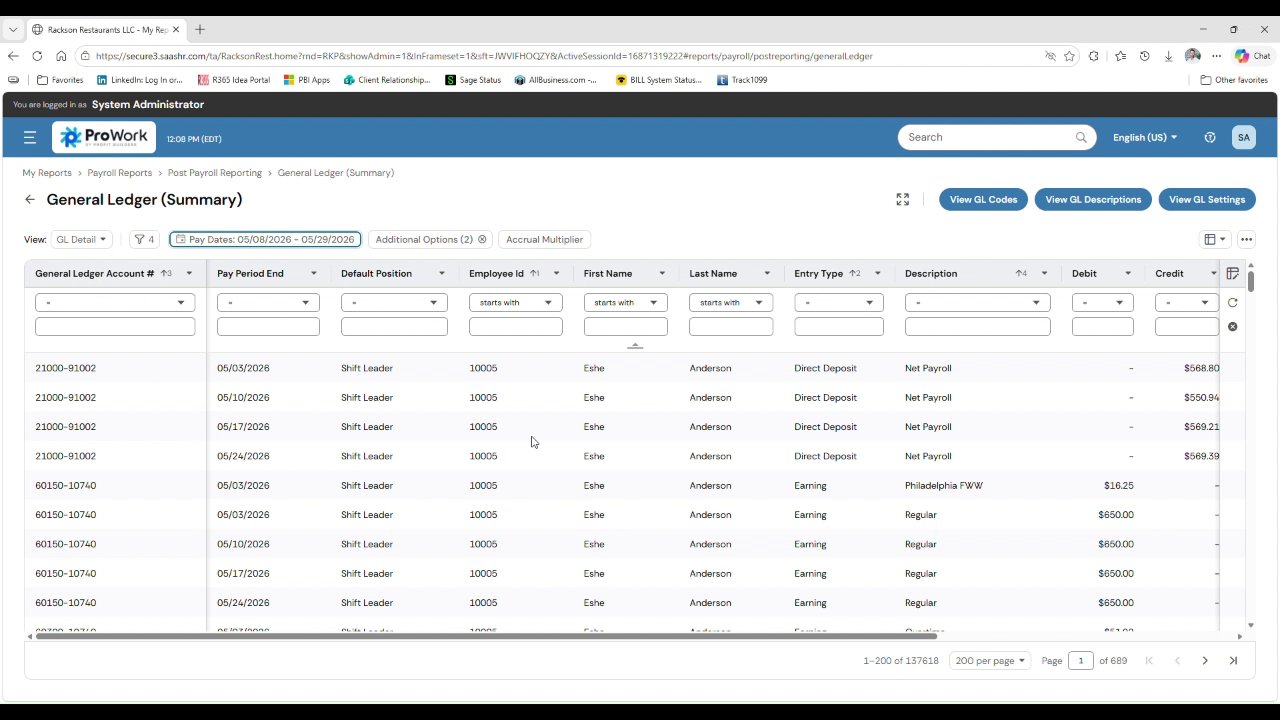
Scroll right to the Employee EIN column and type the brand name into its "starts with" filter box — for example Burger King. Leave the Location filter blank at this point.
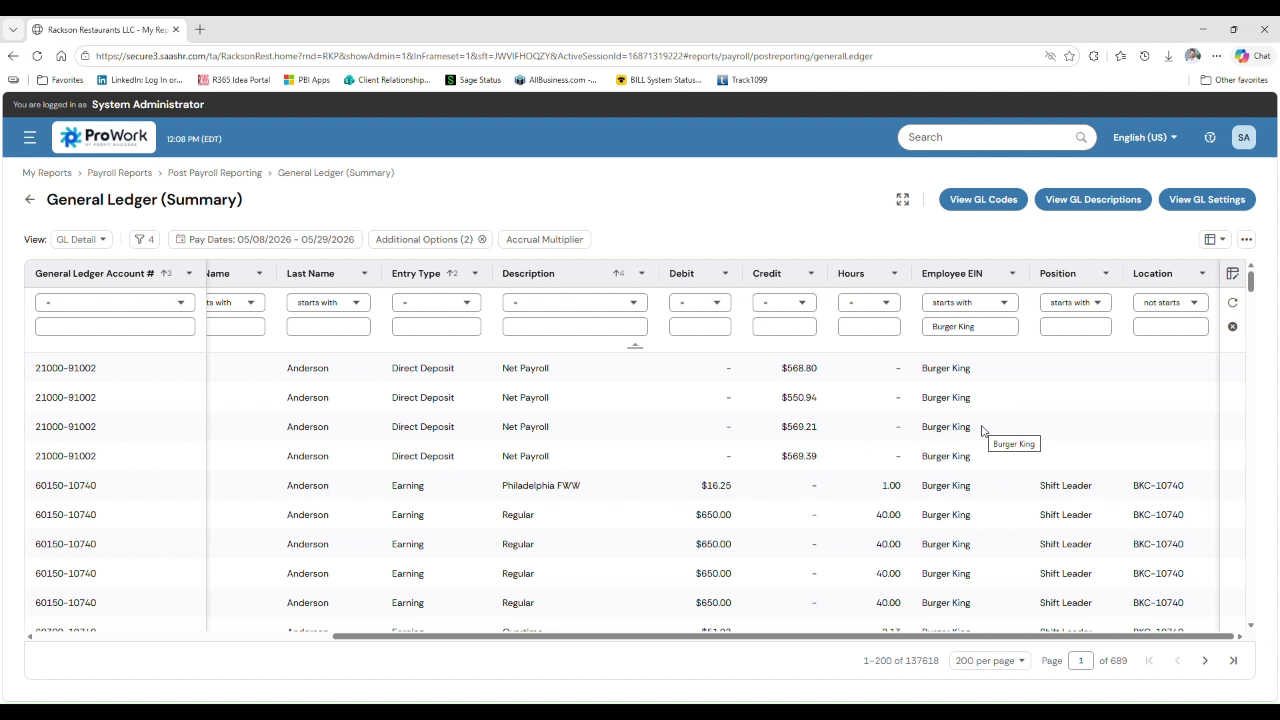
In the Location filter, type the store prefix for the brand — BKC for Burger King, DHC for Dave's Hot Chicken. Once the grid updates, click the … menu at the top right of the grid and select Export.
Use the brand's store prefix (BKC or DHC) for Store level data. Use corp for Corporate Office data, regardless of brand.
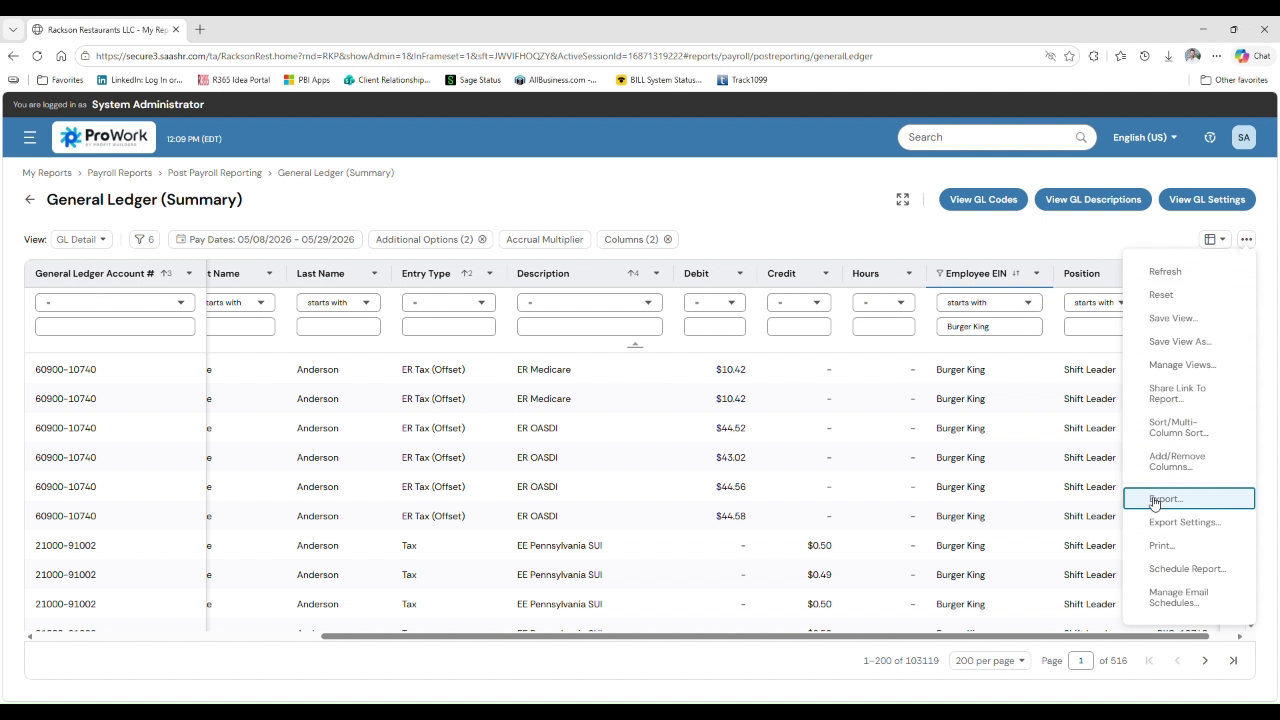
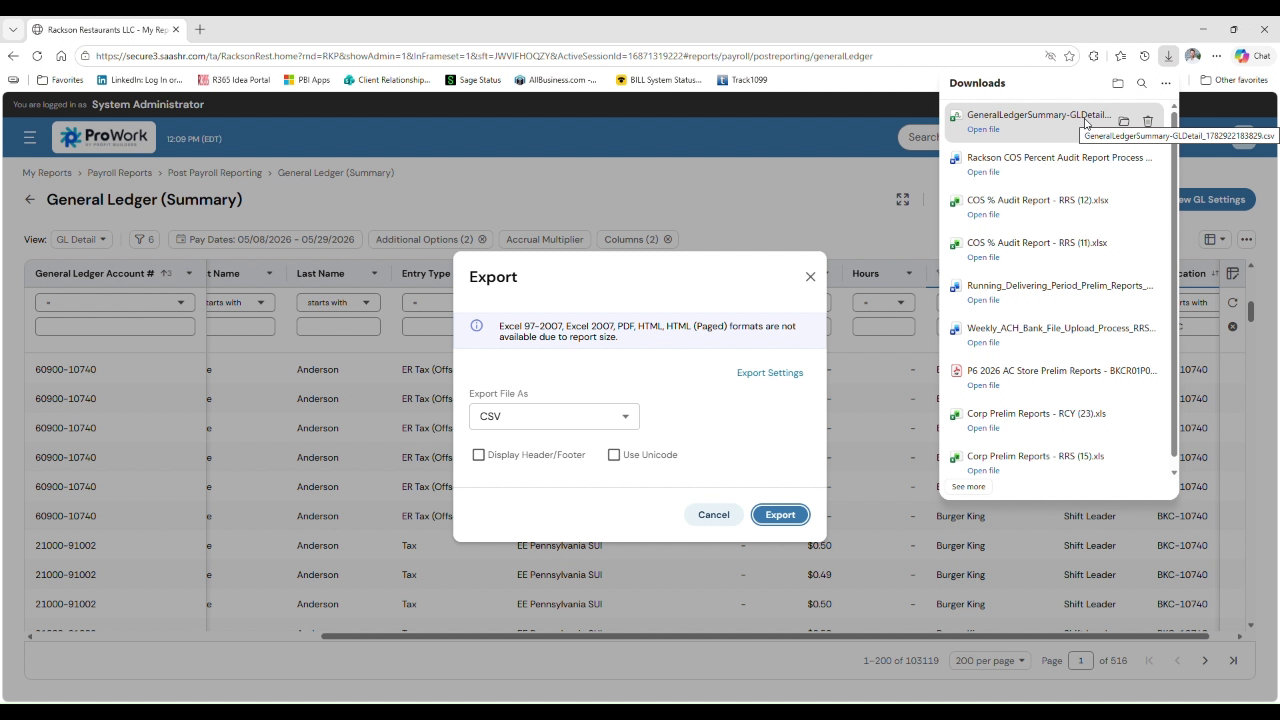
In the Export dialog, leave the format set to CSV. Click Export and let the file download.
Excel and PDF formats are not available for a report of this size — CSV is the only option.
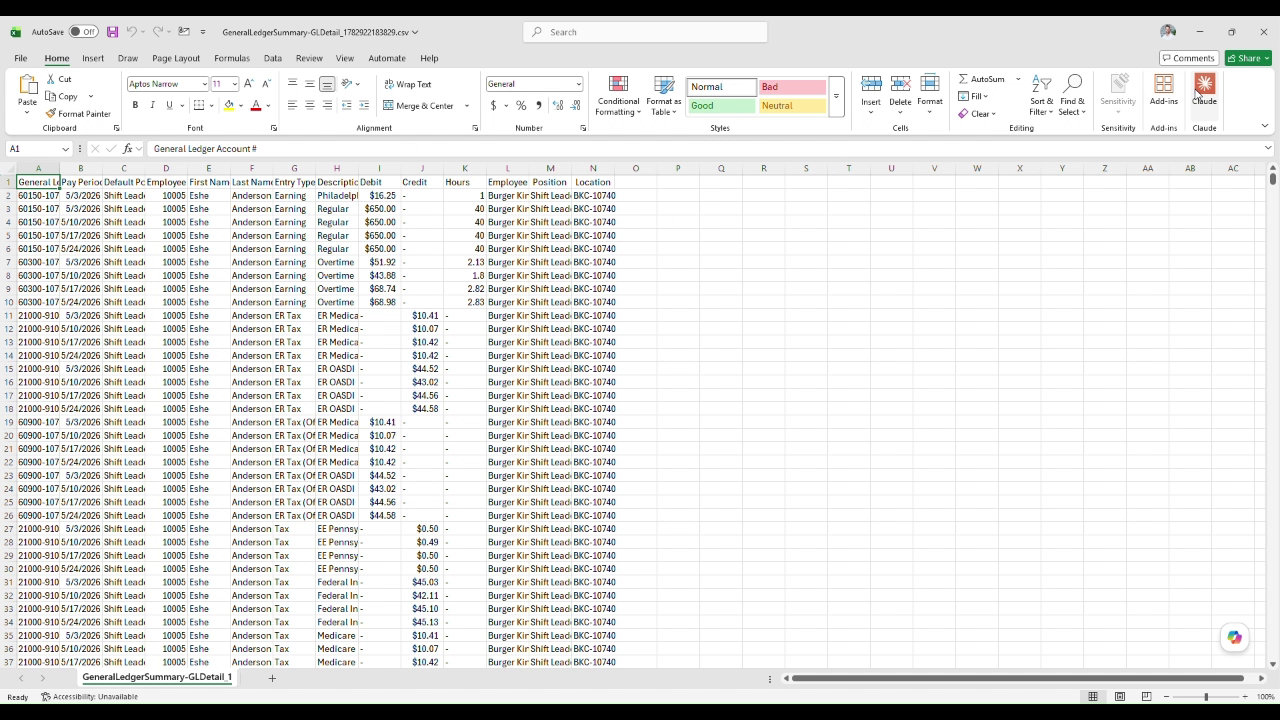
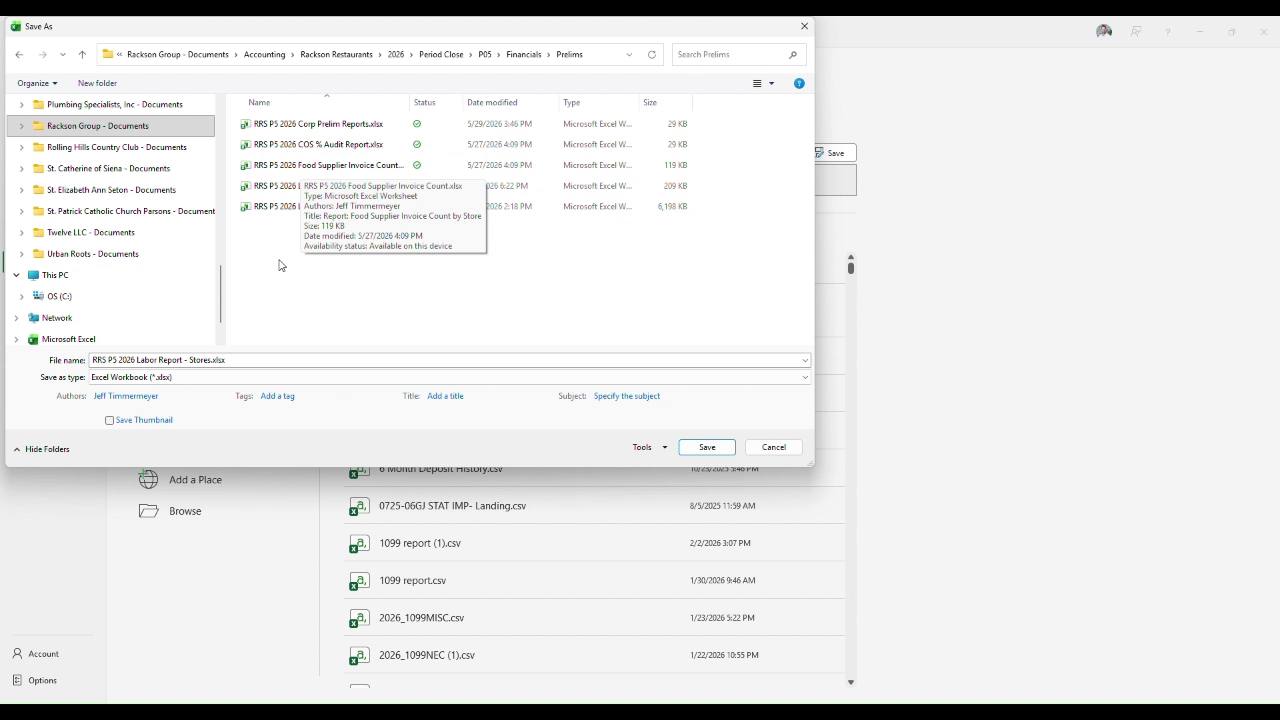
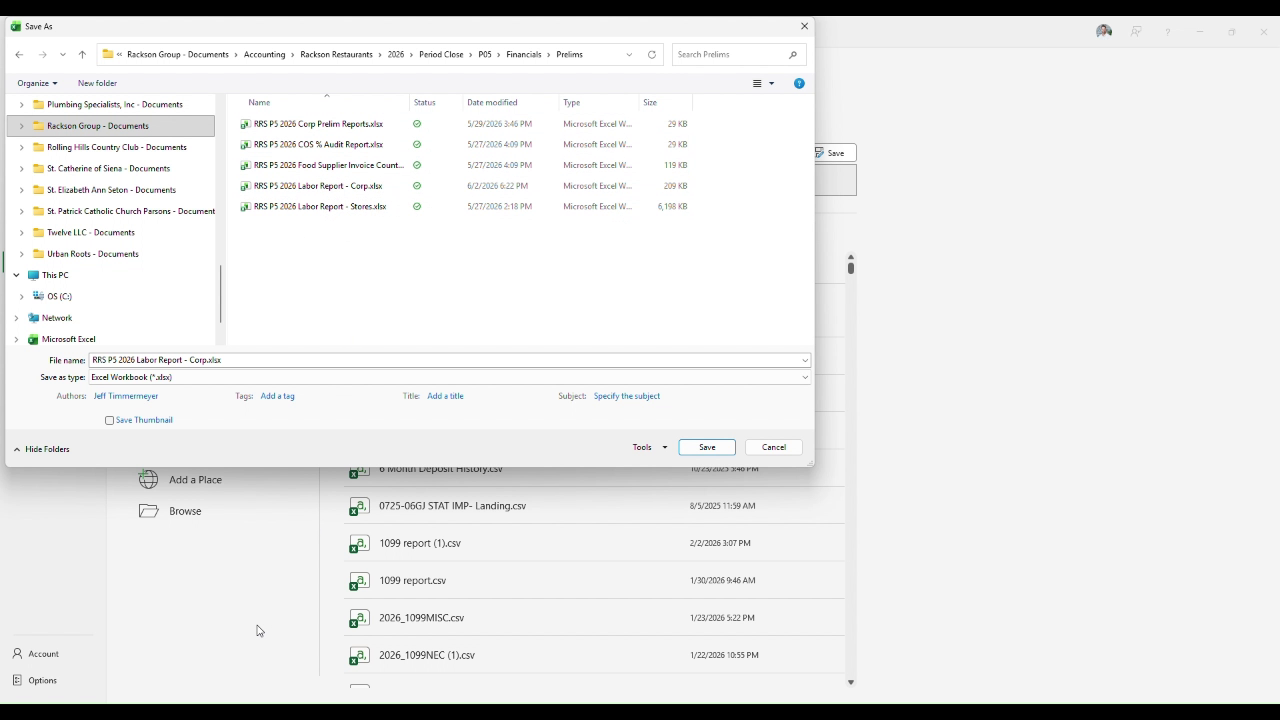
Open the downloaded CSV in Excel. Use File → Save As and browse to:
Rackson Group Documents → Accounting → Rackson Restaurants
  → [year] → Period Close → [period] → Financials → Prelims
Save as an Excel Workbook and name the file RRS P[period] [year] Labor Report - Stores.xlsx, overwriting the prior version of that file.
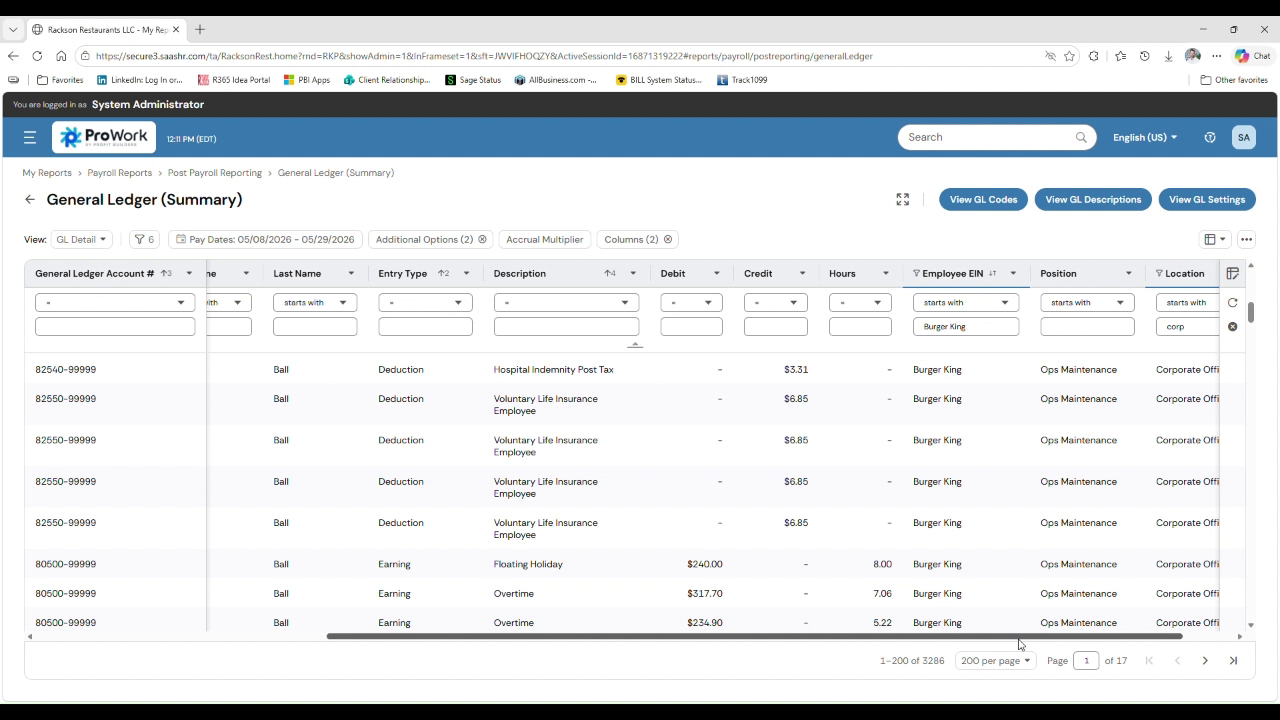
Return to the General Ledger (Summary) report in ProWork. Keep the same Employee EIN filter and the same Pay Dates range, but change the Location filter to corp. Open the … menu and export as CSV the same way.
Open the newly downloaded CSV in Excel and Save As to the same Prelims folder used in step 6. Save as an Excel Workbook named RRS P[period] [year] Labor Report - Corp.xlsx, overwriting the prior version.
Go back to the General Ledger (Summary) report and change the Employee EIN filter to the next brand — for example Daves Hot Chicken. Repeat steps 4 through 9 for that brand: first with the Location filter set to corp for the Corporate level file, then set to the brand's store prefix (DHC) for the Store level file.
Each brand uses its own store location prefix (BKC for Burger King, DHC for Dave's Hot Chicken). Confirm the correct prefix for a brand before exporting its Store level file.
Include the Corp and Store level Labor Report workbooks for every brand with the rest of the prelim reports uploaded to the Rackson client SharePoint site — that upload is the delivery method for these files.
Once uploaded, notify Mike Mikos that they are available. After all prelim reports have been uploaded for the period, send a separate notification to Chris Johnson, Steve Song, Mike Mikos, and Chad Gentry letting them know the full prelim package is ready.
Summary
For each pay period: pull the GL Detail view of the General Ledger (Summary) report in ProWork, filter by brand and by Corporate or Store location, and export each combination as CSV. Save each into the period's Financials Prelims folder as RRS P[period] [year] Labor Report - Corp.xlsx or - Stores.xlsx, repeating for every brand. Upload the finished reports to the client SharePoint site with the rest of the prelim reports, notify Mike Mikos, and send the full package notification once everything is uploaded.
Related
- Running and delivering prelim reports — the upload these files ride along with
- ProWork GL mapping — how payroll maps to GL accounts by brand, location, and position
- RRS delivery, maintenance and reporting — the other ProWork export, feeding the prime cost file