
Weekly ACH bank file upload
Generate the weekly ACH vendor payment file in Sage Intacct for both Rackson entities, validate and submit it through TD Bank, and confirm it back in Intacct.
This process covers generating the weekly ACH vendor payment file in Sage Intacct for Rackson Restaurants (RRS) and Rackson Cayenne (RCY), uploading it to TD Bank through the Secure File Transfer portal, saving a record of each upload, and confirming the payment file back in Sage Intacct.
Source: Weekly ACH Bank File Upload Process Doc - RRS & RCY.docx, with the accompanying recording Weekly ACH Bank File Upload - RRS & RCY.mp4 (6m 47s).
Systems: Sage Intacct (Rackson) · TD Bank Business Connect / Secure File Transfer · OneDrive
Before you start
- Confirm the vendor bills to be paid have been approved and that you have a total dollar amount to expect for RRS and RCY. This is typically communicated by the AP Processor via Teams once bills are ready to be paid.
- You will need access to Sage Intacct (Rackson entity), the TD Bank Business Connect portal for Rackson Restaurants LLC, and the shared OneDrive ACH Payment Files folder.
- Bank login requires a token code. Request that from Jessie at the time of login.
ACH files are uploaded twice per entity per week: once to ACH Test (TACH) to validate the file, and once to ACH for actual submission. Both uploads are required.
Steps
Confirm in Teams or email that the vendor bills are ready to be paid, and note the expected total for each entity. In the source example, Erica Dwyer confirmed Rackson ACHs were ready with an RRS total of $151,269.61 and an RCY total of $474.14.
Use these totals later to confirm the generated file amounts match.

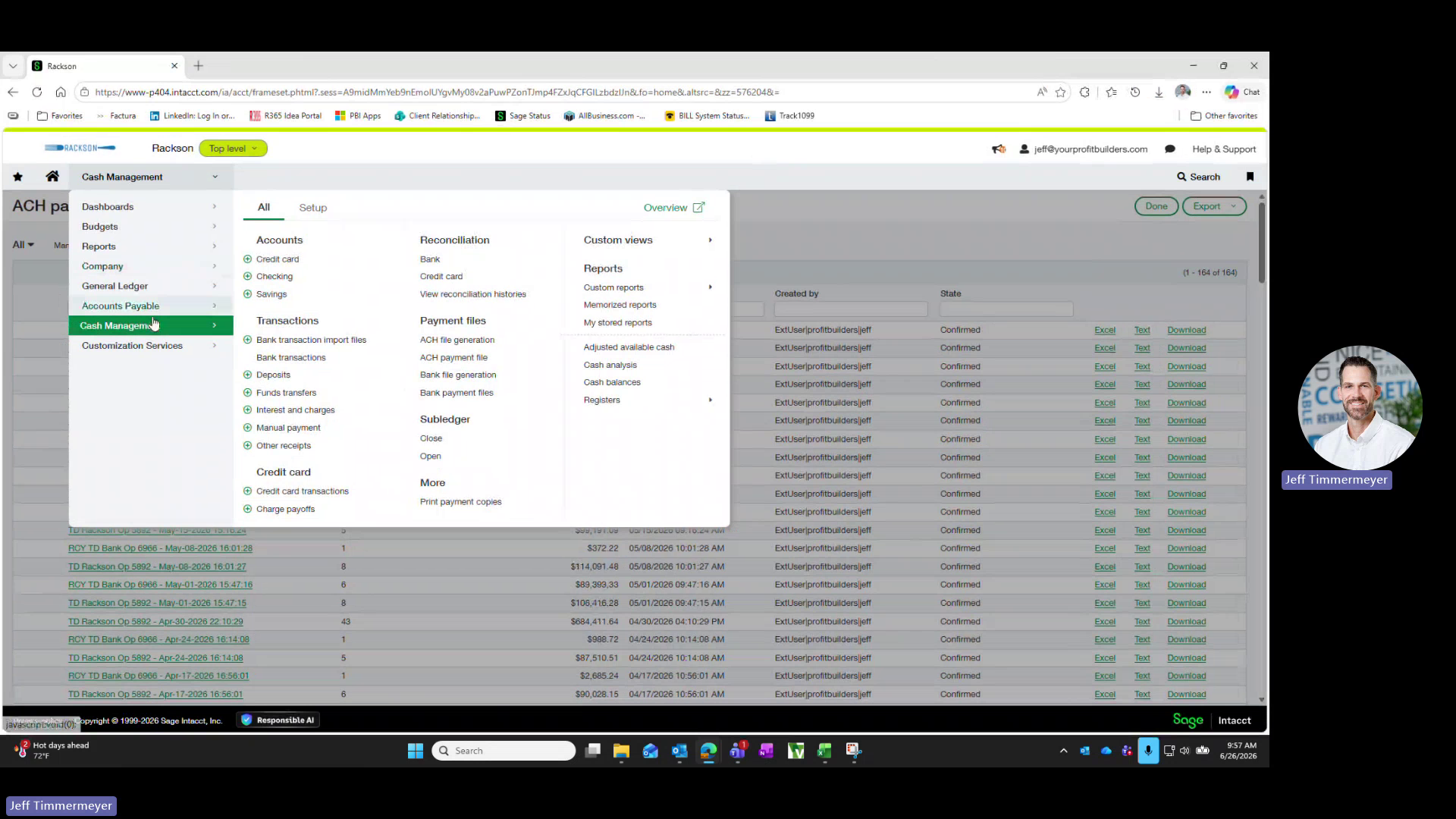
Go to Cash Management, then under Payment Files select ACH file generation.
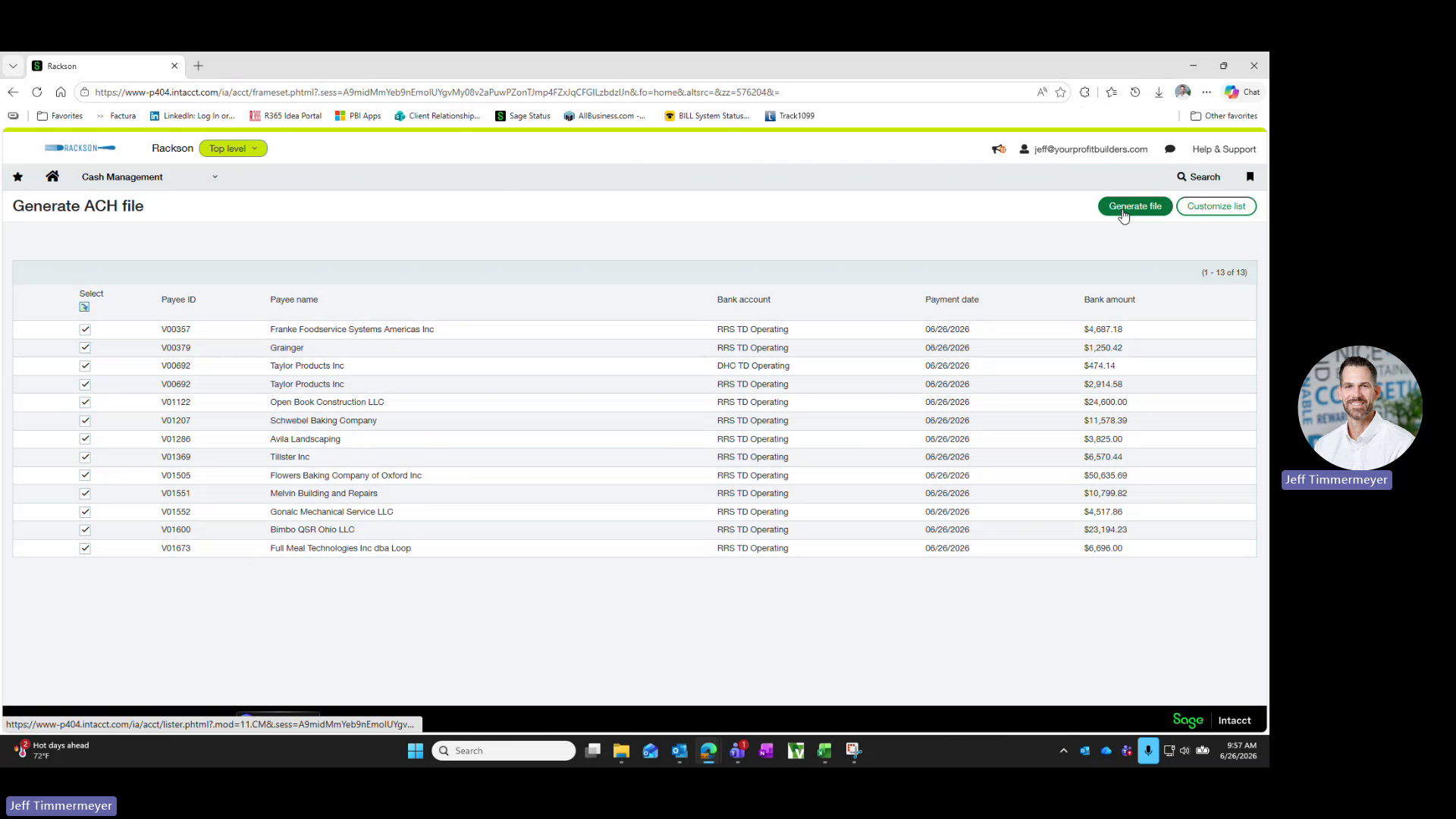
On the Generate ACH file screen, confirm all payments to be included are checked in the Select column, then click Generate file in the top right corner.
Sage Intacct automatically splits the payments into a separate file for each bank account. In the source example, RRS TD Operating and DHC TD Operating (RCY) payments were split into two files.
After generation you are returned to the ACH payment file list. The new file(s) appear at the top in a Pending state, one per entity.
Confirm the Total amount on each new row matches the totals confirmed in step 1.
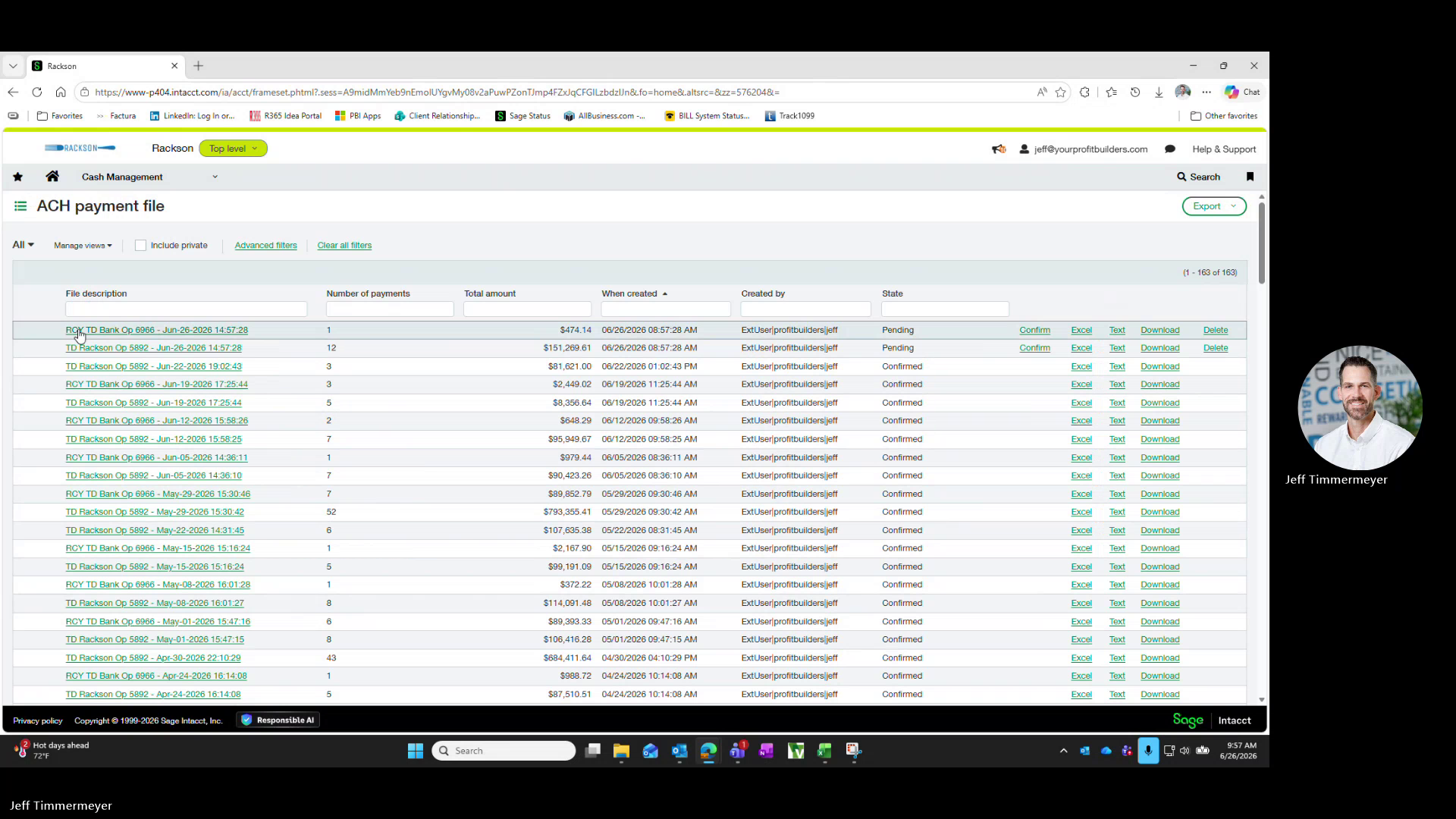
For each new Pending row, click Text in that row to download the ACH file. This downloads a .ach text file to your Downloads folder for each entity.
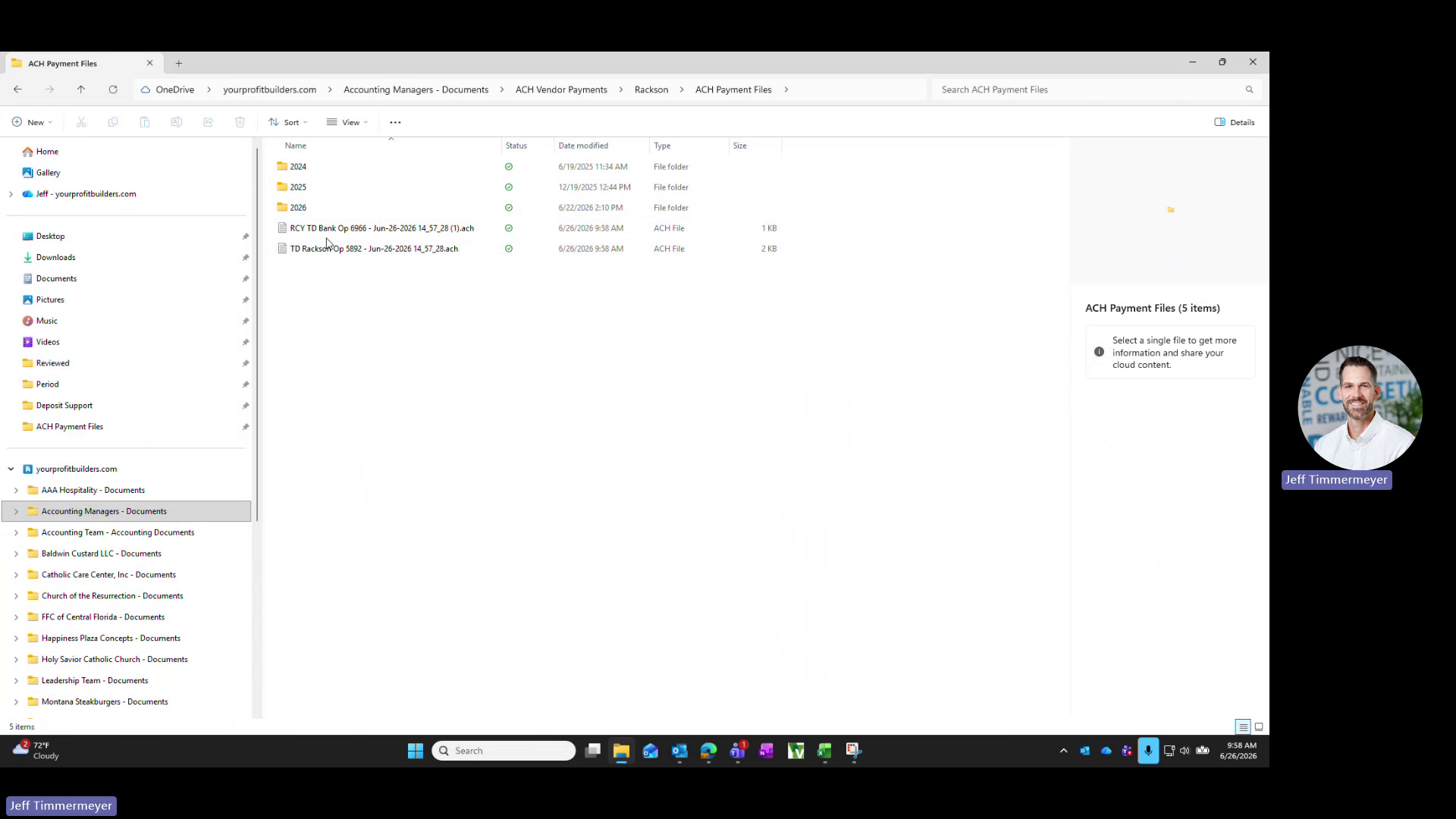
Move each downloaded .ach file from Downloads into the shared OneDrive folder:
Accounting Managers - Documents \ ACH Vendor Payments
  \ Rackson \ ACH Payment Files \ 2026
Keep the file names as downloaded so the file description in Intacct and the saved file match.
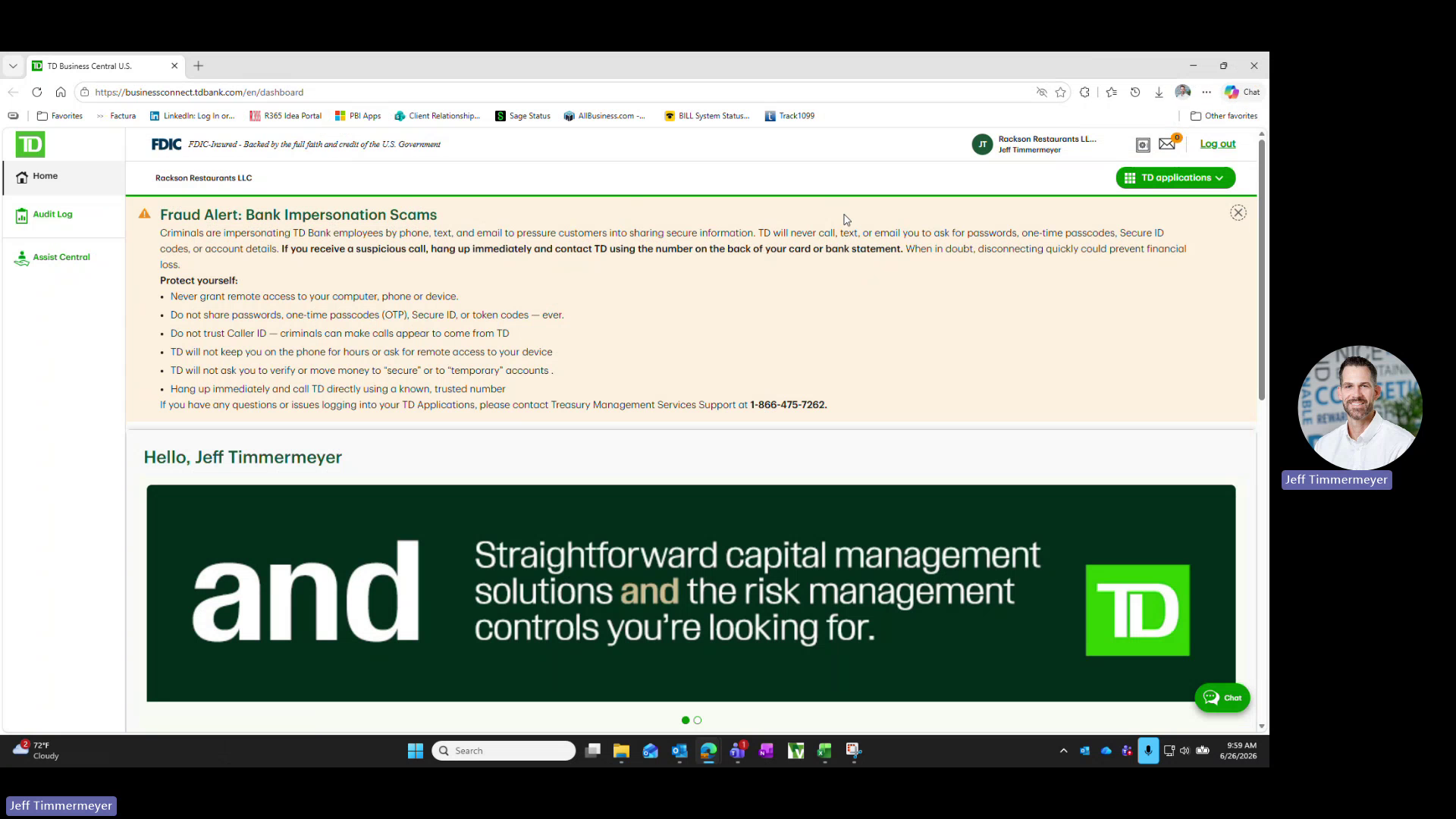
Go to businessconnect.tdbank.com and log in under the Rackson Restaurants LLC company profile.
From the TD applications menu, open TD Bank FTExpress Secure File Transfer. Select the Secure File Transfer tab, then SFT Send. This lists the available data types for upload, including ACH and ACH Test (TACH), each with its own Upload button.
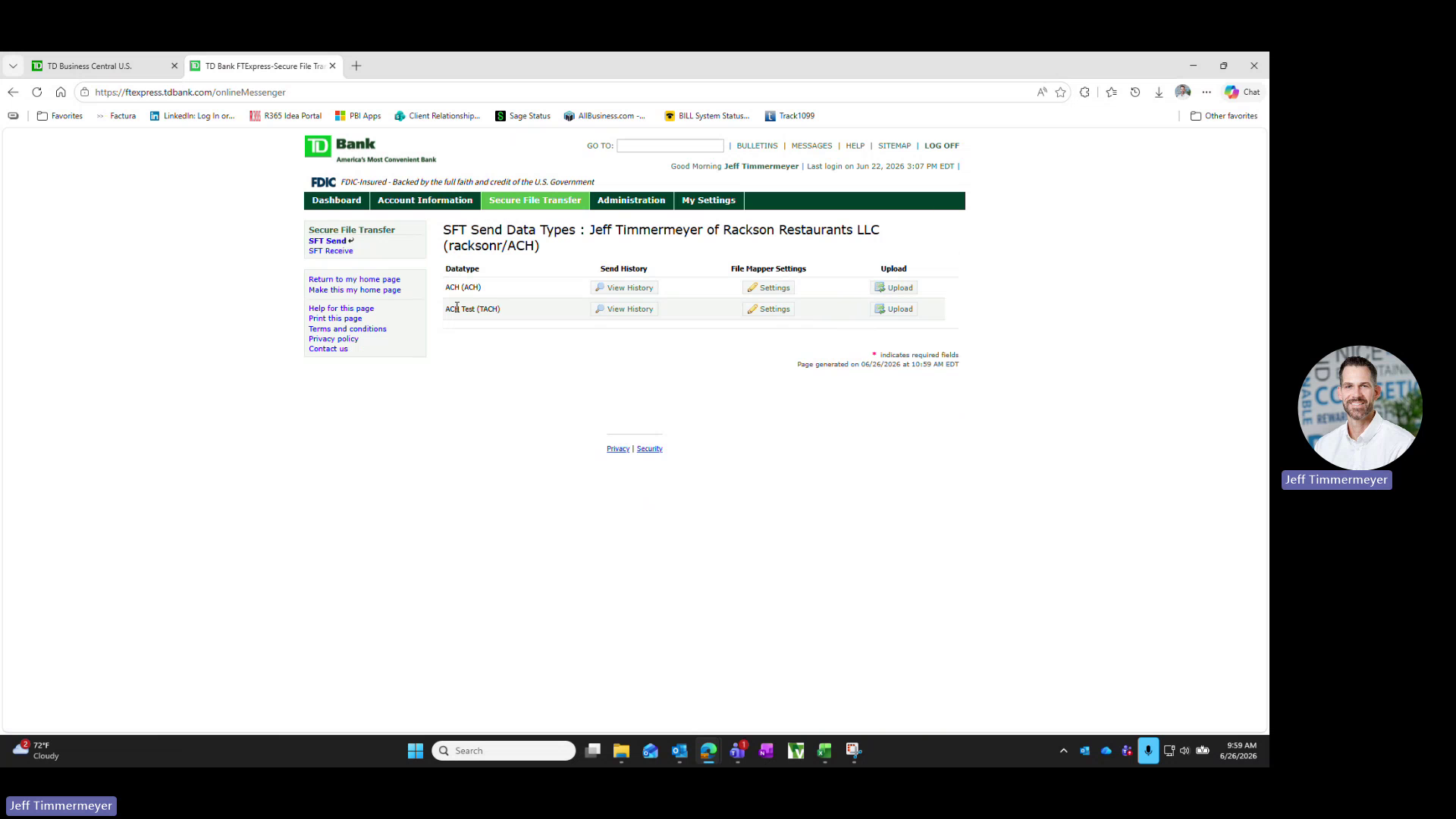
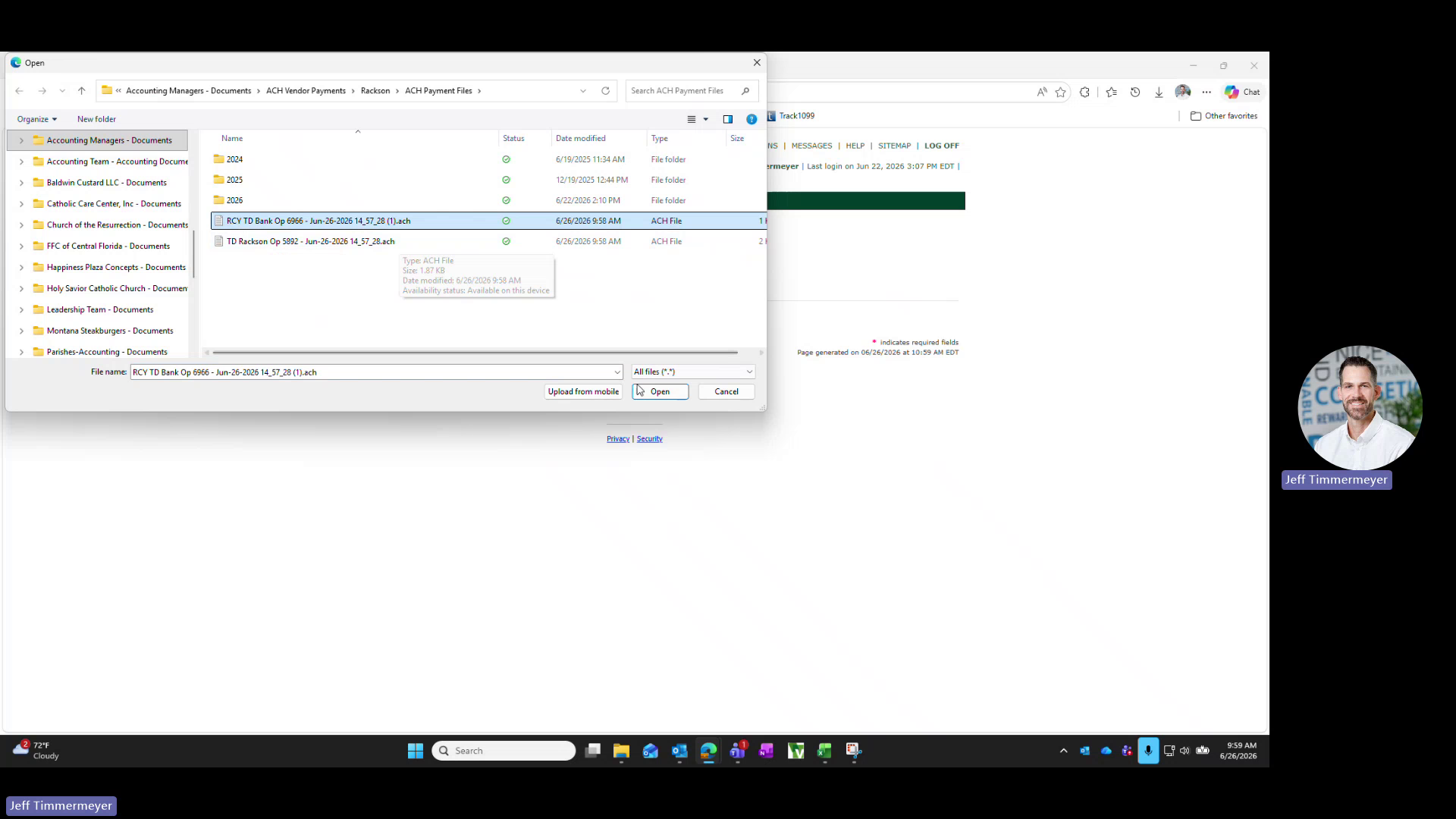
Click Upload next to ACH Test (TACH). Click Select File to browse to the OneDrive ACH Payment Files folder, choose the .ach file for the entity you are processing, and click Open. Then click Upload File.
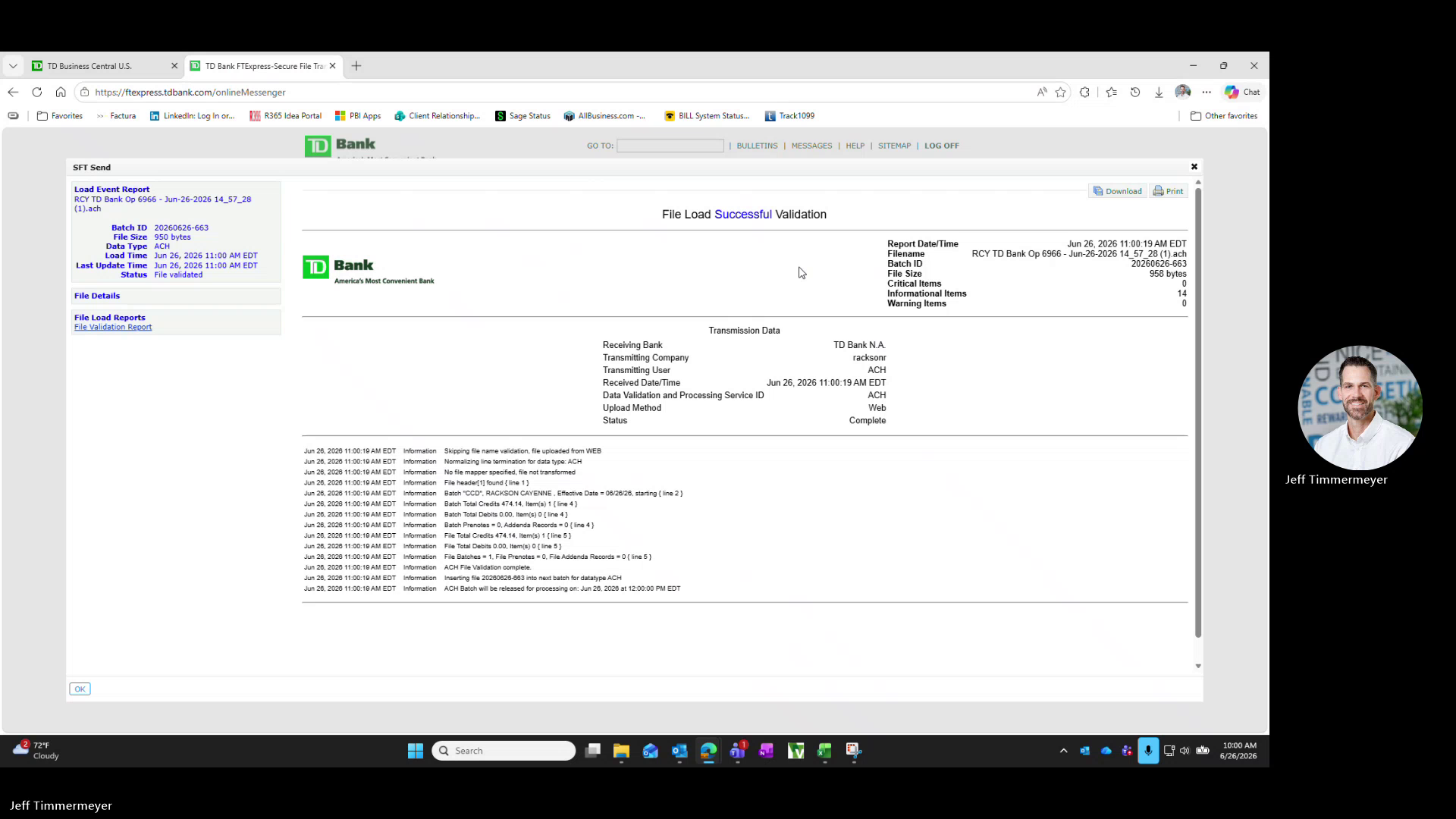
After the upload completes, a File Load Validation report displays. Confirm:
- The status reads File Load Successful Validation
- Critical Items shows 0
- The Batch Total Credits amount matches the expected total for that entity
If Critical Items is greater than 0, do not proceed to the ACH upload. Review the file for errors before submitting.
Return to SFT Send and click Upload next to ACH. Select the same .ach file used in the previous step and click Upload File.
This is the submission that will actually be processed and paid by the bank.
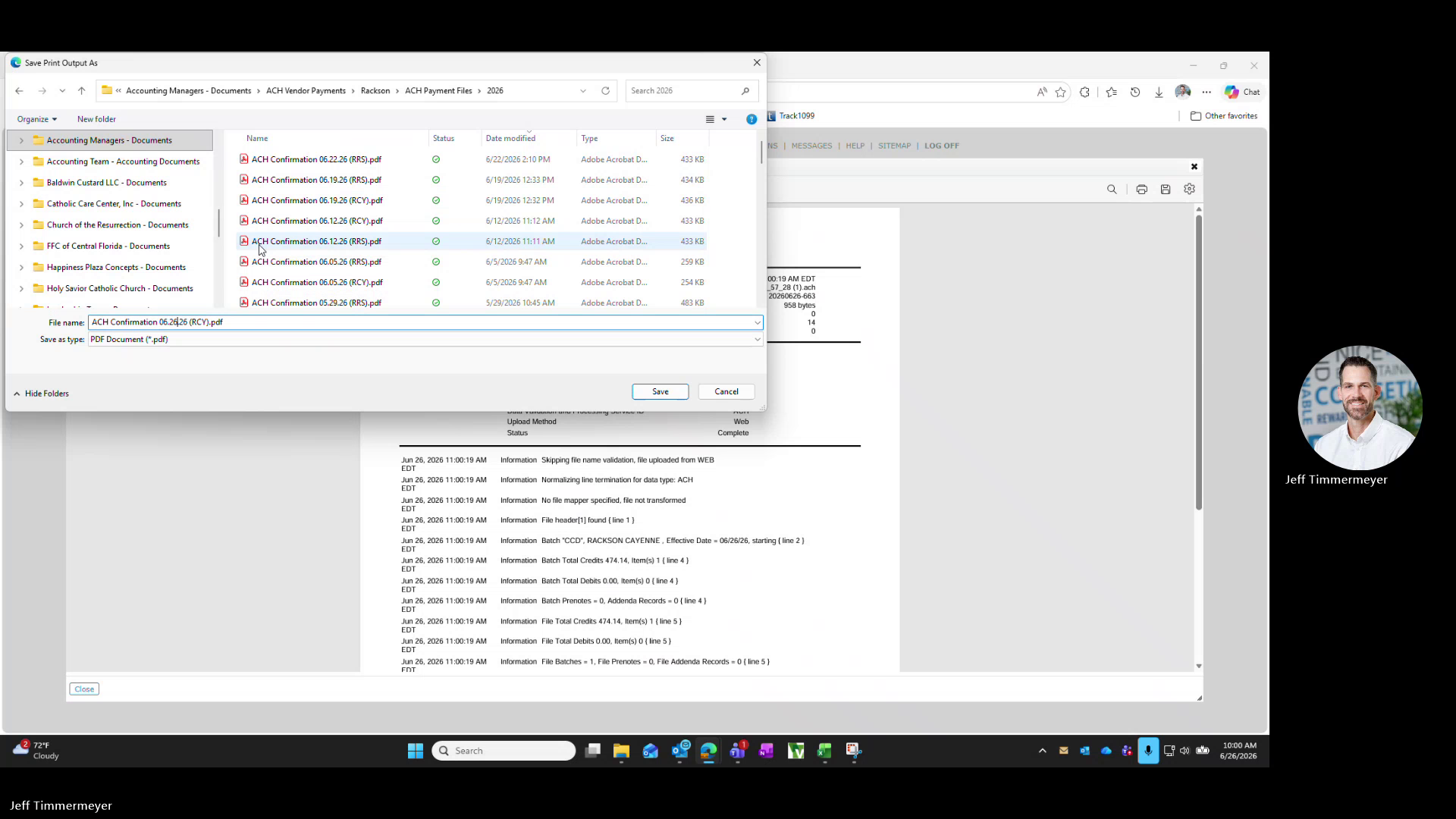
On the validation report for the ACH upload, click Print, choose Microsoft Print to PDF, and save the confirmation to the same OneDrive folder used earlier.
Name the file using the existing convention:
ACH Confirmation MM.DD.YY (entity).pdfFor example ACH Confirmation 06.26.26 (RCY).pdf.
Repeat the upload and confirmation steps for the other entity's .ach file, so that both files are uploaded to ACH Test (TACH) and ACH, and both confirmations are saved to OneDrive.
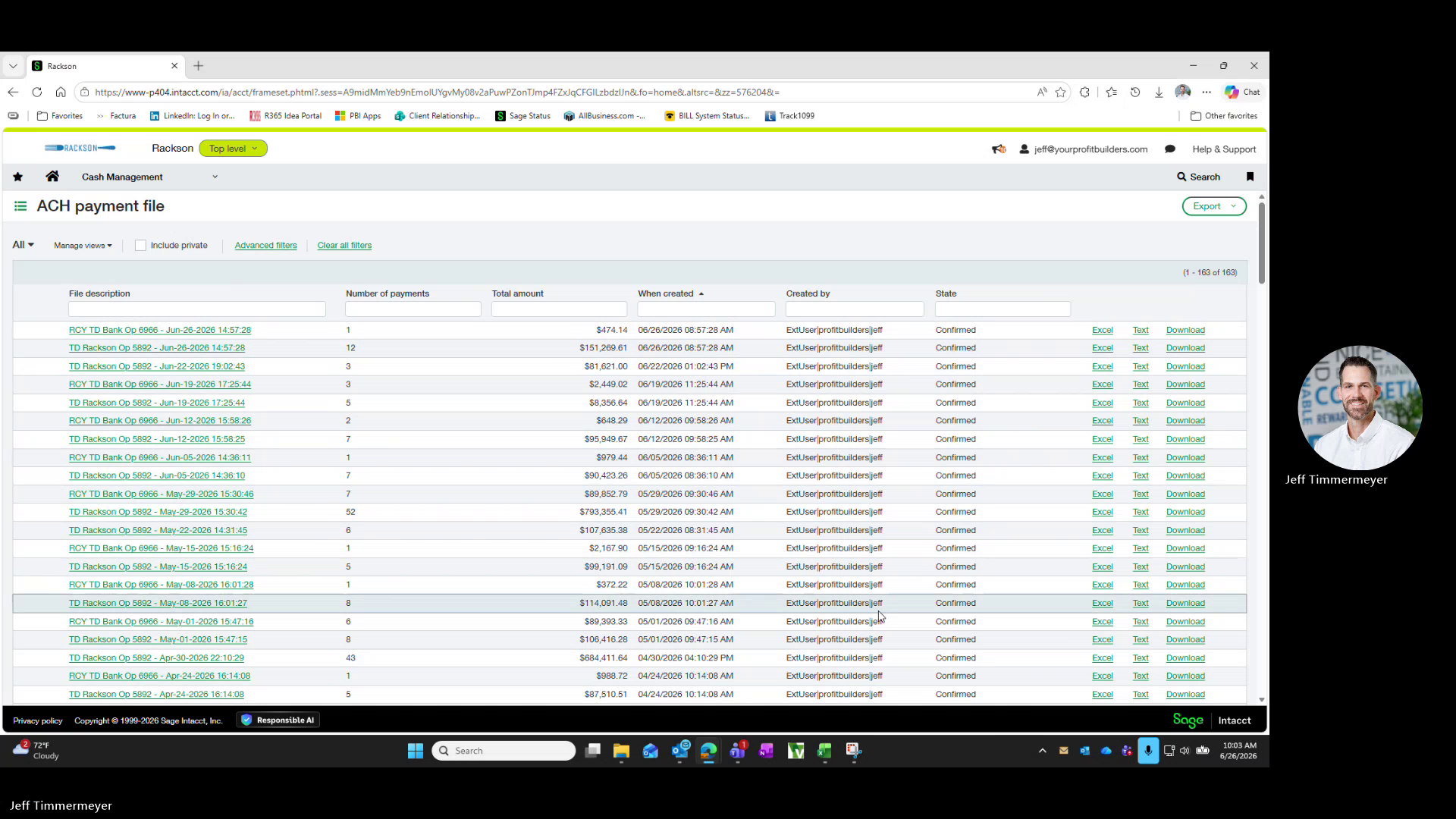
Return to the ACH payment file list in Sage Intacct. Click Confirm next to each of the two Pending rows created earlier.
Once confirmed, the State column updates from Pending to Confirmed and the row can no longer be deleted.
Reply to the Teams message or email that initiated the request, confirming the ACH files have been uploaded to the bank and posted in Intacct.
Summary
Each week: generate the ACH file in Sage Intacct, download and save it to OneDrive, validate and submit through TD Bank's Secure File Transfer portal for each entity, confirm back in Sage Intacct, and notify the requester once complete.
Related
- RRS AP and credit cards — the AP aging review this payment run draws from
- AP aging and payroll review — the AP processing cutoff on WD3
- Bank (NACHA) file payments policy — the firm-wide policy governing bank file payments