
Period end financial report tie out
Run the core Rackson financial reports in Sage Intacct and tie cash, net income, and the clearing account across them before the period is closed.
This process runs the core financial reports for the period — Account Balances, Income Statement, Balance Sheet, and Cash Flow — then ties key figures across those reports to confirm they agree before the period is closed. It also checks the clearing account for unexpected activity and reviews store-level results.
Source: Period End Financial Report Tie Out Process.docx, with the accompanying recordings Period End - Financial Report Tie Out Steps.mp4 and Period Close - Report Footing and Tie Out Steps.mp4 (both 22m 11s — the same walkthrough at two quality levels).
Systems: Sage Intacct
Before you start
- Access to Sage Intacct for the Rackson entity with permission to view the General Ledger Reports menu.
- Know the period end date you are closing. The reports in the source walkthrough were run through 06/28/2026, with a comparison back to the prior fiscal year end, 12/28/2025.
- A calculator for verifying cash flow figures by hand.
What actually gets tied
Four ties, all of which must hold:
| Tie | Confirms |
|---|---|
| Cash per Balance Sheet = Cash per Cash Flow | The two statements agree on ending cash |
| Prior year ending cash = current year beginning cash | Opening cash rolled forward correctly |
| Clearing account = no balance | Nothing unresolved sitting in suspense |
| Net income per store side-by-side = Account Balances total | The P&L reports and the GL agree |
Steps
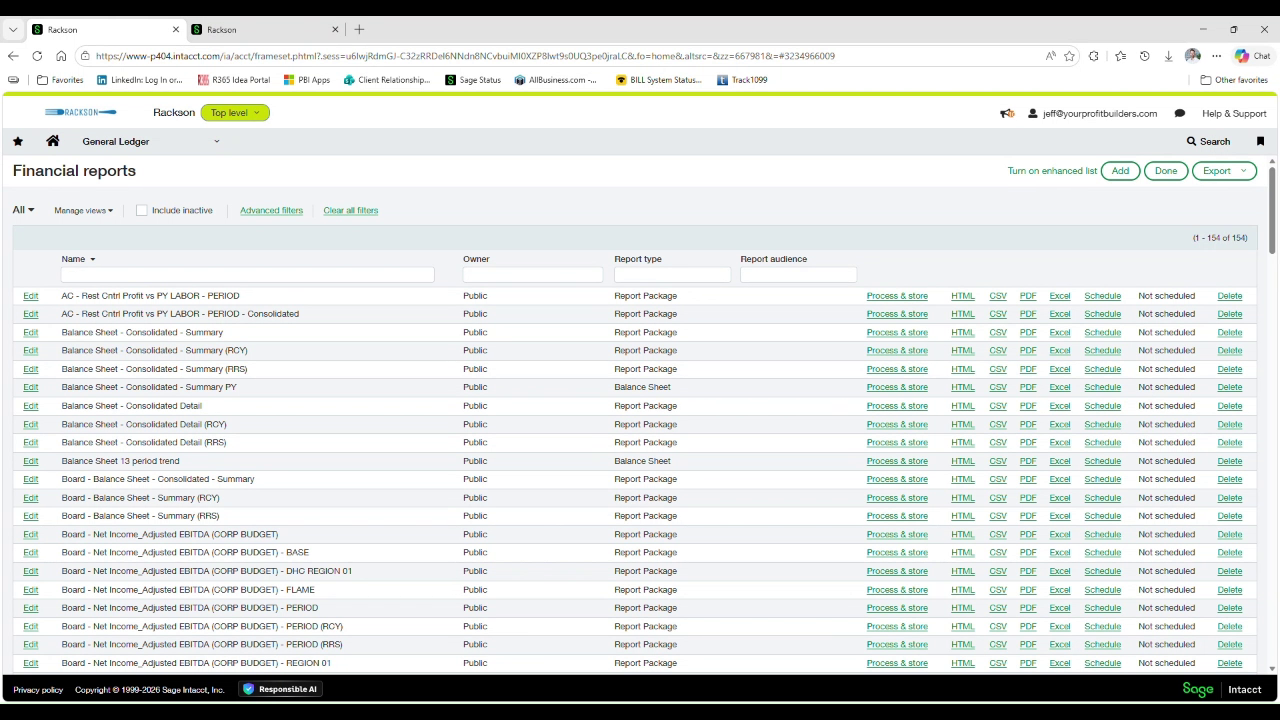
In Sage Intacct, open General Ledger → Reports → Financial reports. This lists every stored financial report for Rackson, along with Process & store, HTML, CSV, PDF, and Excel options for running each one.
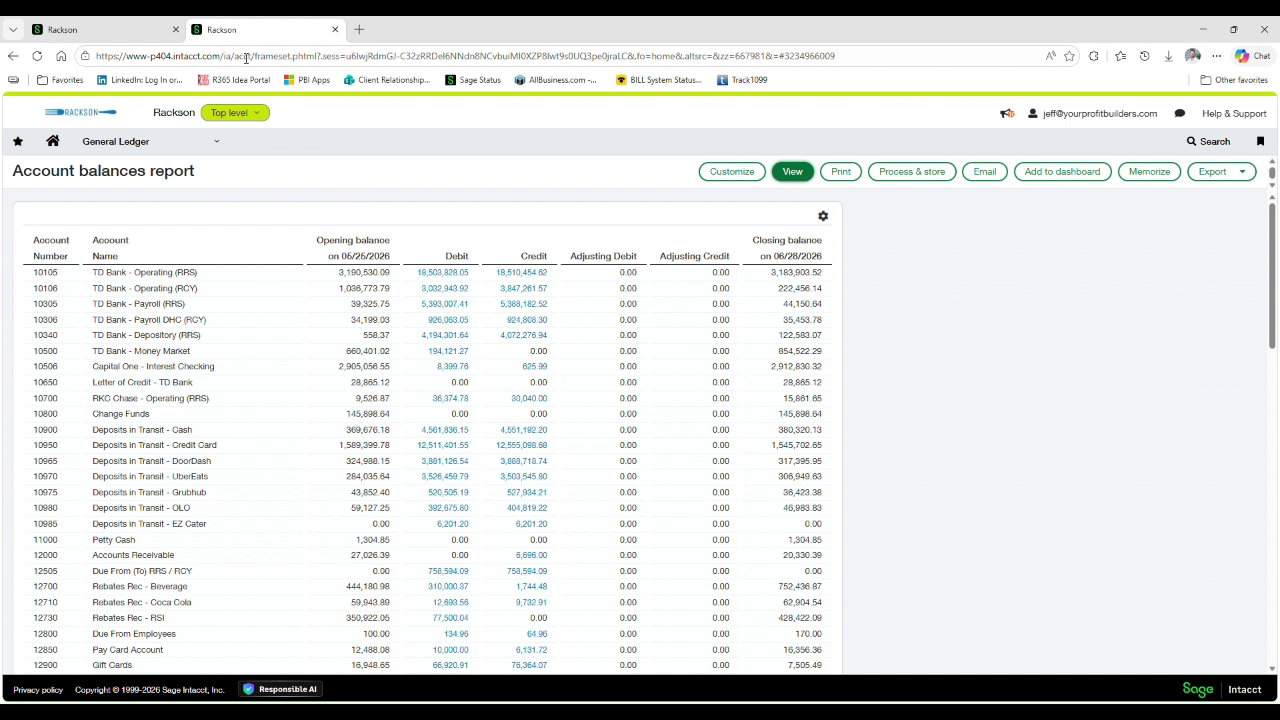
Search for and open Account balances report. Set the Location filter to RRS / RCY Entities, retain YTD balances, and run through the period end date. The report returns each GL account's opening balance, debit, credit, and closing balance for the period.
Keep this report open or handy. The closing balance total at the very bottom is used in the final step to tie out to net income.
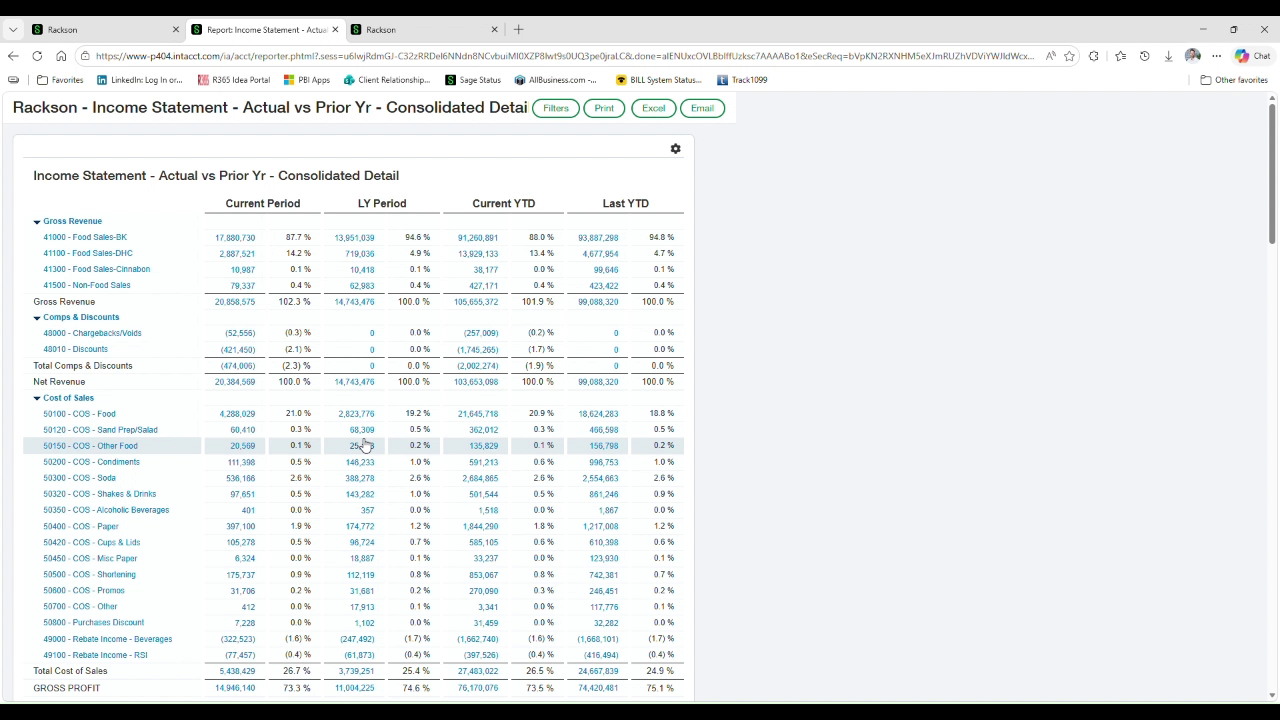
Search for it, enter the same period end date and the RRS / RCY Entities location, and run. Review Gross Revenue, Cost of Sales, and Gross Profit for the current period against the same period last year, and current YTD against last YTD.
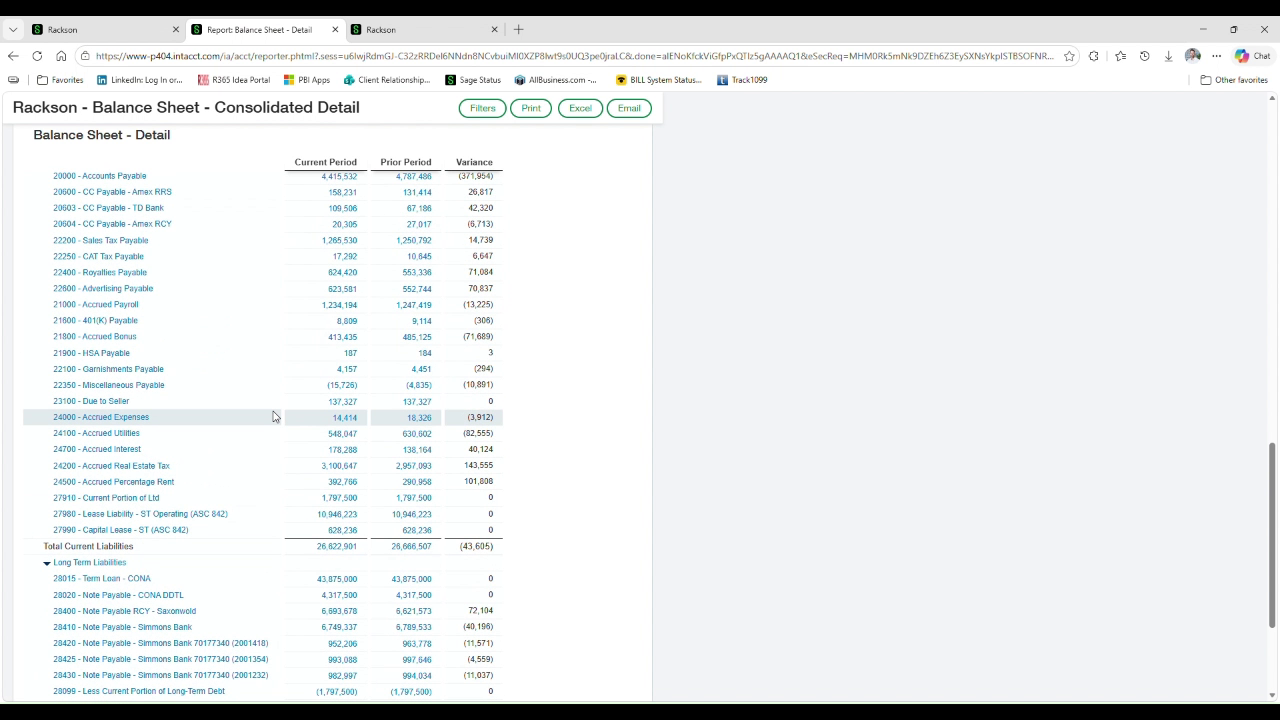
Run Balance Sheet - Consolidated Detail for the same date and location to review every balance sheet account line by line.
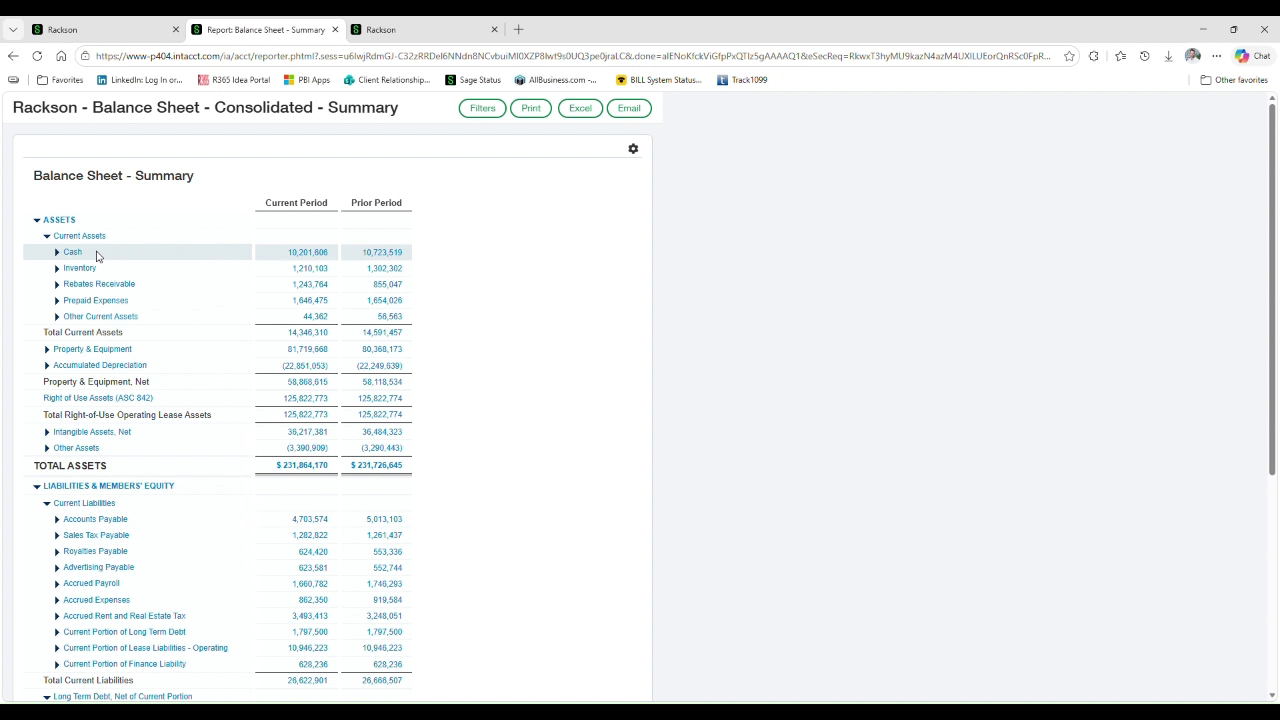
Then run Balance Sheet - Consolidated - Summary and note the Cash balance shown for the Current Period — it is used to tie out the Cash Flow statement in the next step.
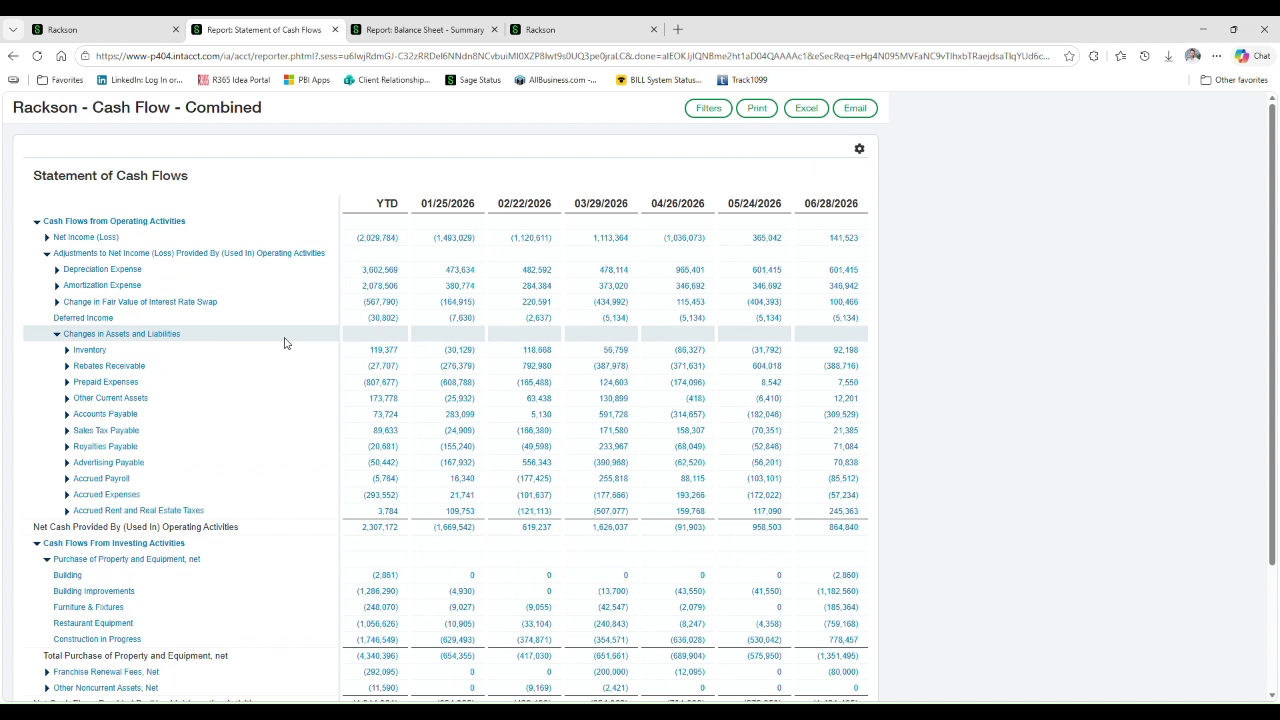
Search for Cash Flow - Combined and run it for the same date and location. The report lists the Statement of Cash Flows by period, ending with Cash - Beginning of Period, Net Increase (Decrease) in Cash, and Cash - End of Period for each period column.
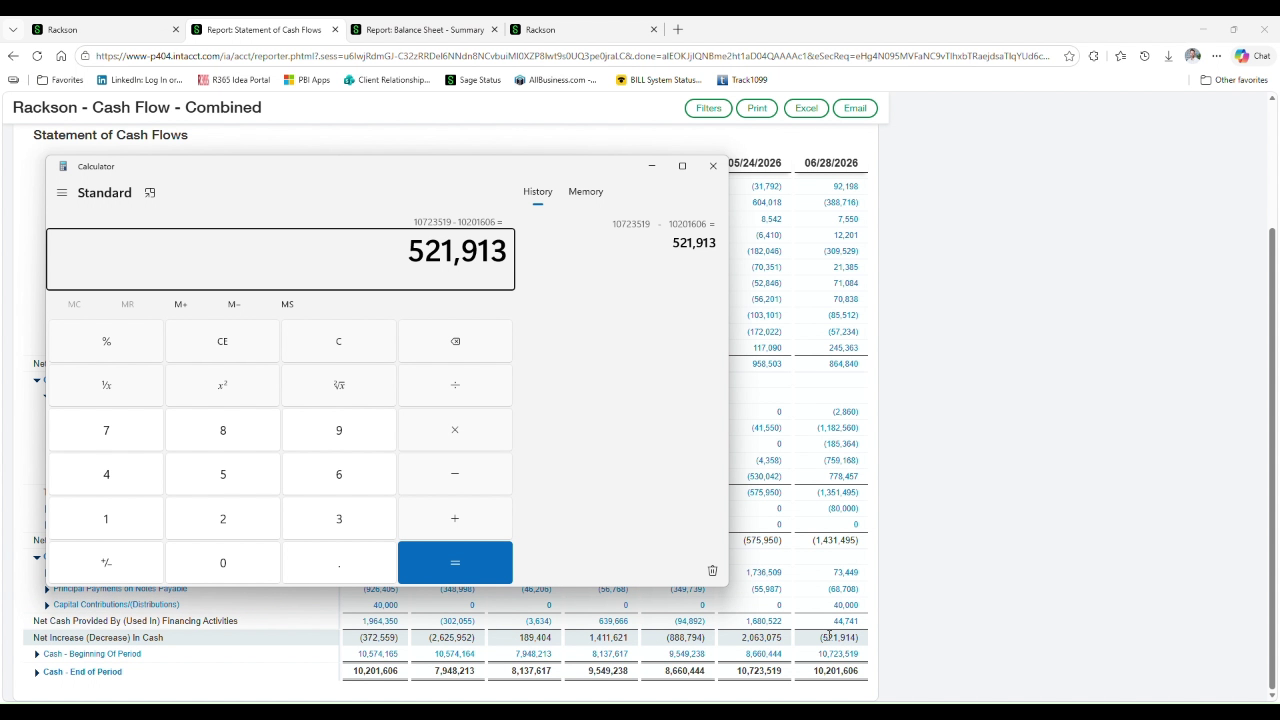
Subtract Cash - End of Period from Cash - Beginning of Period for the current period column, and compare the result to the Net Increase (Decrease) in Cash line in that same column.
In the source period: beginning cash 10,723,519 less ending cash 10,201,606 = 521,913, which ties to the reported net decrease of (521,914) within a $1 rounding difference.
Also confirm Cash - End of Period on the Cash Flow report matches the Cash balance on the Balance Sheet Summary from the previous step — both were 10,201,606.
A rounding difference of a dollar or two between the calculator and the report is expected and is not a sign of an error. Look into it only if the difference is larger than a few dollars.
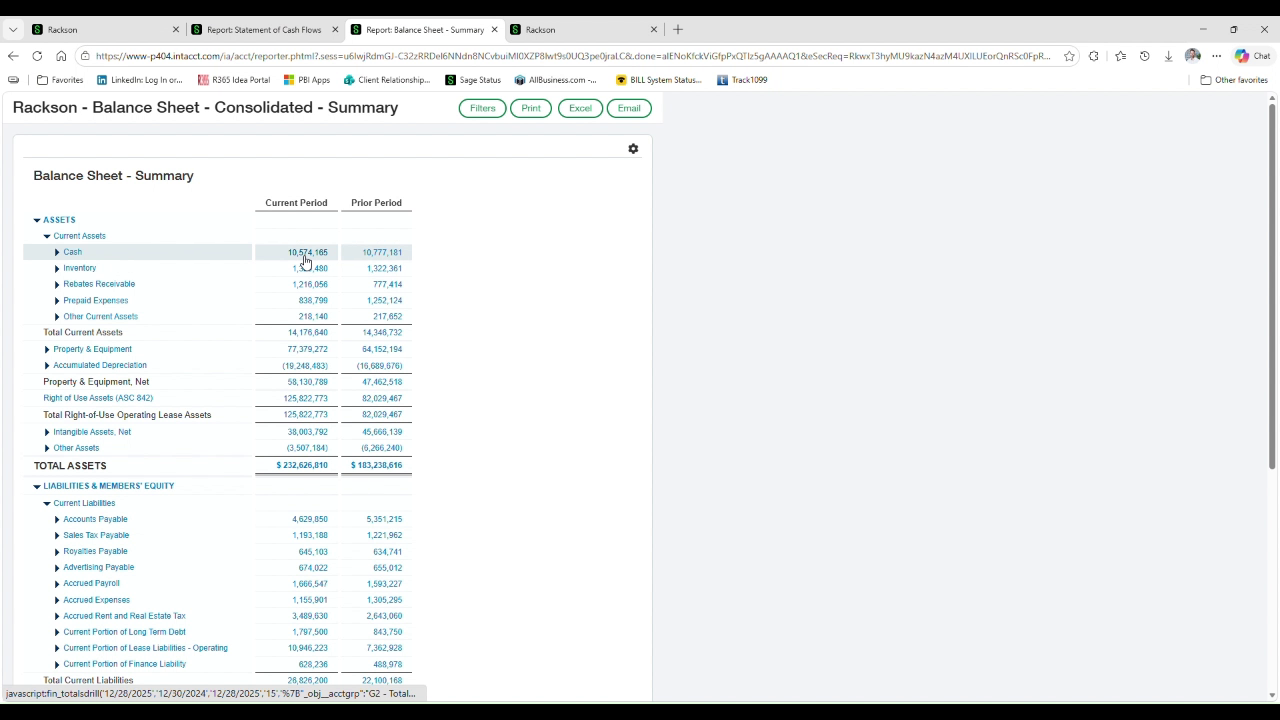
Run Balance Sheet - Consolidated - Summary again, this time entering the prior fiscal year end date as the As of date. Confirm the Cash balance shown for the Current Period matches the Cash - Beginning of Period YTD column on the Cash Flow Combined report.
In the source period both were 10,574,165. This confirms the current year's opening cash rolled forward correctly from the prior year's closing cash.
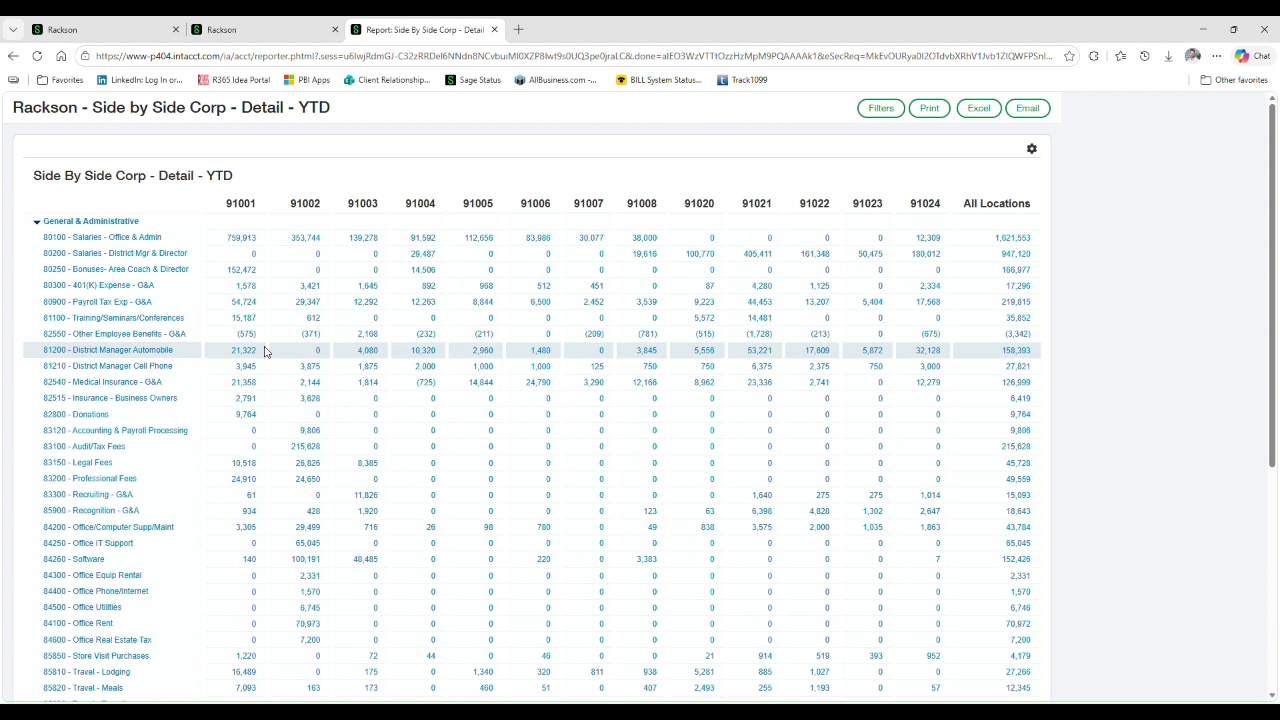
Search for Side by Side Corp - Detail - YTD and run it for the period end date. Review the General & Administrative section across all store locations for anything unusual, and note the Net Income (Loss) by location at the bottom.
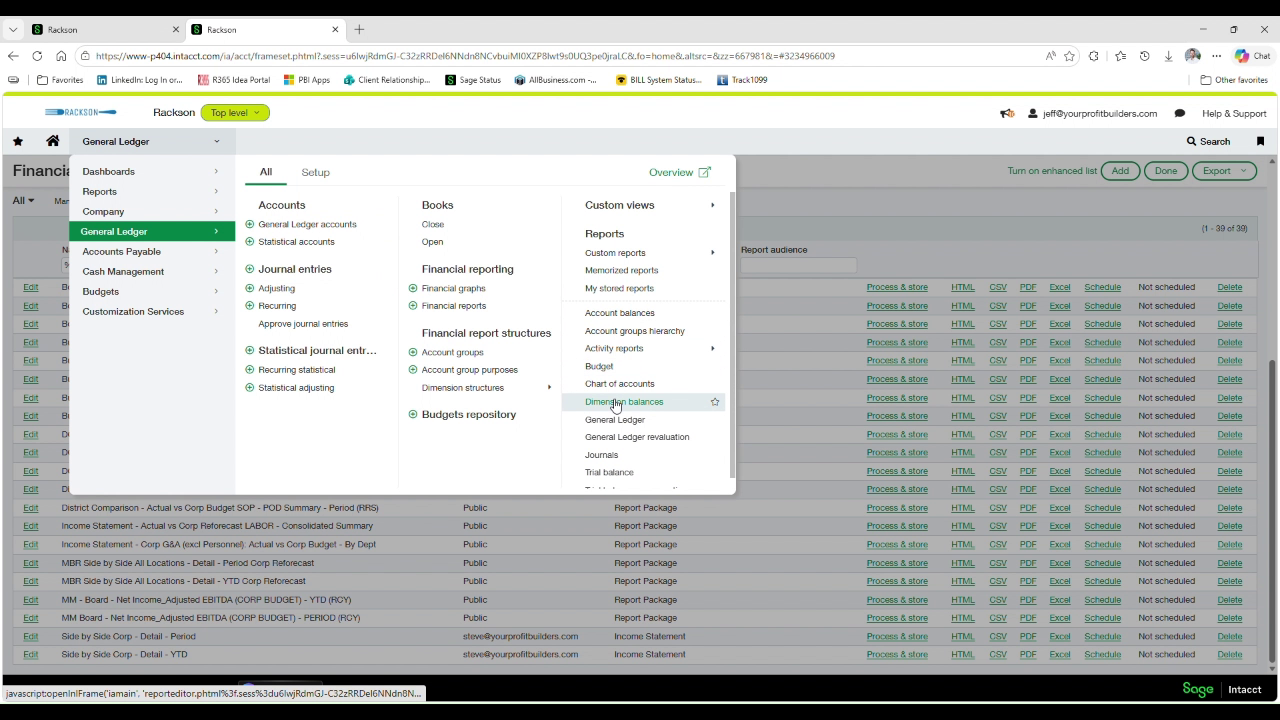
From the General Ledger menu, open Reports → Dimension balances.
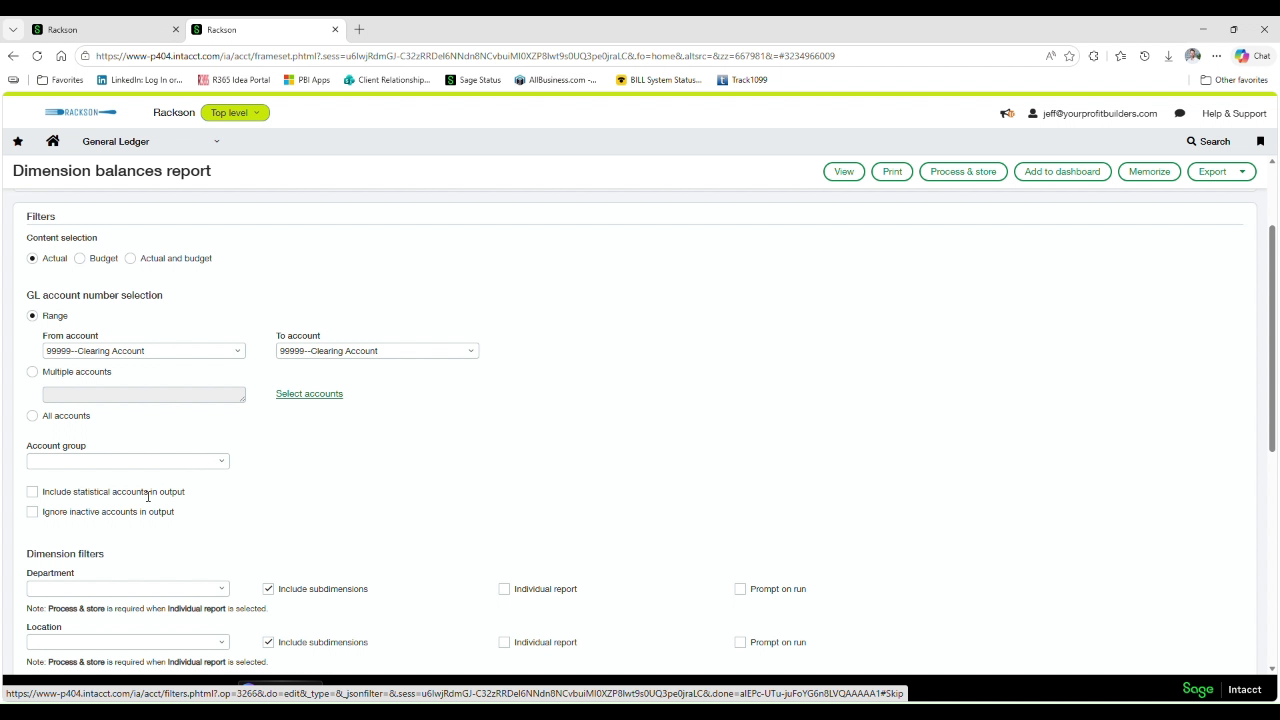
Set the GL account number selection to a range from 99999, Clearing Account to 99999, Clearing Account. Set the As of date to the period end date, and set Location to RRS / RCY Entities.
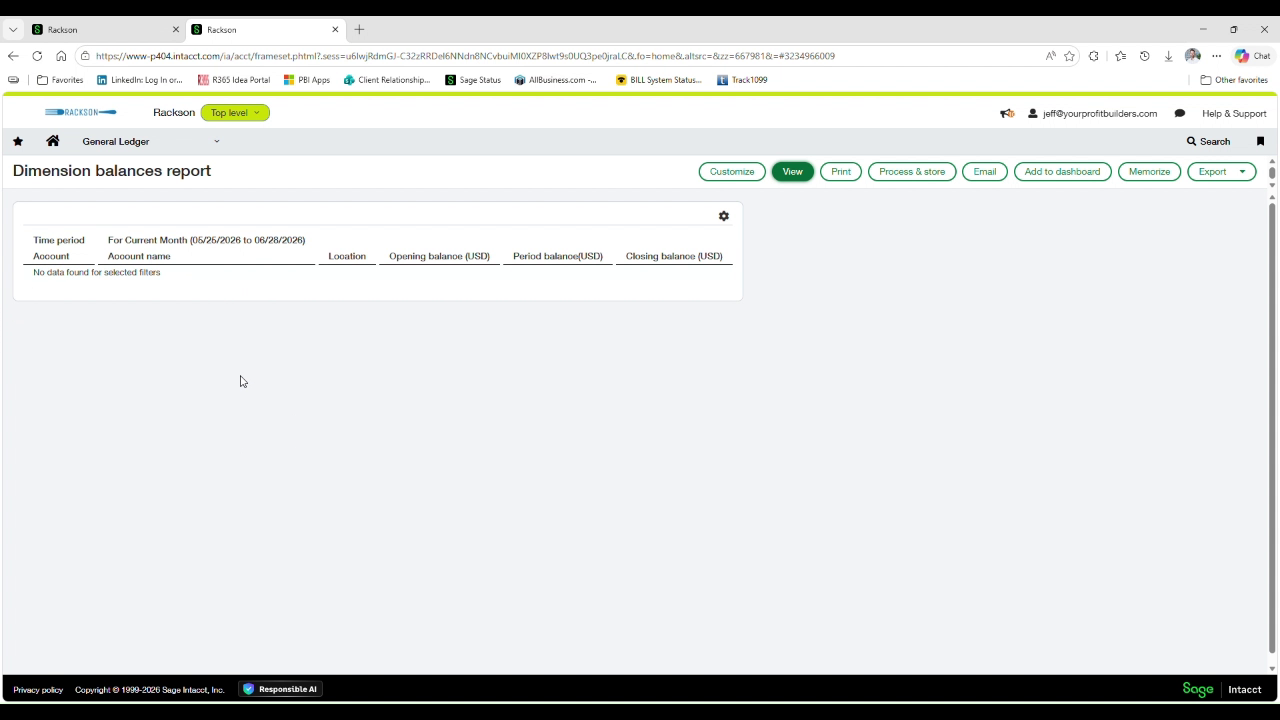
Click View. A result of "No data found for selected filters" confirms the Clearing Account has no unresolved balance for the period — this is the expected result.
If this report returns a balance instead of no data, the amount sitting in the Clearing Account needs to be researched and reclassified before the period is closed.
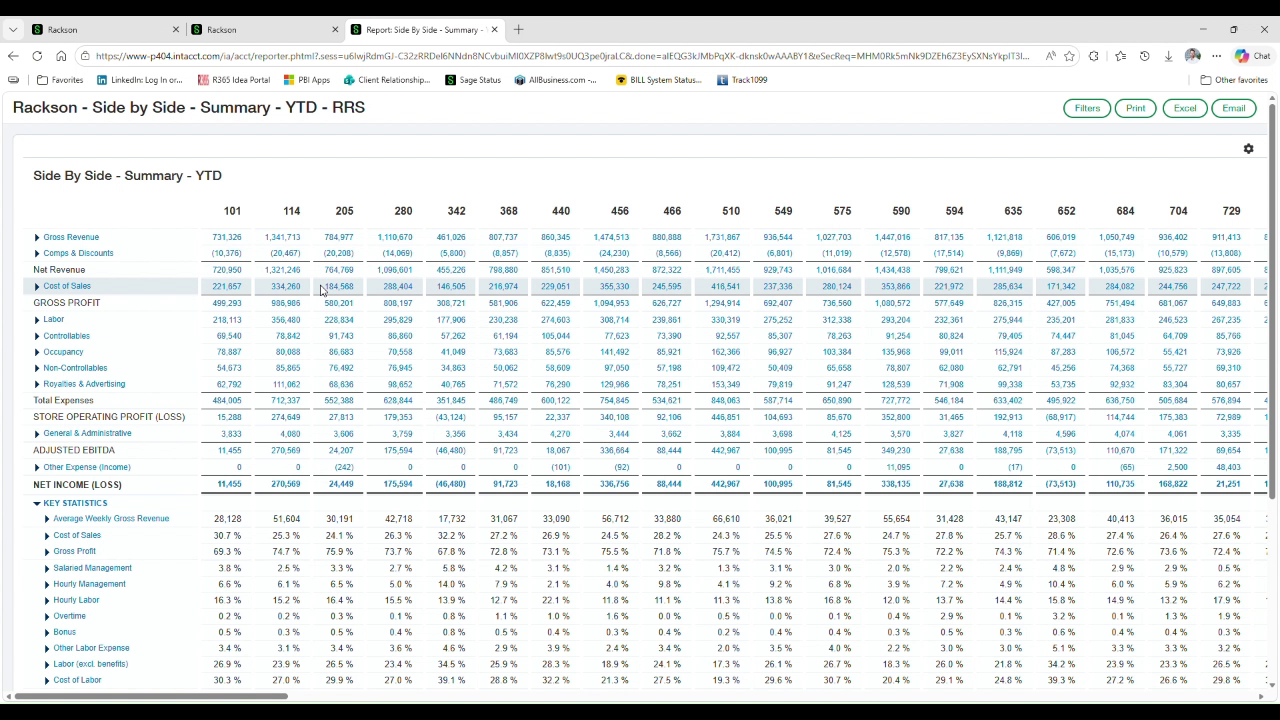
Search for and run the Side by Side - Summary - YTD reports for RRS and NRG to review each store's Key Statistics — Average Weekly Gross Revenue, Cost of Sales percentage, and labor percentages — for anything out of line with prior periods.
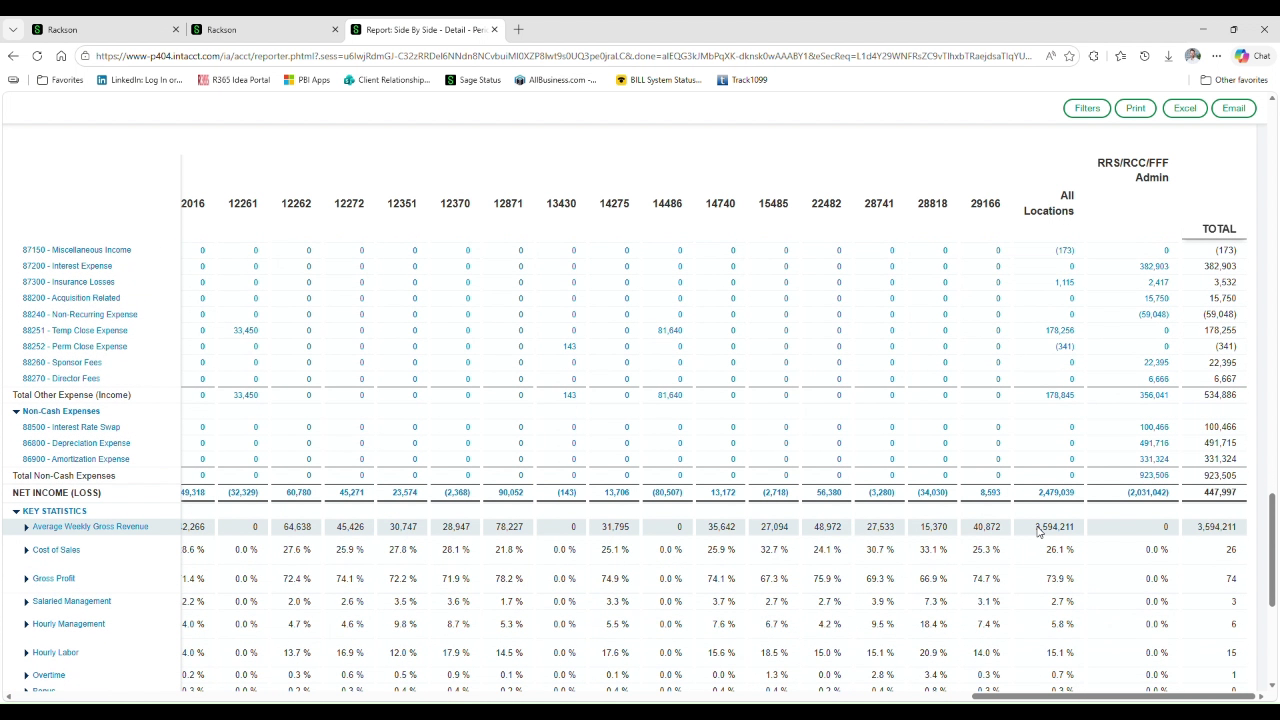
Then run Side by Side - Detail - Period and scroll to the Net Income (Loss) row. The Total column at the far right — 447,997 in the source period — is the figure to tie back to the Account Balances report in the final step.
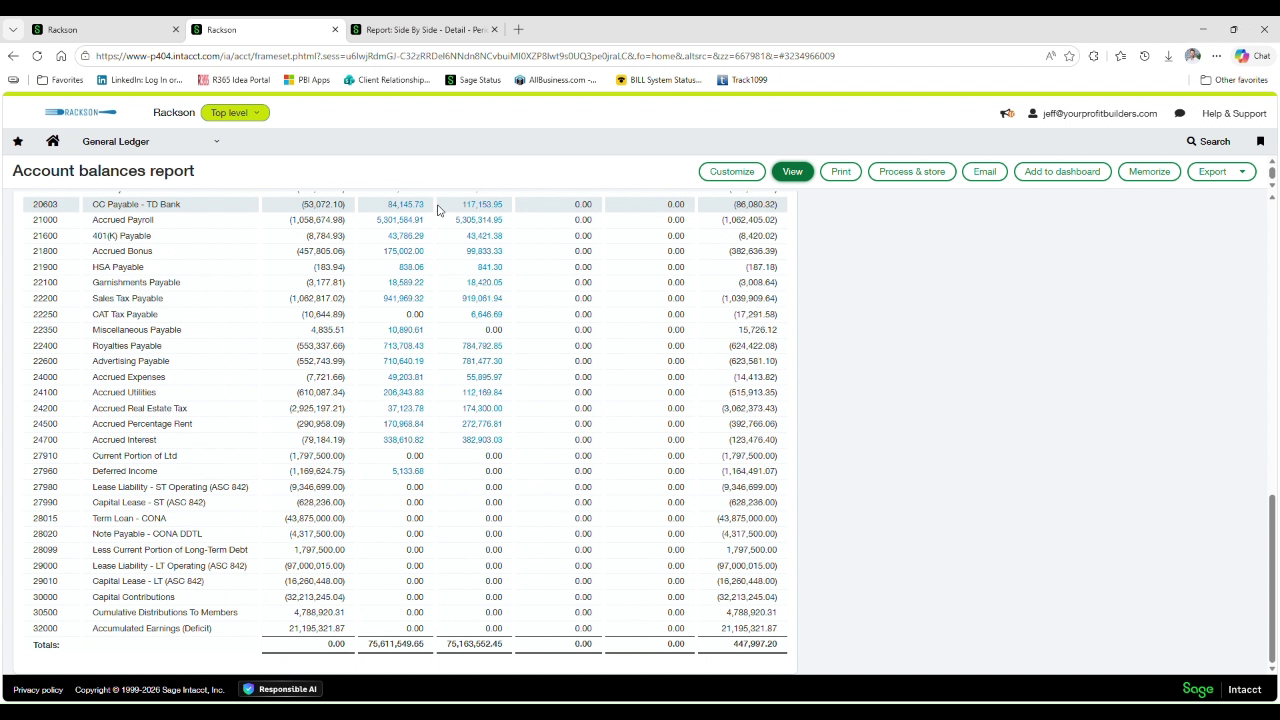
Return to the Account Balances report and scroll to the Totals row at the bottom. The closing balance total — 447,997.20 in the source period — matches the Net Income (Loss) Total from the Side by Side Detail Period report, within normal rounding.
This confirms the P&L side-by-side reports and the GL agree for the period, and the tie out is complete.
Summary
This process runs the core Rackson financial reports for a period end close and ties the key figures together: cash per the Balance Sheet to cash per the Cash Flow statement, the prior year's ending cash to the current year's beginning cash, the Clearing Account confirmed clear, and total net income per the store side-by-side reports to the total per the Account Balances report.
Any break in these ties should be researched before the period is closed.
Related
- P&L review process — the analytical review that follows these ties
- Intacct reporting infrastructure — how the cash flow report is built, and its required ending-cash check
- Running and delivering prelim reports