
Process Vendor Invoices in MarginEdge
The review, coding, approval, and export cycle for restaurant invoices captured in MarginEdge and exported to Sage Intacct.
| Field | Value |
|---|---|
| Owner | Unassigned — needs an owner |
| Department | Accounts Payable |
| Effective date | Not set in source |
| Scope | Managing vendor invoices for The Charter Oak Group using MarginEdge: restaurant upload, AP review and coding, approval, export to Sage Intacct, and exception handling. Written for this client's configuration — the store email addresses and weekly deadlines are client-specific. |
| Source | Accounts Payable Department/2. Invoice Processing/MarginEdge Process Document.docx |
| Escalation | Jonah Dellaesga and Andrea Souders |
Restaurants upload invoices into MarginEdge, where OCR extracts the header data. The PBI AP team reviews, codes, and approves them, and approved invoices export nightly into Sage Intacct as AP bills ready for payment.
Roles and responsibilities
Store staff must upload only legitimate invoices approved to be paid. Packing slips, quotes, and purchase orders must not be uploaded. Rejecting these downstream costs far more time than not uploading them.
Invoice flow
Upload → MarginEdge OCR → AP review → Approval & export → Posting in Intacct
- Invoice upload — the restaurant uploads via app, email, or scanner.
- MarginEdge processing — OCR extracts vendor, invoice number, date, and total. Anything OCR can't identify routes to MarginEdge's back-office support team.
- AP review — the PBI team validates invoice accuracy, coding, and vendor mapping to Sage Intacct.
- Approval and export — approved invoices export from MarginEdge into Sage Intacct.
- Posting in Intacct — AP bills are created and available for payment.
Procedure
Staff upload by either method:
- Mobile app — take a picture and upload.
- Email — send or forward PDF invoices to the restaurant-specific MarginEdge address.
| Location | MarginEdge email address |
|---|---|
| Charter Oak | charteroak@meinvoices.com |
| Chosen Frozen | chozenfrozen@meinvoices.com |
| Ciccio | ciccio@meinvoices.com |
| Loveski Marin | loveskimarin@meinvoices.com |
| Loveski Napa | loveskinapa@meinvoices.com |
Best practices: include all pages, use black-and-white or color scans rather than blurry photos, and upload daily to prevent a backlog. If not daily, hold to a set weekly cadence.
Locations must use their own dedicated address. An invoice sent to the wrong store's address lands in the wrong entity.
The restaurant must review new item GL mappings each week, completed by end of day Tuesday.
GL coding defaults apply based on item mapping, so unreviewed new items produce miscoded expenses. It is the Charter Oak team's responsibility to review item mappings against what's expected.
Use the PBI Apps home page to navigate to MarginEdge, then select the restaurant whose invoices you're approving.
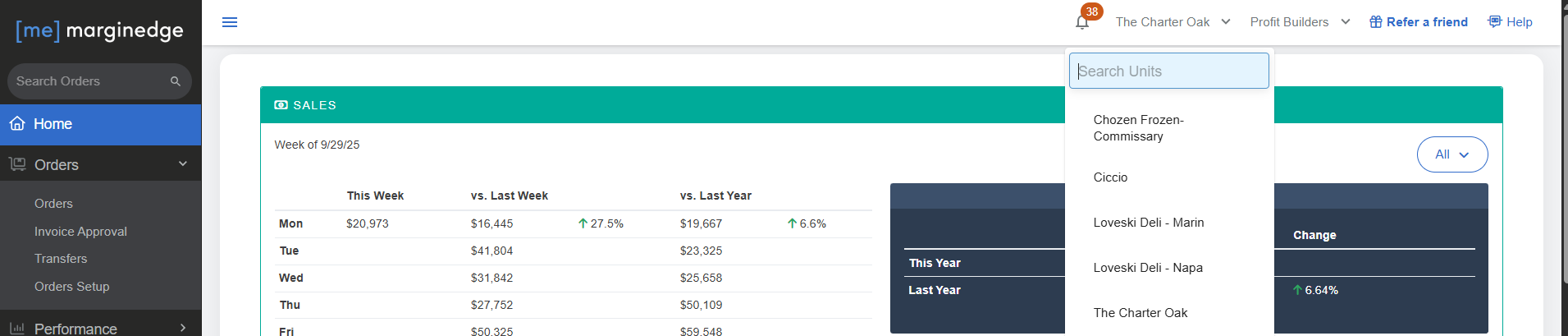
Check Products → New Item Review first. If new items still need review, escalate immediately to Jess at The Charter Oak Group — do not proceed to approvals.
Once new items are confirmed reviewed, go to Orders → Invoice Approval.
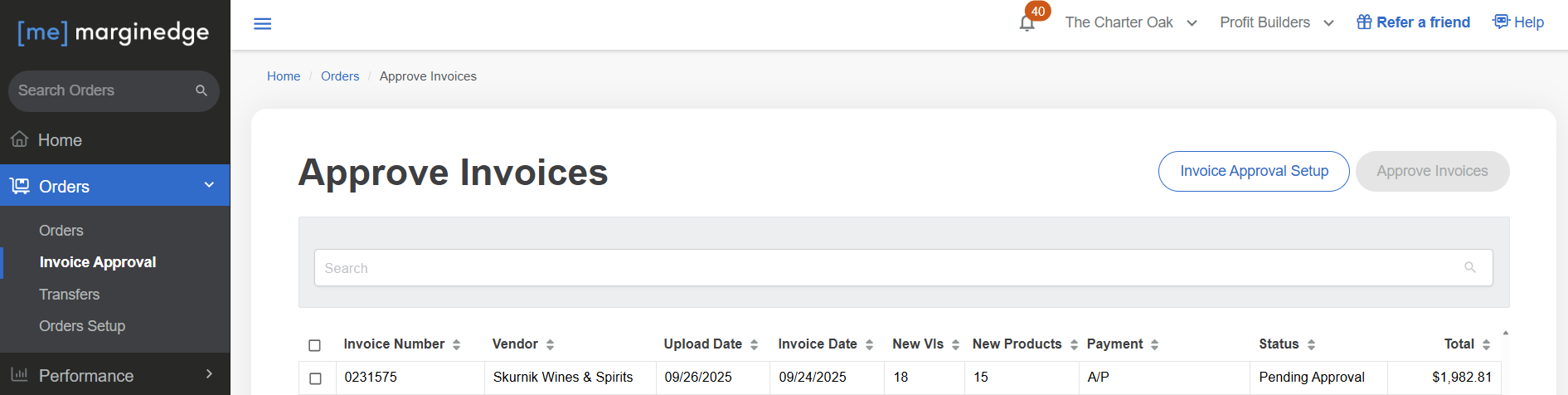
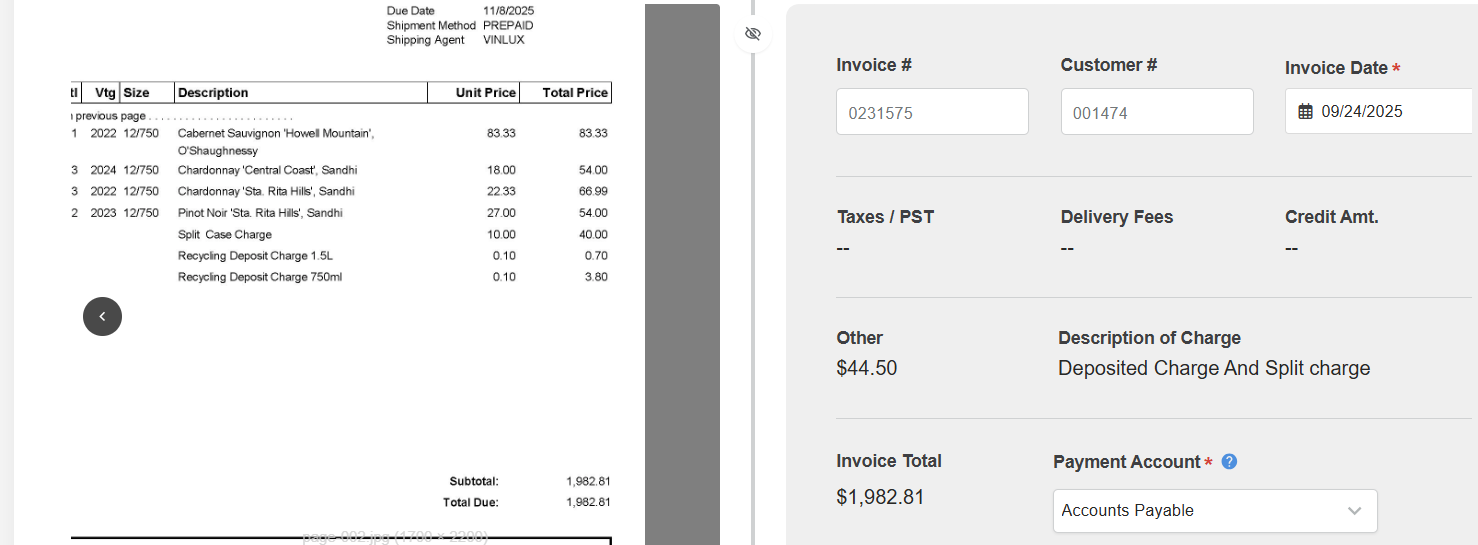
Open the invoice details for each invoice showing Pending Approval and review the side-by-side view of the invoice image against the MarginEdge invoice details.
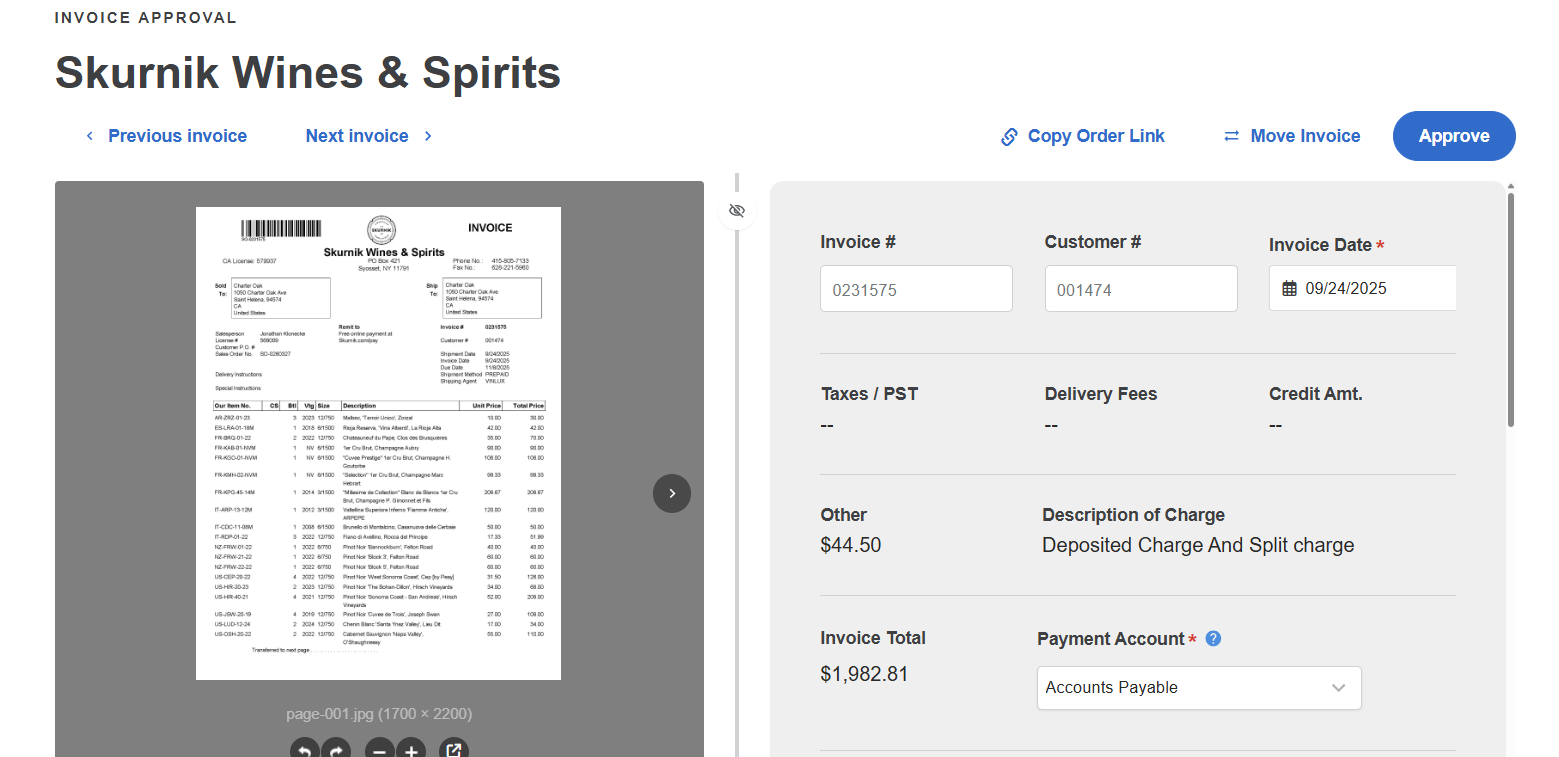
Confirm each of the following:
| Check | What to confirm |
|---|---|
| Legitimate invoice | Not a packing slip, purchase order, or quote. Contact Jess at TCO for anything you think should be rejected. |
| Vendor | Matches the correct Intacct vendor |
| Invoice number and date | Match the uploaded invoice |
| Total amount | Matches the scanned document |
| GL coding | Expenses coded correctly (Food, Beverage, Supplies) |
| Restaurant location | Correct entity and location in Intacct |
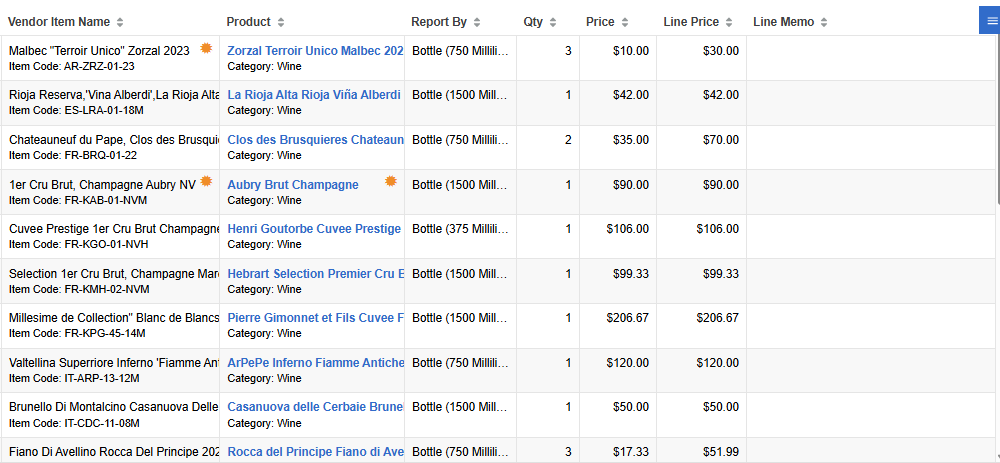
If everything is correct, click Approve.
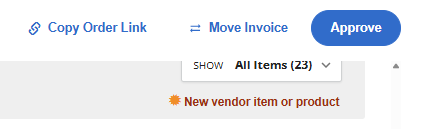
If something is wrong, edit the vendor or GL coding, or reject the invoice back for correction.
Approved invoices send nightly from MarginEdge to Intacct. To run a one-off sync, navigate to Accounting → Export and select the specific invoices to export.
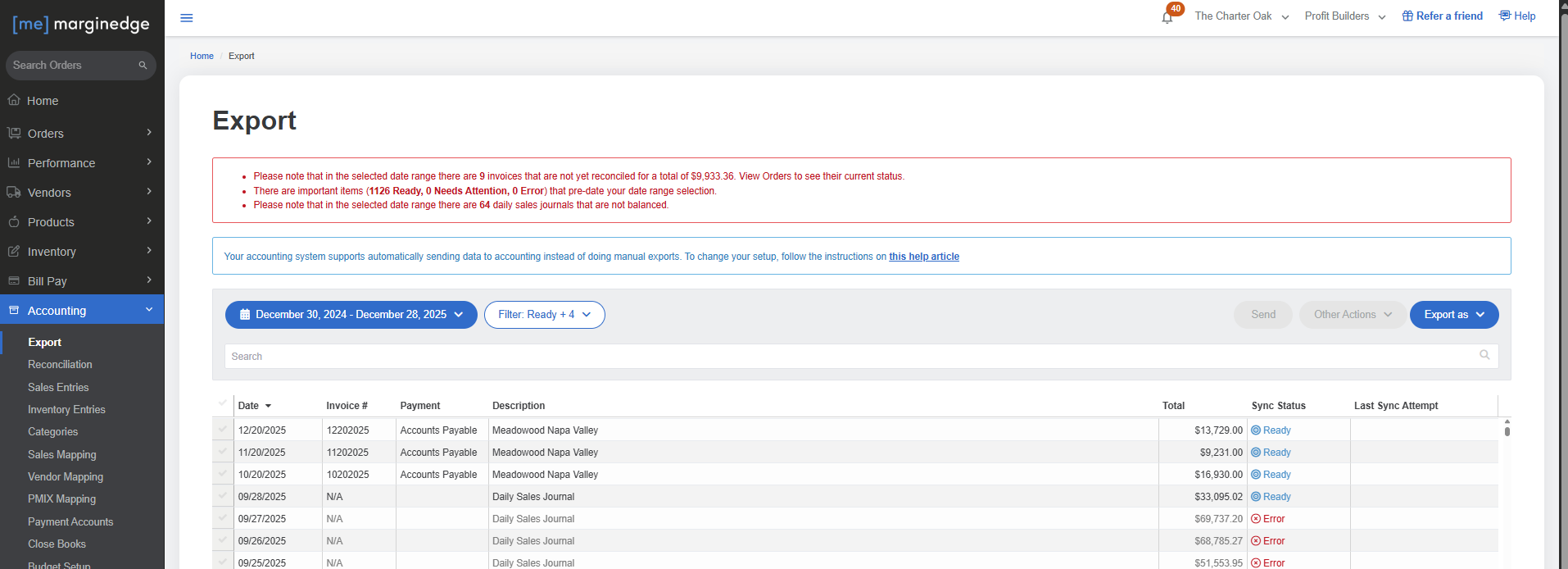
The export includes vendor, invoice number, invoice date, GL accounts and dimensions (location, department, class if applicable), and total plus category-level detail.
Filter on Needs Attention to find invoices that didn't export. Click into each one to see the issue.
If an invoice needs attention because a vendor isn't mapped to Sage Intacct, go to Accounting → Vendor Mapping. Find the unmapped vendor, click the dropdown, and start typing to find the Intacct vendor.
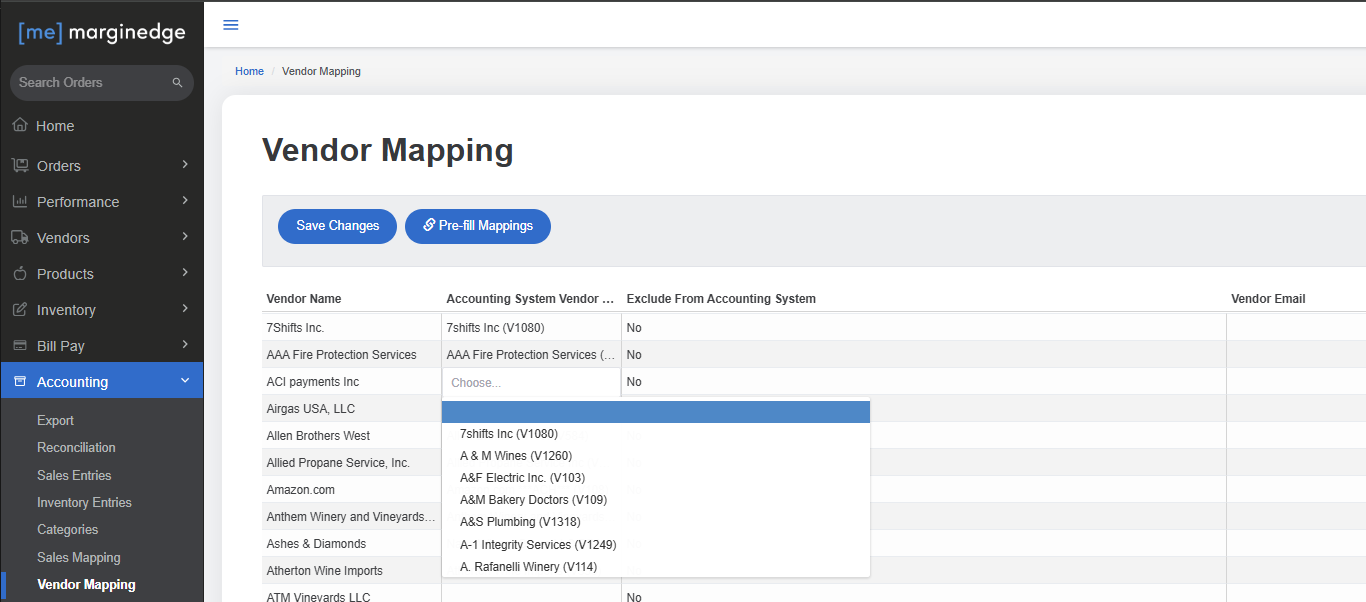
If no matching vendor exists in Intacct, create it following the vendor setup SOP.
Invoices with sync errors show Error in red in the Sync Status column on the Export page. Investigate each one and perform root cause analysis rather than only re-exporting.
Log in to Intacct, go to Accounts Payable → Bills → All, and filter by the Charter Oak entities.
Expected outcome: each approved invoice appears as a posted bill with amounts and GL accounts matching MarginEdge, available for payment.
Exception handling
Correct the vendor or GL coding. If the invoice is incomplete or unreadable, communicate with the restaurant rather than guessing at the missing detail.
Common causes are a missing vendor mapping, a closed period in Intacct, or invalid dimensions. Resolve the underlying issue and re-export.
Confirm in Intacct whether the invoice already exists before approving a second copy.
Controls and quality checks
- Weekly — the PBI AP team reviews and clears all Needs Review invoices.
- Weekly — the PBI accounting manager performs spot-checks in Intacct.
Client deadlines — The Charter Oak Group
All invoices must be uploaded by end of day Thursday. All new items must be reviewed and approved in MarginEdge by end of day the following Tuesday.
Related documents
- Add a new vendor in Sage Intacct — for vendors that need creating during mapping
- Day-to-day AP in Sage Intacct — paying the bills this process creates