
Enable ACH Payments for a Vendor
Turn on ACH payments for an existing Sage Intacct vendor, pay a bill by ACH, and generate the ACH file to send to the bank.
| Field | Value |
|---|---|
| Owner | Unassigned — needs an owner |
| Department | Accounts Payable |
| Effective date | Not set in source |
| Scope | Enabling ACH on an existing vendor record in Sage Intacct, selecting a bill for ACH payment, and generating the ACH file for upload to the bank. Does not cover collecting or validating the vendor's banking details, which is governed by the Bank (NACHA) file payment processing policy. |
| Source | Accounts Payable Department/1. Vendor Master Data/ACH Vendor Set-up.docx |
Do not begin this procedure until the vendor's banking information has been validated by a phone call to the vendor, per the NACHA policy. Validation must be documented in the vendor master data — including the validation date, vendor contact, and responsible employee — before any banking details are entered.
Procedure
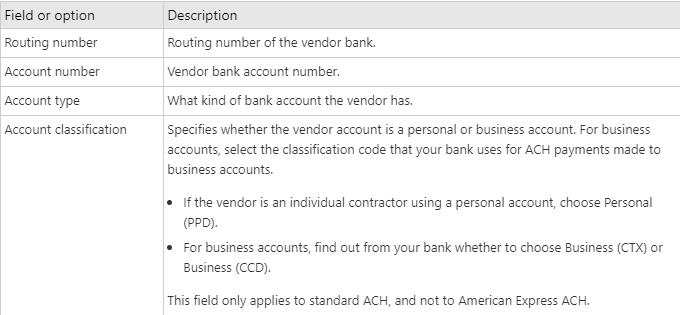
Edit the vendor and open the Payment Information tab. In the ACH section, click Enable ACH Payments, then complete the banking fields.
Run the normal pay bills process, choosing ACH as the payment method.
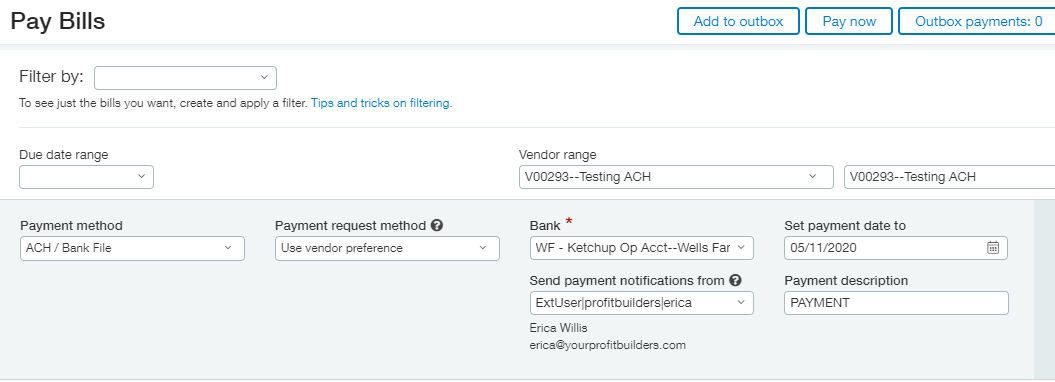
For the full payment selection procedure — filters, credits, partial payments — see Day-to-day AP in Sage Intacct.
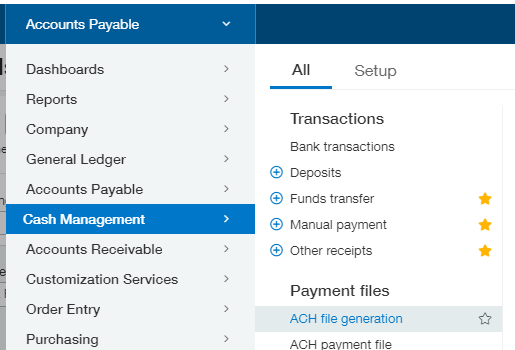
Navigate to Cash Management → ACH file generation.
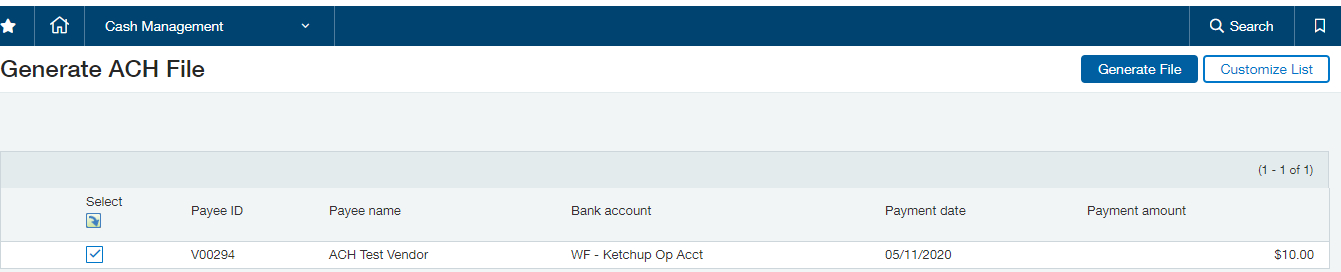
Select the payment you want to make and click Generate file.
After clicking Generate, Intacct opens the ACH payment file screen. If it does not, navigate to Cash Management → ACH payment file.
Click Download next to each file you want to send to the bank, and save the files.
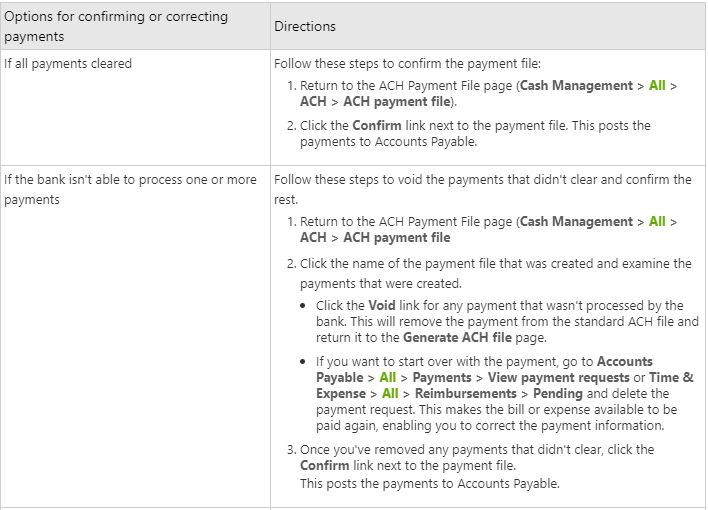
After uploading the file to the bank, confirm the payment in Intacct.
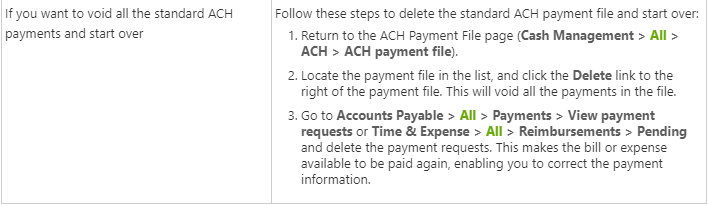
The payment does not post to the general ledger until it is confirmed. An uploaded-but-unconfirmed ACH payment leaves the invoice open in AP and the cash unrecorded, which will surface as an unexplained variance at bank reconciliation.
Expected outcome: the payment posts to the GL, the invoice clears from AP, and the transaction is available to match on the bank reconciliation.
Related documents
- Bank (NACHA) file payment processing policy — mandatory validation and controls for vendor banking data
- Vendor EFT onboarding letters — the client-signed letter that asks vendors to enroll
- Add a new vendor in Sage Intacct — set the vendor's Type ID to ACH
- Intacct bank reconciliation — ACH payments should post with the bank posting date and carry no outstanding balance at reconciliation