
Complete Your New Hire Onboarding in ProWork
Finish all four required new hire onboarding tasks in ProWork — Form I-9, tax withholding, W-2 electronic consent, and direct deposit — in about 15 minutes.
As a new hire, you complete your own onboarding paperwork directly in ProWork. There are four required tasks, and each one starts from the same New Hire On-boarding menu on your dashboard. Set aside about 15 minutes and have your identification documents and bank details on hand before you begin.
Before You Begin
- You are logged in to your own ProWork account. Your employer sends your login credentials separately — contact your manager or HR if you have not received them.
- You have your identification documents available for Form I-9.
- You know your bank account and routing numbers for direct deposit.
- You know your ProWork password. You will be asked to re-enter it to confirm your W-2 electronic consent.
The Four Required Tasks
| Task | What it covers | Signature required |
|---|---|---|
| Form I-9 | Employment eligibility verification | Yes |
| Withholding forms | Federal W-4 and, if applicable, your state equivalent | Yes |
| W-2 electronic consent | Opting in to receive your W-2 electronically | Password confirmation |
| Direct deposit | Where your pay is deposited | No |
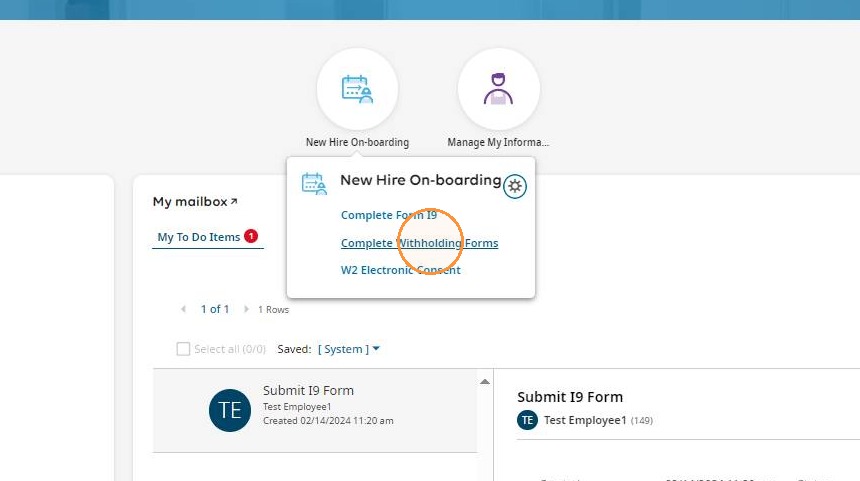
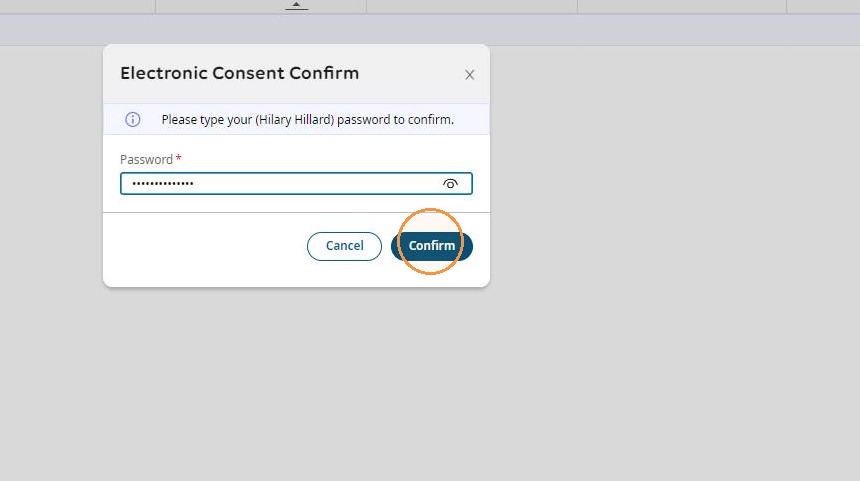
All four start from the same menu:
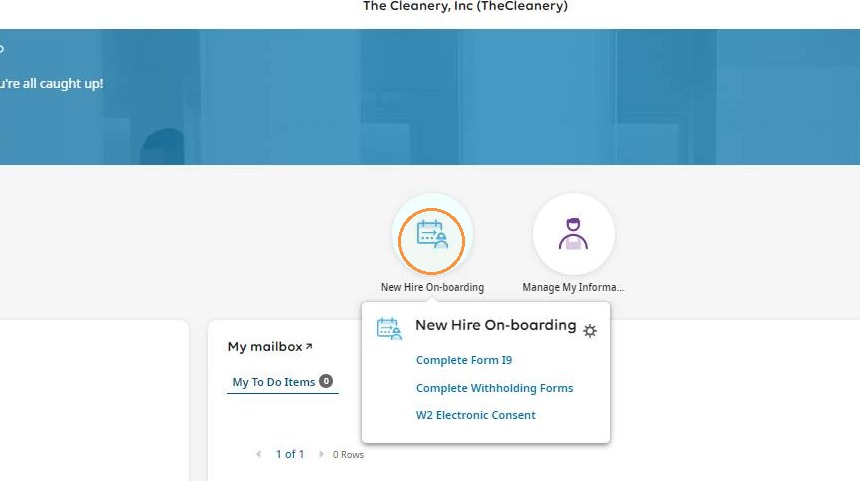
Every task follows the same pattern: open New Hire On-boarding, select the task, complete and submit the form, then use the back arrow to return to the menu and start the next one. You can stop after any completed task and pick up where you left off later.
Task 1: Complete Form I-9
From your dashboard, click New Hire On-boarding, then click Complete Form I9.
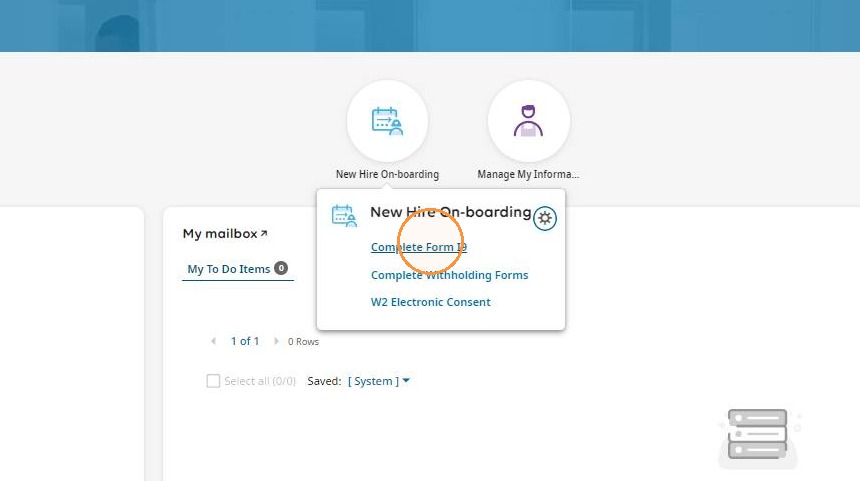
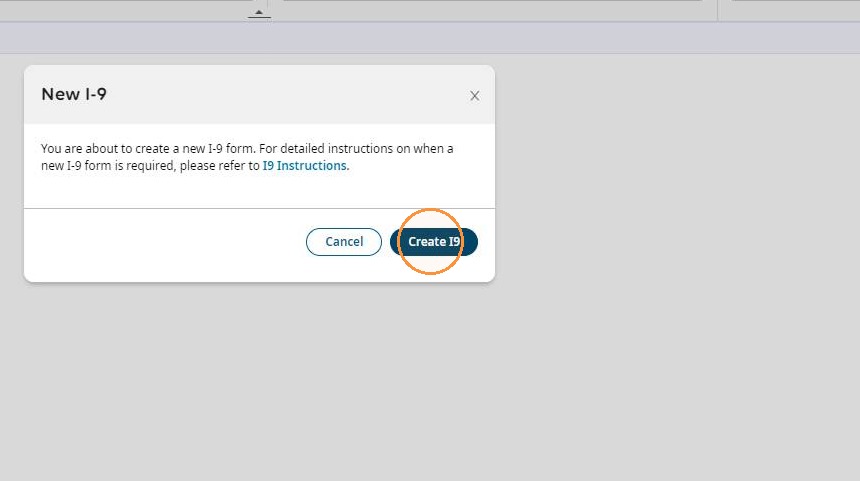
Click Add New, then click Create I9.
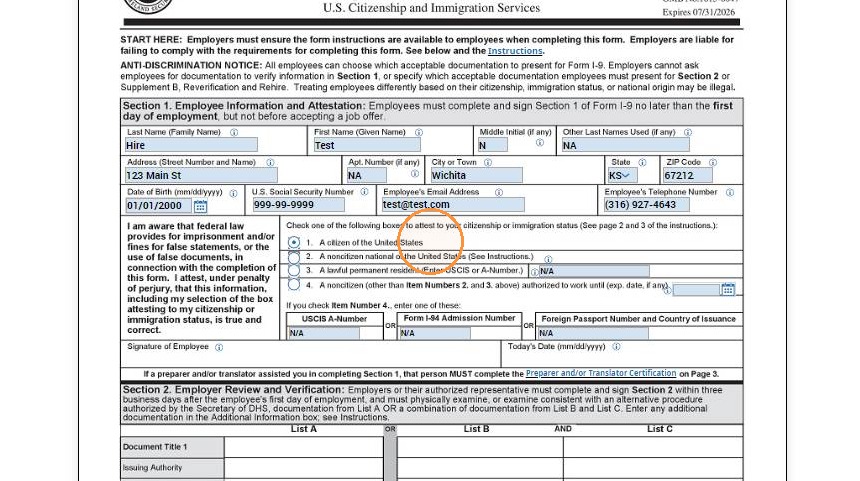
Complete all information on the form.
If a field does not apply to you — for example, Apt Number when you live in a house — enter NA rather than leaving it blank. Blank fields will stop the form from submitting.
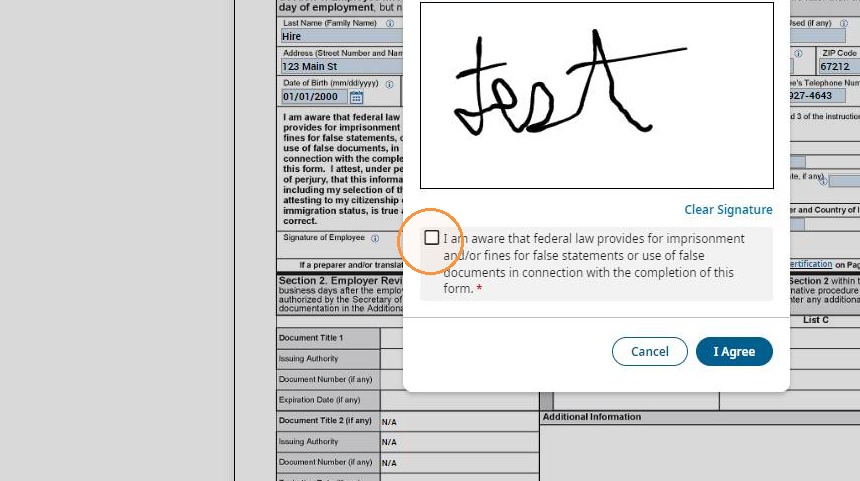
Click Submit I9. Provide your signature, check the consent box, then click I Agree.
Task 2: Complete Your Withholding Forms
This task has two parts. Everyone completes the federal certificate. Complete the state form only if your state requires one.
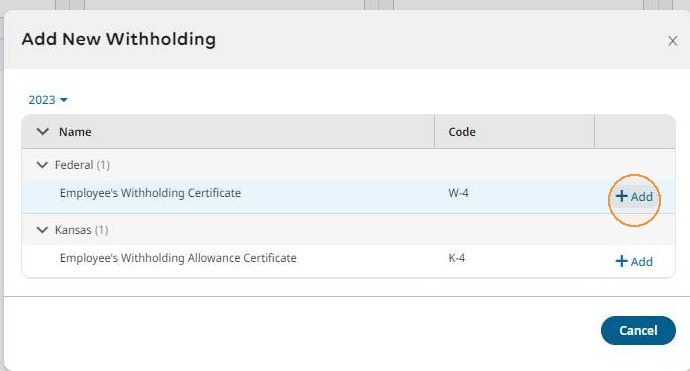
Click Add New, then click +Add next to Federal Employee's Withholding Certificate.
Confirm your personal information is correct, then select your withholding settings.
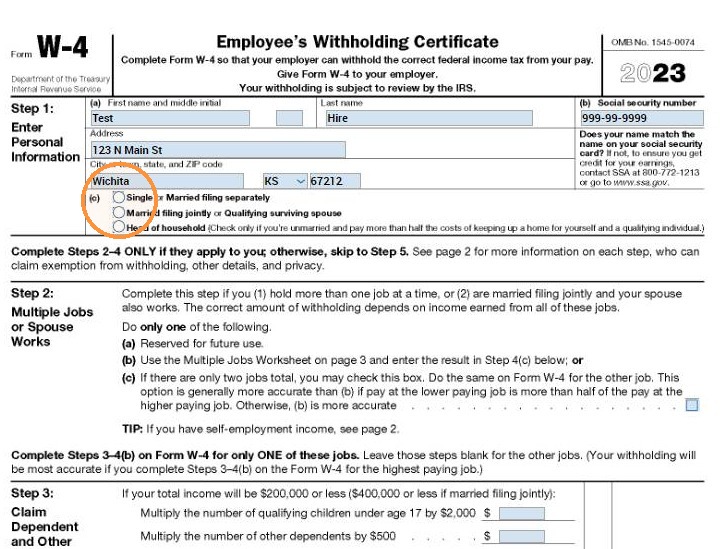
Your withholding settings determine how much tax is deducted from each paycheck. If you are unsure what to select, the IRS Tax Withholding Estimator can help you decide. Profit Builders cannot advise you on which settings to choose.
Click Submit, provide your signature, then click I Agree. Click the back arrow to return.
Task 3: Consent to Receive Your W-2 Electronically
Click New Hire On-boarding, then W2 Electronic Consent, then Electronic Consent.
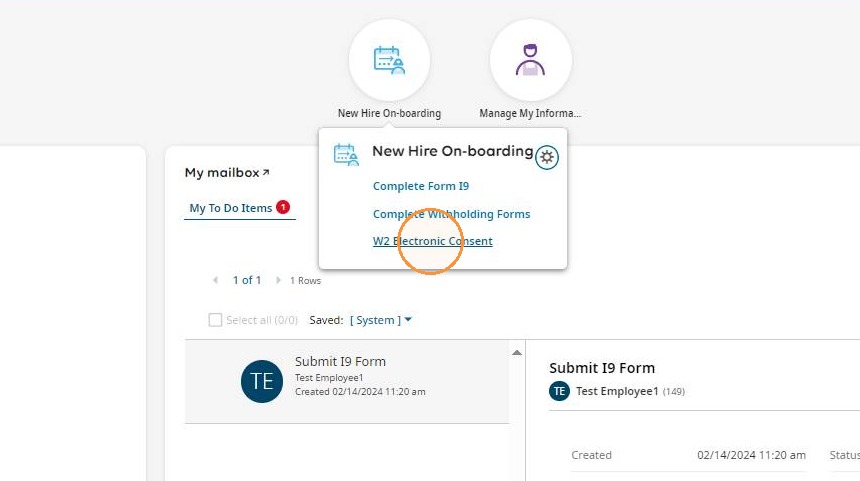
Check the box next to Receive Form W2 Electronically, then click Save.
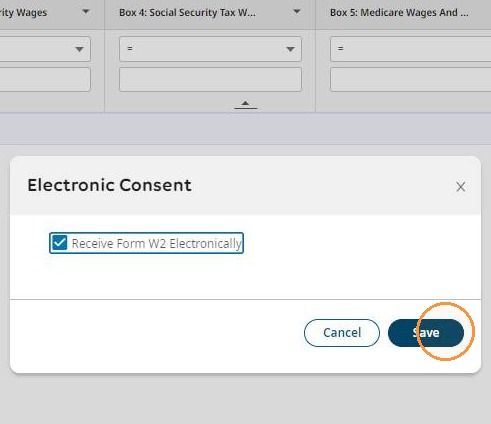
Enter your ProWork password and click Confirm, then click OK.
The password step is a security confirmation — it verifies that you personally authorized the change.
Consenting here means your W-2 is delivered in ProWork instead of by mail, so you get it faster and can re-download it any time. If you would rather receive a paper copy, skip this task and leave the box unchecked.
Task 4: Submit Your Direct Deposit Information
Click Submit Direct Deposit Information.
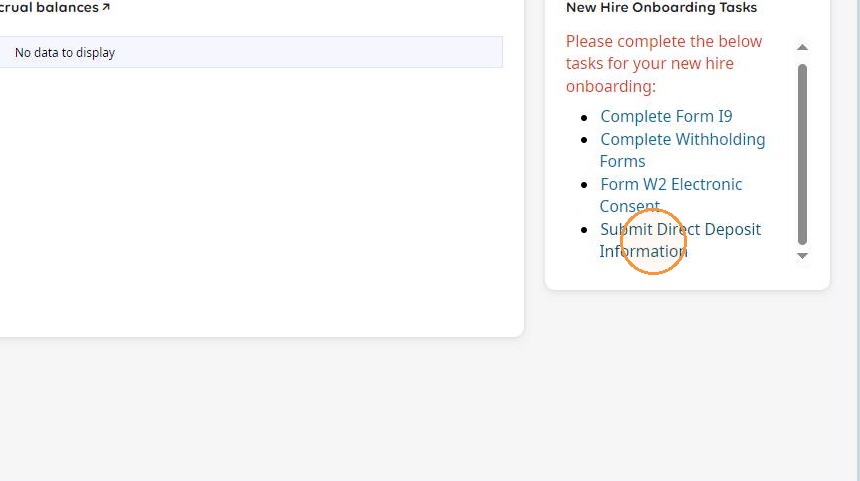
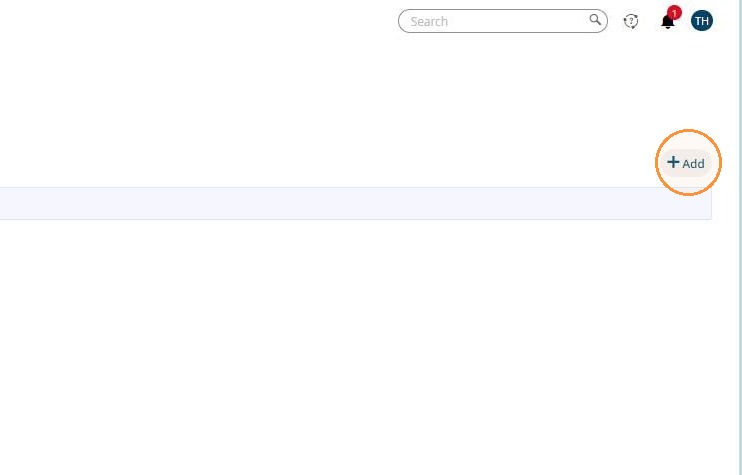
Then click +Add on the far right of the screen.
Complete the following fields:
- Account #
- Reenter Account #
- ABA #/Bank Routing #
You can find both numbers on a check or in your bank's online portal. Your routing number is nine digits.
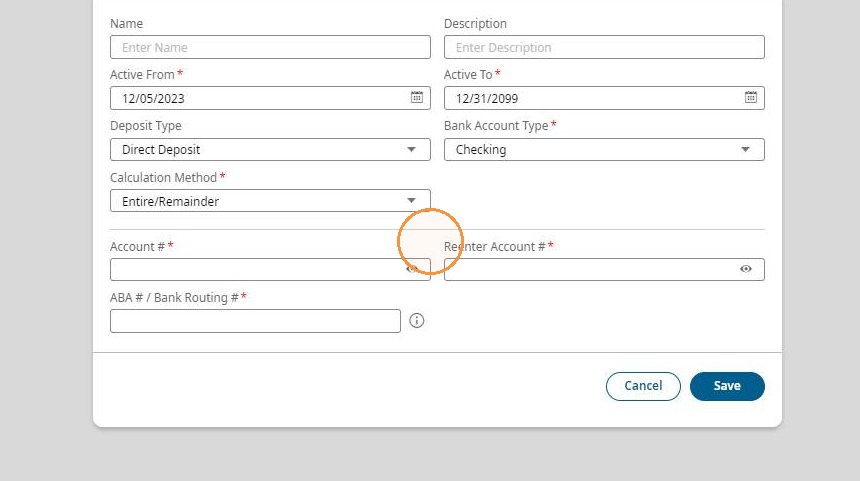
Click Save.
Double-check your account and routing numbers before saving. Incorrect details will delay your pay while the deposit is returned and reissued.
Expected Result
Once all four tasks are submitted, your onboarding documents are complete. Returning to the New Hire On-boarding menu shows each task as finished, and no further action is needed from you.
If a task still appears incomplete, reopen it and check for a missing signature or an unfilled field — those are the two most common reasons a form fails to submit.
Need Help?
If you cannot log in, a form will not submit, or your onboarding tasks do not appear on your dashboard, contact your manager or your employer's HR contact. They can escalate to Profit Builders support on your behalf.