---
title: "Reconcile a Bank Account in Sage Intacct"
sidebarTitle: "Intacct bank rec"
description: "The full Sage Intacct bank reconciliation procedure — starting the rec, importing an auto-match file, reading the reconciliation screen, entering transactions, and finalizing."
icon: "building-columns"
---
> **For AI agents:** the complete documentation index is at [llms.txt](/llms.txt). Append `.md` to any page URL for its markdown version.
| Field | Value |
|---|---|
| **Owner** | Unassigned — needs an owner |
| **Department** | General Accounting |
| **Effective date** | Not set in source |
| **Scope** | Performing a bank reconciliation in Sage Intacct, including the auto-match import and entering each type of missing transaction. Assumes familiarity with [bank reconciliation concepts](/internal/sops/accounting/general/bank-reconciliation-concepts). Does not cover rule-based automation — see [bank transaction automation](/internal/sops/accounting/general/bank-automation-setup). |
| **Source** | `General Accounting/02 - Bank Reconciliation/Intacct Bank Reconcilliation.docx` |
**All bank reconciliations must be completed at the top level**, not the entity level.
## Start the reconciliation
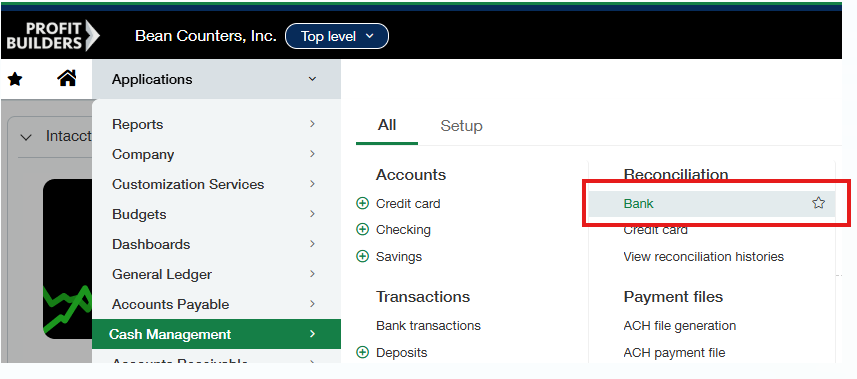
From the **top level**, go to **Cash Management → All → Bank**.
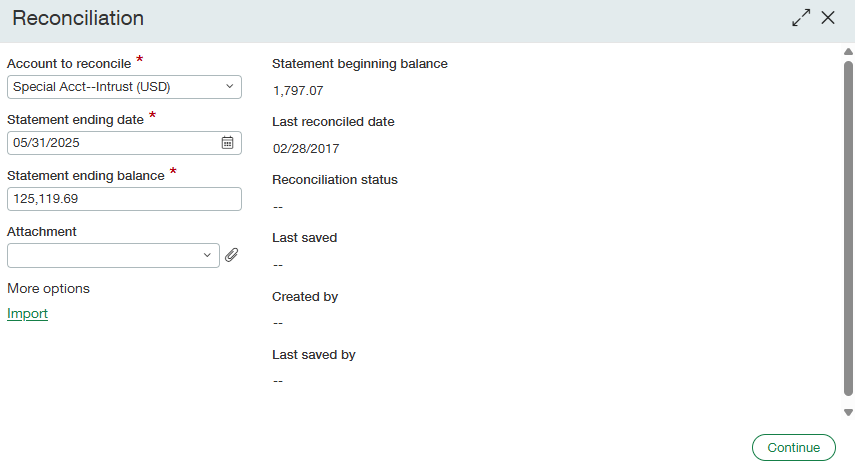
 Choose the bank account, enter the period or month end date, and enter the period or month end bank balance.
Attach supporting documentation:
| Client type | Attach |
|---|---|
| **Month-end clients** | The bank statement |
| **Period-end clients** | The bank activity for the period |
## Import a file for auto-match
Intacct can auto-match transactions that have cleared the bank instead of requiring someone to clear each one manually. This requires uploading a file of bank transactions — typically just checks.
Click the **Import** link under **more options**.
Choose the bank account, enter the period or month end date, and enter the period or month end bank balance.
Attach supporting documentation:
| Client type | Attach |
|---|---|
| **Month-end clients** | The bank statement |
| **Period-end clients** | The bank activity for the period |
## Import a file for auto-match
Intacct can auto-match transactions that have cleared the bank instead of requiring someone to clear each one manually. This requires uploading a file of bank transactions — typically just checks.
Click the **Import** link under **more options**.
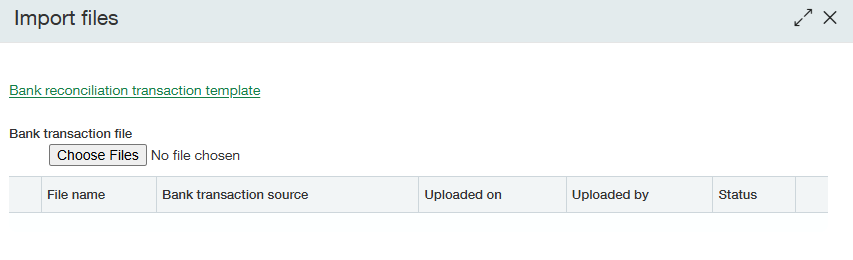
 In the import files dialog box, click the **Bank reconciliation transaction template** link to download the template.
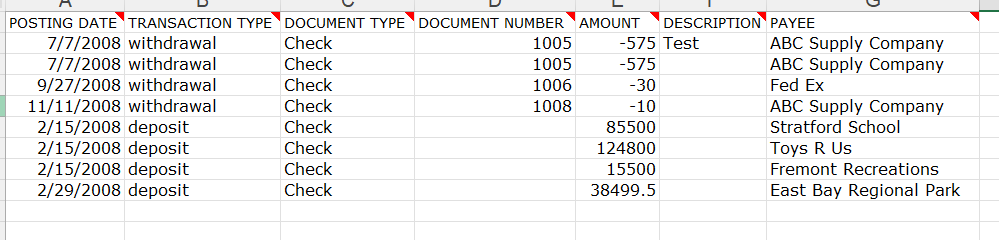
 Add the transactions to be auto-matched, entering:
| Column | Value |
|---|---|
| **Posting date** | The date the check cleared the bank |
| **Transaction type** | Withdrawal |
| **Doc type** | Check |
| **Doc / check number** | The check number |
| **Amount** | **Must be negative** |
Add the transactions to be auto-matched, entering:
| Column | Value |
|---|---|
| **Posting date** | The date the check cleared the bank |
| **Transaction type** | Withdrawal |
| **Doc type** | Check |
| **Doc / check number** | The check number |
| **Amount** | **Must be negative** |
 Save the template as **CSV** in the bank docs folder.
Before closing, confirm the amount column is formatted as a **number**. The import fails with any other format.
Back on the reconciliation screen, click **Choose File**, select the completed file, and click **Done**. Click **Continue** when returned to the Reconciliation screen.
## Read the reconciliation screen
The reconciliation screen has four components. Knowing what each number means is what makes the rest of the work fast.
### Top left — matched and unmatched summary
Save the template as **CSV** in the bank docs folder.
Before closing, confirm the amount column is formatted as a **number**. The import fails with any other format.
Back on the reconciliation screen, click **Choose File**, select the completed file, and click **Done**. Click **Continue** when returned to the Reconciliation screen.
## Read the reconciliation screen
The reconciliation screen has four components. Knowing what each number means is what makes the rest of the work fast.
### Top left — matched and unmatched summary
 - **Matched transactions** have been matched to activity from the bank account. If you imported a bank transaction file for auto-matching checks, any transactions present in both the file and Intacct appear in **Matched checks and debits** or **Matched deposits and credits**. If you did not import a file, both matched totals start at zero.
- **Unmatched transactions** have been entered into Intacct but are not in the bank activity.
### Top right — balances
- **Matched transactions** have been matched to activity from the bank account. If you imported a bank transaction file for auto-matching checks, any transactions present in both the file and Intacct appear in **Matched checks and debits** or **Matched deposits and credits**. If you did not import a file, both matched totals start at zero.
- **Unmatched transactions** have been entered into Intacct but are not in the bank activity.
### Top right — balances
 | Balance | Meaning |
|---|---|
| **Beginning balance** | The prior period's ending bank balance |
| **Statement balance** | The bank balance at the end of the current period, entered when starting the rec |
| **Book balance** | The GL balance at the end of the current period |
| **Difference** | Statement ending balance less book balance — the amount the reconciliation must account for |
| **Uncleared amount** | Total transactions entered in Intacct that have not been matched |
| **Amount to reconcile** | Difference less uncleared amount. **This must be zero to complete the reconciliation.** |
### Middle — filters
| Balance | Meaning |
|---|---|
| **Beginning balance** | The prior period's ending bank balance |
| **Statement balance** | The bank balance at the end of the current period, entered when starting the rec |
| **Book balance** | The GL balance at the end of the current period |
| **Difference** | Statement ending balance less book balance — the amount the reconciliation must account for |
| **Uncleared amount** | Total transactions entered in Intacct that have not been matched |
| **Amount to reconcile** | Difference less uncleared amount. **This must be zero to complete the reconciliation.** |
### Middle — filters
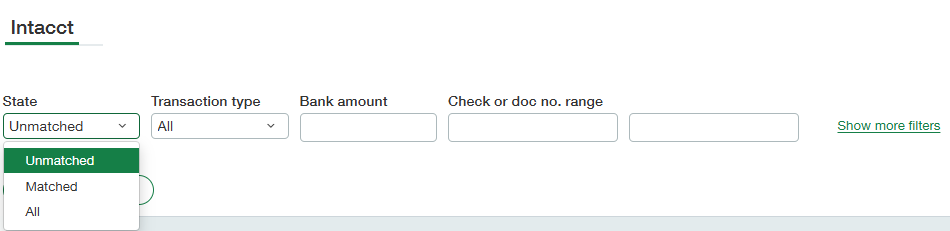 Filter by state (unmatched, matched, all), type (debit, credit), amount, or doc number. More filters are available under **show more filters**. Click **Apply filters** to run them, or **Clear Filters** to remove the criteria.
### Bottom — posted transactions
Filter by state (unmatched, matched, all), type (debit, credit), amount, or doc number. More filters are available under **show more filters**. Click **Apply filters** to run them, or **Clear Filters** to remove the criteria.
### Bottom — posted transactions
 For transactions that have cleared the bank, select the boxes at the far left and click **clear transactions**. The status changes from unmatched to matched at the right of the screen.
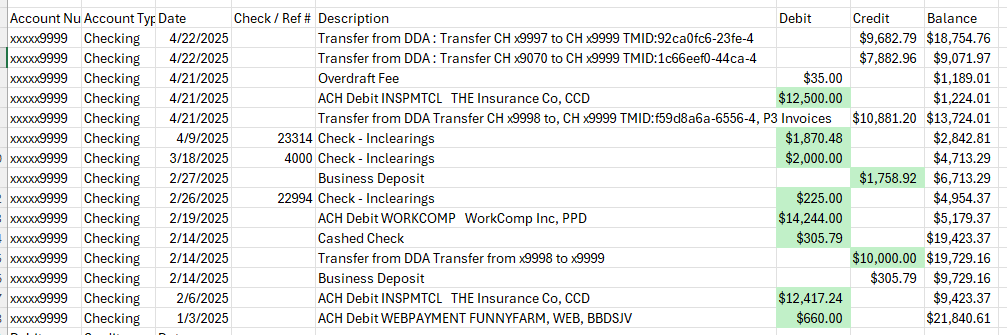
**The standard working method:** download the bank transactions and sort them in Excel. As you match transactions in the rec, highlight them in the spreadsheet too. Once everything possible has been matched and highlighted, whatever is left unhighlighted is the list of transactions you need to enter.
For transactions that have cleared the bank, select the boxes at the far left and click **clear transactions**. The status changes from unmatched to matched at the right of the screen.
**The standard working method:** download the bank transactions and sort them in Excel. As you match transactions in the rec, highlight them in the spreadsheet too. Once everything possible has been matched and highlighted, whatever is left unhighlighted is the list of transactions you need to enter.
 ## Enter missing transactions
Once all available transactions are matched, enter the transactions that have not been posted to the GL. Use the correct method for each type.
**Do not post bank transactions as journal entries.** The only exception is payroll entries, entered as PYRJ type journal entries. Everything else uses one of the methods below.
### Deposits
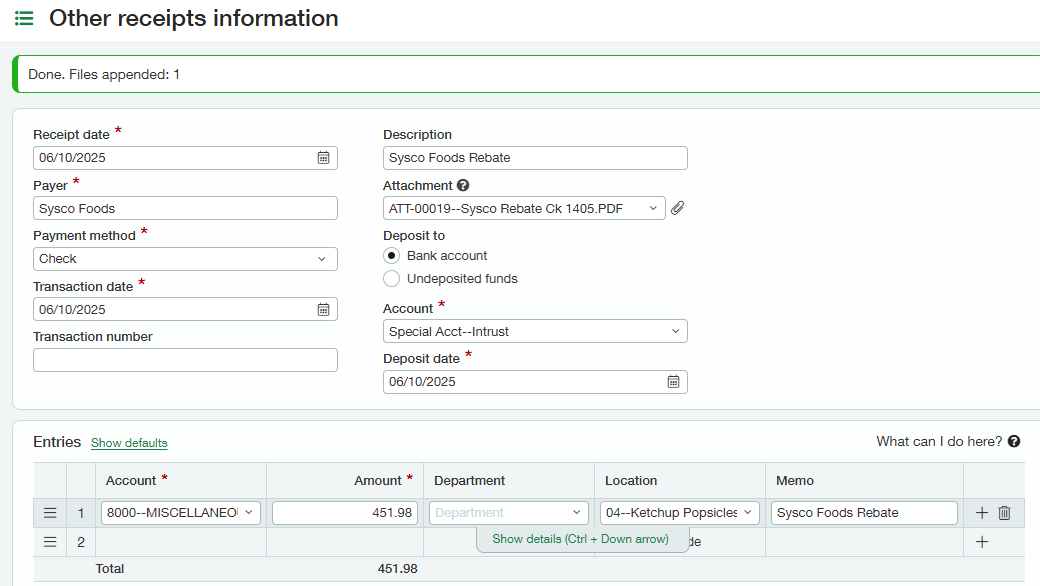
Most deposits are entered through **other receipts**. The exception is deposits that need to post against an A/R invoice for clients generating invoices within Intacct.
Go to **Cash Management → Other receipts**.
## Enter missing transactions
Once all available transactions are matched, enter the transactions that have not been posted to the GL. Use the correct method for each type.
**Do not post bank transactions as journal entries.** The only exception is payroll entries, entered as PYRJ type journal entries. Everything else uses one of the methods below.
### Deposits
Most deposits are entered through **other receipts**. The exception is deposits that need to post against an A/R invoice for clients generating invoices within Intacct.
Go to **Cash Management → Other receipts**.
 | Field | Guidance |
|---|---|
| **Receipt / Transaction / Deposit Date** | All three should be the same date. Daily sales deposits totaled for the period (credit cards, cash, delivery) are recorded on the **last day of the period**. Miscellaneous deposits unrelated to daily sales are recorded on the day they post to the bank. |
| **Payer** | The person or business who made the payment |
| **Description** | What the deposit was for |
| **Attachment** | Documentation for the deposit |
| **Deposit to** | Always use **Bank Account** |
| **Account** | The bank account the deposit was made to |
| **Entries → Account** | The credit side of the GL entry |
| **Entries → Amount** | All lines must total the deposit in the bank |
| **Entries → Department** | Only required for companies using departments |
| **Entries → Location** | The location or entity for the credit side. If this differs from the entity on the bank account, an intercompany entry is created. |
| **Entries → Memo** | Carries down from the description; override for line-level detail |
### Bank fees and interest
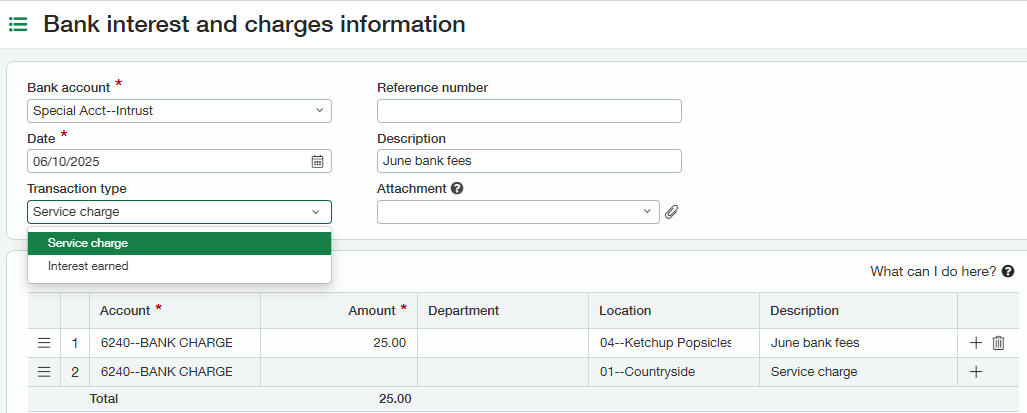
Go to **Cash Management → Interest and charges**.
| Field | Guidance |
|---|---|
| **Receipt / Transaction / Deposit Date** | All three should be the same date. Daily sales deposits totaled for the period (credit cards, cash, delivery) are recorded on the **last day of the period**. Miscellaneous deposits unrelated to daily sales are recorded on the day they post to the bank. |
| **Payer** | The person or business who made the payment |
| **Description** | What the deposit was for |
| **Attachment** | Documentation for the deposit |
| **Deposit to** | Always use **Bank Account** |
| **Account** | The bank account the deposit was made to |
| **Entries → Account** | The credit side of the GL entry |
| **Entries → Amount** | All lines must total the deposit in the bank |
| **Entries → Department** | Only required for companies using departments |
| **Entries → Location** | The location or entity for the credit side. If this differs from the entity on the bank account, an intercompany entry is created. |
| **Entries → Memo** | Carries down from the description; override for line-level detail |
### Bank fees and interest
Go to **Cash Management → Interest and charges**.
 | Field | Guidance |
|---|---|
| **Bank Account** | The account the transaction posted to |
| **Date** | The date the transaction posted to the bank |
| **Transaction Type** | Either **service charge** or **interest earned** |
| **Description** | Usually the month and type of transaction |
| **Attachment** | Not usually needed — the bank statement is the documentation |
| **Entries → Account** | Bank fees for charges, or interest income for interest deposits |
| **Entries → Amount** | All lines must total the bank deposit or withdrawal |
### Transfers between bank accounts
Money moved between two bank accounts that both exist in Intacct is recorded through **Cash Management → Funds transfer**.
| Field | Guidance |
|---|---|
| **Bank Account** | The account the transaction posted to |
| **Date** | The date the transaction posted to the bank |
| **Transaction Type** | Either **service charge** or **interest earned** |
| **Description** | Usually the month and type of transaction |
| **Attachment** | Not usually needed — the bank statement is the documentation |
| **Entries → Account** | Bank fees for charges, or interest income for interest deposits |
| **Entries → Amount** | All lines must total the bank deposit or withdrawal |
### Transfers between bank accounts
Money moved between two bank accounts that both exist in Intacct is recorded through **Cash Management → Funds transfer**.
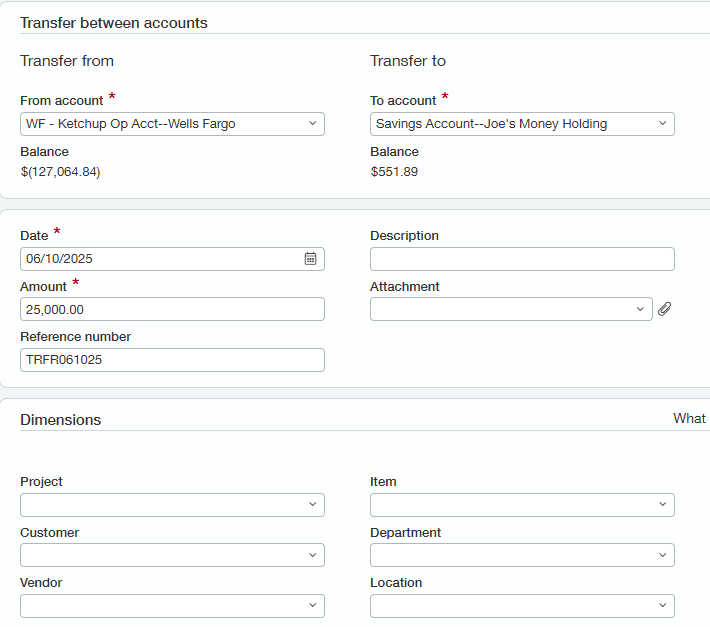 **Do not use funds transfer for payments that need to be tracked as a 1099 payment** — for example rent paid by an operating entity to a real estate entity.
| Field | Guidance |
|---|---|
| **From Account** | The bank the money was withdrawn from |
| **To Account** | The bank the money was deposited at |
| **Date** | The date the transaction posted to the bank |
| **Description** | Optional — for tracking specific transfer information (for example `P5 intercompany balance`) |
| **Reference number** | Optional |
| **Dimensions** | Optional. Location is optional here since the entity comes from the bank account setup. |
### Manual payments
Withdrawals for payments are recorded either as manual payments or through pay bills:
- **Manual payments** — when an invoice and payment need to be created at the same time.
- **Pay bills** — when a payment applies to an invoice already posted.
In general, **the AP processor should be entering most vendor payments**, whether through pay bills or manual payments. See [Day-to-day AP transactions in Sage Intacct](/internal/sops/accounting/ap/intacct-ap-transactions).
Go to **Accounts Payable → Manual payment**.
**Do not use funds transfer for payments that need to be tracked as a 1099 payment** — for example rent paid by an operating entity to a real estate entity.
| Field | Guidance |
|---|---|
| **From Account** | The bank the money was withdrawn from |
| **To Account** | The bank the money was deposited at |
| **Date** | The date the transaction posted to the bank |
| **Description** | Optional — for tracking specific transfer information (for example `P5 intercompany balance`) |
| **Reference number** | Optional |
| **Dimensions** | Optional. Location is optional here since the entity comes from the bank account setup. |
### Manual payments
Withdrawals for payments are recorded either as manual payments or through pay bills:
- **Manual payments** — when an invoice and payment need to be created at the same time.
- **Pay bills** — when a payment applies to an invoice already posted.
In general, **the AP processor should be entering most vendor payments**, whether through pay bills or manual payments. See [Day-to-day AP transactions in Sage Intacct](/internal/sops/accounting/ap/intacct-ap-transactions).
Go to **Accounts Payable → Manual payment**.
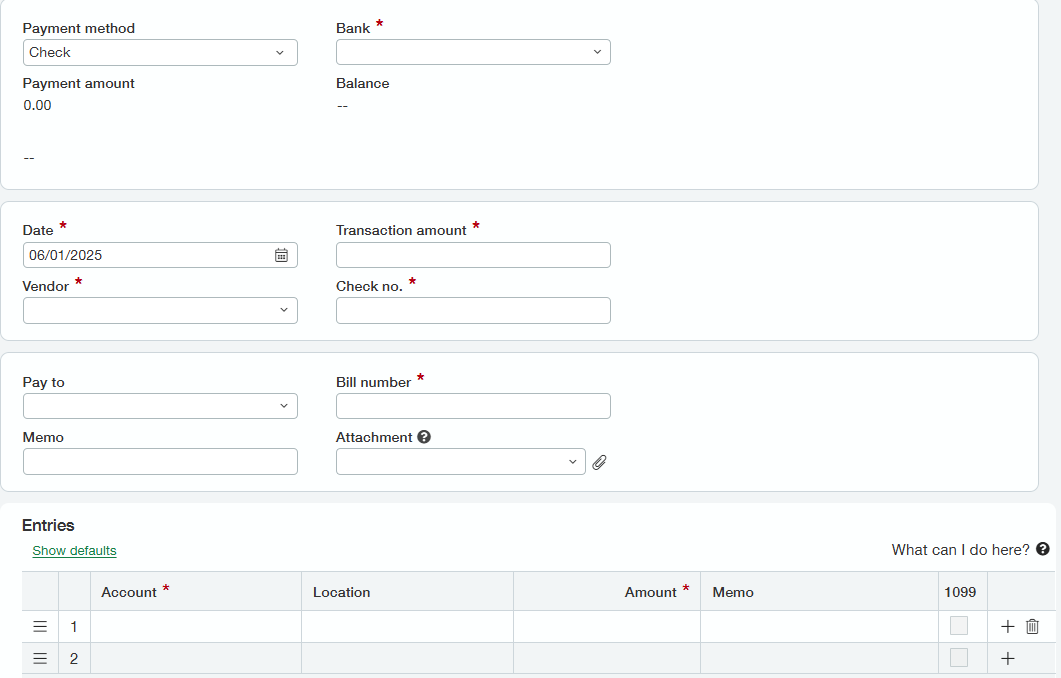 | Field | Guidance |
|---|---|
| **Payment Method** | Check, cash, credit card, or record transfer (ACH) |
| **Bank** | The bank the money was withdrawn from |
| **Date** | The date the transaction posted to the bank |
| **Transaction Amount** | The total payment amount that cleared the bank |
| **Vendor** | Who the payment was made to |
| **Check no / Document Number** | Required for checks — use the number on the issued check. For all other types Intacct does not require it, **but PBI process is to always enter one**: an alphanumeric combination of payee and date. A payment to Recycling Ricky on 6/1/2025 becomes `RR060125`. |
| **Pay To** | Populates automatically from the vendor |
| **Bill number** | The invoice number if available; otherwise reuse the document number |
| **Memo** | Optional, for tracking specific payment information |
| **Entries → Account** | The debit side of the GL entry |
| **Entries → Location** | The location or entity for the debit side. A different entity than the bank account creates an intercompany entry. |
## Complete the reconciliation
After all bank activity has been entered and matched, the amount to reconcile should be zero.
| Field | Guidance |
|---|---|
| **Payment Method** | Check, cash, credit card, or record transfer (ACH) |
| **Bank** | The bank the money was withdrawn from |
| **Date** | The date the transaction posted to the bank |
| **Transaction Amount** | The total payment amount that cleared the bank |
| **Vendor** | Who the payment was made to |
| **Check no / Document Number** | Required for checks — use the number on the issued check. For all other types Intacct does not require it, **but PBI process is to always enter one**: an alphanumeric combination of payee and date. A payment to Recycling Ricky on 6/1/2025 becomes `RR060125`. |
| **Pay To** | Populates automatically from the vendor |
| **Bill number** | The invoice number if available; otherwise reuse the document number |
| **Memo** | Optional, for tracking specific payment information |
| **Entries → Account** | The debit side of the GL entry |
| **Entries → Location** | The location or entity for the debit side. A different entity than the bank account creates an intercompany entry. |
## Complete the reconciliation
After all bank activity has been entered and matched, the amount to reconcile should be zero.
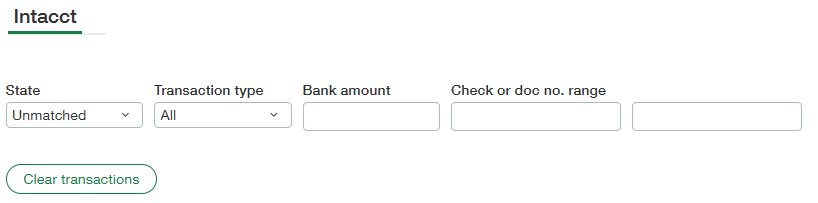
 Use the filters to set state to **unmatched** and transaction type to **all**.
 | Item | Rule |
|---|---|
| **Outstanding checks** | AP checks more than **3 months old** go to the AP processor for research. Payroll checks older than **6 months** move to the unclaimed payroll liability GL semi-yearly. |
| **Deposits in transit** | Verify outstanding deposits posted at the bank after period end. Communicate any that did not post to the client. |
| **Outstanding ACH payments** | There should be none. Research against post-reconciliation bank activity or review for a duplicate entry. |
Confirm the book balance matches the GL balance for the account.
| Item | Rule |
|---|---|
| **Outstanding checks** | AP checks more than **3 months old** go to the AP processor for research. Payroll checks older than **6 months** move to the unclaimed payroll liability GL semi-yearly. |
| **Deposits in transit** | Verify outstanding deposits posted at the bank after period end. Communicate any that did not post to the client. |
| **Outstanding ACH payments** | There should be none. Research against post-reconciliation bank activity or review for a duplicate entry. |
Confirm the book balance matches the GL balance for the account.

 Click **Reconcile** in the top right corner.
Then go to **Cash Management → View reconciliation histories** to pull an Excel version of the report. Copy and paste the report into the appropriate GL tab in the balance sheet reconciliation workbook in the period close folder.
Include a screenshot from the bank, or the bank statement, on that tab to support the ending statement balance used in the reconciliation.
Click **Reconcile** in the top right corner.
Then go to **Cash Management → View reconciliation histories** to pull an Excel version of the report. Copy and paste the report into the appropriate GL tab in the balance sheet reconciliation workbook in the period close folder.
Include a screenshot from the bank, or the bank statement, on that tab to support the ending statement balance used in the reconciliation.
 **Expected outcome:** the reconciliation is marked complete in Intacct, and the period close workbook holds both the reconciliation report and support for the ending statement balance.
## Related documents
- [Bank reconciliation concepts](/internal/sops/accounting/general/bank-reconciliation-concepts) — terminology and the standard steps
- [Bank transaction automation — rule setup](/internal/sops/accounting/general/bank-automation-setup) — replaces most of the manual matching above
- [Set up a basic check-matching rule set](/internal/how-to/accounting/intacct-bank-rule-sets) — the quick version for auto-matching checks
- [Day-to-day AP transactions in Sage Intacct](/internal/sops/accounting/ap/intacct-ap-transactions)
- [PBI vs. client responsibilities](/internal/sops/accounting/responsibilities)
**Expected outcome:** the reconciliation is marked complete in Intacct, and the period close workbook holds both the reconciliation report and support for the ending statement balance.
## Related documents
- [Bank reconciliation concepts](/internal/sops/accounting/general/bank-reconciliation-concepts) — terminology and the standard steps
- [Bank transaction automation — rule setup](/internal/sops/accounting/general/bank-automation-setup) — replaces most of the manual matching above
- [Set up a basic check-matching rule set](/internal/how-to/accounting/intacct-bank-rule-sets) — the quick version for auto-matching checks
- [Day-to-day AP transactions in Sage Intacct](/internal/sops/accounting/ap/intacct-ap-transactions)
- [PBI vs. client responsibilities](/internal/sops/accounting/responsibilities)