---
title: "Bank Transaction Automation: Rule Setup"
sidebarTitle: "Bank automation setup"
description: "Configure Sage Intacct to create and match bank transactions automatically — journal entry templates, create rules, match rules, and rule sets."
icon: "gears"
---
> **For AI agents:** the complete documentation index is at [llms.txt](/llms.txt). Append `.md` to any page URL for its markdown version.
| Field | Value |
|---|---|
| **Owner** | Unassigned — needs an owner |
| **Department** | General Accounting — accounting managers |
| **Effective date** | Not set in source |
| **Scope** | The one-time configuration required for rule-based bank transaction creation and matching in Sage Intacct. Intended for **accounting managers and Intacct administrators** — enabling Sage Cloud Services requires Full Admin. For the day-to-day use of these rules, see [Reconciling with automation rules](/internal/sops/accounting/general/bank-automation-reconciling). |
| **Source** | `General Accounting/02 - Bank Reconciliation/Bank Automation - Managers.docx` |
Sage Intacct can create and match bank transactions based on user-defined rules when a bank file is uploaded. The feature is similar to the R365 bank activity screen but more flexible to configure.
## Why the firm is implementing this
- Once rules exist, deposits, bank fees, credit card fees, and transfers are **created automatically**.
- Checks, ACH payments, fees, and deposits can be **auto-matched** rather than matched by hand.
- Moves the reconciliation from a spreadsheet into Intacct, giving oversight of progress.
- Mitigates the risk of repetitive entries being miscoded by staff.
- Requires minimal manipulation of the bank file — the previous import process demanded specific formats that hindered use.
- Significant time savings.
## The full process
```
Journal entry templates → Create rules → Match rules → Rule sets
→ Assign to bank accounts → Upload a bank file → Reconcile
```
Steps 1 through 5 are one-time setup and are covered on this page. Uploading and reconciling is [the staff procedure](/internal/sops/accounting/general/bank-automation-reconciling).
## Setup
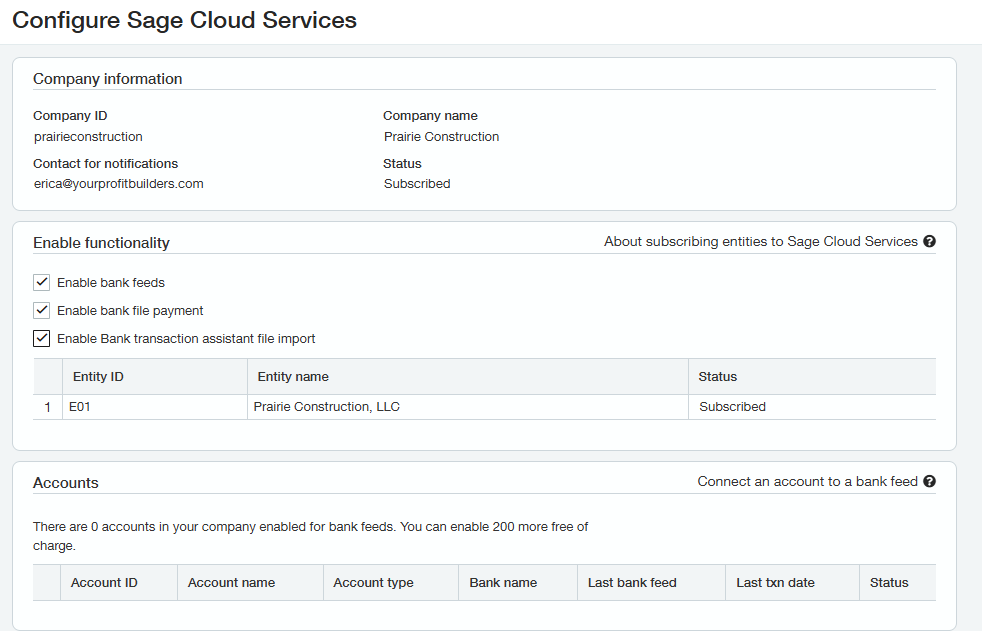
Enable Sage Cloud Services. This requires **Full Admin** access.
 Before create rules can exist, a template for the GL posting must be set up. **The rule creates the criteria; the transaction template tells the system how to post.**
Go to **Cash Management → Set-up → Journal entry** (under Reconciliation txn templates).
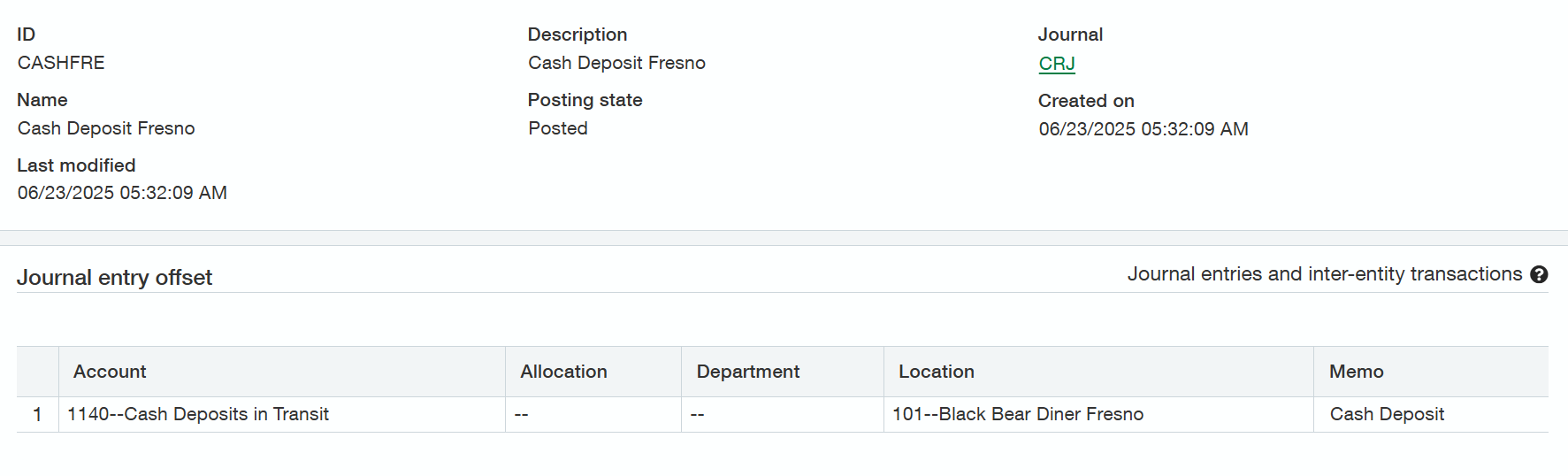
A template is needed for **each GL account that will be posted to, and each location or entity**. If seven locations post cash deposits to the location, you need seven journal entry templates for the cash deposit GL account alone.
Before create rules can exist, a template for the GL posting must be set up. **The rule creates the criteria; the transaction template tells the system how to post.**
Go to **Cash Management → Set-up → Journal entry** (under Reconciliation txn templates).
A template is needed for **each GL account that will be posted to, and each location or entity**. If seven locations post cash deposits to the location, you need seven journal entry templates for the cash deposit GL account alone.
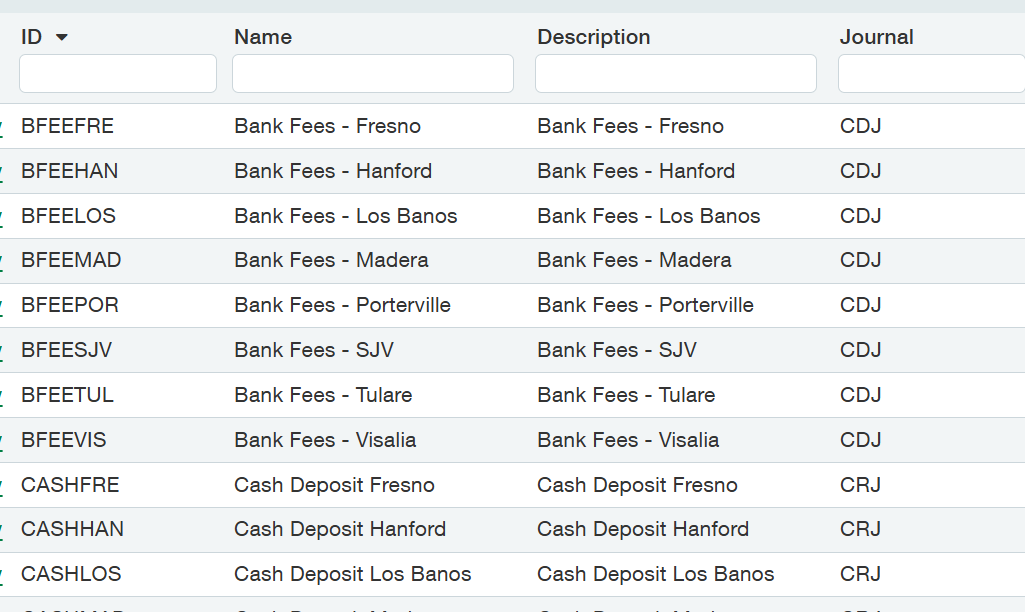
 **Naming conventions:**
| Field | Rule |
|---|---|
| **ID** | Maximum 30 characters, unique per template. Reflect the GL account and location where needed — `CD_102` = cash deposits for the Fresno location. Only letters, numbers, a single dash, or underscore. |
| **Name / Description** | A fuller name containing the GL account name and location if needed. |
**Journal types** — use these for each transaction type:
| Journal | Use for |
|---|---|
| **CRJ** (cash receipts journal) | All deposits that previously used an "other receipt" transaction. Also interest earnings deposits that previously used "interest and charges". |
| **CDJ** (cash disbursements journal) | All bank and credit card fees that previously used "interest and charges". Also transfers. |
**Set transfers up as create rules based on the bank account the money is transferred *out from***. Basing the rule on the deposit side causes timing problems when the banks are at separate institutions.
Journals can post in **draft** or **posted** state. Draft entries generate on upload but must then be manually posted before they can be matched. Posted entries post directly to the GL and auto-match. **Create all journal entries as posted.**
Finally, assign the GL account that offsets the cash account — bank service charges code to the bank fees GL, for example. Assign the location and include a general memo for this transaction type. Allocation and department fields are available if needed.
Save, then repeat for each GL account and location combination.
Create rules filter bank transactions, then create transactions that post to the GL based on the assigned transaction template.
Go to **Cash Management → Set-Up → Matching and Creation Rules**.
**Naming conventions:**
| Field | Rule |
|---|---|
| **ID** | Maximum 30 characters, unique per template. Reflect the GL account and location where needed — `CD_102` = cash deposits for the Fresno location. Only letters, numbers, a single dash, or underscore. |
| **Name / Description** | A fuller name containing the GL account name and location if needed. |
**Journal types** — use these for each transaction type:
| Journal | Use for |
|---|---|
| **CRJ** (cash receipts journal) | All deposits that previously used an "other receipt" transaction. Also interest earnings deposits that previously used "interest and charges". |
| **CDJ** (cash disbursements journal) | All bank and credit card fees that previously used "interest and charges". Also transfers. |
**Set transfers up as create rules based on the bank account the money is transferred *out from***. Basing the rule on the deposit side causes timing problems when the banks are at separate institutions.
Journals can post in **draft** or **posted** state. Draft entries generate on upload but must then be manually posted before they can be matched. Posted entries post directly to the GL and auto-match. **Create all journal entries as posted.**
Finally, assign the GL account that offsets the cash account — bank service charges code to the bank fees GL, for example. Assign the location and include a general memo for this transaction type. Allocation and department fields are available if needed.
Save, then repeat for each GL account and location combination.
Create rules filter bank transactions, then create transactions that post to the GL based on the assigned transaction template.
Go to **Cash Management → Set-Up → Matching and Creation Rules**.
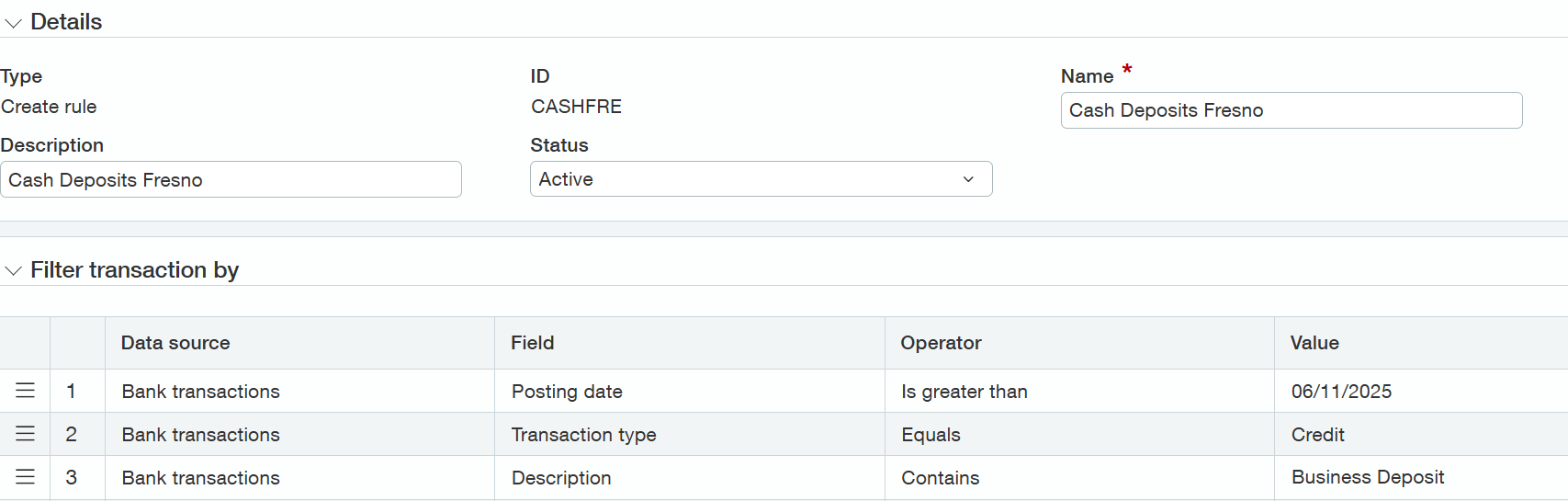 | Field | Guidance |
|---|---|
| **Type** | Use **create**. Entries created in the posted state also match on the reconciliation. |
| **ID** | Unique, reflecting GL account and location where needed (`CASHFRE` = cash deposits, Fresno). Only letters, numbers, a single dash, or underscore. |
| **Name / Description** | A fuller description containing the GL account name and location if needed. |
**Filter transactions by** — this identifies the specific bank transactions the rule applies to. Build the filters in this order:
1. **Always start with a posting date filter.** Intacct will not create transactions for this rule before this date. This matters especially when bank feeds are connected.
2. **Filter on transaction type** — debit (money out) or credit (money in).
Debit and credit here follow the **bank's** definition, not the accounting definition.
3. **Add remaining filters** to narrow further — usually a filter on description containing part of the bank's transaction description. In the example, all cash deposits post with a description of "Business Deposit".
Selecting **Equals** in the Operator dropdown makes the value **case sensitive**. Every other operator is case insensitive.
**Group transactions by** — groups transactions into a single posting date or document number. Grouping by posting date works when all cash deposits post to one location and should create one deposit per day.
**Define transaction to create** — set transaction type to journal entry, and select the journal entry template with the corresponding GL account and location for this rule.
Save, then repeat for each create rule needed.
Match rules filter and group the same way create rules do, but **do not create transactions that post to the GL**. Instead the rule searches already-created Intacct transactions and matches them on the bank rec.
A single match rule is likely to be used across multiple bank accounts. One rule to match checks can serve every bank account.
| Field | Guidance |
|---|---|
| **Type** | Use **create**. Entries created in the posted state also match on the reconciliation. |
| **ID** | Unique, reflecting GL account and location where needed (`CASHFRE` = cash deposits, Fresno). Only letters, numbers, a single dash, or underscore. |
| **Name / Description** | A fuller description containing the GL account name and location if needed. |
**Filter transactions by** — this identifies the specific bank transactions the rule applies to. Build the filters in this order:
1. **Always start with a posting date filter.** Intacct will not create transactions for this rule before this date. This matters especially when bank feeds are connected.
2. **Filter on transaction type** — debit (money out) or credit (money in).
Debit and credit here follow the **bank's** definition, not the accounting definition.
3. **Add remaining filters** to narrow further — usually a filter on description containing part of the bank's transaction description. In the example, all cash deposits post with a description of "Business Deposit".
Selecting **Equals** in the Operator dropdown makes the value **case sensitive**. Every other operator is case insensitive.
**Group transactions by** — groups transactions into a single posting date or document number. Grouping by posting date works when all cash deposits post to one location and should create one deposit per day.
**Define transaction to create** — set transaction type to journal entry, and select the journal entry template with the corresponding GL account and location for this rule.
Save, then repeat for each create rule needed.
Match rules filter and group the same way create rules do, but **do not create transactions that post to the GL**. Instead the rule searches already-created Intacct transactions and matches them on the bank rec.
A single match rule is likely to be used across multiple bank accounts. One rule to match checks can serve every bank account.
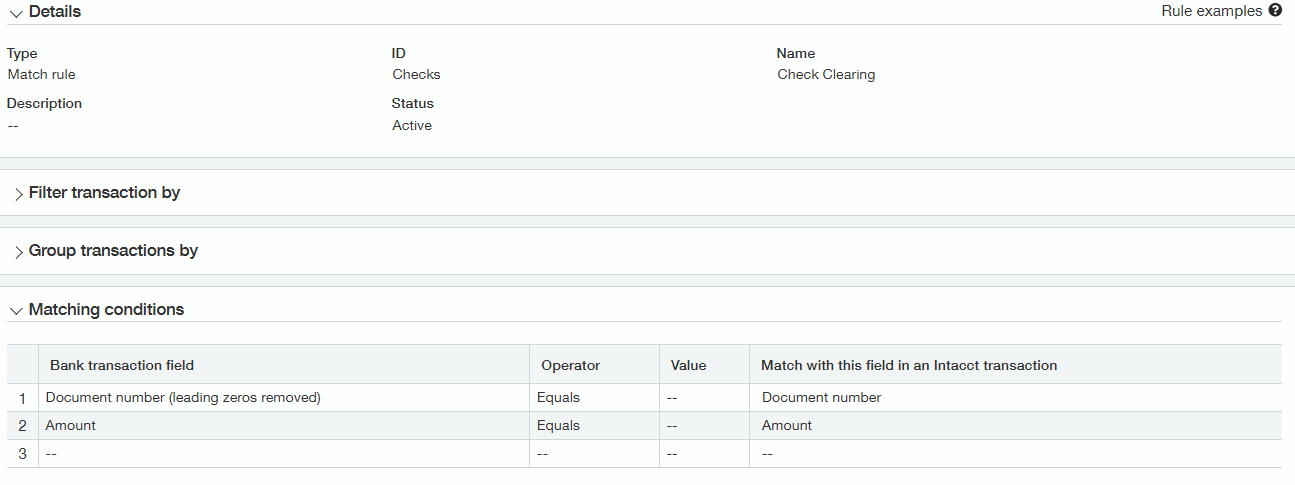 | Field | Guidance |
|---|---|
| **Type** | Set to **match**. |
| **ID** | Unique, reflecting GL account and location where needed. |
| **Filter → Data Source** | Filter by either the bank transaction or the Intacct transaction. |
| **Filter → Fields** | Options depend on the data source. Filtering by bank transactions offers more options than a standard bank download contains, so **expect some testing between setting up the rule and identifying columns in the bank file**. Posting date, transaction type, document number, amount, and description are generally available. |
| **Group transactions by** | Group by Intacct or bank transactions, then by document number or posting date. |
| **Matching conditions** | After the filter identifies transactions, matching conditions define what must be true to clear a transaction from the reconciliation. |
**All matching rules require a matching condition for Amount, and there should always be at least two matching conditions.** For checks, use document date and amount. For ACH payments, use date and amount.
A rule set is the collection of match and create rules applicable to a specific bank account. **One rule set can apply to multiple bank accounts, but each bank account can have only one rule set.**
Go to **Cash Management → Set-up → Rule Sets**.
| Field | Guidance |
|---|---|
| **Type** | Set to **match**. |
| **ID** | Unique, reflecting GL account and location where needed. |
| **Filter → Data Source** | Filter by either the bank transaction or the Intacct transaction. |
| **Filter → Fields** | Options depend on the data source. Filtering by bank transactions offers more options than a standard bank download contains, so **expect some testing between setting up the rule and identifying columns in the bank file**. Posting date, transaction type, document number, amount, and description are generally available. |
| **Group transactions by** | Group by Intacct or bank transactions, then by document number or posting date. |
| **Matching conditions** | After the filter identifies transactions, matching conditions define what must be true to clear a transaction from the reconciliation. |
**All matching rules require a matching condition for Amount, and there should always be at least two matching conditions.** For checks, use document date and amount. For ACH payments, use date and amount.
A rule set is the collection of match and create rules applicable to a specific bank account. **One rule set can apply to multiple bank accounts, but each bank account can have only one rule set.**
Go to **Cash Management → Set-up → Rule Sets**.
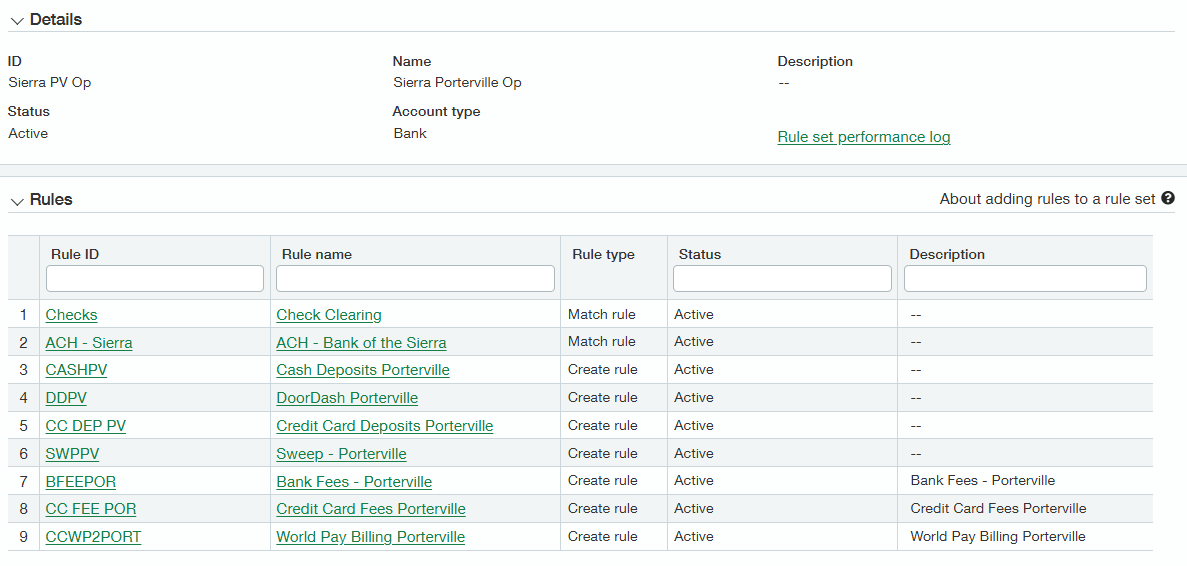 | Field | Guidance |
|---|---|
| **ID** | A short ID identifying the bank name. If the rule set is for a specific account only, include the last 4 digits of the account number. |
| **Name / Description** | A fuller description of the bank — ID `Sierra4182` with name/description `Sierra Operating Fresno 4182`. |
| **Account type** | Bank |
| **Rules** | Click **Select Rules**, choose the create and match rules that belong in this set, then click **add & close**. |
On the **Accounts** tab, click **select accounts** and choose the bank accounts that should use this rule set.
| Field | Guidance |
|---|---|
| **ID** | A short ID identifying the bank name. If the rule set is for a specific account only, include the last 4 digits of the account number. |
| **Name / Description** | A fuller description of the bank — ID `Sierra4182` with name/description `Sierra Operating Fresno 4182`. |
| **Account type** | Bank |
| **Rules** | Click **Select Rules**, choose the create and match rules that belong in this set, then click **add & close**. |
On the **Accounts** tab, click **select accounts** and choose the bank accounts that should use this rule set.
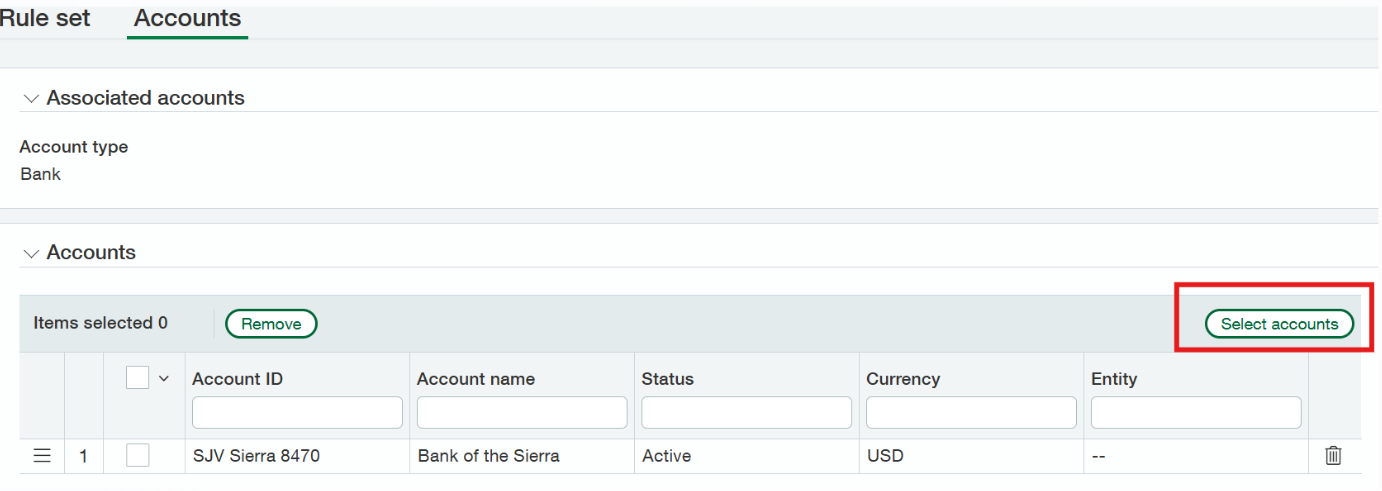 **Expected outcome:** the rule set is attached to the bank account, and a bank file can now be uploaded for processing. Auto-match is unavailable during reconciliation until a rule set is applied.
## Sample create rules
1. Go to **Cash Management → Setup → Reconciliation rules** and select **Add** (circle) next to Matching and creation rules.
2. In the **Type** dropdown select **Create rule**.
3. Enter an ID and a Name.
4. Create a filter for the bank transaction posting date:
- **Data source**: Bank transactions
- **Field**: Posting date
- **Operator**: Is greater than
- **Value**: the date on which to begin creating transactions
5. Add a filter:
- **Data source**: Bank transactions
- **Field**: Transaction type
- **Operator**: Equals
- **Value**: Credit
6. Add a filter:
- **Data source**: Bank transactions
- **Field**: Description
- **Operator**: Contains
- **Value**: Deposit — *this value varies depending on your bank data*
1. Go to **Cash Management → Setup → Reconciliation rules** and select **Add** (circle) next to Matching and creation rules.
2. In the **Type** dropdown select **Create rule**.
3. Enter an ID and a Name.
4. Create a filter for the bank transaction posting date:
- **Data source**: Bank transactions
- **Field**: Posting date
- **Operator**: Is greater than
- **Value**: the date on which to begin creating transactions
5. Add a filter:
- **Data source**: Bank transactions
- **Field**: Transaction type
- **Operator**: Equals
- **Value**: Debit
6. Add a filter:
- **Data source**: Bank transactions
- **Field**: Description
- **Operator**: Contains
- **Value**: *varies depending on your bank data*
## Sample matching rules
The simplest useful match rule.
1. Go to **Cash Management → Setup → Reconciliation rules** and select **Add** next to Matching and creation rules.
2. In the **Type** dropdown select **Match rule**.
3. Enter an ID and a Name.
4. Create a matching condition for Amount. Scroll to **Matching conditions**:
- **Bank transaction field**: Amount
- **Operator**: Equals
- **Match this field in an Intacct transaction**: Amount
5. In the next row, add a condition for the posting date:
- **Bank transaction field**: Posting date
- **Operator**: Equals
- **Match this field in an Intacct transaction**: Posting date
6. Select **Save**.
Some bank feed transactions have extra zeroes preceding the document number. Leading zeroes on Intacct transactions are automatically ignored.
1. Go to **Cash Management → Setup → Reconciliation rules** and select **Add** next to Matching and creation rules.
2. In the **Type** list select **Match rule**.
3. Enter an ID and a Name.
4. Create a matching condition for Amount:
- **Bank transaction field**: Amount
- **Operator**: Equals
- **Match this field in an Intacct transaction**: Amount
5. Add a condition for the document number:
- **Bank transaction field**: Document number (leading zeroes removed)
- **Operator**: Equals
- **Match this field in an Intacct transaction**: Document number
6. Select **Save**.
For cases where customer payments were recorded as multiple Intacct transactions but correspond to one ACH payment at the bank.
1. Go to **Cash Management → Setup → Reconciliation rules** and select **Add** next to Matching and creation rules.
2. In the **Type** list select **Match rule**.
3. Enter an ID and a Name.
4. Optionally filter for credit type transactions to target the ACH payments:
- **Data source**: Intacct transactions
- **Field**: Transaction type
- **Operator**: Equals
- **Value**: Credit
5. In **Group transactions by**, group Intacct transactions by **Document number**. If you know these transactions post on the same date, group by **Posting date** instead.
6. Create a matching condition for Amount:
- **Bank transaction field**: Amount
- **Operator**: Equals
- **Match this field in an Intacct transaction**: Amount
7. Select **Save**.
For banks that put the check or document number inside the description field.
1. Go to **Cash Management → Setup → Reconciliation rules** and select **Add** next to Matching and creation rules.
2. In the **Type** list select **Match rule**.
3. Enter an ID and a Name.
4. Optionally enter filter criteria in **Filter transaction by**.
5. Create a matching condition for Amount:
- **Bank transaction field**: Amount
- **Operator**: Equals
- **Match this field in an Intacct transaction**: Amount
6. Create a condition matching on the description:
- **Bank transaction field**: Description
- **Operator**: **Equals** to match an exact description, or **Contains** to match descriptions including a specific value, phrase, or word
- **Match this field in an Intacct transaction**: Description
7. Select **Save**.
Useful when the bank is in a different time zone than the business.
1. Go to **Cash Management → Setup → Reconciliation rules** and select **Add** next to Matching and creation rules.
2. In the **Type** list select **Match rule**.
3. Enter an ID and a Name.
4. Optionally enter filter criteria in **Filter transaction by**.
5. Create a matching condition for Amount:
- **Bank transaction field**: Amount
- **Operator**: Equals
- **Match this field in an Intacct transaction**: Amount
6. Create a condition for a range of posting dates:
- **Bank transaction field**: Posting date
- **Operator**: Within
- **Value**: the number of days the posting date can vary. Entering `1` matches bank transactions within 1 day before and 1 day after the Intacct transaction's posting date.
- **Match this field in an Intacct transaction**: Posting date
7. Select **Save**.
## Related documents
- [Reconciling with automation rules](/internal/sops/accounting/general/bank-automation-reconciling) — the day-to-day staff procedure
- [Set up a basic check-matching rule set](/internal/how-to/accounting/intacct-bank-rule-sets) — a shorter walkthrough for just check matching
- [Intacct bank reconciliation](/internal/sops/accounting/general/intacct-bank-reconciliation) — the manual reconciliation these rules reduce
**Expected outcome:** the rule set is attached to the bank account, and a bank file can now be uploaded for processing. Auto-match is unavailable during reconciliation until a rule set is applied.
## Sample create rules
1. Go to **Cash Management → Setup → Reconciliation rules** and select **Add** (circle) next to Matching and creation rules.
2. In the **Type** dropdown select **Create rule**.
3. Enter an ID and a Name.
4. Create a filter for the bank transaction posting date:
- **Data source**: Bank transactions
- **Field**: Posting date
- **Operator**: Is greater than
- **Value**: the date on which to begin creating transactions
5. Add a filter:
- **Data source**: Bank transactions
- **Field**: Transaction type
- **Operator**: Equals
- **Value**: Credit
6. Add a filter:
- **Data source**: Bank transactions
- **Field**: Description
- **Operator**: Contains
- **Value**: Deposit — *this value varies depending on your bank data*
1. Go to **Cash Management → Setup → Reconciliation rules** and select **Add** (circle) next to Matching and creation rules.
2. In the **Type** dropdown select **Create rule**.
3. Enter an ID and a Name.
4. Create a filter for the bank transaction posting date:
- **Data source**: Bank transactions
- **Field**: Posting date
- **Operator**: Is greater than
- **Value**: the date on which to begin creating transactions
5. Add a filter:
- **Data source**: Bank transactions
- **Field**: Transaction type
- **Operator**: Equals
- **Value**: Debit
6. Add a filter:
- **Data source**: Bank transactions
- **Field**: Description
- **Operator**: Contains
- **Value**: *varies depending on your bank data*
## Sample matching rules
The simplest useful match rule.
1. Go to **Cash Management → Setup → Reconciliation rules** and select **Add** next to Matching and creation rules.
2. In the **Type** dropdown select **Match rule**.
3. Enter an ID and a Name.
4. Create a matching condition for Amount. Scroll to **Matching conditions**:
- **Bank transaction field**: Amount
- **Operator**: Equals
- **Match this field in an Intacct transaction**: Amount
5. In the next row, add a condition for the posting date:
- **Bank transaction field**: Posting date
- **Operator**: Equals
- **Match this field in an Intacct transaction**: Posting date
6. Select **Save**.
Some bank feed transactions have extra zeroes preceding the document number. Leading zeroes on Intacct transactions are automatically ignored.
1. Go to **Cash Management → Setup → Reconciliation rules** and select **Add** next to Matching and creation rules.
2. In the **Type** list select **Match rule**.
3. Enter an ID and a Name.
4. Create a matching condition for Amount:
- **Bank transaction field**: Amount
- **Operator**: Equals
- **Match this field in an Intacct transaction**: Amount
5. Add a condition for the document number:
- **Bank transaction field**: Document number (leading zeroes removed)
- **Operator**: Equals
- **Match this field in an Intacct transaction**: Document number
6. Select **Save**.
For cases where customer payments were recorded as multiple Intacct transactions but correspond to one ACH payment at the bank.
1. Go to **Cash Management → Setup → Reconciliation rules** and select **Add** next to Matching and creation rules.
2. In the **Type** list select **Match rule**.
3. Enter an ID and a Name.
4. Optionally filter for credit type transactions to target the ACH payments:
- **Data source**: Intacct transactions
- **Field**: Transaction type
- **Operator**: Equals
- **Value**: Credit
5. In **Group transactions by**, group Intacct transactions by **Document number**. If you know these transactions post on the same date, group by **Posting date** instead.
6. Create a matching condition for Amount:
- **Bank transaction field**: Amount
- **Operator**: Equals
- **Match this field in an Intacct transaction**: Amount
7. Select **Save**.
For banks that put the check or document number inside the description field.
1. Go to **Cash Management → Setup → Reconciliation rules** and select **Add** next to Matching and creation rules.
2. In the **Type** list select **Match rule**.
3. Enter an ID and a Name.
4. Optionally enter filter criteria in **Filter transaction by**.
5. Create a matching condition for Amount:
- **Bank transaction field**: Amount
- **Operator**: Equals
- **Match this field in an Intacct transaction**: Amount
6. Create a condition matching on the description:
- **Bank transaction field**: Description
- **Operator**: **Equals** to match an exact description, or **Contains** to match descriptions including a specific value, phrase, or word
- **Match this field in an Intacct transaction**: Description
7. Select **Save**.
Useful when the bank is in a different time zone than the business.
1. Go to **Cash Management → Setup → Reconciliation rules** and select **Add** next to Matching and creation rules.
2. In the **Type** list select **Match rule**.
3. Enter an ID and a Name.
4. Optionally enter filter criteria in **Filter transaction by**.
5. Create a matching condition for Amount:
- **Bank transaction field**: Amount
- **Operator**: Equals
- **Match this field in an Intacct transaction**: Amount
6. Create a condition for a range of posting dates:
- **Bank transaction field**: Posting date
- **Operator**: Within
- **Value**: the number of days the posting date can vary. Entering `1` matches bank transactions within 1 day before and 1 day after the Intacct transaction's posting date.
- **Match this field in an Intacct transaction**: Posting date
7. Select **Save**.
## Related documents
- [Reconciling with automation rules](/internal/sops/accounting/general/bank-automation-reconciling) — the day-to-day staff procedure
- [Set up a basic check-matching rule set](/internal/how-to/accounting/intacct-bank-rule-sets) — a shorter walkthrough for just check matching
- [Intacct bank reconciliation](/internal/sops/accounting/general/intacct-bank-reconciliation) — the manual reconciliation these rules reduce