---
title: "Enable ACH Payments for a Vendor"
sidebarTitle: "Enable ACH for a vendor"
description: "Turn on ACH payments for an existing Sage Intacct vendor, pay a bill by ACH, and generate the ACH file to send to the bank."
icon: "money-bill-transfer"
---
> **For AI agents:** the complete documentation index is at [llms.txt](/llms.txt). Append `.md` to any page URL for its markdown version.
| Field | Value |
|---|---|
| **Owner** | Unassigned — needs an owner |
| **Department** | Accounts Payable |
| **Effective date** | Not set in source |
| **Scope** | Enabling ACH on an existing vendor record in Sage Intacct, selecting a bill for ACH payment, and generating the ACH file for upload to the bank. Does not cover collecting or validating the vendor's banking details, which is governed by the [Bank (NACHA) file payment processing policy](/internal/sops/accounting/ap/nacha-bank-file-policy). |
| **Source** | `Accounts Payable Department/1. Vendor Master Data/ACH Vendor Set-up.docx` |
Do not begin this procedure until the vendor's banking information has been validated by a phone call to the vendor, per the [NACHA policy](/internal/sops/accounting/ap/nacha-bank-file-policy). Validation must be documented in the vendor master data — including the validation date, vendor contact, and responsible employee — before any banking details are entered.
## Procedure
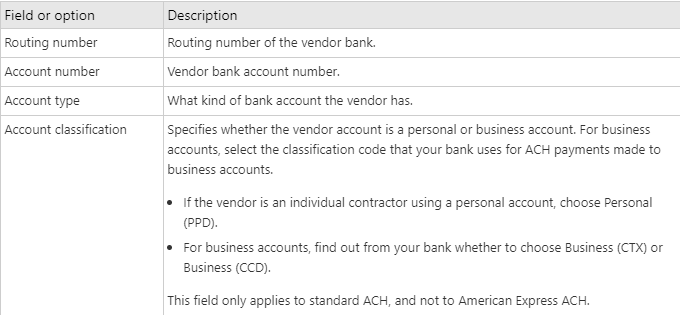
Edit the vendor and open the **Payment Information** tab. In the ACH section, click **Enable ACH Payments**, then complete the banking fields.
 Run the normal pay bills process, choosing **ACH** as the payment method.
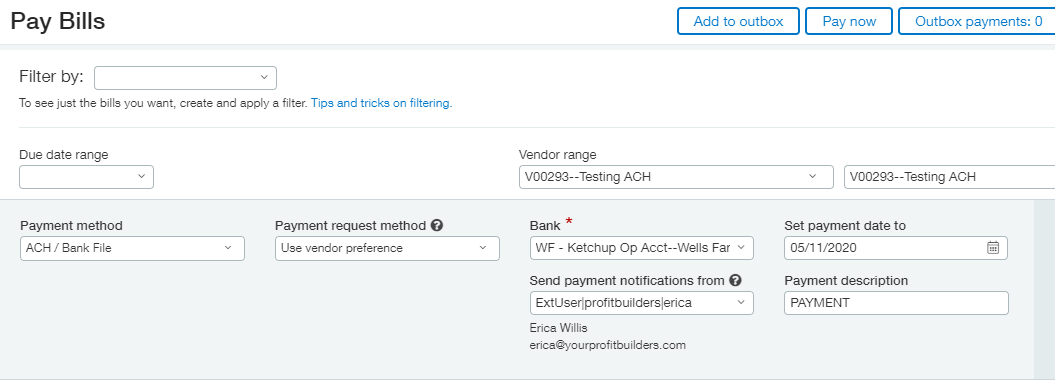 For the full payment selection procedure — filters, credits, partial payments — see [Day-to-day AP in Sage Intacct](/internal/sops/accounting/ap/intacct-ap-transactions).
Navigate to **Cash Management → ACH file generation**.
For the full payment selection procedure — filters, credits, partial payments — see [Day-to-day AP in Sage Intacct](/internal/sops/accounting/ap/intacct-ap-transactions).
Navigate to **Cash Management → ACH file generation**.
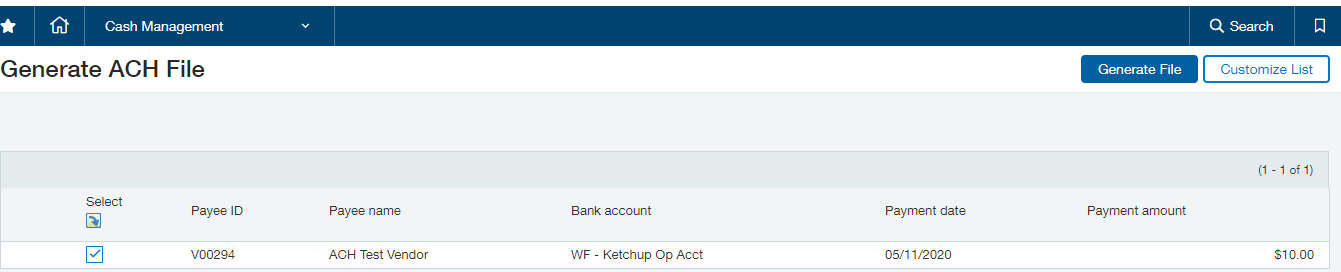
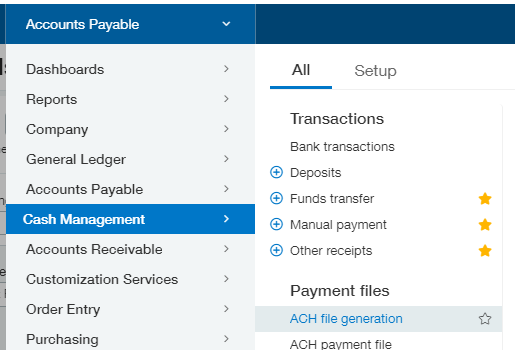 Select the payment you want to make and click **Generate file**.
 After clicking **Generate**, Intacct opens the ACH payment file screen. If it does not, navigate to **Cash Management → ACH payment file**.
Click **Download** next to each file you want to send to the bank, and save the files.
After clicking **Generate**, Intacct opens the ACH payment file screen. If it does not, navigate to **Cash Management → ACH payment file**.
Click **Download** next to each file you want to send to the bank, and save the files.
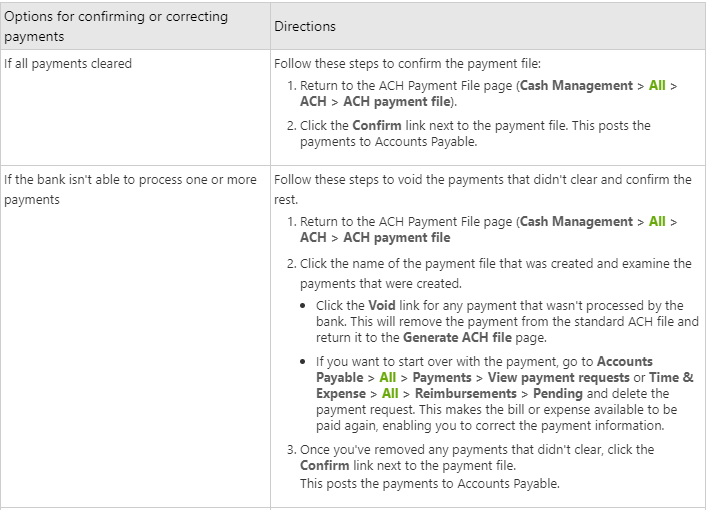 After uploading the file to the bank, confirm the payment in Intacct.
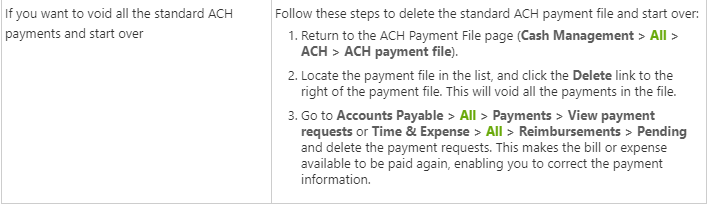 **The payment does not post to the general ledger until it is confirmed.** An uploaded-but-unconfirmed ACH payment leaves the invoice open in AP and the cash unrecorded, which will surface as an unexplained variance at bank reconciliation.
**Expected outcome:** the payment posts to the GL, the invoice clears from AP, and the transaction is available to match on the bank reconciliation.
## Related documents
- [Bank (NACHA) file payment processing policy](/internal/sops/accounting/ap/nacha-bank-file-policy) — mandatory validation and controls for vendor banking data
- [Vendor EFT onboarding letters](/internal/sops/accounting/ap/vendor-eft-onboarding-letters) — the client-signed letter that asks vendors to enroll
- [Add a new vendor in Sage Intacct](/internal/sops/accounting/ap/adding-a-vendor) — set the vendor's Type ID to ACH
- [Intacct bank reconciliation](/internal/sops/accounting/general/intacct-bank-reconciliation) — ACH payments should post with the bank posting date and carry no outstanding balance at reconciliation
**The payment does not post to the general ledger until it is confirmed.** An uploaded-but-unconfirmed ACH payment leaves the invoice open in AP and the cash unrecorded, which will surface as an unexplained variance at bank reconciliation.
**Expected outcome:** the payment posts to the GL, the invoice clears from AP, and the transaction is available to match on the bank reconciliation.
## Related documents
- [Bank (NACHA) file payment processing policy](/internal/sops/accounting/ap/nacha-bank-file-policy) — mandatory validation and controls for vendor banking data
- [Vendor EFT onboarding letters](/internal/sops/accounting/ap/vendor-eft-onboarding-letters) — the client-signed letter that asks vendors to enroll
- [Add a new vendor in Sage Intacct](/internal/sops/accounting/ap/adding-a-vendor) — set the vendor's Type ID to ACH
- [Intacct bank reconciliation](/internal/sops/accounting/general/intacct-bank-reconciliation) — ACH payments should post with the bank posting date and carry no outstanding balance at reconciliation