---
title: "Pull Sales Data from Touchpoint for Credit Card Verification"
sidebarTitle: "Touchpoint sales export"
description: "Log in to Touchpoint with a phone token, navigate to the weekly sales report, and pull the credit and credit refund amounts for the CCV spreadsheet."
icon: "mobile-screen"
---
> **For AI agents:** the complete documentation index is at [llms.txt](/llms.txt). Append `.md` to any page URL for its markdown version.
This guide pulls the daily credit and credit refund figures Touchpoint clients need for the weekly credit card verification.
**Source:** `General Accounting/02 - Cash and Credit Card/Touchpoint CCV Instructions.docx`. Related SOP: [Credit card and cash deposit verification](/internal/sops/accounting/general/credit-card-deposit-verification).
## Procedure
Go to [c1.tchpt.com/admin/login_with_mobile](https://c1.tchpt.com/admin/login_with_mobile).
1. Enter the phone number associated with the account.
2. Click **Continue**.
3. Click **Having Trouble? Click to get token in Call** to initiate the call.
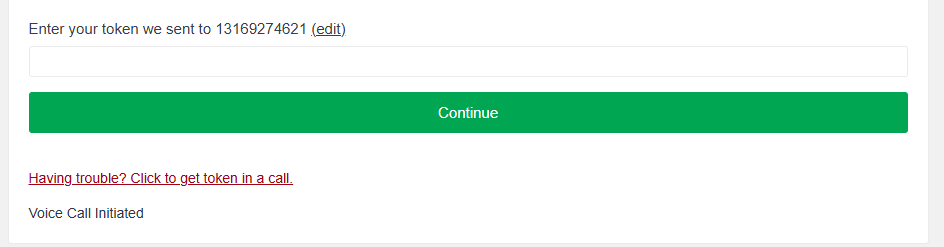 Touchpoint delivers the token by **phone call**, not text. Be somewhere you can take the call before starting.
The location list appears — pick the location you're working on.
Then on the left-hand side, select **Reports & Stats**, and pick **Sales**.
Touchpoint delivers the token by **phone call**, not text. Be somewhere you can take the call before starting.
The location list appears — pick the location you're working on.
Then on the left-hand side, select **Reports & Stats**, and pick **Sales**.
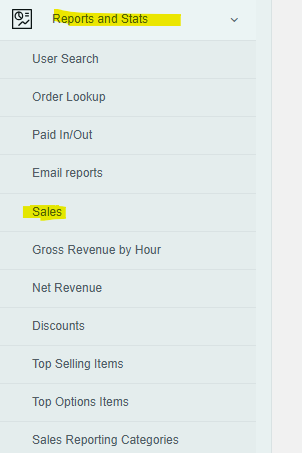 Sales appear a week at a time. Click **previous** to see prior weeks.
Grab these two amounts for each day:
| Touchpoint figure | Goes in |
|---|---|
| **Credit** | Column C on the CCV spreadsheet |
| **Credit Refunds** | Column D on the CCV spreadsheet |
Sales appear a week at a time. Click **previous** to see prior weeks.
Grab these two amounts for each day:
| Touchpoint figure | Goes in |
|---|---|
| **Credit** | Column C on the CCV spreadsheet |
| **Credit Refunds** | Column D on the CCV spreadsheet |
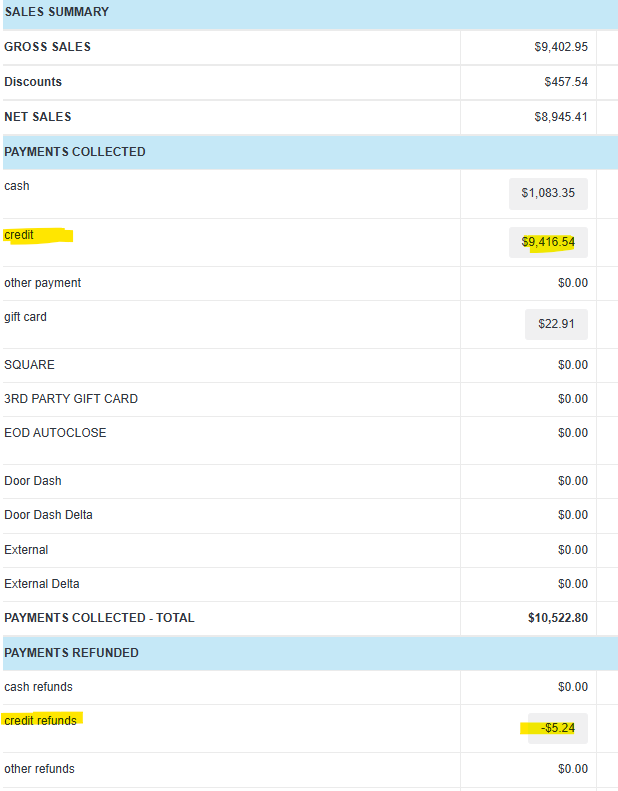 **Expected outcome:** columns C and D of the CCV spreadsheet are populated for every day in the verification week, ready to match against bank deposits.
## Related
- [Credit card and cash deposit verification](/internal/sops/accounting/general/credit-card-deposit-verification) — the SOP this export feeds, including variance thresholds and escalation
- [Export tender data from CTUIT](/internal/how-to/accounting/ctuit-ccv-export) — the equivalent for CTUIT clients
**Expected outcome:** columns C and D of the CCV spreadsheet are populated for every day in the verification week, ready to match against bank deposits.
## Related
- [Credit card and cash deposit verification](/internal/sops/accounting/general/credit-card-deposit-verification) — the SOP this export feeds, including variance thresholds and escalation
- [Export tender data from CTUIT](/internal/how-to/accounting/ctuit-ccv-export) — the equivalent for CTUIT clients