---
title: "Clear Missing Items on an R365 AP Invoice"
sidebarTitle: "R365: vendor item mapping"
description: "What the Missing Items tab on an R365 AP invoice means, and how to decide whether a vendor item maps to an existing purchased item or needs a new one."
icon: "link-slash"
---
> **For AI agents:** the complete documentation index is at [llms.txt](/llms.txt). Append `.md` to any page URL for its markdown version.
When an invoice arrives in Restaurant365 through a vendor integration, R365 tries to match every line on the invoice to a **purchased item** in your item list. It matches on the **vendor item** — the vendor's own code or description for the product. Any line it can't match lands on the invoice's **Missing Items** tab, and the invoice can't be approved until the tab is empty.
Clearing the tab means telling R365, once, what each unmatched vendor item actually is. After that, every future invoice from that vendor matches the line automatically.
**Source:** the screen recordings `Vendor Mapping to an Existing Item.mp4` (1:31) and `Vendor Mapping to New Item.mp4` (2:24), recorded 2026-07-29 by Erica Willis. These pages were reconstructed from the recordings; timestamps in each step point back to the moment in the source video.
## The two paths
Every missing item resolves one of two ways. **Check for an existing item first** — creating a duplicate item is much more work to unwind than finding the one that already exists.
The product is already in the item list under a different vendor's code, or under a generic name. Point the vendor item at it and set the units. **Most missing items go this way.**
The product genuinely isn't in the item list. Create the purchased item — name, measure type, units, GL accounts — then map the vendor item to it.
## Before you start
Missing items are cleared on the invoice itself, not from a separate screen. Open the AP invoice and click the **Missing Items** tab.
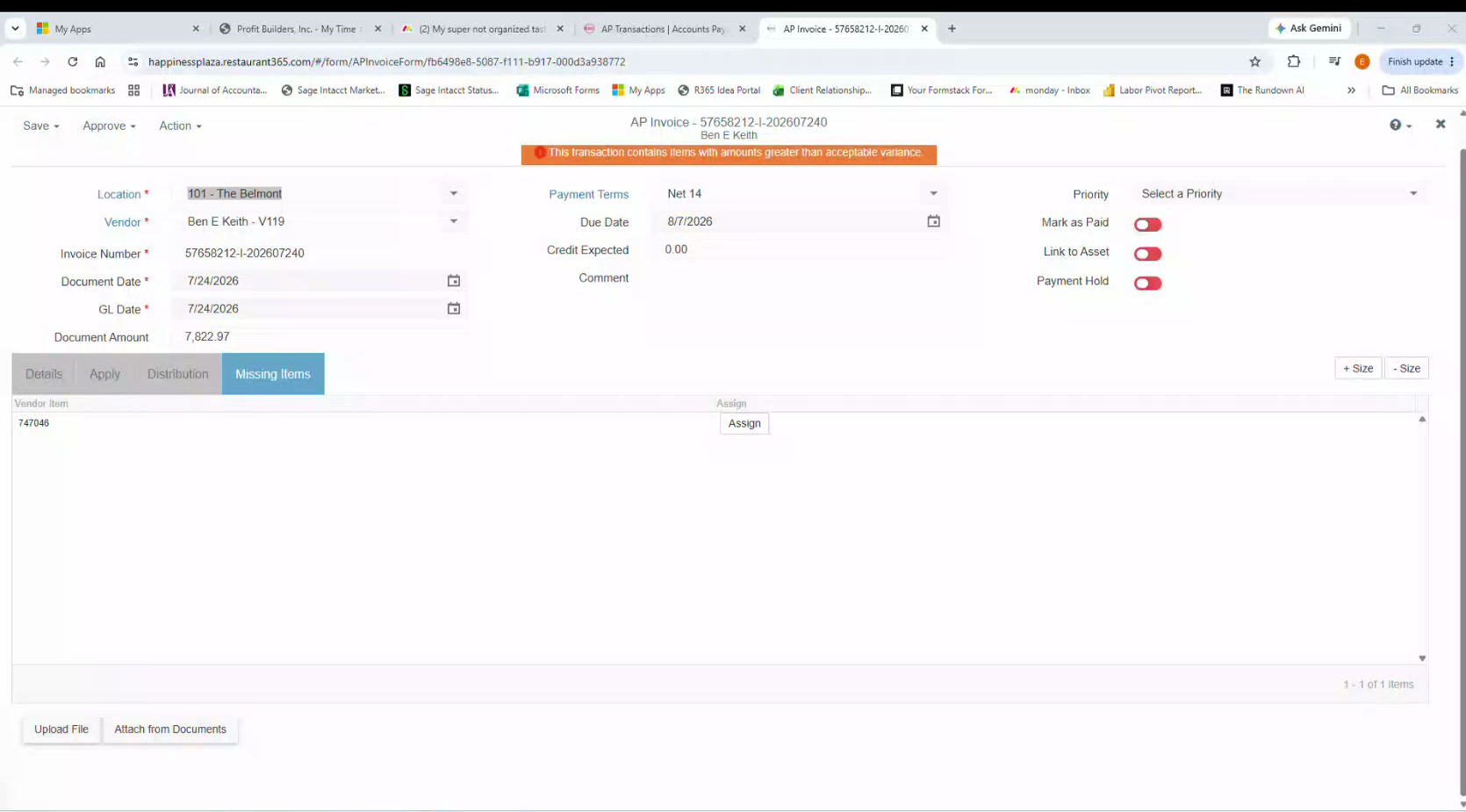 This is the real work. The vendor item is often an opaque code (`747046`) or an abbreviated description (`HAPPY CAMPER CAB SAUV - ML`) — not enough on its own to pick the right item or, critically, the right **unit of measure**. You need the pack size.
Two places to get it, depending on the vendor:
| Where the invoice came from | Where to look up the item |
|---|---|
| A vendor with an online portal (e.g. Ben E. Keith **Entrée**) | Open the invoice in the vendor's portal and read the **Pack / Size** column |
| A vendor whose invoice was scanned and attached | Click **Open attachment viewer** on the AP invoice and read the size off the invoice image |
**Don't guess the unit of measure.** It sets how the item costs out and how it counts in inventory. A case mapped as a pound, or a bottle mapped as a case, misstates cost of sales on every future invoice from that vendor — silently, because the invoice total will still be right.
**Assign** opens the **Vendor Item Assign** dialog. Search the **Item** field for the product. If a matching item exists, you're on the [existing item](/internal/how-to/accounting/r365-vendor-item-mapping-existing) path. If nothing matches, you're on the [new item](/internal/how-to/accounting/r365-vendor-item-mapping-new) path.
This is the real work. The vendor item is often an opaque code (`747046`) or an abbreviated description (`HAPPY CAMPER CAB SAUV - ML`) — not enough on its own to pick the right item or, critically, the right **unit of measure**. You need the pack size.
Two places to get it, depending on the vendor:
| Where the invoice came from | Where to look up the item |
|---|---|
| A vendor with an online portal (e.g. Ben E. Keith **Entrée**) | Open the invoice in the vendor's portal and read the **Pack / Size** column |
| A vendor whose invoice was scanned and attached | Click **Open attachment viewer** on the AP invoice and read the size off the invoice image |
**Don't guess the unit of measure.** It sets how the item costs out and how it counts in inventory. A case mapped as a pound, or a bottle mapped as a case, misstates cost of sales on every future invoice from that vendor — silently, because the invoice total will still be right.
**Assign** opens the **Vendor Item Assign** dialog. Search the **Item** field for the product. If a matching item exists, you're on the [existing item](/internal/how-to/accounting/r365-vendor-item-mapping-existing) path. If nothing matches, you're on the [new item](/internal/how-to/accounting/r365-vendor-item-mapping-new) path.
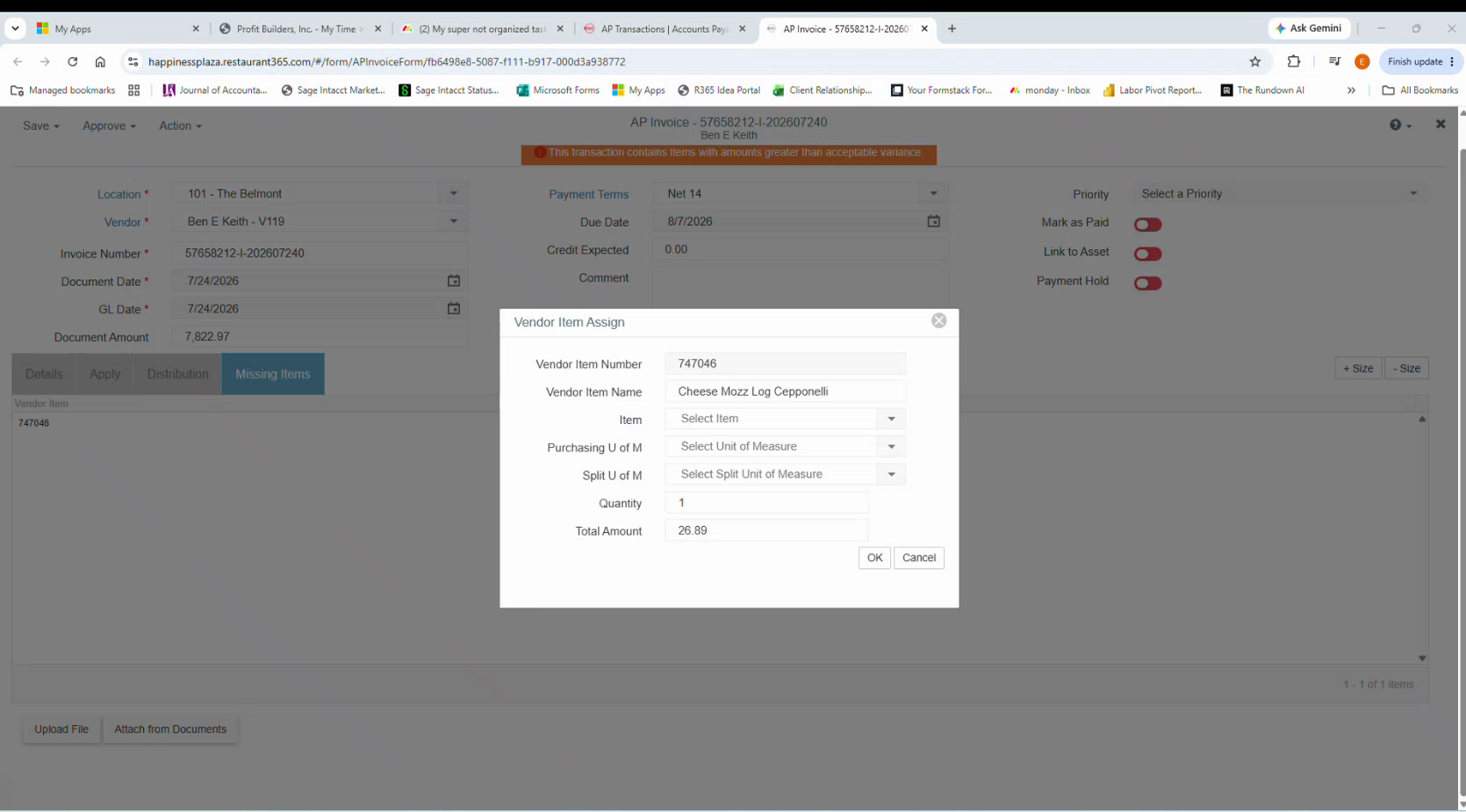 ## The Vendor Item Assign fields
| Field | What it is |
|---|---|
| **Vendor Item Number** | Read-only, from the invoice. Either the vendor's item code or their description, depending on the vendor. |
| **Vendor Item Name** | Optional free-text label. Often left blank. |
| **Item** | The R365 purchased item this vendor item maps to. |
| **Purchasing U of M** | The unit the vendor **sells** it in. Must match the pack size on the vendor's invoice. |
| **Split U of M** | The smaller unit the item is broken down into for counting and recipes. Leave blank if the purchase unit can't be split. |
| **Quantity** / **Total Amount** | Read-only, from the invoice line. |
## Once the tab is empty
Mapping a vendor item doesn't approve the invoice — it only removes the blocker. When **Missing Items** is empty, go back to the top of the invoice and use **Approve**.
Clearing Missing Items does **not** clear the orange **"This transaction contains items with amounts greater than acceptable variance"** banner. That banner is about price variance against the item's expected cost and is a separate review — it stays after mapping.
## Related
- [Map a vendor item to an existing item](/internal/how-to/accounting/r365-vendor-item-mapping-existing)
- [Map a vendor item to a new item](/internal/how-to/accounting/r365-vendor-item-mapping-new)
- [MarginEdge invoice processing](/internal/sops/accounting/ap/marginedge-invoice-processing) — the equivalent matching step in MarginEdge
- [Inventory and COGS](/internal/sops/accounting/general/inventory-and-cogs) — why the unit of measure matters downstream
## The Vendor Item Assign fields
| Field | What it is |
|---|---|
| **Vendor Item Number** | Read-only, from the invoice. Either the vendor's item code or their description, depending on the vendor. |
| **Vendor Item Name** | Optional free-text label. Often left blank. |
| **Item** | The R365 purchased item this vendor item maps to. |
| **Purchasing U of M** | The unit the vendor **sells** it in. Must match the pack size on the vendor's invoice. |
| **Split U of M** | The smaller unit the item is broken down into for counting and recipes. Leave blank if the purchase unit can't be split. |
| **Quantity** / **Total Amount** | Read-only, from the invoice line. |
## Once the tab is empty
Mapping a vendor item doesn't approve the invoice — it only removes the blocker. When **Missing Items** is empty, go back to the top of the invoice and use **Approve**.
Clearing Missing Items does **not** clear the orange **"This transaction contains items with amounts greater than acceptable variance"** banner. That banner is about price variance against the item's expected cost and is a separate review — it stays after mapping.
## Related
- [Map a vendor item to an existing item](/internal/how-to/accounting/r365-vendor-item-mapping-existing)
- [Map a vendor item to a new item](/internal/how-to/accounting/r365-vendor-item-mapping-new)
- [MarginEdge invoice processing](/internal/sops/accounting/ap/marginedge-invoice-processing) — the equivalent matching step in MarginEdge
- [Inventory and COGS](/internal/sops/accounting/general/inventory-and-cogs) — why the unit of measure matters downstream