---
title: "Map a Vendor Item to a New R365 Item"
sidebarTitle: "R365: map to new item"
description: "Create a new R365 purchased item from within the Vendor Item Assign dialog — measure type, reporting unit, item categories and GL accounts — and map the vendor item to it."
icon: "plus"
---
> **For AI agents:** the complete documentation index is at [llms.txt](/llms.txt). Append `.md` to any page URL for its markdown version.
Nothing in the item list matches the vendor item, so you create the purchased item and map to it in one pass. R365 lets you do this **without leaving the invoice**: typing a name that doesn't exist prompts you to create it.
**Source:** `Vendor Mapping to New Item.mp4` (2:24), recorded 2026-07-29. Timestamps below point back to the recording.
## The worked example
| | |
|---|---|
| **Invoice** | `5560`, Burgardt Liquor (MC) — V127 |
| **Location** | 102 — Larcher's Market |
| **Missing vendor items** | 5, including `HAPPY CAMPER CAB SAUV - ML` |
| **Turns out to be** | a 750 mL bottle of cabernet sauvignon, 12 on the invoice at `$87.96` |
| **New item created** | `WINE Happy Camper Cab Sauv` |
Wine is the standard case for this path. **Individual wines are set up as their own items** rather than pooled into a generic "red wine" item, so a new label almost always means a new item.
## Steps
The invoice has five missing items. Click **Assign** on `HAPPY CAMPER CAB SAUV - ML`. *(0:09)*
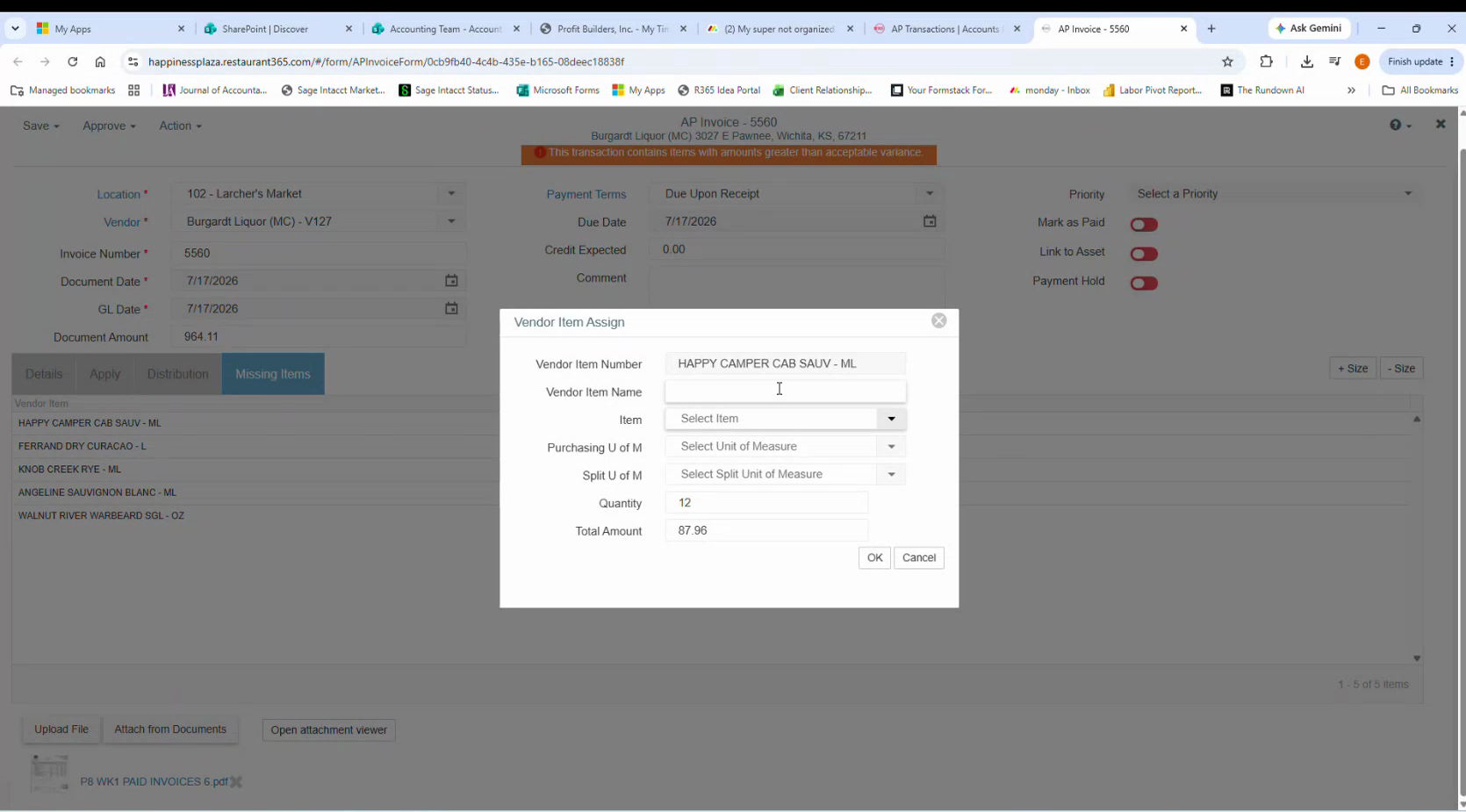 Search the **Item** field — `Cab` returns cabbage and a handful of other cabernets, but no Happy Camper. *(0:27)*
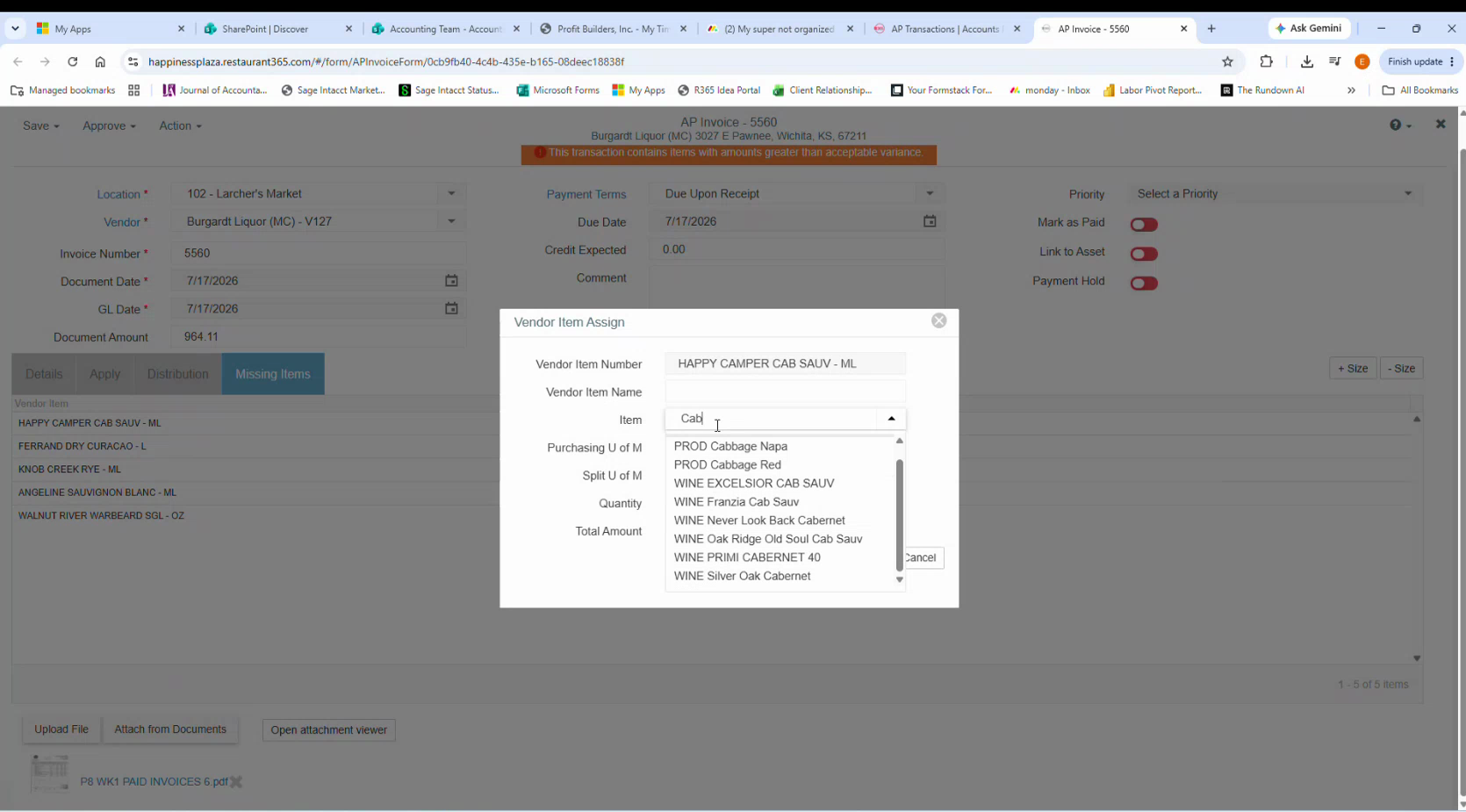 Search the distinctive word, not the varietal. `Happy Camper` is a one-search answer; `Cab` returns everything including produce.
Type the name you want the new item to carry — **`WINE Happy Camper Cab Sauv`** — and R365 asks what you want to create. *(0:39)*
Search the distinctive word, not the varietal. `Happy Camper` is a one-search answer; `Cab` returns everything including produce.
Type the name you want the new item to carry — **`WINE Happy Camper Cab Sauv`** — and R365 asks what you want to create. *(0:39)*
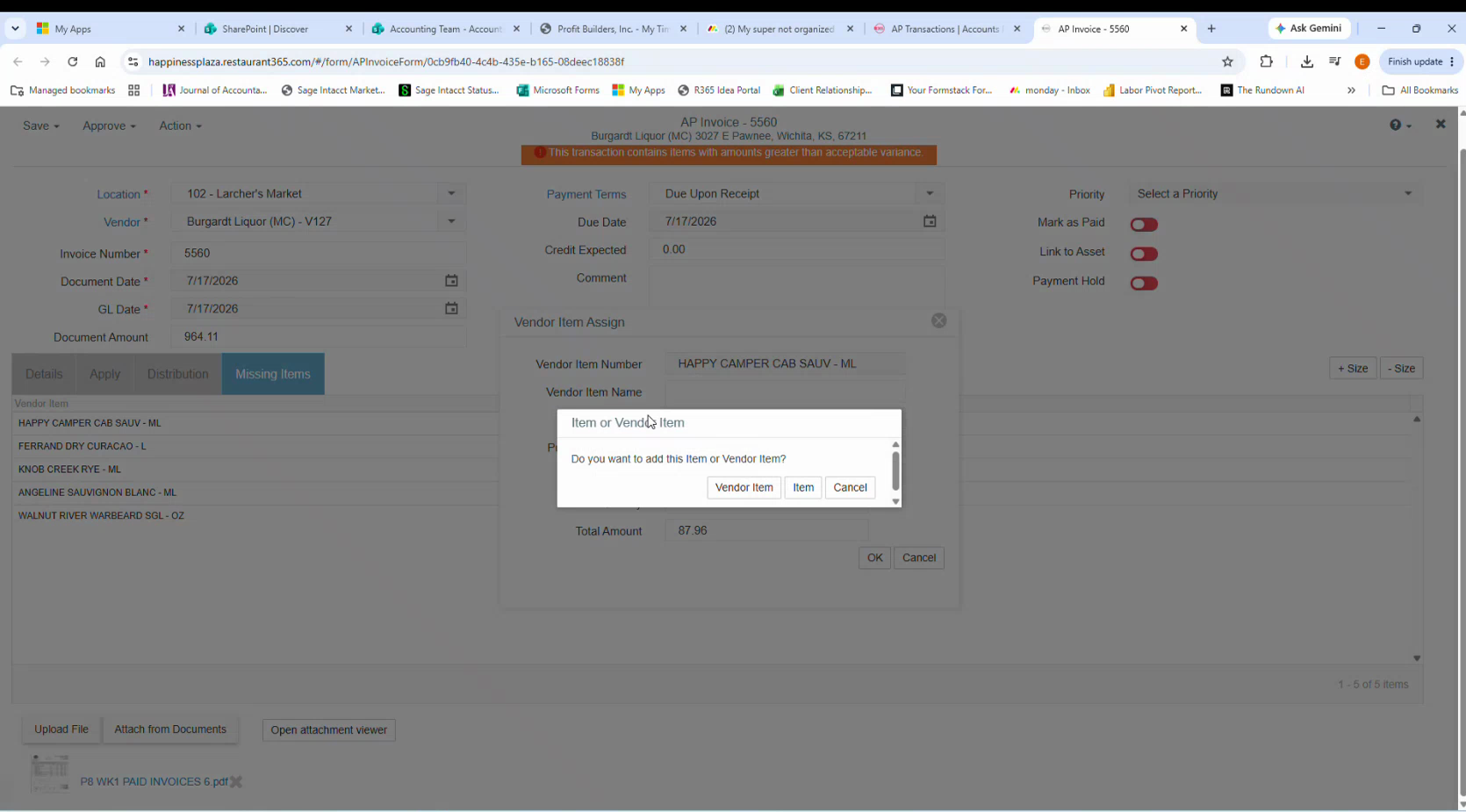 Choose **Item**.
**Item, not Vendor Item.** *Item* creates the purchased item you're missing. *Vendor Item* would only create another vendor alias — which is what you already have, and which is why the line is unmatched in the first place.
Follow the naming convention: a **category prefix** in caps, then the product — `WINE Happy Camper Cab Sauv`. The prefix is what makes the item list searchable, and it's the difference between this item being found next time and being created a second time.
The **Purchased Item** form opens with the name carried across, **Type** set to `Purchased`, and **Active** ticked. *(0:48)*
Choose **Item**.
**Item, not Vendor Item.** *Item* creates the purchased item you're missing. *Vendor Item* would only create another vendor alias — which is what you already have, and which is why the line is unmatched in the first place.
Follow the naming convention: a **category prefix** in caps, then the product — `WINE Happy Camper Cab Sauv`. The prefix is what makes the item list searchable, and it's the difference between this item being found next time and being created a second time.
The **Purchased Item** form opens with the name carried across, **Type** set to `Purchased`, and **Active** ticked. *(0:48)*
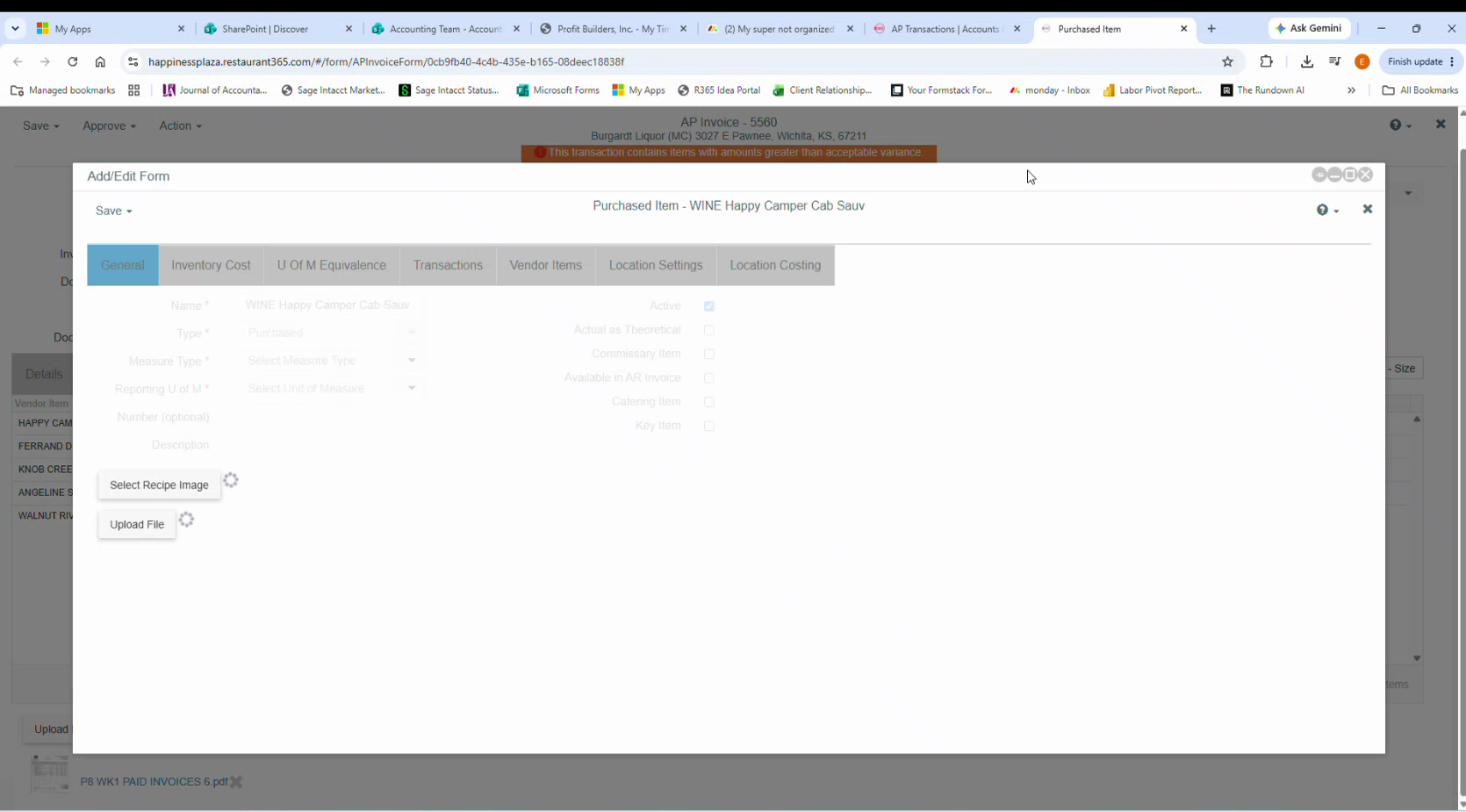 Set **Measure Type** to **`Volume`** — it's a liquid. (Measure type drives which units are even offered as the reporting unit.)
Leave **Number**, **Description** and the **Actual as Theoretical / Commissary / Available in AR Invoice / Catering / Key Item** checkboxes alone unless you have a reason.
Burgardt Liquor has no online portal, so the size comes from the scanned invoice: click **Open attachment viewer** on the AP invoice. *(0:53)*
The line reads `12 | HAPPY CAMPER CAB SAUV | 750ML | 7.33 | 87.96` — twelve 750 mL bottles at $7.33, totalling $87.96, matching the dialog.
Set **Measure Type** to **`Volume`** — it's a liquid. (Measure type drives which units are even offered as the reporting unit.)
Leave **Number**, **Description** and the **Actual as Theoretical / Commissary / Available in AR Invoice / Catering / Key Item** checkboxes alone unless you have a reason.
Burgardt Liquor has no online portal, so the size comes from the scanned invoice: click **Open attachment viewer** on the AP invoice. *(0:53)*
The line reads `12 | HAPPY CAMPER CAB SAUV | 750ML | 7.33 | 87.96` — twelve 750 mL bottles at $7.33, totalling $87.96, matching the dialog.
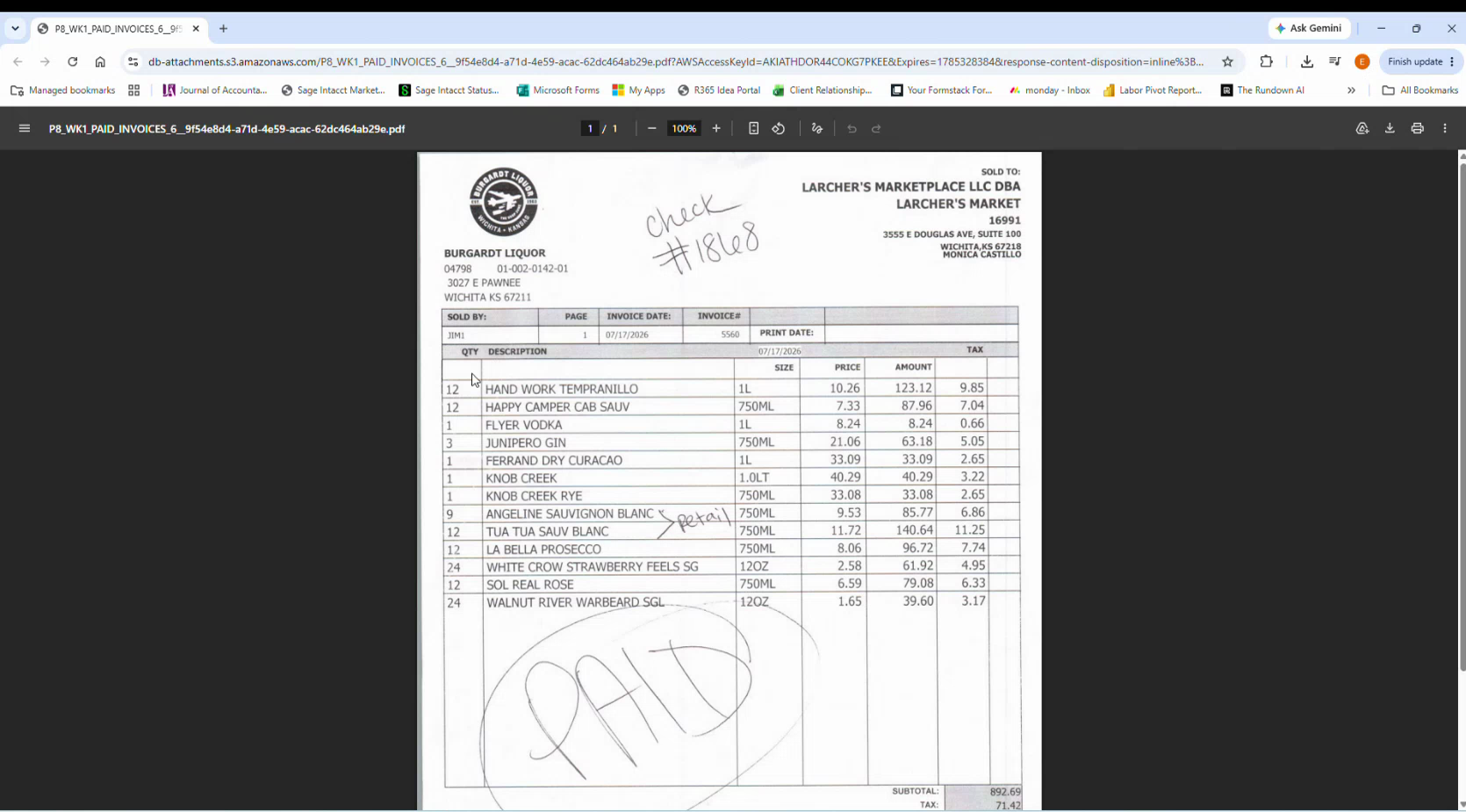 Read the whole invoice while it's open. This one carries handwritten annotations — a check number, a `PAID` stamp, and a `retail` note against one line — that change how those lines should be treated.
Search the size — `750 mL` — which offers **`Bottle (750 mL)`** and **`Case - 12/Bottle (750 mL)`**. *(1:11)*
Choose **`Bottle (750 mL)`**.
Read the whole invoice while it's open. This one carries handwritten annotations — a check number, a `PAID` stamp, and a `retail` note against one line — that change how those lines should be treated.
Search the size — `750 mL` — which offers **`Bottle (750 mL)`** and **`Case - 12/Bottle (750 mL)`**. *(1:11)*
Choose **`Bottle (750 mL)`**.
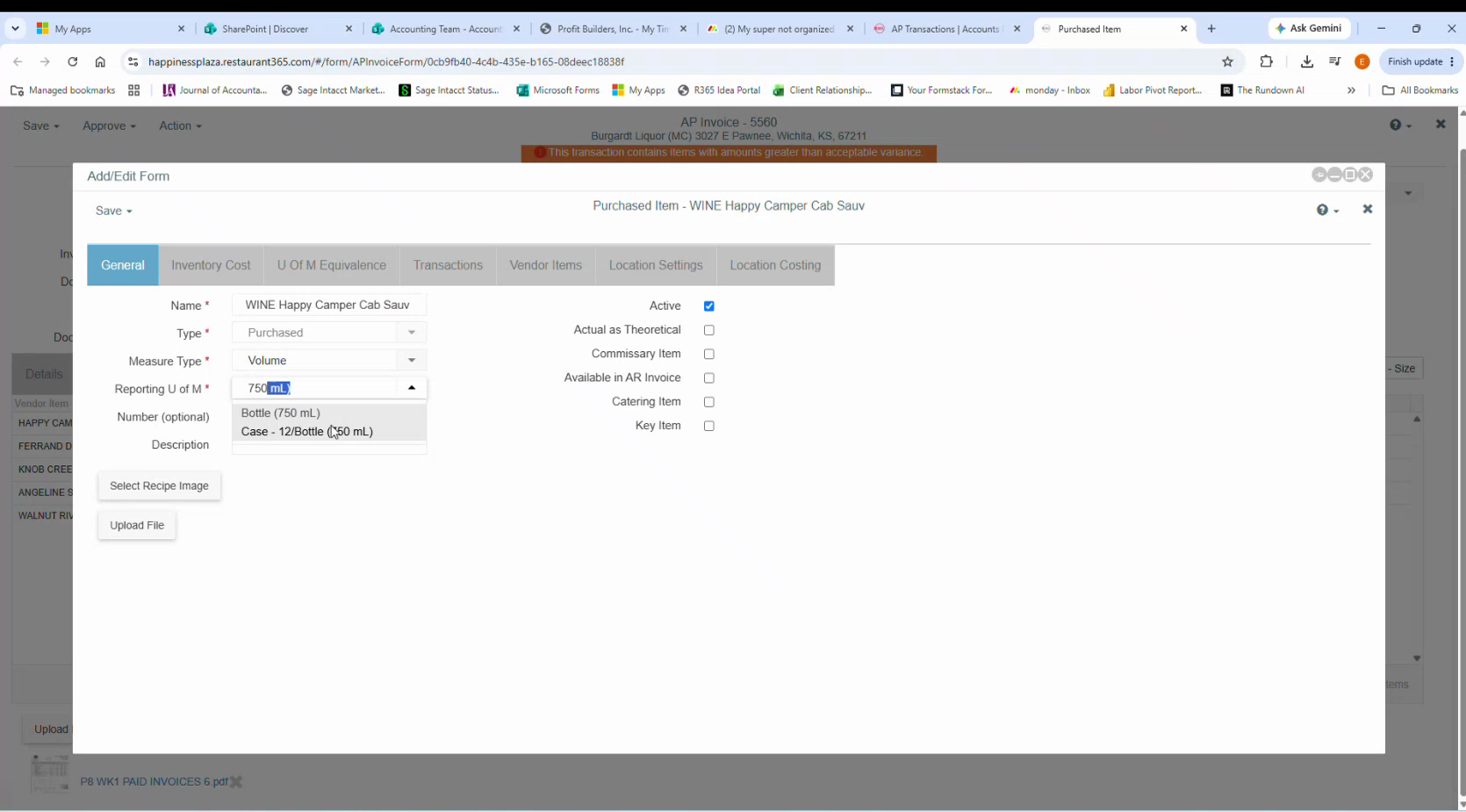 The invoice being for twelve bottles does **not** make the reporting unit a case. Quantity lives on the invoice line; the reporting unit is the item's own base unit. Bottles are what gets counted behind the bar, so bottles it is.
Move to the **Inventory Cost** tab. **Cost Update Method** defaults to `Last Received` — leave it. *(1:21)*
- **Item Category 1** → `LBW` (liquor, beer and wine)
- **Item Category 2** → `Wine`
- **Item Category 3** → leave blank
The invoice being for twelve bottles does **not** make the reporting unit a case. Quantity lives on the invoice line; the reporting unit is the item's own base unit. Bottles are what gets counted behind the bar, so bottles it is.
Move to the **Inventory Cost** tab. **Cost Update Method** defaults to `Last Received` — leave it. *(1:21)*
- **Item Category 1** → `LBW` (liquor, beer and wine)
- **Item Category 2** → `Wine`
- **Item Category 3** → leave blank
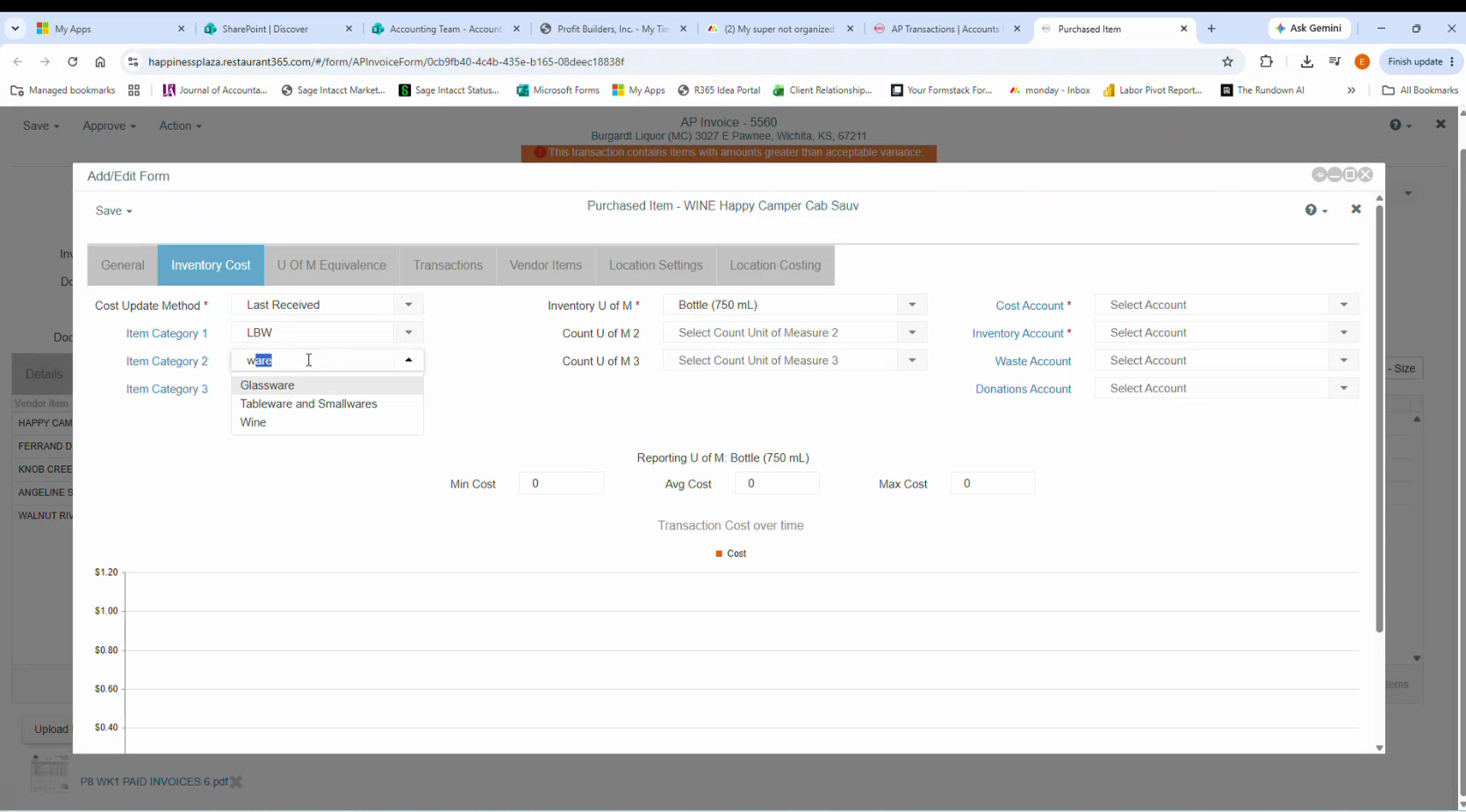 **Inventory U of M** carries across from the reporting unit as `Bottle (750 mL)`. Leave **Count U of M 2** and **3** blank.
Setting the categories **auto-fills the GL accounts** — that's what the categories are for. Confirm them rather than typing them:
| Account | Value |
|---|---|
| **Cost Account** | `5120 - Wine Costs` |
| **Inventory Account** | `1400 - Inventory` |
| **Waste Account** | *not auto-filled* |
| **Donations Account** | leave blank |
Set **Waste Account** to the **same account as the Cost Account** — `5120 - Wine Costs`. *(1:36)*
**Inventory U of M** carries across from the reporting unit as `Bottle (750 mL)`. Leave **Count U of M 2** and **3** blank.
Setting the categories **auto-fills the GL accounts** — that's what the categories are for. Confirm them rather than typing them:
| Account | Value |
|---|---|
| **Cost Account** | `5120 - Wine Costs` |
| **Inventory Account** | `1400 - Inventory` |
| **Waste Account** | *not auto-filled* |
| **Donations Account** | leave blank |
Set **Waste Account** to the **same account as the Cost Account** — `5120 - Wine Costs`. *(1:36)*
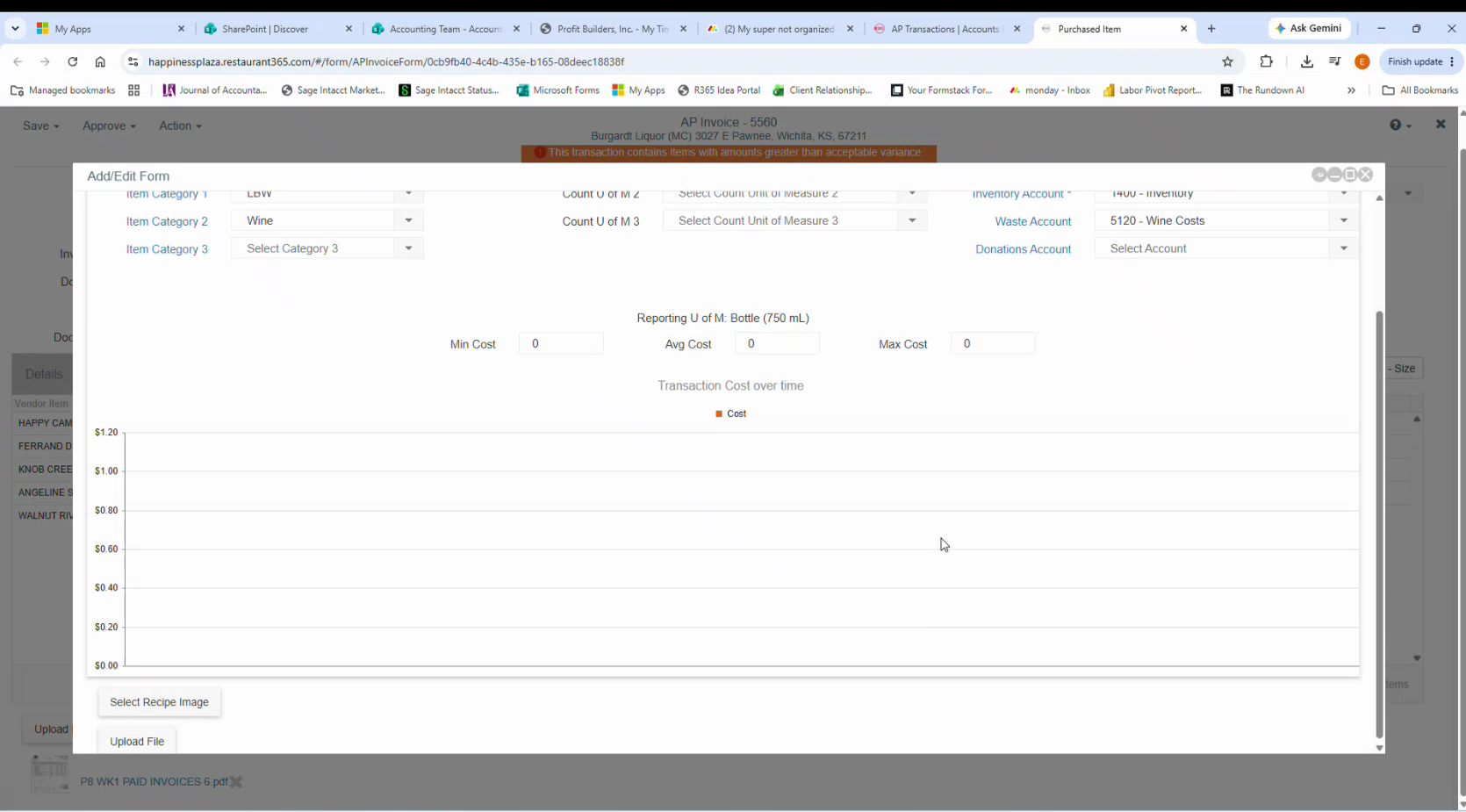 If the cost and inventory accounts **don't** auto-fill, stop — it usually means an item category is wrong or missing. Fix the category rather than hand-typing the accounts, or the next item set up in that category will have the same problem.
Save the item.
Saving returns you to **Vendor Item Assign** with **Item** set to the new `WINE Happy Camper Cab Sauv` and **Purchasing U of M** pre-filled as **`Bottle (750 mL)`**, carried from the item's reporting unit. *(1:50)*
If the cost and inventory accounts **don't** auto-fill, stop — it usually means an item category is wrong or missing. Fix the category rather than hand-typing the accounts, or the next item set up in that category will have the same problem.
Save the item.
Saving returns you to **Vendor Item Assign** with **Item** set to the new `WINE Happy Camper Cab Sauv` and **Purchasing U of M** pre-filled as **`Bottle (750 mL)`**, carried from the item's reporting unit. *(1:50)*
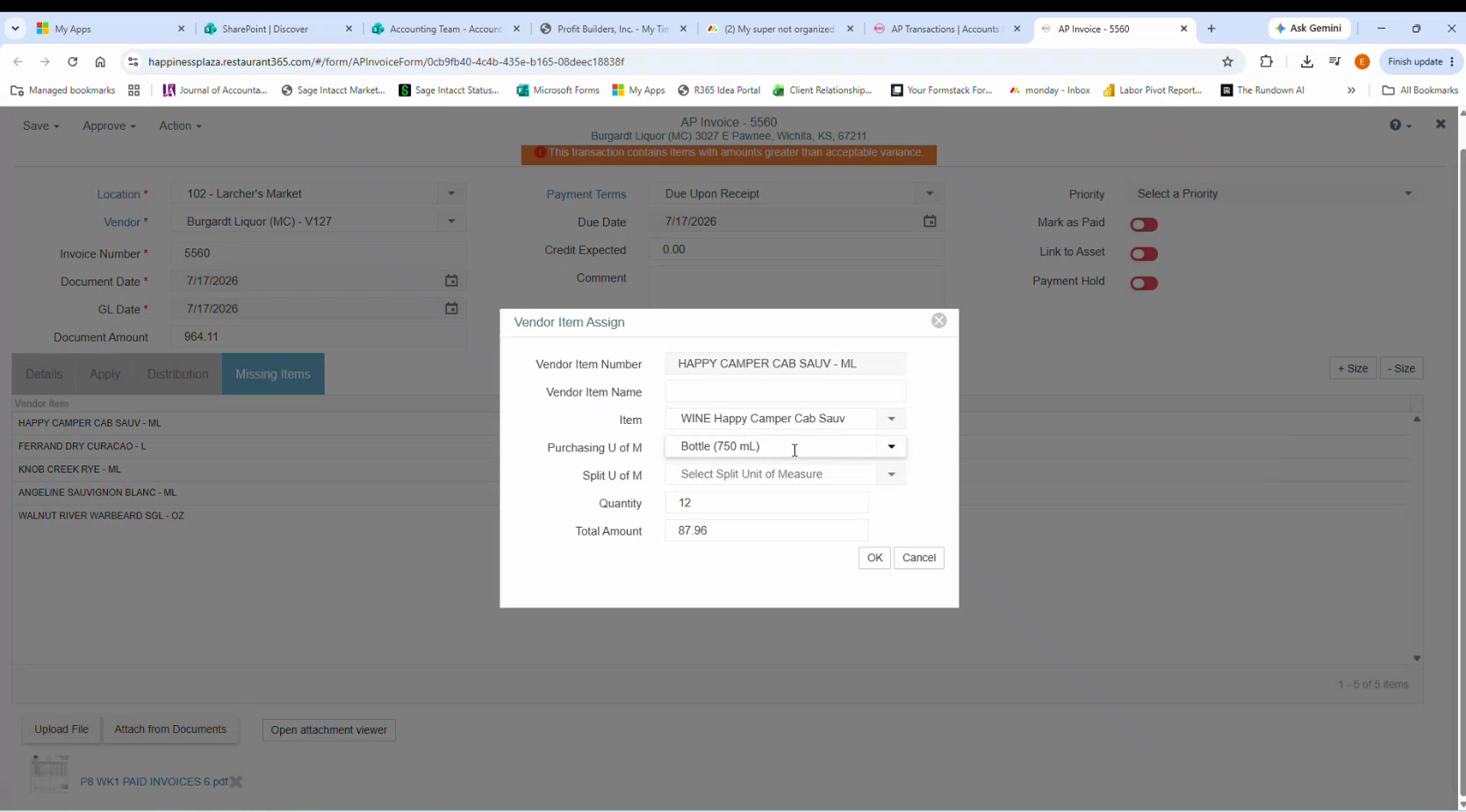 **Confirm the carried-across unit matches the invoice — don't assume it.** Here the invoice says 750 mL and the field says `Bottle (750 mL)`, so it's right. It won't be right when the vendor bills by the case and you set the item up by the bottle.
Leave **Split U of M** blank — a 750 mL bottle is the smallest unit this product comes in, so there's nothing to split it into.
**Quantity** (`12`) and **Total Amount** (`87.96`) come from the invoice — leave them. Click **OK**.
`HAPPY CAMPER CAB SAUV - ML` drops off the tab, leaving the other four. *(2:10)*
**Confirm the carried-across unit matches the invoice — don't assume it.** Here the invoice says 750 mL and the field says `Bottle (750 mL)`, so it's right. It won't be right when the vendor bills by the case and you set the item up by the bottle.
Leave **Split U of M** blank — a 750 mL bottle is the smallest unit this product comes in, so there's nothing to split it into.
**Quantity** (`12`) and **Total Amount** (`87.96`) come from the invoice — leave them. Click **OK**.
`HAPPY CAMPER CAB SAUV - ML` drops off the tab, leaving the other four. *(2:10)*
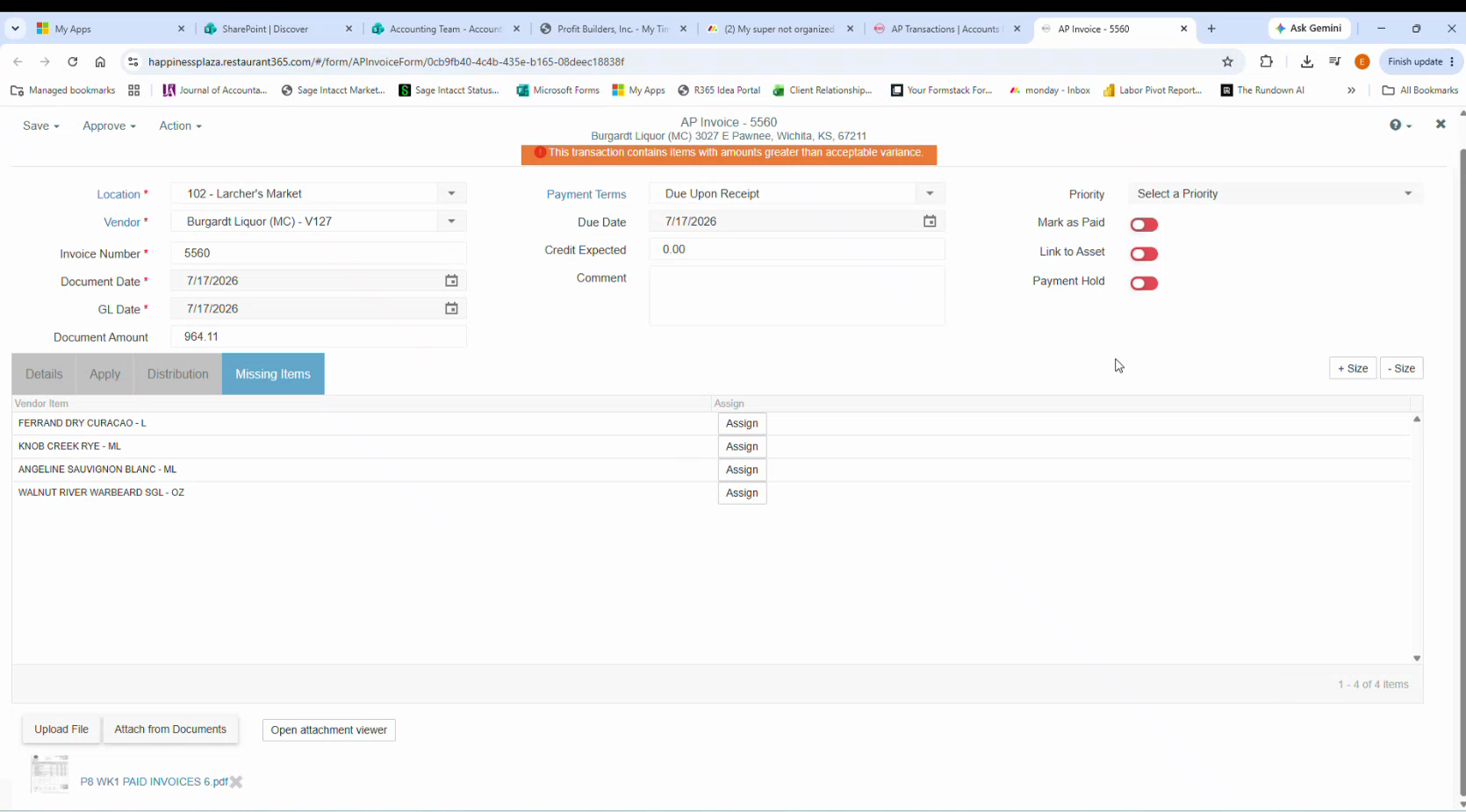 Repeat for each remaining item, choosing the existing-item or new-item path per item. When the tab is empty, **Approve** the invoice.
## New purchased item — field summary
Reusable checklist for the next one:
| Field | Setting |
|---|---|
| **Name** | `CATEGORY Product Name` — caps prefix, e.g. `WINE Happy Camper Cab Sauv` |
| **Type** | `Purchased` (pre-filled) |
| **Measure Type** | `Volume` for liquids; otherwise weight or each |
| **Reporting U of M** | The unit you count in — the bottle, not the case |
| **Active** | Ticked (default) |
| Number, Description, checkboxes | Leave alone |
| Field | Setting |
|---|---|
| **Cost Update Method** | `Last Received` (default) |
| **Item Category 1** | Broad group — `LBW` for liquor, beer and wine |
| **Item Category 2** | Narrower — `Wine` |
| **Item Category 3** | Usually blank |
| **Inventory U of M** | Carries from the reporting unit |
| **Count U of M 2 / 3** | Blank |
| **Cost Account** | Auto-fills from the categories — confirm |
| **Inventory Account** | Auto-fills from the categories — confirm |
| **Waste Account** | Set to match the Cost Account |
| **Donations Account** | Blank |
**U Of M Equivalence**, **Transactions**, **Vendor Items**, **Location Settings** and **Location Costing** are not touched in this flow. The vendor item link that would appear under **Vendor Items** is created for you when you click **OK** back on the Vendor Item Assign dialog.
## Related
- [Clear Missing Items on an R365 AP invoice](/internal/how-to/accounting/r365-vendor-item-mapping) — how to choose between the two paths
- [Map a vendor item to an existing item](/internal/how-to/accounting/r365-vendor-item-mapping-existing) — try this first
- [Inventory and COGS](/internal/sops/accounting/general/inventory-and-cogs) — what the cost and inventory accounts feed
Repeat for each remaining item, choosing the existing-item or new-item path per item. When the tab is empty, **Approve** the invoice.
## New purchased item — field summary
Reusable checklist for the next one:
| Field | Setting |
|---|---|
| **Name** | `CATEGORY Product Name` — caps prefix, e.g. `WINE Happy Camper Cab Sauv` |
| **Type** | `Purchased` (pre-filled) |
| **Measure Type** | `Volume` for liquids; otherwise weight or each |
| **Reporting U of M** | The unit you count in — the bottle, not the case |
| **Active** | Ticked (default) |
| Number, Description, checkboxes | Leave alone |
| Field | Setting |
|---|---|
| **Cost Update Method** | `Last Received` (default) |
| **Item Category 1** | Broad group — `LBW` for liquor, beer and wine |
| **Item Category 2** | Narrower — `Wine` |
| **Item Category 3** | Usually blank |
| **Inventory U of M** | Carries from the reporting unit |
| **Count U of M 2 / 3** | Blank |
| **Cost Account** | Auto-fills from the categories — confirm |
| **Inventory Account** | Auto-fills from the categories — confirm |
| **Waste Account** | Set to match the Cost Account |
| **Donations Account** | Blank |
**U Of M Equivalence**, **Transactions**, **Vendor Items**, **Location Settings** and **Location Costing** are not touched in this flow. The vendor item link that would appear under **Vendor Items** is created for you when you click **OK** back on the Vendor Item Assign dialog.
## Related
- [Clear Missing Items on an R365 AP invoice](/internal/how-to/accounting/r365-vendor-item-mapping) — how to choose between the two paths
- [Map a vendor item to an existing item](/internal/how-to/accounting/r365-vendor-item-mapping-existing) — try this first
- [Inventory and COGS](/internal/sops/accounting/general/inventory-and-cogs) — what the cost and inventory accounts feed