---
title: "Map a Vendor Item to an Existing R365 Item"
sidebarTitle: "R365: map to existing item"
description: "Clear a missing item on an R365 AP invoice by pointing the vendor item at a purchased item that already exists, using the vendor portal to confirm the pack size."
icon: "magnifying-glass"
---
> **For AI agents:** the complete documentation index is at [llms.txt](/llms.txt). Append `.md` to any page URL for its markdown version.
The vendor sent a product that's already in the item list — usually under a generic name, or under another vendor's code. You point the vendor item at that item and set the units. **Try this before creating anything new.**
**Source:** `Vendor Mapping to an Existing Item.mp4` (1:31), recorded 2026-07-29. Timestamps below point back to the recording.
## The worked example
Everything below follows one real case:
| | |
|---|---|
| **Invoice** | `57658212-I-202607240`, Ben E. Keith — V119 |
| **Location** | 101 — The Belmont |
| **Missing vendor item** | `747046` |
| **Turns out to be** | Cheese Mozz Log Cepponelli, GRANDE brand, one 5 lb log |
| **Maps to** | `DAIRY Cheese Mozzarella Log` |
## Steps
On the AP invoice, the **Missing Items** tab lists vendor item `747046` with an **Assign** button. Click it. *(0:18)*
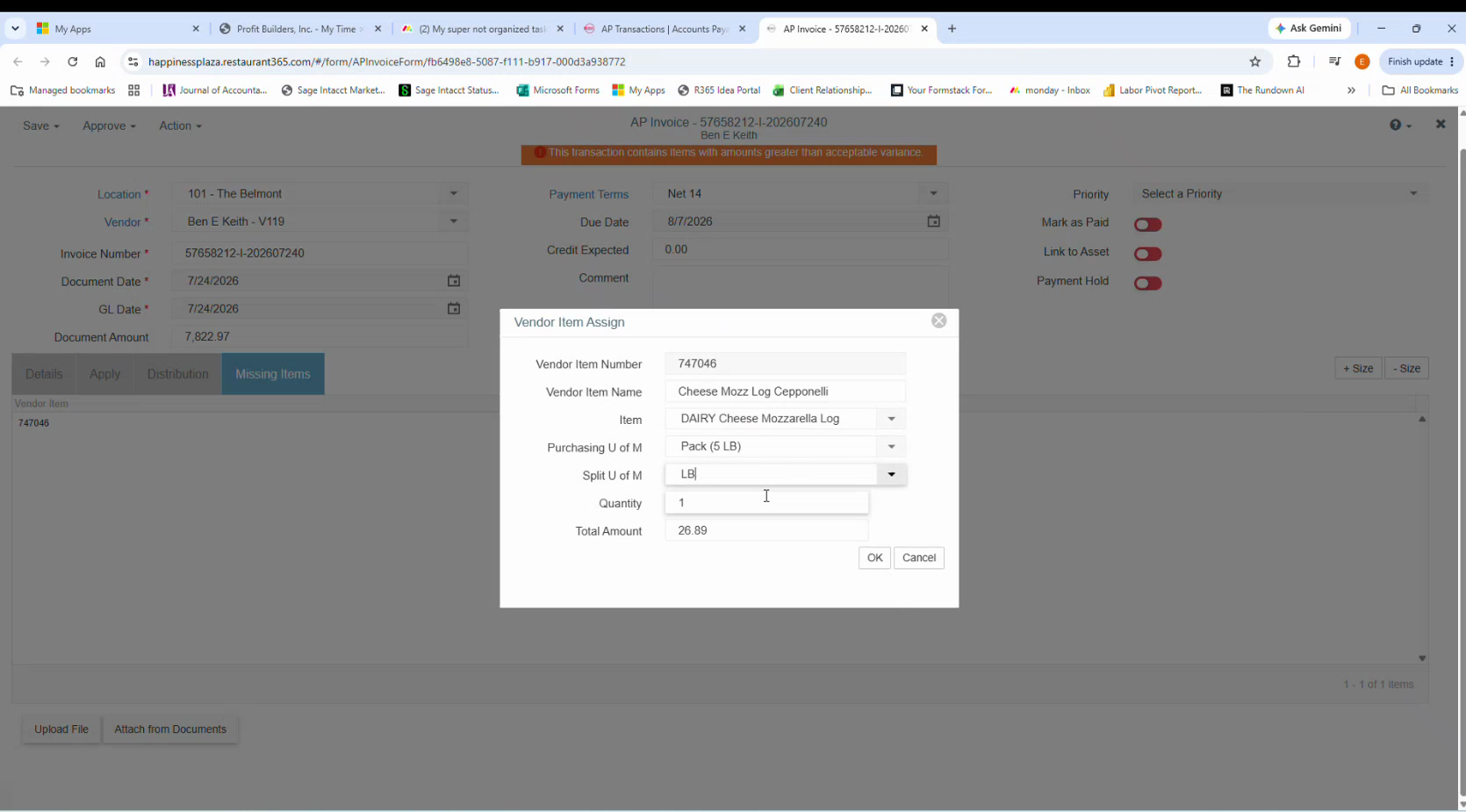
The **Vendor Item Assign** dialog opens pre-filled from the invoice line: Vendor Item Number `747046`, Vendor Item Name `Cheese Mozz Log Cepponelli`, Quantity `1`, Total Amount `26.89`. **Item**, **Purchasing U of M** and **Split U of M** are yours to fill in.
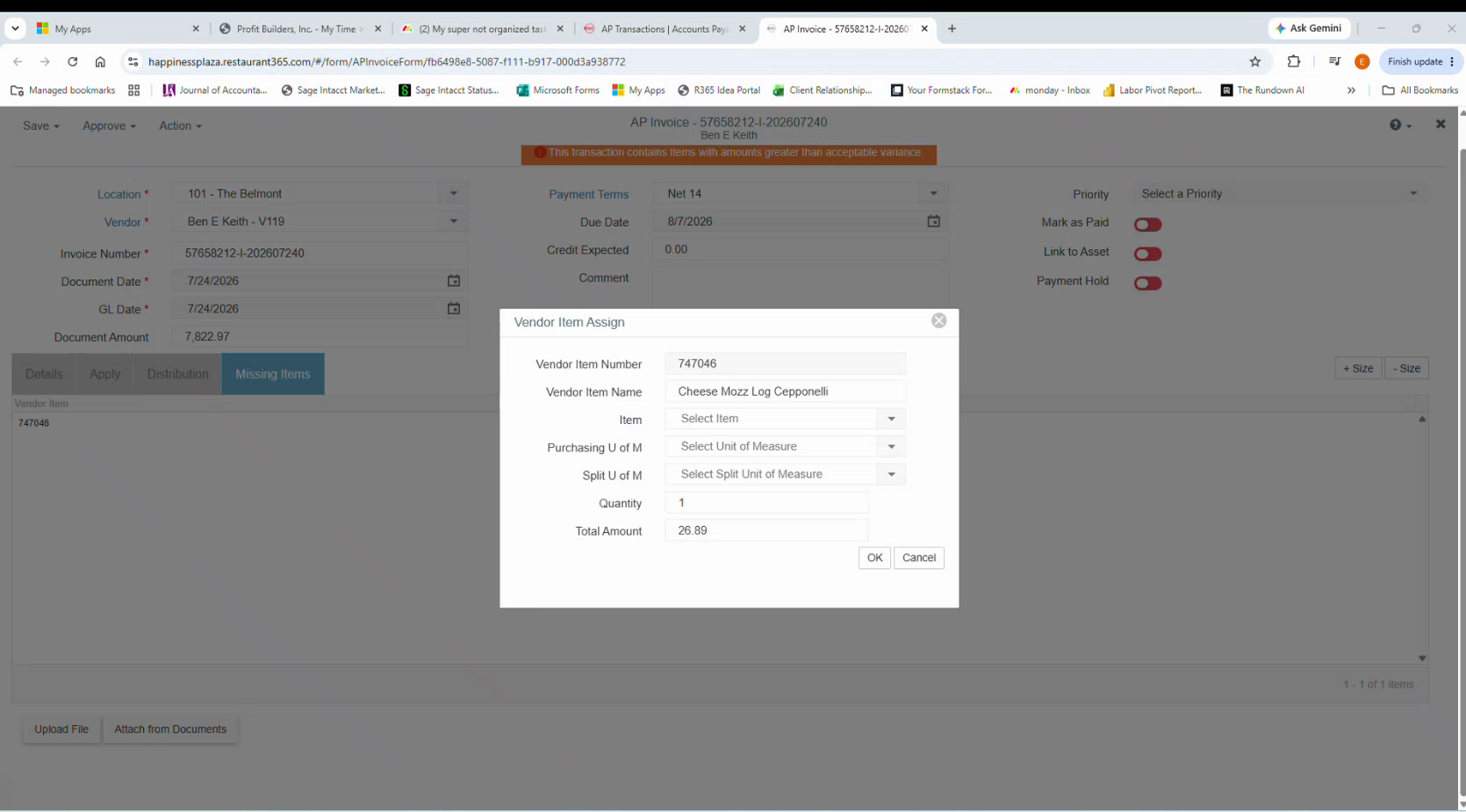 The vendor item name tells you *roughly* what the product is, but not the pack size — and the pack size is what decides the unit of measure. Get it from the vendor before touching the U of M fields.
This invoice came from Ben E. Keith, so open the same invoice in the **Entrée** portal and find the line for item `747046`. *(0:26)*
The portal gives you what the R365 dialog can't: **Pack / Size `1/5 LB`** — one 5-pound log per unit — plus the brand (GRANDE) and a unit price of `$26.89` that matches the invoice line.
The vendor item name tells you *roughly* what the product is, but not the pack size — and the pack size is what decides the unit of measure. Get it from the vendor before touching the U of M fields.
This invoice came from Ben E. Keith, so open the same invoice in the **Entrée** portal and find the line for item `747046`. *(0:26)*
The portal gives you what the R365 dialog can't: **Pack / Size `1/5 LB`** — one 5-pound log per unit — plus the brand (GRANDE) and a unit price of `$26.89` that matches the invoice line.
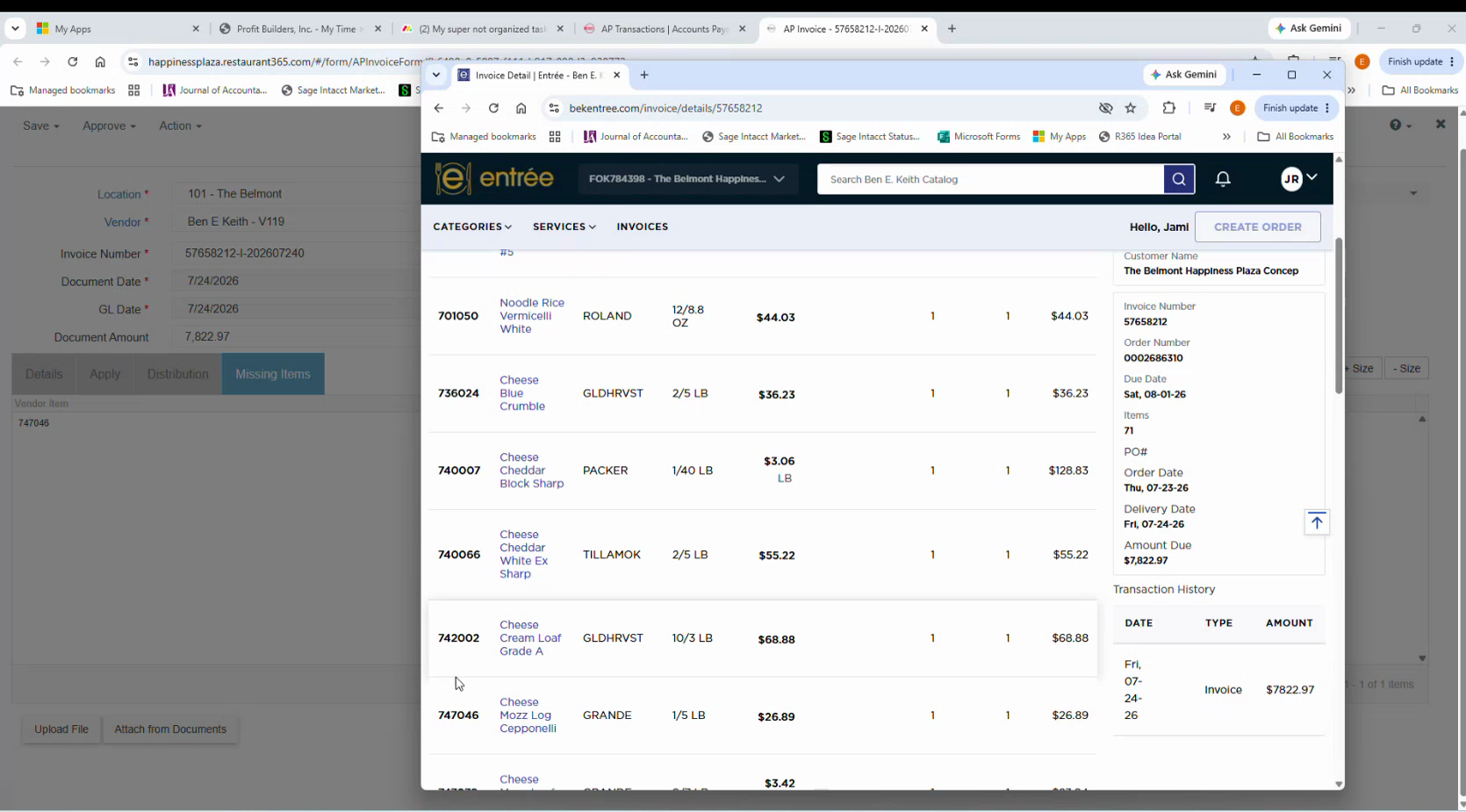 Use the price to confirm you're on the right line. The portal's unit price should equal the **Total Amount** on the Vendor Item Assign dialog when the invoice quantity is 1.
Back in the dialog, type part of the product name into **Item** — here, `mozz`. R365 filters the item list as you type.
Select **`DAIRY Cheese Mozzarella Log`**. *(0:45)*
Use the price to confirm you're on the right line. The portal's unit price should equal the **Total Amount** on the Vendor Item Assign dialog when the invoice quantity is 1.
Back in the dialog, type part of the product name into **Item** — here, `mozz`. R365 filters the item list as you type.
Select **`DAIRY Cheese Mozzarella Log`**. *(0:45)*
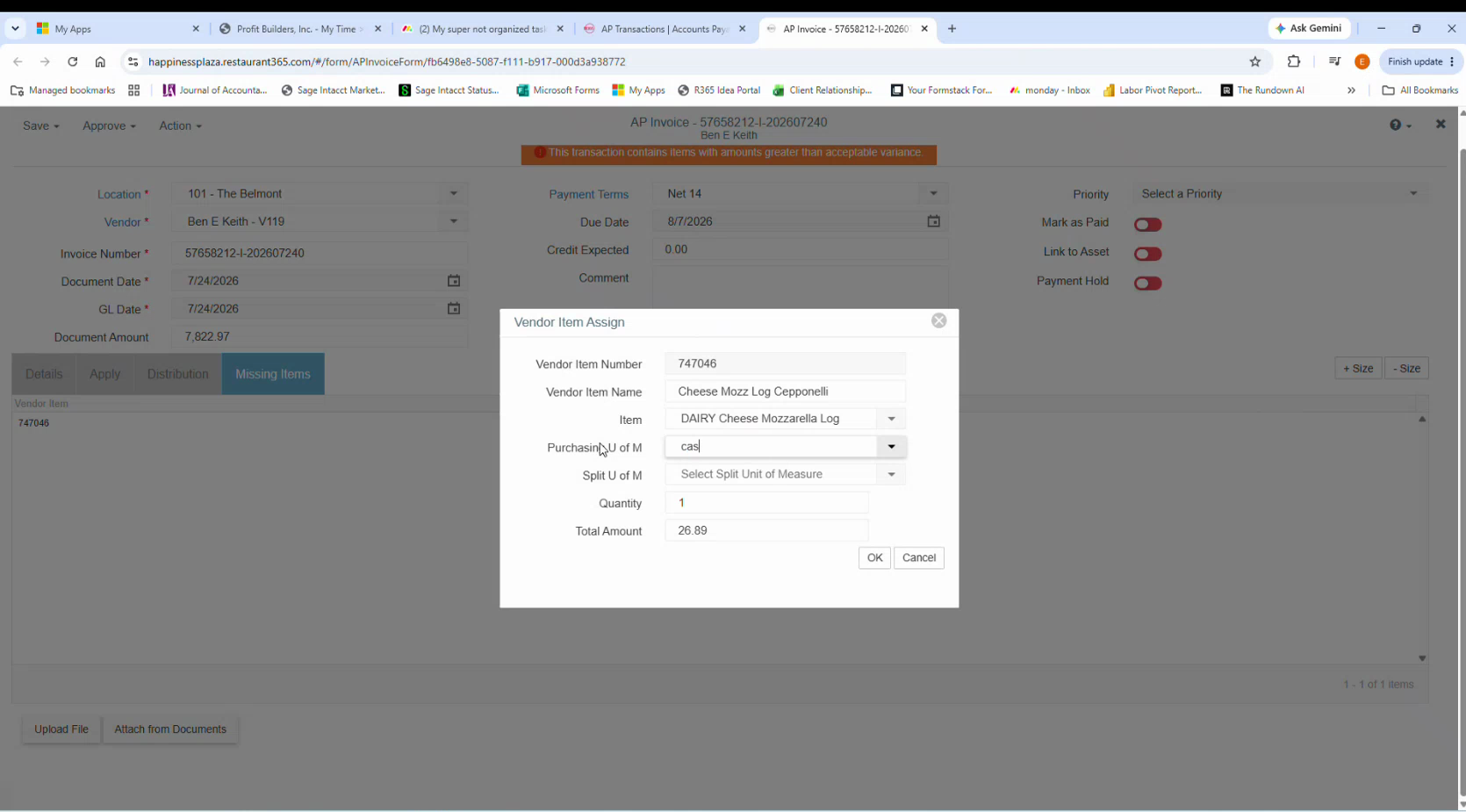 Purchased items are named with a **category prefix** — `DAIRY`, `PROD`, `GROC`, `WINE`, `DISPOSABLE`, `TO-GO`. Searching the product word alone (`mozz`, not `dairy cheese`) finds it fastest.
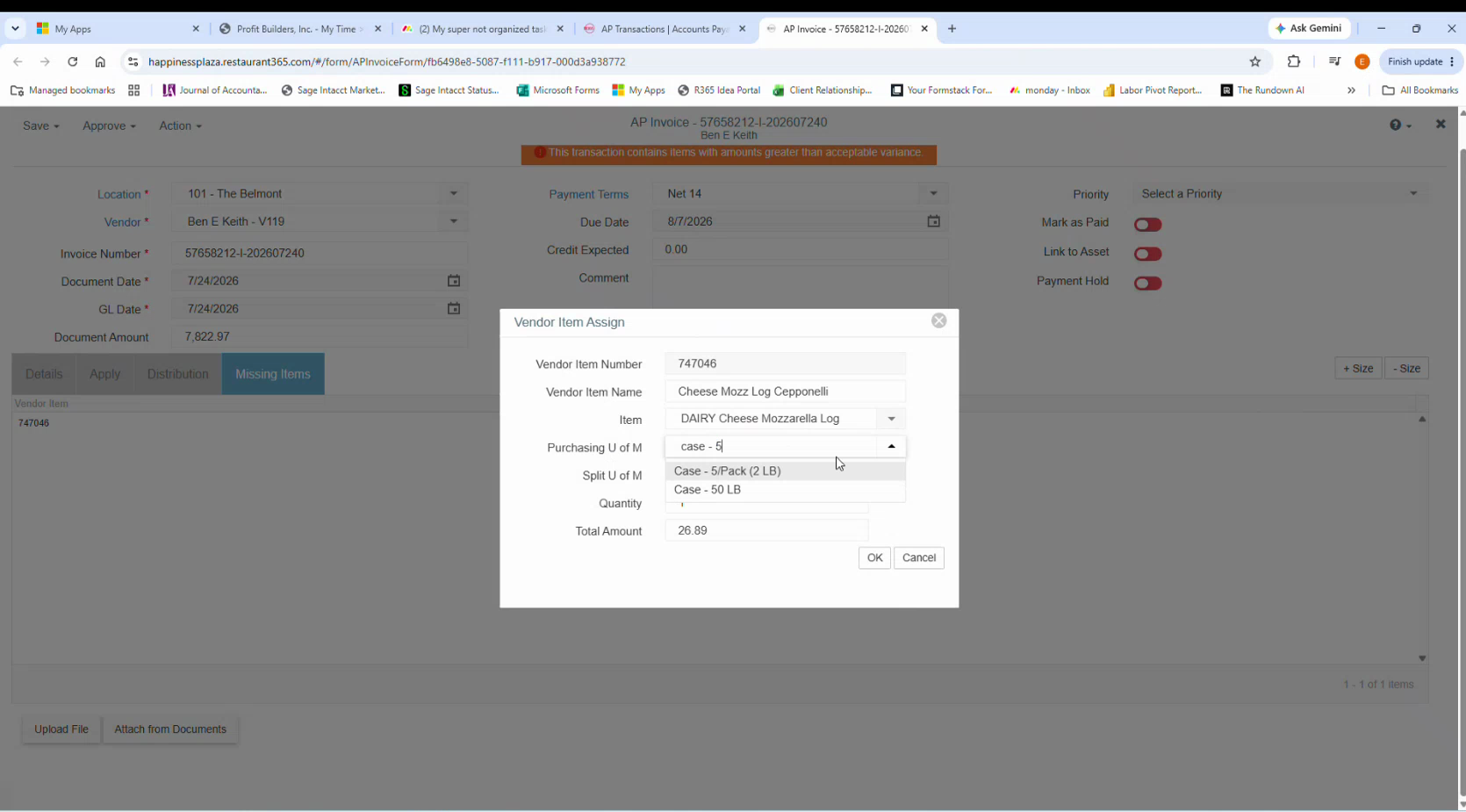
This is the step that goes wrong most often. Searching `case` returns plausible-looking options that are **both wrong** for this item:
- `Case - 5/Pack (2 LB)` — five 2 lb packs
- `Case - 50 LB` — a 50 lb case
The vendor sells this as `1/5 LB` — a **single 5 lb pack**, not a case of anything. Neither option matches. *(0:57)*
Purchased items are named with a **category prefix** — `DAIRY`, `PROD`, `GROC`, `WINE`, `DISPOSABLE`, `TO-GO`. Searching the product word alone (`mozz`, not `dairy cheese`) finds it fastest.
This is the step that goes wrong most often. Searching `case` returns plausible-looking options that are **both wrong** for this item:
- `Case - 5/Pack (2 LB)` — five 2 lb packs
- `Case - 50 LB` — a 50 lb case
The vendor sells this as `1/5 LB` — a **single 5 lb pack**, not a case of anything. Neither option matches. *(0:57)*
 Search on the size instead — `5 lb` — and pick **`Pack (5 LB)`**.
**Match the vendor's pack size, not the word they used.** "Case", "pack" and "each" mean different things to different vendors. Read the numbers: `1/5 LB` is one unit of five pounds, so the purchasing unit is a 5 lb pack.
Set **Split U of M** to **`LB`**. *(1:09)*
The 5 lb log gets used by the pound, so pounds are the unit it should count and cost in. The split unit is how R365 breaks the purchase unit down for inventory counts and recipes.
Search on the size instead — `5 lb` — and pick **`Pack (5 LB)`**.
**Match the vendor's pack size, not the word they used.** "Case", "pack" and "each" mean different things to different vendors. Read the numbers: `1/5 LB` is one unit of five pounds, so the purchasing unit is a 5 lb pack.
Set **Split U of M** to **`LB`**. *(1:09)*
The 5 lb log gets used by the pound, so pounds are the unit it should count and cost in. The split unit is how R365 breaks the purchase unit down for inventory counts and recipes.
 Leave **Split U of M** blank when the purchase unit can't sensibly be broken down — see [the new-item walkthrough](/internal/how-to/accounting/r365-vendor-item-mapping-new), where a 750 mL bottle gets no split unit.
Leave **Quantity** and **Total Amount** as they came from the invoice, and click **OK**.
The vendor item disappears from **Missing Items**, and the line now appears on the **Details** tab as a normal invoice line — item, vendor item, unit of measure, quantity, amount, and the GL account it costs to. *(1:22)*
Leave **Split U of M** blank when the purchase unit can't sensibly be broken down — see [the new-item walkthrough](/internal/how-to/accounting/r365-vendor-item-mapping-new), where a 750 mL bottle gets no split unit.
Leave **Quantity** and **Total Amount** as they came from the invoice, and click **OK**.
The vendor item disappears from **Missing Items**, and the line now appears on the **Details** tab as a normal invoice line — item, vendor item, unit of measure, quantity, amount, and the GL account it costs to. *(1:22)*
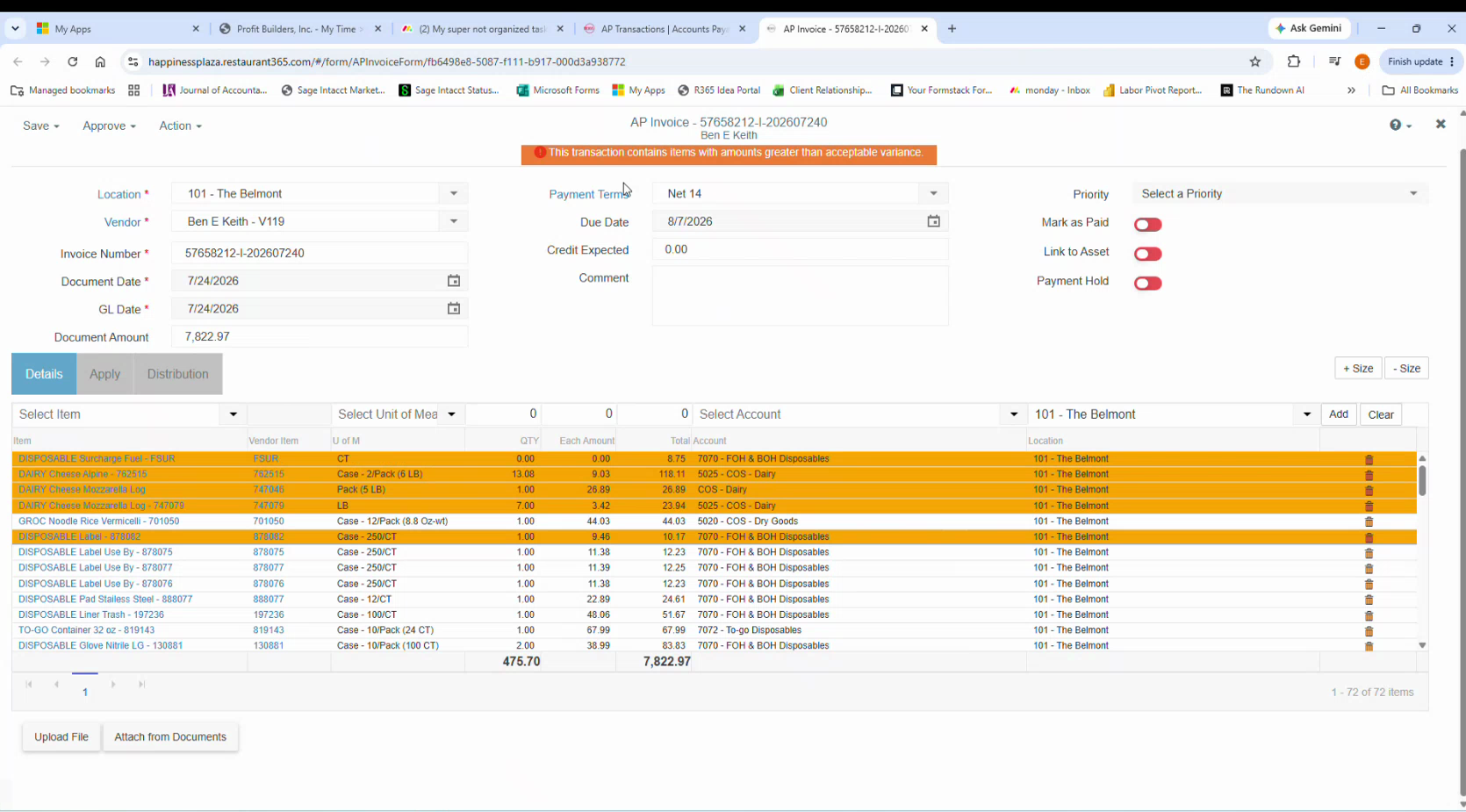 The Details tab is a good sanity check on the mapping you just made. Note that the same item can carry **more than one vendor item** — this invoice has `747046` mapped as `Pack (5 LB)` and `747079` mapped as `LB` against the same mozzarella log. That's expected: one purchased item, several vendor pack sizes.
With **Missing Items** empty, go to **Approve** at the top of the invoice.
## If nothing in the item list matches
Don't force it into the closest-looking item. Go to [Map a vendor item to a new item](/internal/how-to/accounting/r365-vendor-item-mapping-new).
## Related
- [Clear Missing Items on an R365 AP invoice](/internal/how-to/accounting/r365-vendor-item-mapping) — how to choose between the two paths
- [Map a vendor item to a new item](/internal/how-to/accounting/r365-vendor-item-mapping-new)
- [Inventory and COGS](/internal/sops/accounting/general/inventory-and-cogs) — how the unit of measure flows into cost of sales
The Details tab is a good sanity check on the mapping you just made. Note that the same item can carry **more than one vendor item** — this invoice has `747046` mapped as `Pack (5 LB)` and `747079` mapped as `LB` against the same mozzarella log. That's expected: one purchased item, several vendor pack sizes.
With **Missing Items** empty, go to **Approve** at the top of the invoice.
## If nothing in the item list matches
Don't force it into the closest-looking item. Go to [Map a vendor item to a new item](/internal/how-to/accounting/r365-vendor-item-mapping-new).
## Related
- [Clear Missing Items on an R365 AP invoice](/internal/how-to/accounting/r365-vendor-item-mapping) — how to choose between the two paths
- [Map a vendor item to a new item](/internal/how-to/accounting/r365-vendor-item-mapping-new)
- [Inventory and COGS](/internal/sops/accounting/general/inventory-and-cogs) — how the unit of measure flows into cost of sales