---
title: "Set Up GL Exports in ProWork"
sidebarTitle: "ProWork GL exports"
description: "Copy the GL export reports from the client template, schedule automated delivery, and configure GL codes, formats, and override mapping."
icon: "file-export"
---
> **For AI agents:** the complete documentation index is at [llms.txt](/llms.txt). Append `.md` to any page URL for its markdown version.
This guide sets up the automated payroll GL export from ProWork into Intacct or R365 — copying the report templates, scheduling delivery, and configuring the GL mapping.
**Source:** `General Accounting/11 - Accrued Payroll/GL exports in PRO WORK.docx`. Related SOP: [Payroll concepts](/internal/sops/accounting/payroll/payroll-concepts).
## Copy the reports from the client template company
Log in to **ProWork Admin** and navigate to **Maintenance → Processes → Reports → Reports Settings Maintenance**.
Apply these filters:
- `Company:ShortName` = **ClientTemplate**
- `Setting Type` = **Intacct Data**
Check the box next to the two reports and click **Copy To**. Select the new companies you want to copy the reports to, and copy them as a **company level report**.
## Schedule report delivery
Log in as **SA** to the client company.
Navigate to **My Saved Reports**. Make sure the **Show Other's Settings** box is checked, then filter on `Saved as Name` **like** `Intacct` (or `R365`). You should see the two reports listed.
Edit each report, change the report ownership to **My Personal Setting**, and click save.
Do this for each of the two reports.
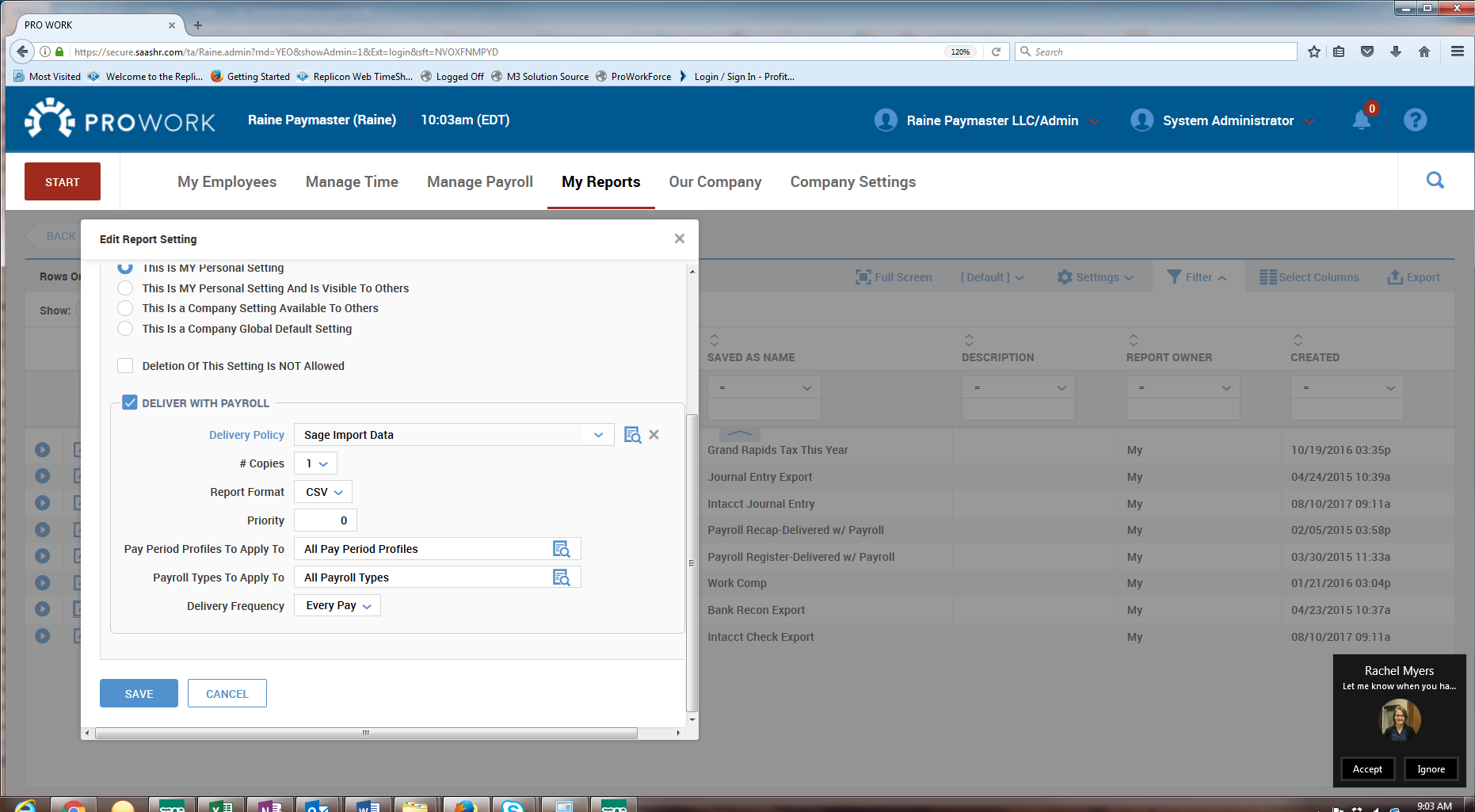 1. Click the email envelope icon next to the report name.
2. Click **Add New Email Configuration**.
3. Enter a name for the schedule — for example `Intacct Export – Every 2 Weeks`.
4. Change the **Weekdays** dropdown to **Days Profile**, then select the days profile you set up.
5. Enter the time you want the reports sent.
6. **Uncheck** the **Send to Me** box.
7. Add the recipients in the **Send to Emails** section.
8. Confirm the **Run As** field is set to **Me**.
9. In the email section, set:
| Field | Value |
|---|---|
| **Report Format** | Excel 2007 |
| **Display Header/Footer** | Unchecked |
| **From Email Address** | `noreply@yourprowork.com` |
| **Message Title** | `Intacct Data` |
| **Maximum Rows to Send** | `3000` |
## GL mapping
GL mapping in ProWork happens in two sections: **GL Codes** and **GL Settings**.
### GL Codes
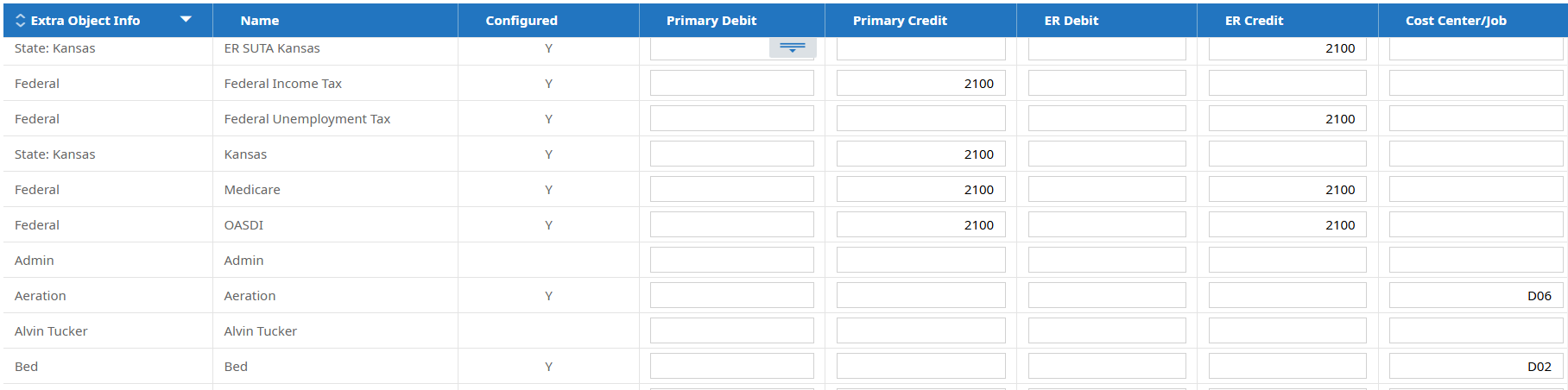
Access at **Payroll Setup → General Ledger → Codes**. This section handles two scenarios:
| Scenario | Description |
|---|---|
| **Simple GL mapping** | One GL is used for each ProWork item. A single-entity business codes all payroll taxes to the same GL `2100-E01`, regardless of employee department, location, or position. |
| **Modified mapping** | Entering the Intacct or R365 location number in the **Cost Center/Job** column allows mapping payroll items to different cost centers based on default or GL employee information. |
1. Click the email envelope icon next to the report name.
2. Click **Add New Email Configuration**.
3. Enter a name for the schedule — for example `Intacct Export – Every 2 Weeks`.
4. Change the **Weekdays** dropdown to **Days Profile**, then select the days profile you set up.
5. Enter the time you want the reports sent.
6. **Uncheck** the **Send to Me** box.
7. Add the recipients in the **Send to Emails** section.
8. Confirm the **Run As** field is set to **Me**.
9. In the email section, set:
| Field | Value |
|---|---|
| **Report Format** | Excel 2007 |
| **Display Header/Footer** | Unchecked |
| **From Email Address** | `noreply@yourprowork.com` |
| **Message Title** | `Intacct Data` |
| **Maximum Rows to Send** | `3000` |
## GL mapping
GL mapping in ProWork happens in two sections: **GL Codes** and **GL Settings**.
### GL Codes
Access at **Payroll Setup → General Ledger → Codes**. This section handles two scenarios:
| Scenario | Description |
|---|---|
| **Simple GL mapping** | One GL is used for each ProWork item. A single-entity business codes all payroll taxes to the same GL `2100-E01`, regardless of employee department, location, or position. |
| **Modified mapping** | Entering the Intacct or R365 location number in the **Cost Center/Job** column allows mapping payroll items to different cost centers based on default or GL employee information. |
 ### GL Settings
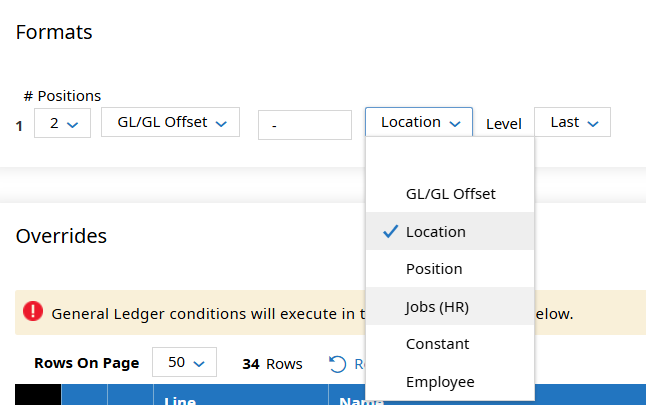
This is where most mapping happens. Access it from **Payroll Setup → General Ledger → Codes**.
**Formats** — dictates what information is created for each section of the GL entry. The example below has an entry with two sections: the first holds the GL code, the second holds the location.
### GL Settings
This is where most mapping happens. Access it from **Payroll Setup → General Ledger → Codes**.
**Formats** — dictates what information is created for each section of the GL entry. The example below has an entry with two sections: the first holds the GL code, the second holds the location.
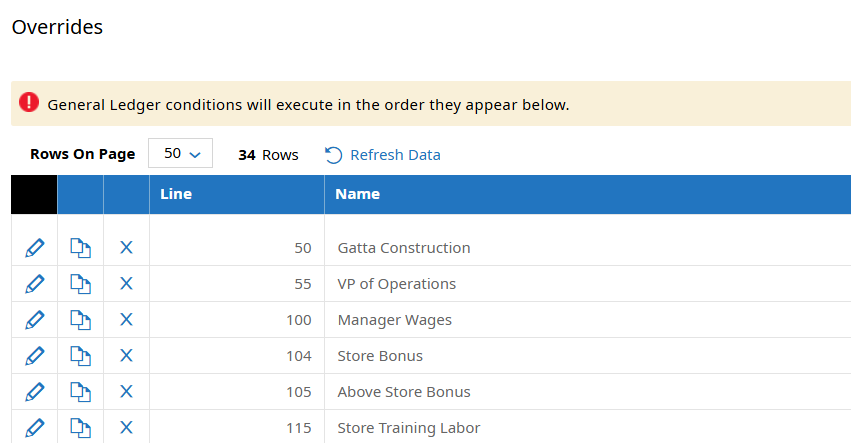
 **Overrides** — mapping rules for any items that couldn't be mapped in GL Codes. Items are sorted in **line order**, which determines the order conditions execute.
**Debits must always be numbered before liabilities** for items like taxes and work comp. Getting the order wrong produces an entry that doesn't balance the way you expect.
Use this numbering system to ensure conditions execute correctly:
| Range | Category |
|---|---|
| `0–199` | Earnings |
| `200–299` | Deductions |
| `300–399` | Taxes |
| `400–499` | Work comp |
| `500–1000` | Net pay, invoices, suppress |
**Overrides** — mapping rules for any items that couldn't be mapped in GL Codes. Items are sorted in **line order**, which determines the order conditions execute.
**Debits must always be numbered before liabilities** for items like taxes and work comp. Getting the order wrong produces an entry that doesn't balance the way you expect.
Use this numbering system to ensure conditions execute correctly:
| Range | Category |
|---|---|
| `0–199` | Earnings |
| `200–299` | Deductions |
| `300–399` | Taxes |
| `400–499` | Work comp |
| `500–1000` | Net pay, invoices, suppress |
 ## Creating an Intacct GL entry
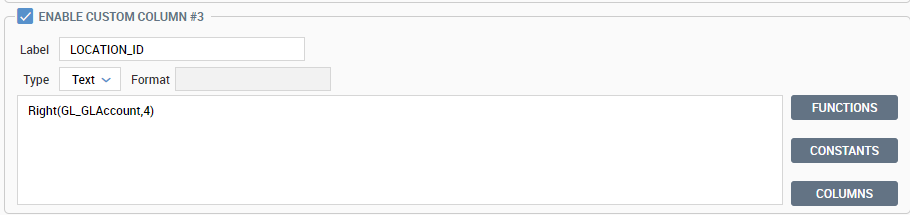
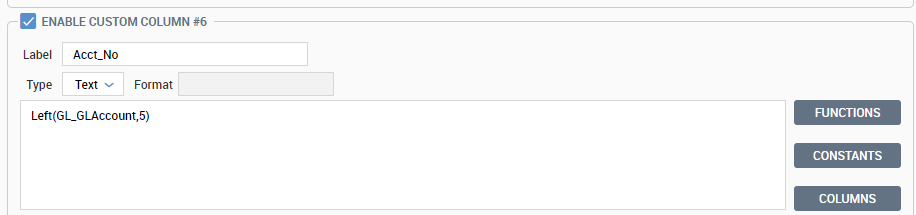
**Accounting for entities and dimensions** — if the client is multi-entity or uses any dimensions, **both** reports need editing to account for this.
On the check export report, adjust the offset accounts at **Settings → Custom Settings**, then adjust the formula for **Offset Account**.
## Creating an Intacct GL entry
**Accounting for entities and dimensions** — if the client is multi-entity or uses any dimensions, **both** reports need editing to account for this.
On the check export report, adjust the offset accounts at **Settings → Custom Settings**, then adjust the formula for **Offset Account**.
 Useful field references for these formulas:
```text
GL_CostCenter1Abbrev
BankAccount_BankAccountFirstName
BankAccount_BankAccountWorkPhone
```
## Related
- [Payroll concepts](/internal/sops/accounting/payroll/payroll-concepts) — the entries this export produces
- [Export payroll from Aloha Enterprise](/internal/how-to/accounting/aloha-payroll-export) — how hours get to the CSM in the first place
- [Positive pay file policy](/internal/sops/accounting/ap/positive-pay-file-policy) — ProWork also generates the payroll positive pay file
Useful field references for these formulas:
```text
GL_CostCenter1Abbrev
BankAccount_BankAccountFirstName
BankAccount_BankAccountWorkPhone
```
## Related
- [Payroll concepts](/internal/sops/accounting/payroll/payroll-concepts) — the entries this export produces
- [Export payroll from Aloha Enterprise](/internal/how-to/accounting/aloha-payroll-export) — how hours get to the CSM in the first place
- [Positive pay file policy](/internal/sops/accounting/ap/positive-pay-file-policy) — ProWork also generates the payroll positive pay file