---
title: "Run the A/R Aging Report in Sage Intacct"
sidebarTitle: "Intacct A/R aging"
description: "Run the standard period-end customer aging report in Sage Intacct, then customize the aging periods, filters, formatting, and columns."
icon: "file-invoice"
---
> **For AI agents:** the complete documentation index is at [llms.txt](/llms.txt). Append `.md` to any page URL for its markdown version.
This guide covers two things: the quick settings for the standard month-end A/R aging report, and the full reference for customizing it. If you just need the period-end report, the first section is all you need.
**Source:** `General Accounting/05 - Receivables/Intacct - AR Aging Report.docx`. Related SOP: [Accounts receivable and bad debt](/internal/sops/accounting/general/accounts-receivable).
## The period-end report
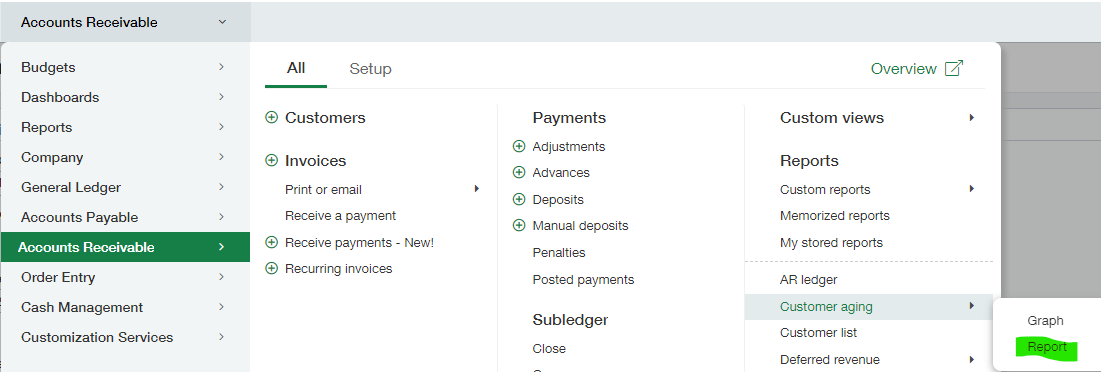
Navigate to the Accounts Receivable aging report.
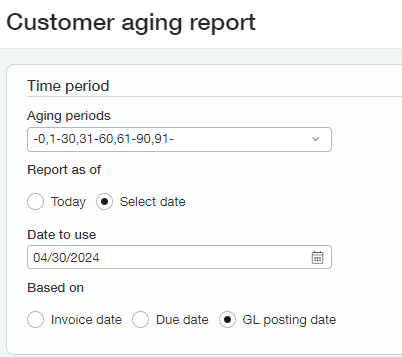
 Choose the period-end date and set **Based on** to **GL Posting Date**.
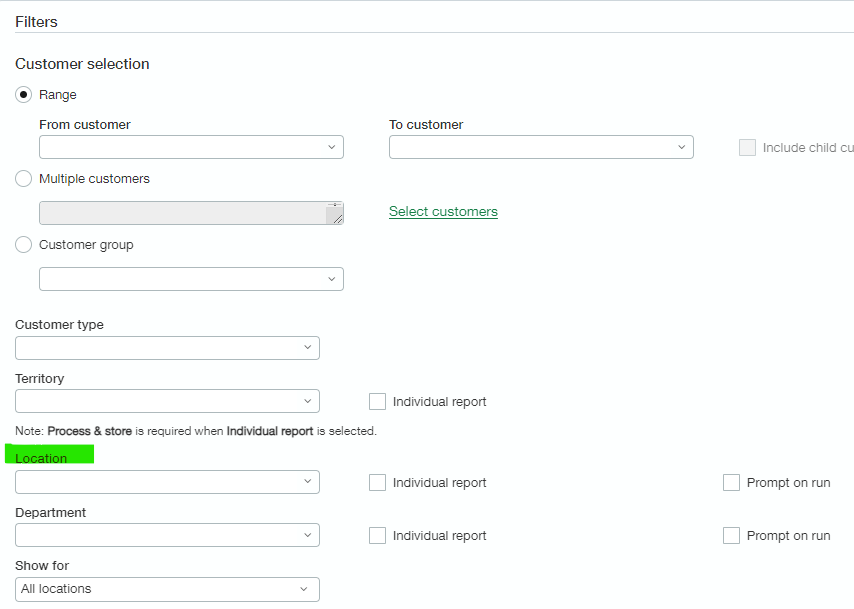
 If this is a multi-entity instance, choose the applicable entity.
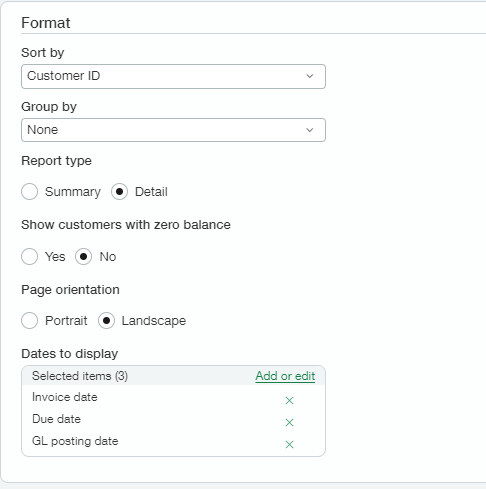
 Use these format settings.
 Click **View** in the top right corner.
## Customizing the report
On the report settings page, click **View** to run with defaults, or **Customize** to refine it.
Use trial and error. Fill in the fields you want, click **View**, and if the results need refining click **Customize** to return to the setup page. Repeat until you're satisfied — then **Memorize** the report so next time you only need to change the **As of** date.
Running the report with no selections at all returns every result for every category. It might take a long time to run and return too many results to be useful. **As a general rule, more filters produce fewer and more precise results.**
### A note on reversed transactions
The Customer Aging report displays reversed transactions by default. You can change this at **Company → Admin tab → Subscriptions → Accounts Receivable → Configure**.
If you turn off reversed transactions, be aware that **your subledger and GL might not balance**.
### Time period options
| Setting | Notes |
|---|---|
| **Aging periods** | Currently the only selection is `-0, 1-30, 31-60, 61-90, 91-`. |
| **Report as of** | Either **Today** or **Select date**. If you choose Select date, you must specify the date in **Date to use**. |
| **Select date** | The date on which to list the outstanding amounts customers owe. |
| **Based on** | Sets and displays the date the report is based on: invoice date, due date, or GL posting date. The type appears at the head of the report. |
Online reports can cover up to **60 periods**. PDF reports can cover up to **12 periods**.
### Filters
Three approaches:
- **Range** — set a specific customer or range using the **From customer** and **To customer** dropdowns. Blank by default, meaning all customers. With this option you can also **Include child customers**.
- **Multiple customers** — add multiple customers and ranges to better target results.
- **Customer group** — filter for all customers within a particular customer group.
The **Include child customers** option is only available when filtering by range.
**Customer type** — returns data only for the type you specify. Blank by default, meaning all types.
**Territory** — select a specific territory if you organize sales geographically, or select predefined groups of territories by clicking the icon. Selecting the group `US TERR` includes `WEST` and `EAST`, for example.
Optionally select **Individual reports** to print each department or location on its own report — all individual reports are contained in a single report or Excel workbook. **You must select Process and store when using Individual reports.**
**Transaction currency** — specify the currency. Clear by default, meaning all currencies.
**Exchange rate types** — specify the exchange rate to use when calculating the amount. Default is Intacct daily rate.
Both only appear for **multi-currency, multi-entity companies**.
**Location** — limit results to a specific location. Enter the name of the region, country, state, territory, or city, or select from the list. Enter or select a location if you want to run this report at the top level; the location determines the appropriate currency.
**Department** — limit results to a specific department.
**Individual report** — give each entity, department, or location its own report page. Due to potential size, these can be run **offline only**, so you can click only **Process and store**.
**Prompt on run** — require anyone using this report to enter an entity or location and department before it runs.
Displays transactions for certain locations regardless of the location selected in the Location dropdown:
- **All locations** — transactions for all locations within the location specified
- **This location** — transactions for the entity's location within the location specified
- **Child locations** — transactions only for areas subordinate to your entity's location
**Example:** if your location is `USA > California > Bay Area > San Francisco`, then *All locations* shows transactions for `California > Bay Area > Los Gatos`, *This location* shows transactions for `California`, and *Child locations* shows transactions for `Bay Area` and `Los Gatos` only.
### Formatting
| Setting | Notes |
|---|---|
| **Sort by** | Sort by customer ID, name, amount, or GL posting date. `desc` after an option means descending order. Default sort is Customer ID; available options change depending on summary vs. detail. |
| **Report type** | **Summary** (default) condenses all account details to a single line. **Detail** displays one line per customer per account and includes additional columns. |
| **Show customers with zero balance** | **No** is the default. |
| **Page orientation** | Portrait or Landscape. |
| **Dates to display** | Include columns for invoice dates, due dates, or GL posting dates. Default includes all. To hide one, select it and click the left arrow to move it to **Available**. |
### Titles and footer
Titles, subtitles, and footers apply **only to the PDF version**. Click **Print** to get the PDF.
- **Report title 1** — appears in large type at the top of the page, directly under the company name.
- **Report title 2** — the subtitle, in smaller type directly beneath the main title.
- **Footer text** — appears at the bottom center.
Each field allows up to **80 characters**, including spaces.
## Output options
| To | Select |
|---|---|
| View the report now, in your browser | **View** |
| Display the report in PDF format to print or save locally | **Print** |
| Generate and store the report for later access (HTML, PDF, Excel, CSV, Text) — in Intacct, in My stored reports, or delivered to cloud storage such as Dropbox | **Process and store** |
| Add the report to your dashboard | **Add to dashboard** |
| Save the report in the Memorized reports list to refer back to, modify, re-run, or schedule on a recurring basis with automatic email or cloud delivery | **Memorize** |
| Export the report to a separate file to distribute or save locally | **Export** |
After running, you can also click **Email** to send it to others, or **Customize** to return to the setup page and refine further.
## What's in the report
| Column | Description |
|---|---|
| **Based on** | The date filter the report is based on: bill date, due date, or GL posting date |
| **Customer ID** | The ID associated with the customer |
| **Customer name** | The customer's name |
| **Invoice** | The invoice ID *(detail report only)* |
| **GL posting date / Invoice date / Due date** | GL posting date is when the invoice posts to the GL; bill date is when the invoice was sent; due date is when it's due *(detail report only)* |
| **Days aged** | Days calculated from the as-of date to the due date *(detail report only)* |
| **Txn currency** | The transaction currency used *(detail report only)* |
| **Txn amount** | The transaction amount *(detail report only)* |
| **-0** | Amount owed for invoices made during the current month |
| **1-30** | Amount 1 to 30 days past due |
| **31-60** | Amount 31 to 60 days past due |
| **61-90** | Amount 61 to 90 days past due |
| **91-** | Amount over 91 days past due |
| **Total** | Total amount the customer owes — click it to see invoice detail |
Select any link to drill down to the details.
## Forecasting with the aging report
You can use the standard aging report to show bills **coming due** instead of already due. Enter the aging groups using descending values:
```text
60-31, 30-1, 0, 1-30, 31-60
```
The groups appearing below zero contain bills that are not due yet.
## When transactions drop off the report
A transaction no longer appears when:
- The aging due date is reached — for example, dropping off a 0–30 day report on day 31
- The invoice is paid
- A credit or advance is applied to the invoice
- The invoice is deleted or reversed
## Related
- [Accounts receivable and bad debt](/internal/sops/accounting/general/accounts-receivable) — how to review the aging report once you have it
- [Financial analysis](/internal/sops/accounting/general/financial-analysis) — period-end balance sheet support
Click **View** in the top right corner.
## Customizing the report
On the report settings page, click **View** to run with defaults, or **Customize** to refine it.
Use trial and error. Fill in the fields you want, click **View**, and if the results need refining click **Customize** to return to the setup page. Repeat until you're satisfied — then **Memorize** the report so next time you only need to change the **As of** date.
Running the report with no selections at all returns every result for every category. It might take a long time to run and return too many results to be useful. **As a general rule, more filters produce fewer and more precise results.**
### A note on reversed transactions
The Customer Aging report displays reversed transactions by default. You can change this at **Company → Admin tab → Subscriptions → Accounts Receivable → Configure**.
If you turn off reversed transactions, be aware that **your subledger and GL might not balance**.
### Time period options
| Setting | Notes |
|---|---|
| **Aging periods** | Currently the only selection is `-0, 1-30, 31-60, 61-90, 91-`. |
| **Report as of** | Either **Today** or **Select date**. If you choose Select date, you must specify the date in **Date to use**. |
| **Select date** | The date on which to list the outstanding amounts customers owe. |
| **Based on** | Sets and displays the date the report is based on: invoice date, due date, or GL posting date. The type appears at the head of the report. |
Online reports can cover up to **60 periods**. PDF reports can cover up to **12 periods**.
### Filters
Three approaches:
- **Range** — set a specific customer or range using the **From customer** and **To customer** dropdowns. Blank by default, meaning all customers. With this option you can also **Include child customers**.
- **Multiple customers** — add multiple customers and ranges to better target results.
- **Customer group** — filter for all customers within a particular customer group.
The **Include child customers** option is only available when filtering by range.
**Customer type** — returns data only for the type you specify. Blank by default, meaning all types.
**Territory** — select a specific territory if you organize sales geographically, or select predefined groups of territories by clicking the icon. Selecting the group `US TERR` includes `WEST` and `EAST`, for example.
Optionally select **Individual reports** to print each department or location on its own report — all individual reports are contained in a single report or Excel workbook. **You must select Process and store when using Individual reports.**
**Transaction currency** — specify the currency. Clear by default, meaning all currencies.
**Exchange rate types** — specify the exchange rate to use when calculating the amount. Default is Intacct daily rate.
Both only appear for **multi-currency, multi-entity companies**.
**Location** — limit results to a specific location. Enter the name of the region, country, state, territory, or city, or select from the list. Enter or select a location if you want to run this report at the top level; the location determines the appropriate currency.
**Department** — limit results to a specific department.
**Individual report** — give each entity, department, or location its own report page. Due to potential size, these can be run **offline only**, so you can click only **Process and store**.
**Prompt on run** — require anyone using this report to enter an entity or location and department before it runs.
Displays transactions for certain locations regardless of the location selected in the Location dropdown:
- **All locations** — transactions for all locations within the location specified
- **This location** — transactions for the entity's location within the location specified
- **Child locations** — transactions only for areas subordinate to your entity's location
**Example:** if your location is `USA > California > Bay Area > San Francisco`, then *All locations* shows transactions for `California > Bay Area > Los Gatos`, *This location* shows transactions for `California`, and *Child locations* shows transactions for `Bay Area` and `Los Gatos` only.
### Formatting
| Setting | Notes |
|---|---|
| **Sort by** | Sort by customer ID, name, amount, or GL posting date. `desc` after an option means descending order. Default sort is Customer ID; available options change depending on summary vs. detail. |
| **Report type** | **Summary** (default) condenses all account details to a single line. **Detail** displays one line per customer per account and includes additional columns. |
| **Show customers with zero balance** | **No** is the default. |
| **Page orientation** | Portrait or Landscape. |
| **Dates to display** | Include columns for invoice dates, due dates, or GL posting dates. Default includes all. To hide one, select it and click the left arrow to move it to **Available**. |
### Titles and footer
Titles, subtitles, and footers apply **only to the PDF version**. Click **Print** to get the PDF.
- **Report title 1** — appears in large type at the top of the page, directly under the company name.
- **Report title 2** — the subtitle, in smaller type directly beneath the main title.
- **Footer text** — appears at the bottom center.
Each field allows up to **80 characters**, including spaces.
## Output options
| To | Select |
|---|---|
| View the report now, in your browser | **View** |
| Display the report in PDF format to print or save locally | **Print** |
| Generate and store the report for later access (HTML, PDF, Excel, CSV, Text) — in Intacct, in My stored reports, or delivered to cloud storage such as Dropbox | **Process and store** |
| Add the report to your dashboard | **Add to dashboard** |
| Save the report in the Memorized reports list to refer back to, modify, re-run, or schedule on a recurring basis with automatic email or cloud delivery | **Memorize** |
| Export the report to a separate file to distribute or save locally | **Export** |
After running, you can also click **Email** to send it to others, or **Customize** to return to the setup page and refine further.
## What's in the report
| Column | Description |
|---|---|
| **Based on** | The date filter the report is based on: bill date, due date, or GL posting date |
| **Customer ID** | The ID associated with the customer |
| **Customer name** | The customer's name |
| **Invoice** | The invoice ID *(detail report only)* |
| **GL posting date / Invoice date / Due date** | GL posting date is when the invoice posts to the GL; bill date is when the invoice was sent; due date is when it's due *(detail report only)* |
| **Days aged** | Days calculated from the as-of date to the due date *(detail report only)* |
| **Txn currency** | The transaction currency used *(detail report only)* |
| **Txn amount** | The transaction amount *(detail report only)* |
| **-0** | Amount owed for invoices made during the current month |
| **1-30** | Amount 1 to 30 days past due |
| **31-60** | Amount 31 to 60 days past due |
| **61-90** | Amount 61 to 90 days past due |
| **91-** | Amount over 91 days past due |
| **Total** | Total amount the customer owes — click it to see invoice detail |
Select any link to drill down to the details.
## Forecasting with the aging report
You can use the standard aging report to show bills **coming due** instead of already due. Enter the aging groups using descending values:
```text
60-31, 30-1, 0, 1-30, 31-60
```
The groups appearing below zero contain bills that are not due yet.
## When transactions drop off the report
A transaction no longer appears when:
- The aging due date is reached — for example, dropping off a 0–30 day report on day 31
- The invoice is paid
- A credit or advance is applied to the invoice
- The invoice is deleted or reversed
## Related
- [Accounts receivable and bad debt](/internal/sops/accounting/general/accounts-receivable) — how to review the aging report once you have it
- [Financial analysis](/internal/sops/accounting/general/financial-analysis) — period-end balance sheet support