---
title: "Find and Retire Inactive Vendors in Intacct"
sidebarTitle: "Inactive vendors"
description: "Build a list of vendors with no activity in a date range using the AP ledger report, then mass-update their status to prevent new transactions."
icon: "user-slash"
---
> **For AI agents:** the complete documentation index is at [llms.txt](/llms.txt). Append `.md` to any page URL for its markdown version.
Over time a client's vendor list accumulates vendors that are no longer used. This guide finds them using the AP ledger report and then retires them in bulk.
**Source:** `Technical/Inactive Vendors Reporting.docx`. Related SOP: [Add a new vendor in Sage Intacct](/internal/sops/accounting/ap/adding-a-vendor).
## Build the list of inactive vendors
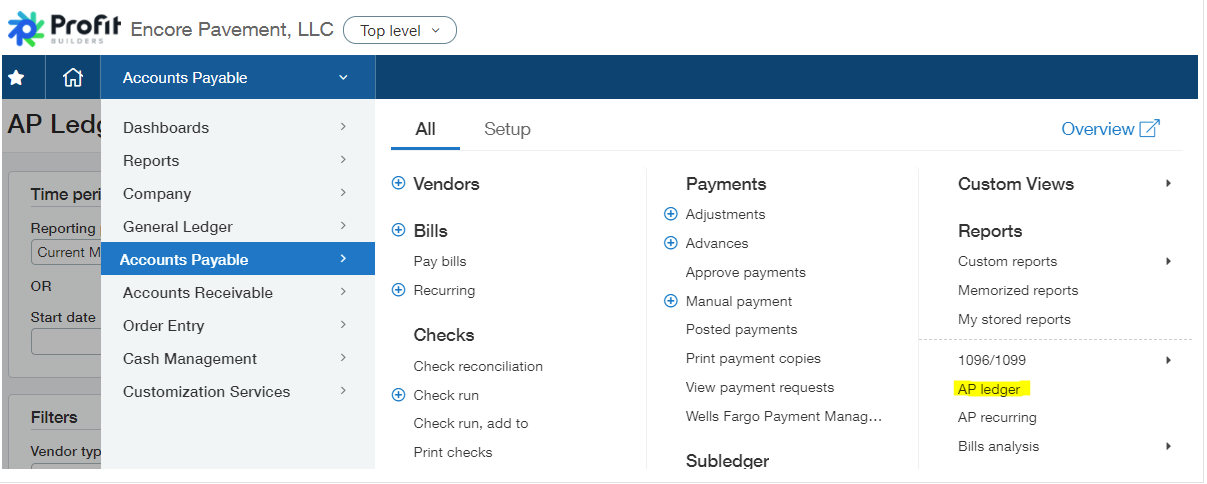
From the **AP** menu, run the **AP ledger** report.
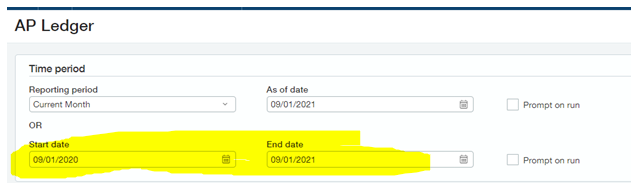
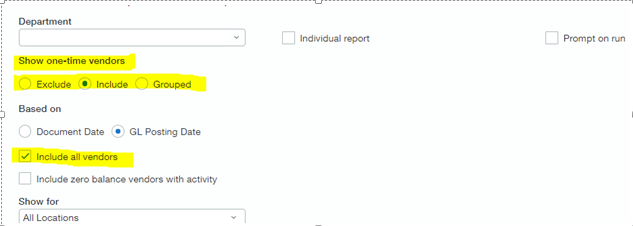
 Run the report for the **prior year**, making sure to **include all vendors** and **include 1-time vendors**. Export the report in **CSV**.
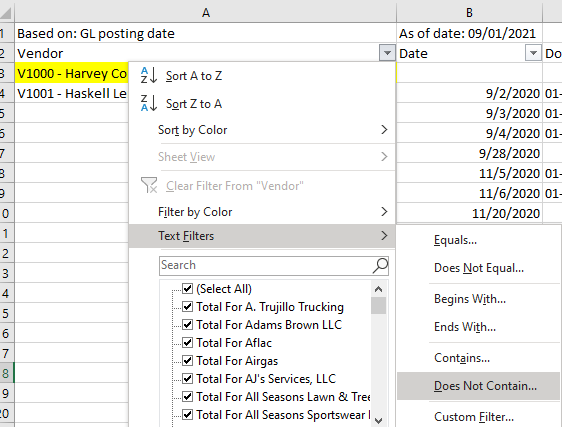
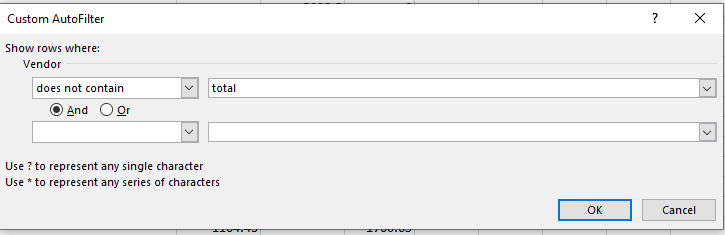
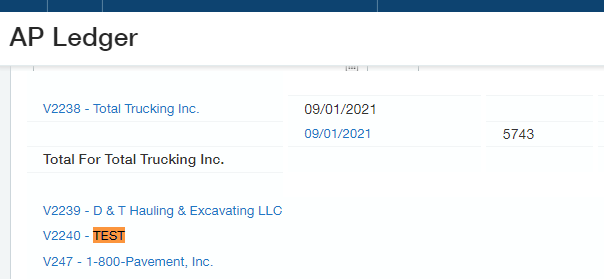
 In the Excel file, add a filter in the header row (row 2). Filter the vendor column for **does NOT contain** → `total`.
 Filter the **Date** column to show only **blanks**.
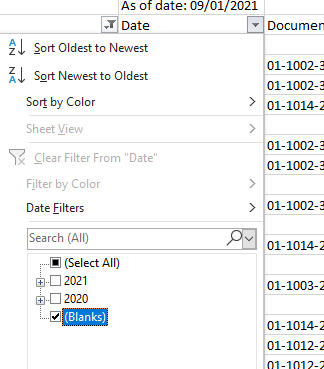 **Expected outcome:** the report now contains all vendors that had **no activity** for the date range selected. This is your candidate list.
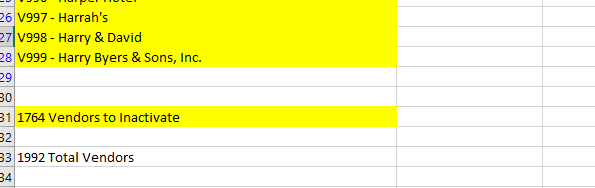
Vendor statuses can be mass updated through a **vendor CSV import**.
**Expected outcome:** the report now contains all vendors that had **no activity** for the date range selected. This is your candidate list.
Vendor statuses can be mass updated through a **vendor CSV import**.
 ## Choosing the right status
There are two approaches, and the difference matters for reporting.
### Option 1 — Active non-posting or Inactive
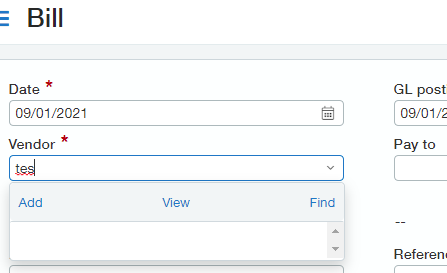
Both options prevent transactions and remove the vendor from the dropdown list when entering a bill.
| Status | Effect |
|---|---|
| **Active non-posting** | Restricts posting **but still allows reporting** on the vendor |
| **Inactive** | Restricts posting |
Prefer **active non-posting** when you may still need to report on the vendor's history. It's the safer default for a cleanup pass.
## Choosing the right status
There are two approaches, and the difference matters for reporting.
### Option 1 — Active non-posting or Inactive
Both options prevent transactions and remove the vendor from the dropdown list when entering a bill.
| Status | Effect |
|---|---|
| **Active non-posting** | Restricts posting **but still allows reporting** on the vendor |
| **Inactive** | Restricts posting |
Prefer **active non-posting** when you may still need to report on the vendor's history. It's the safer default for a cleanup pass.

 ### Option 2 — On hold and don't pay
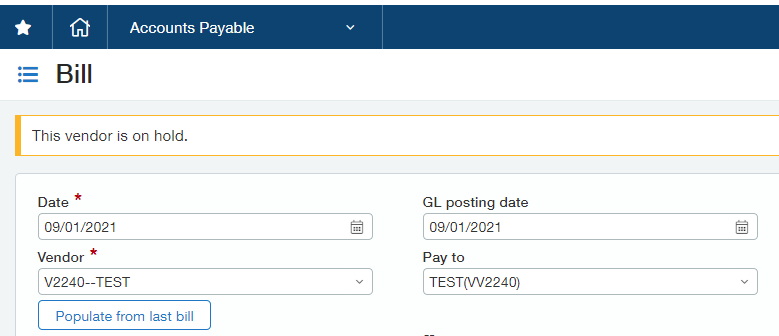
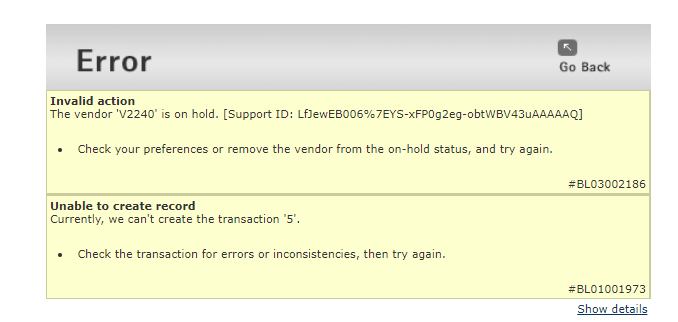
Mark the vendor as **on hold** and **don't pay**. The vendor **still shows up when entering invoices**, but Intacct won't allow posting.
### Option 2 — On hold and don't pay
Mark the vendor as **on hold** and **don't pay**. The vendor **still shows up when entering invoices**, but Intacct won't allow posting.

 ## Which to use
| Goal | Use |
|---|---|
| Remove the vendor from entry screens but keep reporting | **Active non-posting** |
| Remove the vendor from entry screens entirely | **Inactive** |
| Keep the vendor visible so staff can see it exists, but block posting | **On hold + don't pay** |
## Related
- [Add a new vendor in Sage Intacct](/internal/sops/accounting/ap/adding-a-vendor) — the vendor setup this reverses
- [Day-to-day AP transactions in Sage Intacct](/internal/sops/accounting/ap/intacct-ap-transactions)
## Which to use
| Goal | Use |
|---|---|
| Remove the vendor from entry screens but keep reporting | **Active non-posting** |
| Remove the vendor from entry screens entirely | **Inactive** |
| Keep the vendor visible so staff can see it exists, but block posting | **On hold + don't pay** |
## Related
- [Add a new vendor in Sage Intacct](/internal/sops/accounting/ap/adding-a-vendor) — the vendor setup this reverses
- [Day-to-day AP transactions in Sage Intacct](/internal/sops/accounting/ap/intacct-ap-transactions)