---
title: "Export Tender Data from CTUIT for Credit Card Verification"
sidebarTitle: "CTUIT tender export"
description: "Pull the Tender Summary by Location and Date export from CTUIT, pivot it in Excel, and paste the tenders into the credit card verification sheet."
icon: "file-csv"
---
> **For AI agents:** the complete documentation index is at [llms.txt](/llms.txt). Append `.md` to any page URL for its markdown version.
This guide pulls the tender data CTUIT clients need for the weekly credit card verification, then reshapes it with a pivot table so tenders can be pasted straight into the verification sheet.
**Source:** `General Accounting/02 - Cash and Credit Card/Ctuit CCV Instructions.docx`. Related SOP: [Credit card and cash deposit verification](/internal/sops/accounting/general/credit-card-deposit-verification).
## Step 1 — Run the export
Go to the CTUIT program on your apps page and log in.
 Click the **Profit Builders** icon, then under the **Page** column click **Companies**, and click the company name you need the export for.
1. Click the menu icon in the top left corner.
2. Scroll down to **Exports** and click it.
3. Under the T's, click **Tender Summary by Location and Date**.
4. Under **Step 1**, choose the location or client.
5. Under **Step 2**, choose the period.
6. Under **Step 4**, click **Run Export**.
7. Click the CSV file to open it once the export generates.
8. **Save the file as an Excel Workbook (.xlsx).**
## Step 2 — Build a pivot table
Highlight all columns in the Excel file that contain data, then under **Insert** click the **PivotTable** icon.
Click the **Profit Builders** icon, then under the **Page** column click **Companies**, and click the company name you need the export for.
1. Click the menu icon in the top left corner.
2. Scroll down to **Exports** and click it.
3. Under the T's, click **Tender Summary by Location and Date**.
4. Under **Step 1**, choose the location or client.
5. Under **Step 2**, choose the period.
6. Under **Step 4**, click **Run Export**.
7. Click the CSV file to open it once the export generates.
8. **Save the file as an Excel Workbook (.xlsx).**
## Step 2 — Build a pivot table
Highlight all columns in the Excel file that contain data, then under **Insert** click the **PivotTable** icon.
 Click **OK** when the dialog appears.
In the **PivotTable Fields** side panel, drag and drop the four fields to the appropriate boxes. The main fields you need are **Location**, **Tender**, **Date**, and **Total**.
Your field names may differ slightly from the example. Match on meaning rather than exact label.
Click the **x** on the PivotTable Fields panel to close it. Your data is now organized in the pivot table.
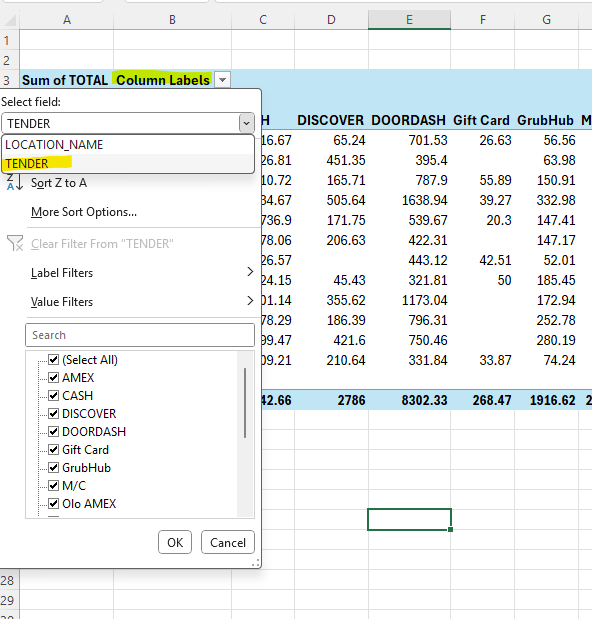
Click the dropdown by **Column Labels**, then select the **Tender** field. Select the tenders you need and deselect the ones you don't.
If you have many locations, click the **Location** field to select one location at a time. Click **OK** when done.
The tenders you need for each location are now across the top, so you can select multiple columns at once and copy (`Ctrl+C`) / paste (`Ctrl+V`) into your credit card verification sheet.
Tenders are listed in **alphabetical order** in the pivot table. Change the tender headings in your credit card verification sheet to match that order as closely as you can — then you can highlight and copy multiple tenders in one action instead of one at a time.
## Step 3 — Match against bank activity
Finish the credit card verification by pulling bank activity and matching up the deposits.
If you download bank activity in Excel, move the **credit** column so it comes right after the **date** column. Highlight the whole column, `Ctrl+X` to cut, then insert/paste it after the date column. Now you can highlight the date and credit amount together and paste both at once instead of doing them separately.
## Related
- [Credit card and cash deposit verification](/internal/sops/accounting/general/credit-card-deposit-verification) — the SOP this export feeds, including variance thresholds
- [Pull sales data from Touchpoint](/internal/how-to/accounting/touchpoint-ccv-export) — the equivalent for Touchpoint clients
- [Sales journal entry](/internal/sops/accounting/general/sales-journal-entry) — note that CTUIT can be configured to include sales tax in gross sales
Click **OK** when the dialog appears.
In the **PivotTable Fields** side panel, drag and drop the four fields to the appropriate boxes. The main fields you need are **Location**, **Tender**, **Date**, and **Total**.
Your field names may differ slightly from the example. Match on meaning rather than exact label.
Click the **x** on the PivotTable Fields panel to close it. Your data is now organized in the pivot table.
Click the dropdown by **Column Labels**, then select the **Tender** field. Select the tenders you need and deselect the ones you don't.
If you have many locations, click the **Location** field to select one location at a time. Click **OK** when done.
The tenders you need for each location are now across the top, so you can select multiple columns at once and copy (`Ctrl+C`) / paste (`Ctrl+V`) into your credit card verification sheet.
Tenders are listed in **alphabetical order** in the pivot table. Change the tender headings in your credit card verification sheet to match that order as closely as you can — then you can highlight and copy multiple tenders in one action instead of one at a time.
## Step 3 — Match against bank activity
Finish the credit card verification by pulling bank activity and matching up the deposits.
If you download bank activity in Excel, move the **credit** column so it comes right after the **date** column. Highlight the whole column, `Ctrl+X` to cut, then insert/paste it after the date column. Now you can highlight the date and credit amount together and paste both at once instead of doing them separately.
## Related
- [Credit card and cash deposit verification](/internal/sops/accounting/general/credit-card-deposit-verification) — the SOP this export feeds, including variance thresholds
- [Pull sales data from Touchpoint](/internal/how-to/accounting/touchpoint-ccv-export) — the equivalent for Touchpoint clients
- [Sales journal entry](/internal/sops/accounting/general/sales-journal-entry) — note that CTUIT can be configured to include sales tax in gross sales