---
title: "Running and delivering period prelim reports"
sidebarTitle: "Running prelim reports"
description: "Run the Corp and Store prelim report packages for RRS and RCY in Sage Intacct, save them internally, and deliver them to the client SharePoint site."
icon: "file-export"
---
> **For AI agents:** the complete documentation index is at [llms.txt](/llms.txt). Append `.md` to any page URL for its markdown version.
Each period, prelim (preliminary) financial reports are run in Sage Intacct for **Rackson Restaurants (RRS)** and **Rackson Cayenne (RCY)** at both the corporate level and the individual store level. The finished reports are then saved to the internal Profit Builders OneDrive folder and delivered to the client through their SharePoint site.
**Source:** `Prelim Reports - Running & Delivering Prelim Financial Reports - RRS & RCY.docx`, with the accompanying recording `Prelim Reports - Running & Delivering Prelim Financial Reports - RRS & RCY.mp4` (16m 14s).
**Systems:** Sage Intacct (Rackson) · OneDrive · Client SharePoint (Profit Builders FS Files)
## Before you start
- **Confirm the current reporting period and As of date** before running any reports. Reports are named using the period number — for example `P06` for period 6.
- Reports are run **separately at the corporate entity level** (one run each for RRS and RCY) **and at the individual store level.** Each store location must be run and stored one at a time.
- **Two copies** of the finished reports are kept: one in the internal Profit Builders OneDrive folder, and one uploaded to the client-facing SharePoint site.
## Steps
Before running the official prelim packages, review the underlying financials for reasonableness.
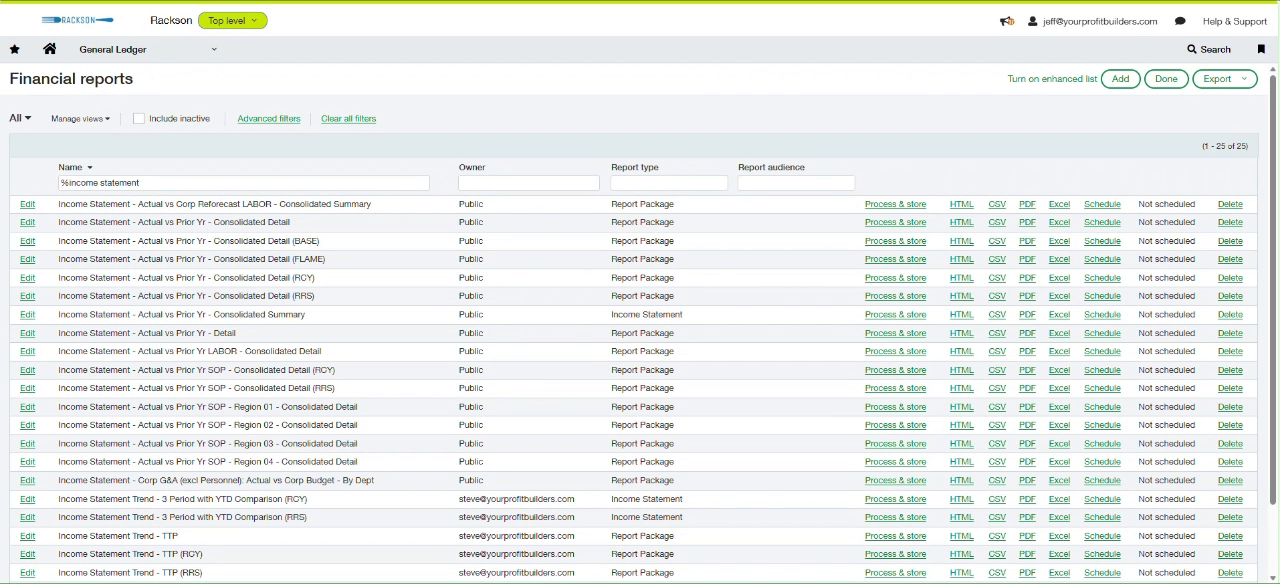
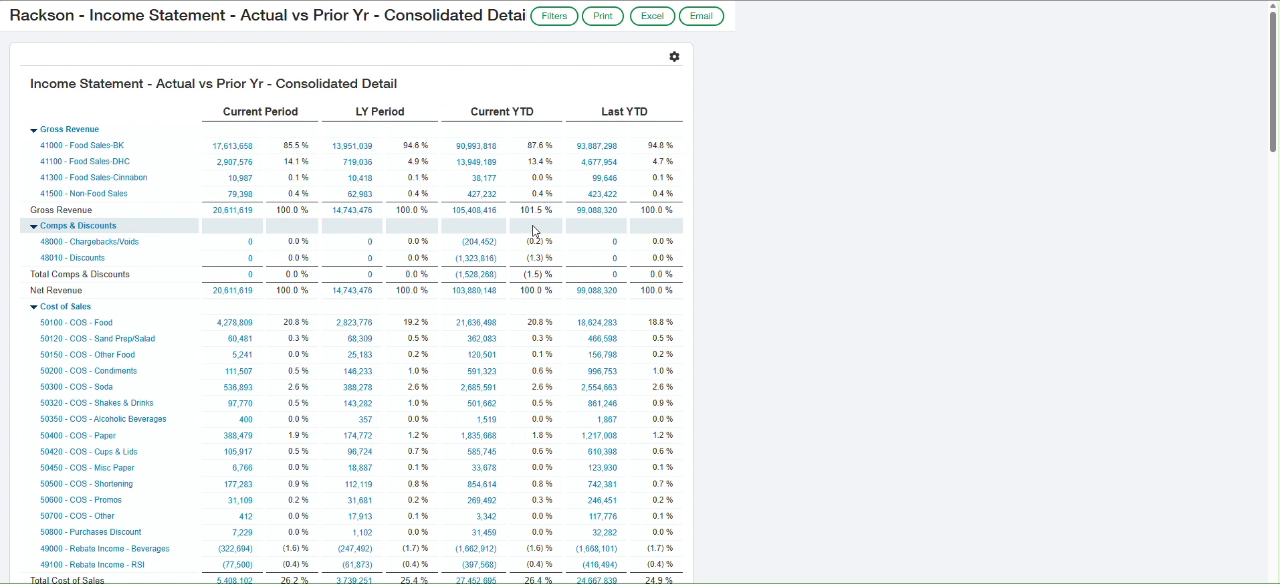
In Sage Intacct, go to **General Ledger → Reports → Financial reports** and search by name (for example `%income statement`) to pull up the **Income Statement - Actual vs Prior Yr** report. Confirm that the **YTD Net Income Loss line ties to the GL** via an Account Balance Report.
When generating the reports, make sure to use the **RRS / RCY Entities** location group.
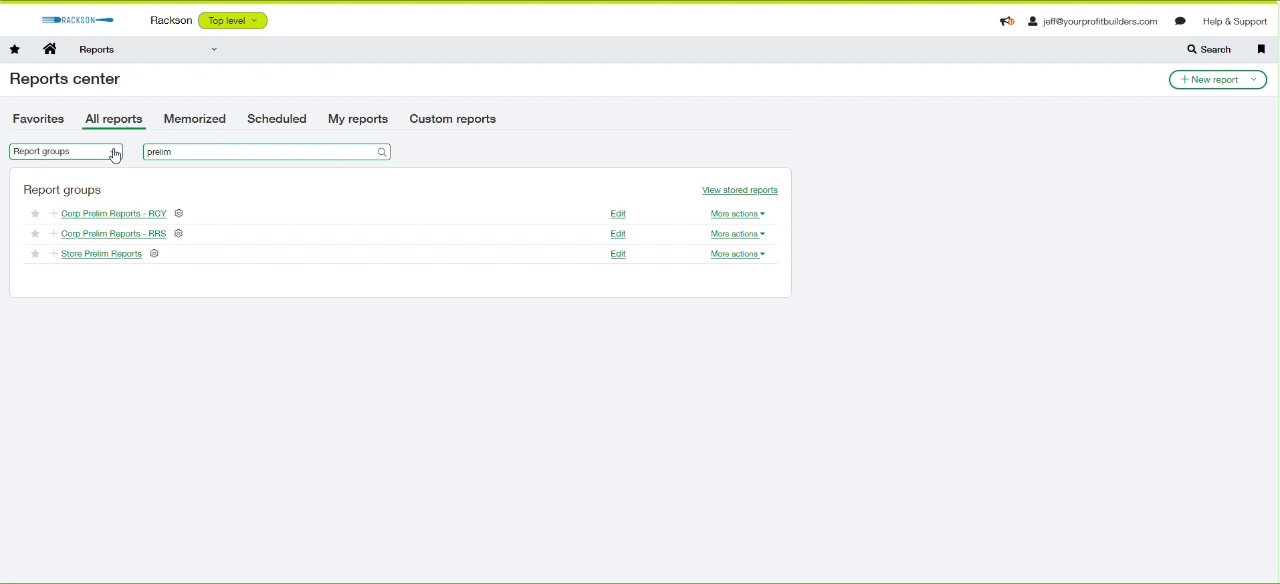
 Go to **Reports → Reports center → All reports** and search Report groups for `prelim`. Three groups are available:
- Corp Prelim Reports - RCY
- Corp Prelim Reports - RRS
- Store Prelim Reports
Go to **Reports → Reports center → All reports** and search Report groups for `prelim`. Three groups are available:
- Corp Prelim Reports - RCY
- Corp Prelim Reports - RRS
- Store Prelim Reports
 Click **Corp Prelim Reports - RRS**. In the Storage options window, confirm the **As of date**, set **Location group** to `E01--Rackson Restaurants, LLC`, choose the **Report type** (Excel), and click **OK** to process and store the package.
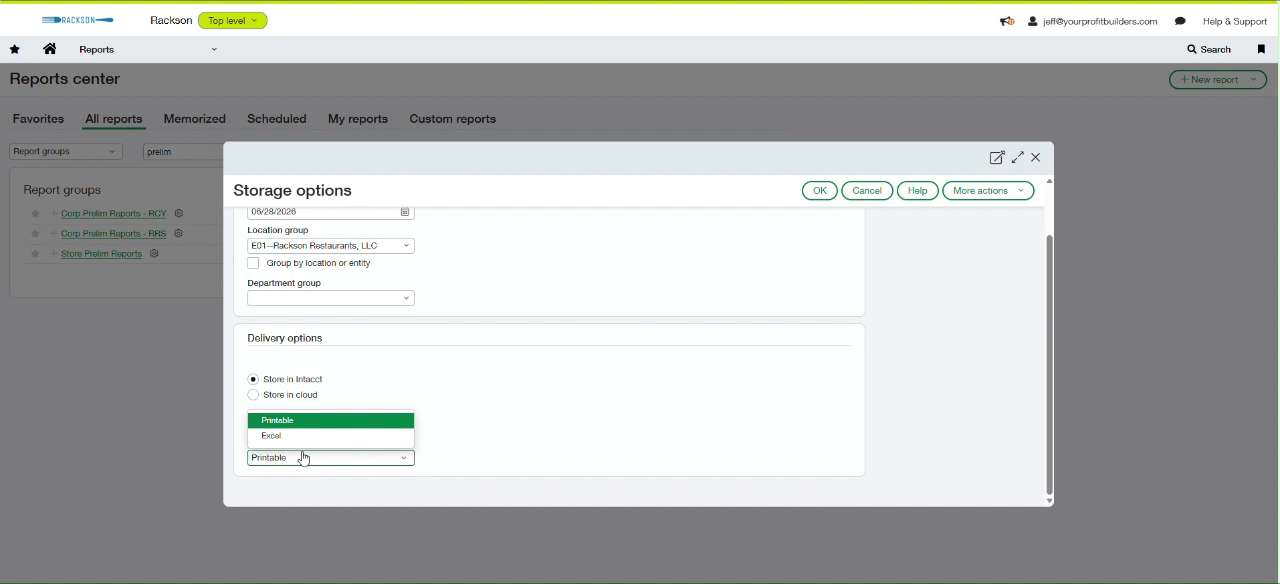 Repeat the same steps for **Corp Prelim Reports - RCY**, this time setting **Location group** to `E04--Rackson Cayenne, LLC`.
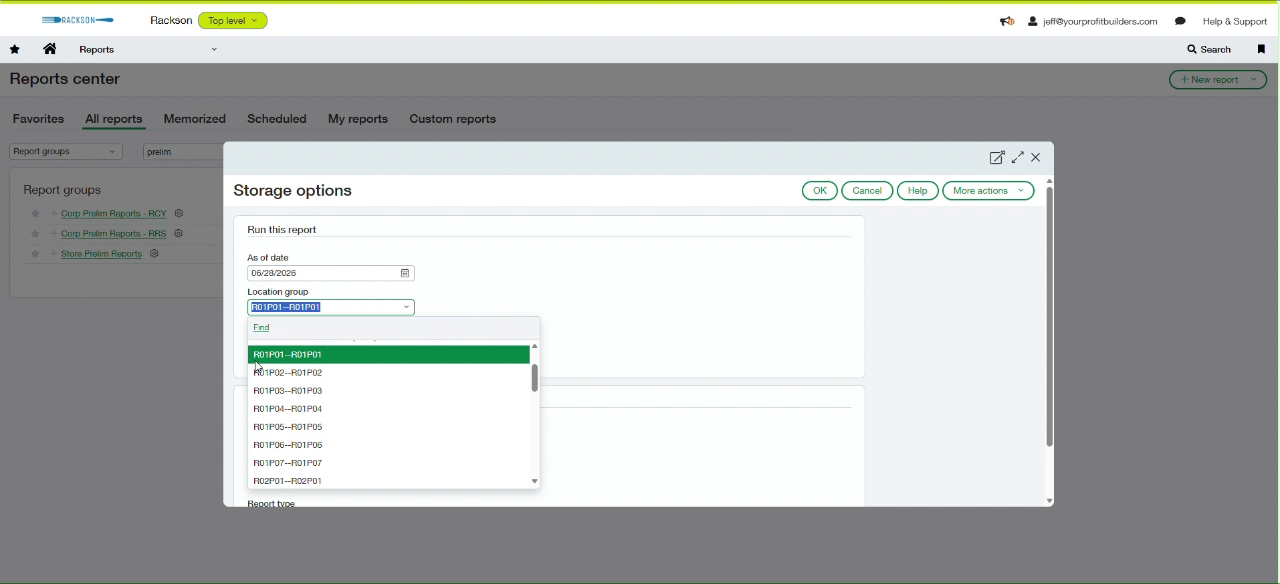
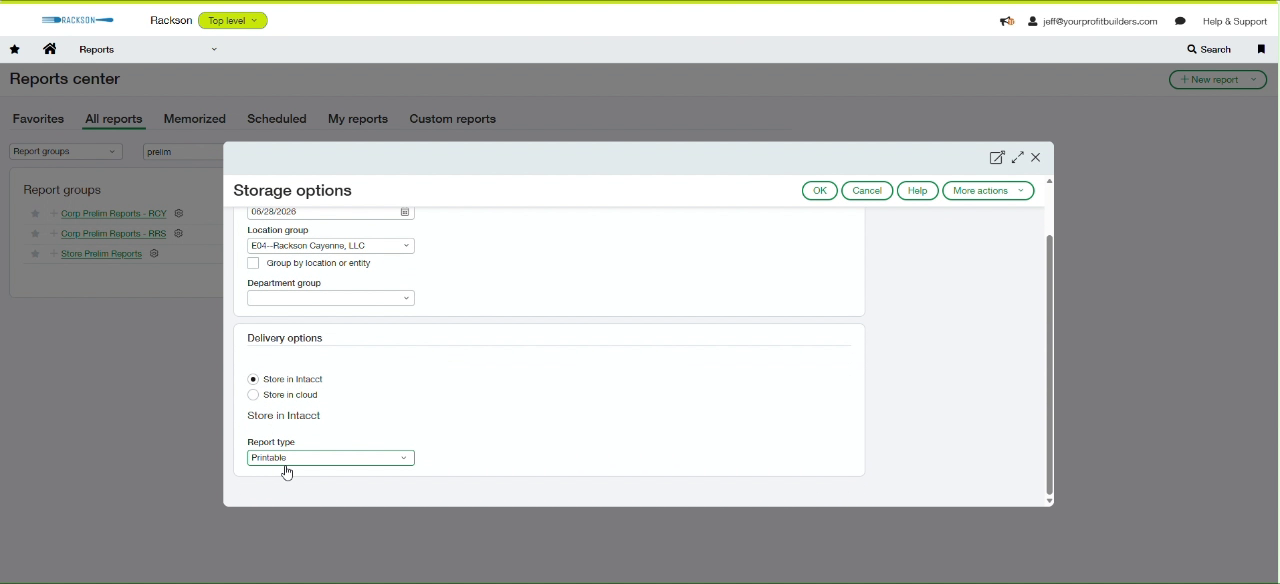 Click **Store Prelim Reports**. In the **Location group** field, search for and select **one store or region code at a time** — for example `R01P01`, `R01P02`, and so on through every open RRS and RCY store, including the DHC region codes — and click **OK** after each one to process and store that store's report.
This step is repeated **once per store location.** There is no single option to run every store at once, so **work through the full location list systematically to avoid missing a store.**
Click **Store Prelim Reports**. In the **Location group** field, search for and select **one store or region code at a time** — for example `R01P01`, `R01P02`, and so on through every open RRS and RCY store, including the DHC region codes — and click **OK** after each one to process and store that store's report.
This step is repeated **once per store location.** There is no single option to run every store at once, so **work through the full location list systematically to avoid missing a store.**
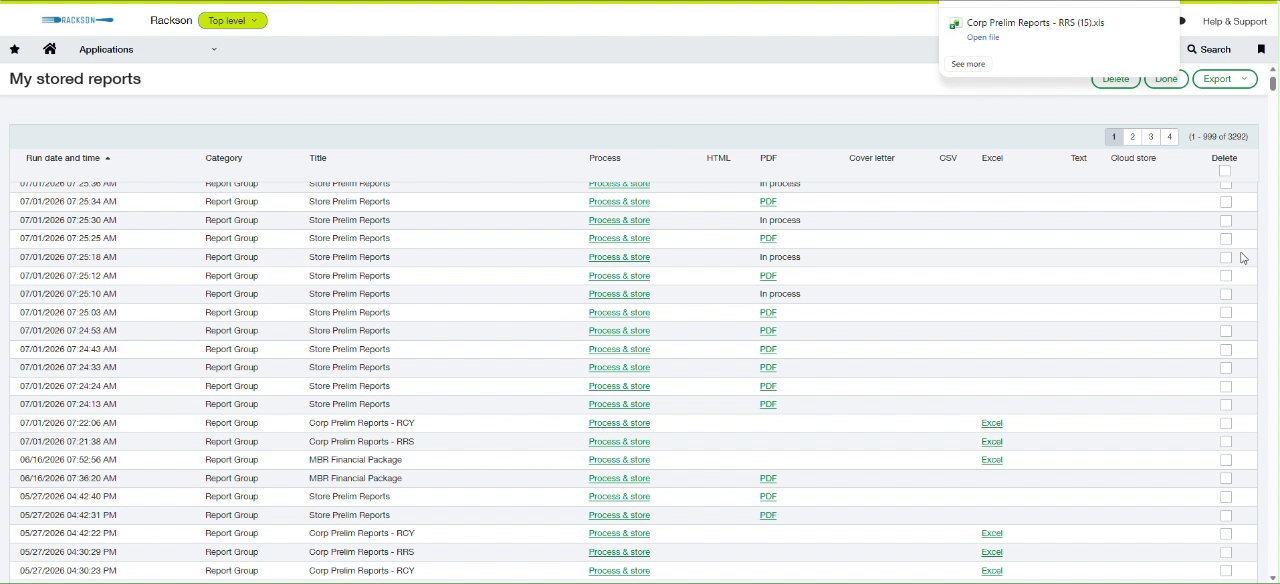
 Go to **Applications → My stored reports** to see every report run listed. **Wait until the Process column shows a completed PDF or Excel link instead of "In process" for every row** before moving on.
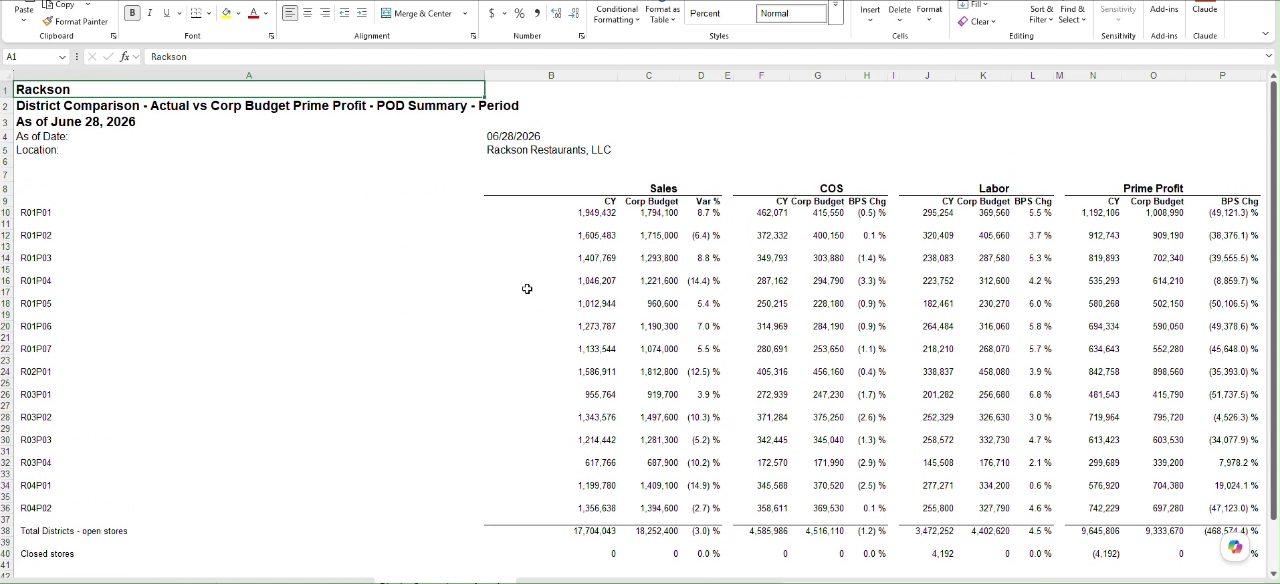
 From **My stored reports**, download the **Corp Prelim Reports - RRS** and **Corp Prelim Reports - RCY** Excel workbooks. Each contains multiple report tabs, including the district comparison and the entity-level prelim income statement.
 Save each to the internal OneDrive folder:
```text
Rackson Group - Documents \ Period Close \ Prelims \ P0X
```
Name each file using the existing convention — for example `RRS P06 2026 Corp Prelim Reports.xlsx` and `RCY P06 2026 Corp Prelim Reports.xlsx`.
Download the PDF for each store's prelim report and save it to the same internal Prelims period folder. Name each file using the existing convention — for example `P06 2026 AC Store Prelim Reports - BKCR01P01.pdf` — **matching the store location code used when the report was run.**
Find the **Rackson Period End Reports and Schedules** SharePoint link in your credentials or reference sheet. Browse to:
```text
Documents → FINANCIAL STATEMENTS → Rackson Restaurants LLC
→ PROFIT BUILDERS FS FILES → [current year]
```
Check whether a folder already exists for the current period. **If not, create a new period folder** (for example `P06`).
Save each to the internal OneDrive folder:
```text
Rackson Group - Documents \ Period Close \ Prelims \ P0X
```
Name each file using the existing convention — for example `RRS P06 2026 Corp Prelim Reports.xlsx` and `RCY P06 2026 Corp Prelim Reports.xlsx`.
Download the PDF for each store's prelim report and save it to the same internal Prelims period folder. Name each file using the existing convention — for example `P06 2026 AC Store Prelim Reports - BKCR01P01.pdf` — **matching the store location code used when the report was run.**
Find the **Rackson Period End Reports and Schedules** SharePoint link in your credentials or reference sheet. Browse to:
```text
Documents → FINANCIAL STATEMENTS → Rackson Restaurants LLC
→ PROFIT BUILDERS FS FILES → [current year]
```
Check whether a folder already exists for the current period. **If not, create a new period folder** (for example `P06`).
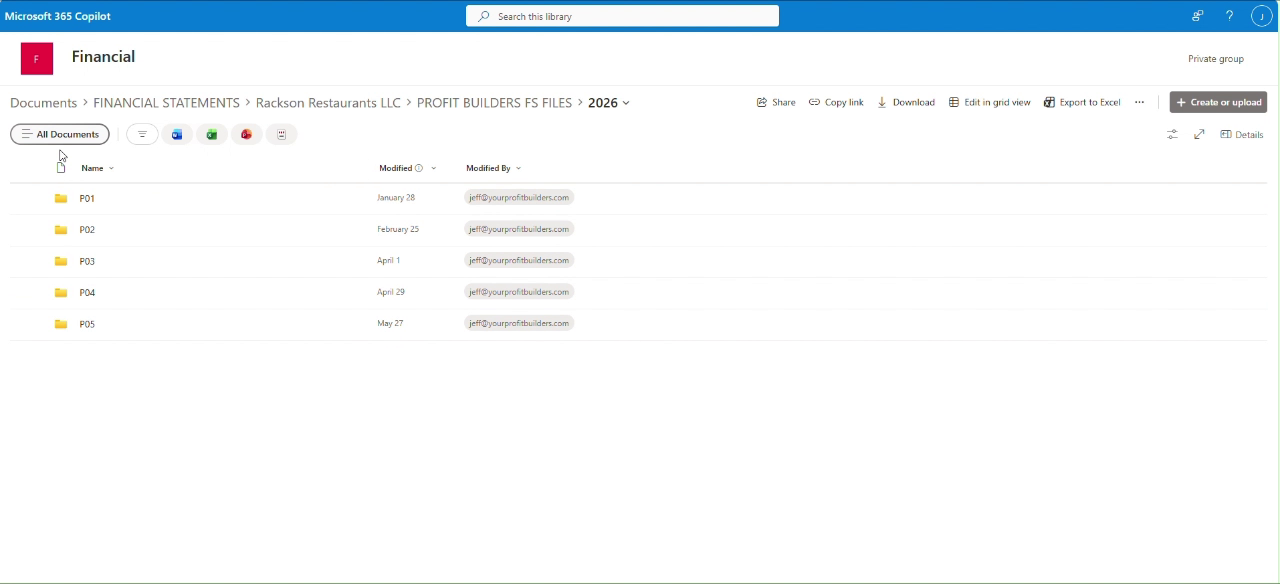
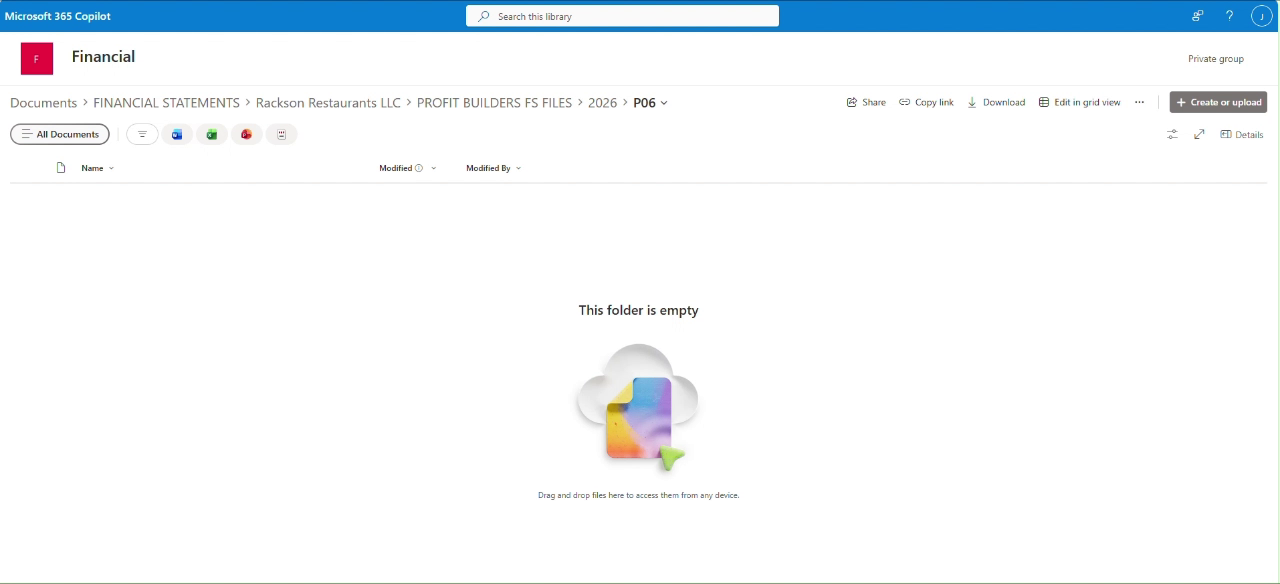 Upload **both corp workbooks and every store PDF** for the current period into this folder so the client can access the finished reports.
**Do not upload internal working files, credential sheets, or anything other than the finished corp and store prelim reports** to the client-facing SharePoint site.
Let **Mike Mikos** know all prelim reports have been uploaded to SharePoint, then email **Mike Mikos, Steve Song, and Chad Gentry (FP&A)** notifying them that reports have been delivered.
## Summary
Each period: review the Income Statement and Account Balances reports for reasonableness, run the Corp Prelim Reports for RRS and RCY, run the Store Prelim Reports for every open store location, then save the finished corp workbooks and store PDFs internally and deliver them to the client through their SharePoint site.
The **labor reports** are delivered as part of this same upload — see [Store and corp labor reports](/internal/customers/rackson/processes/labor-reports), which adds **Chris Johnson** to the final notification list.
## Related
- [RRS prelims](/internal/customers/rackson/workpapers/rrs-prelims) and [RCY prelims](/internal/customers/rackson/workpapers/rcy-prelims) — what to review in these reports and which thresholds matter
- [Store and corp labor reports](/internal/customers/rackson/processes/labor-reports) — the other file in the prelim package
- [Close calendar](/internal/customers/rackson/close-calendar) — the hard Wednesday prelim deadline
Upload **both corp workbooks and every store PDF** for the current period into this folder so the client can access the finished reports.
**Do not upload internal working files, credential sheets, or anything other than the finished corp and store prelim reports** to the client-facing SharePoint site.
Let **Mike Mikos** know all prelim reports have been uploaded to SharePoint, then email **Mike Mikos, Steve Song, and Chad Gentry (FP&A)** notifying them that reports have been delivered.
## Summary
Each period: review the Income Statement and Account Balances reports for reasonableness, run the Corp Prelim Reports for RRS and RCY, run the Store Prelim Reports for every open store location, then save the finished corp workbooks and store PDFs internally and deliver them to the client through their SharePoint site.
The **labor reports** are delivered as part of this same upload — see [Store and corp labor reports](/internal/customers/rackson/processes/labor-reports), which adds **Chris Johnson** to the final notification list.
## Related
- [RRS prelims](/internal/customers/rackson/workpapers/rrs-prelims) and [RCY prelims](/internal/customers/rackson/workpapers/rcy-prelims) — what to review in these reports and which thresholds matter
- [Store and corp labor reports](/internal/customers/rackson/processes/labor-reports) — the other file in the prelim package
- [Close calendar](/internal/customers/rackson/close-calendar) — the hard Wednesday prelim deadline