---
title: "Generate the COS % audit report"
sidebarTitle: "COS % audit report"
description: "Generate the period COS % Audit Report in Sage Intacct for each Rackson entity, isolate the flagged outlier stores in Excel, and file the workbook."
icon: "magnifying-glass-dollar"
---
> **For AI agents:** the complete documentation index is at [llms.txt](/llms.txt). Append `.md` to any page URL for its markdown version.
This process generates the period **COS % Audit Report** in Sage Intacct for a Rackson entity, exports it to Excel, and isolates the stores whose cost of sales percentage moved outside the expected range. The report highlights outlier stores automatically, and the workbook is then filtered and sorted so those stores rise to the top for review.
**Source:** `Prelim Reports - % COS Audit Report Process Doc - RRS & RCY.docx`, with the accompanying recording `Prelim Reports - % COS Audit Report - RRS & RCY.mp4` (4m 19s).
**Systems:** Sage Intacct · Microsoft Excel · SharePoint (Rackson Group Documents)
## Before you start
- Access to Sage Intacct for the **Rackson top-level entity**, with the ability to select the RRS and RCY entities.
- Access to the Rackson Group document library in SharePoint — specifically the entity's `2026 > Period Close > P0X > Financials > Prelims` folder.
- **Know the correct period end date before you start.** The report prompts for an **As of** date and **defaults to today's date**, so this must be changed.
- **Two separate report definitions exist, one per entity:** `COS % Audit Report - RRS` and `COS % Audit Report - RCY`. This walkthrough covers RRS — run the same steps a second time for RCY using its own report and its own Prelims folder.
Run this **only after the ending inventory workpaper has been posted.** The report's current period COS % will not be accurate until the inventory adjustment is in the GL. See [Inventory review](/internal/customers/rackson/review-process/inventory).
## Steps
From the Rackson top-level entity, go to **Applications → General Ledger → Financial Reports**.
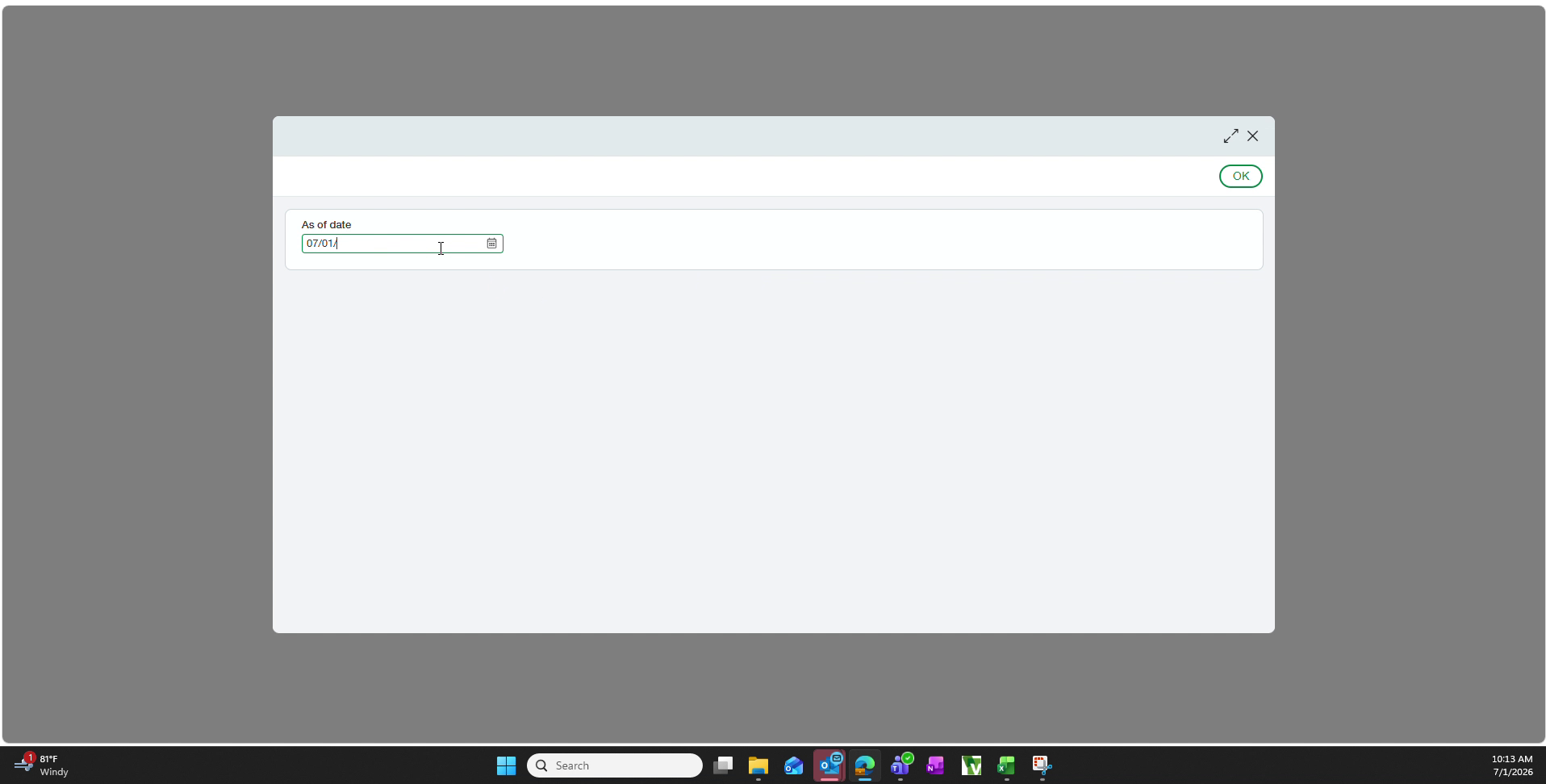
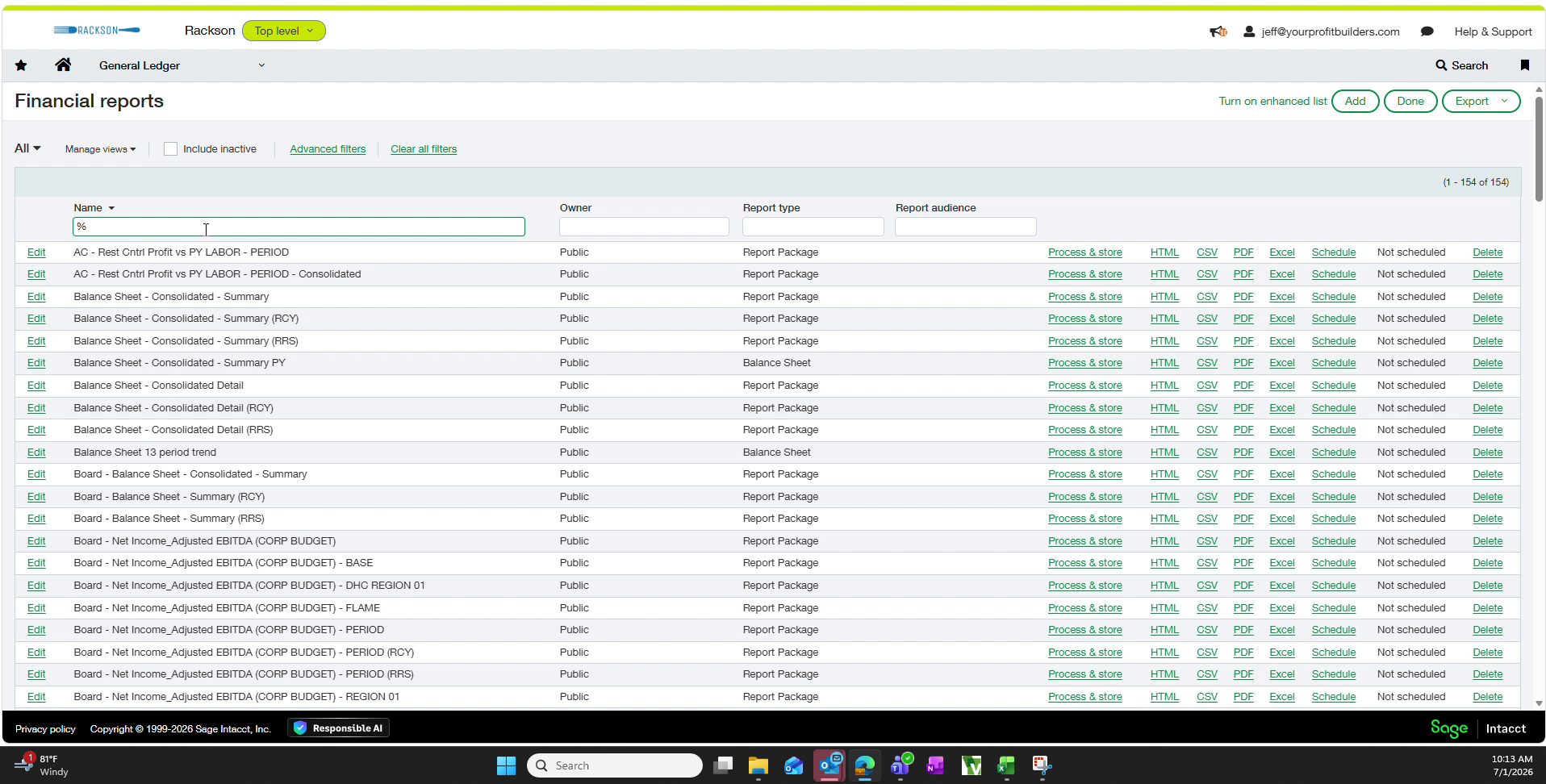 In the **Name** column filter, type `%COS` and press Enter. This narrows the list to the two COS % Audit Report definitions — one for RCY and one for RRS.
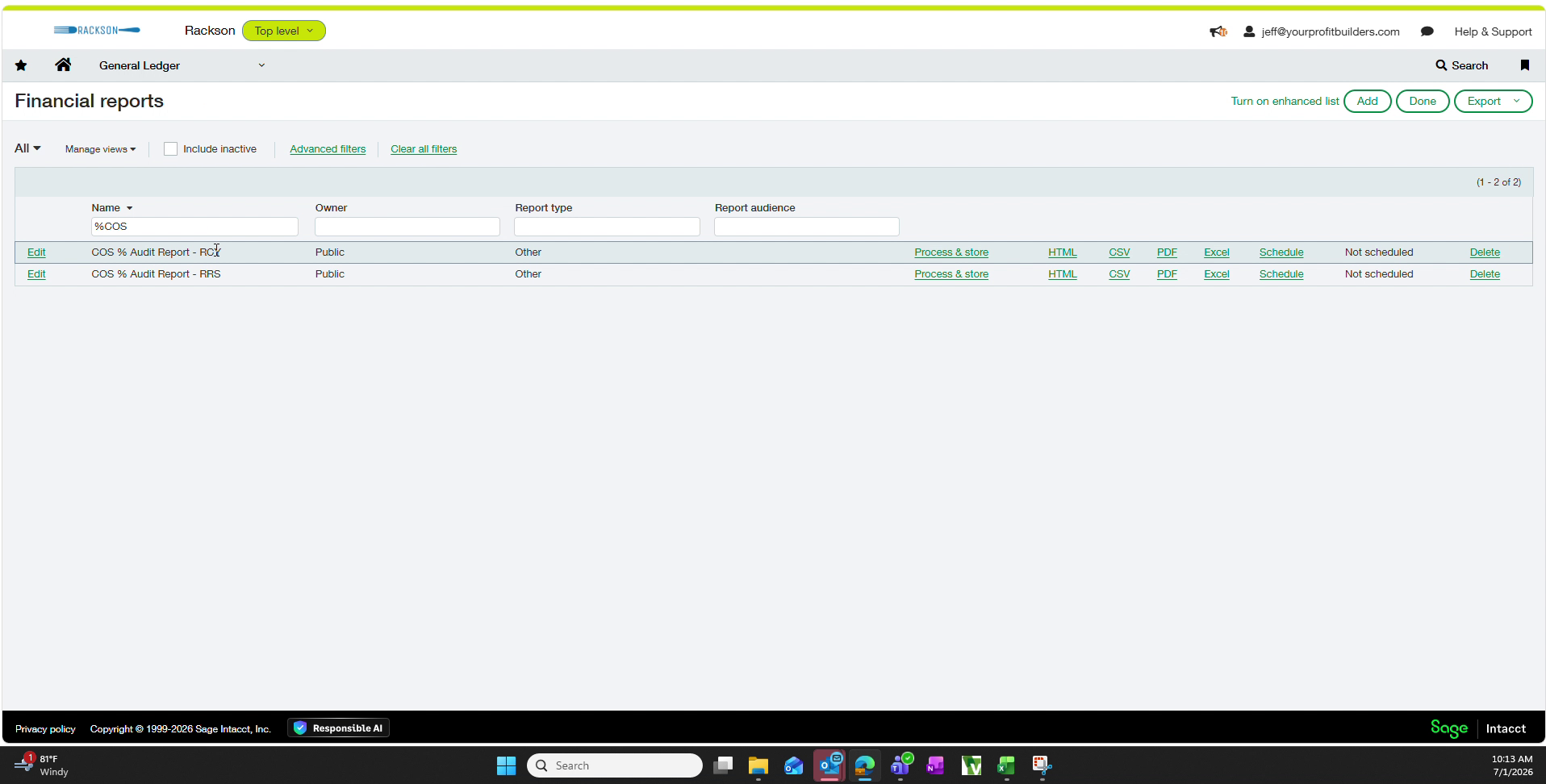 Click **Process & store** on the row for the entity you are running (RRS in this example). When prompted, **clear the default As of date** — which is today's date — **and enter the actual period end date instead.** Click **OK**.
The **As of** date field defaults to today's date rather than the period end date. **Always overwrite it with the correct period end date before clicking OK**, or the report will pull the wrong period.
Click **Process & store** on the row for the entity you are running (RRS in this example). When prompted, **clear the default As of date** — which is today's date — **and enter the actual period end date instead.** Click **OK**.
The **As of** date field defaults to today's date rather than the period end date. **Always overwrite it with the correct period end date before clicking OK**, or the report will pull the wrong period.
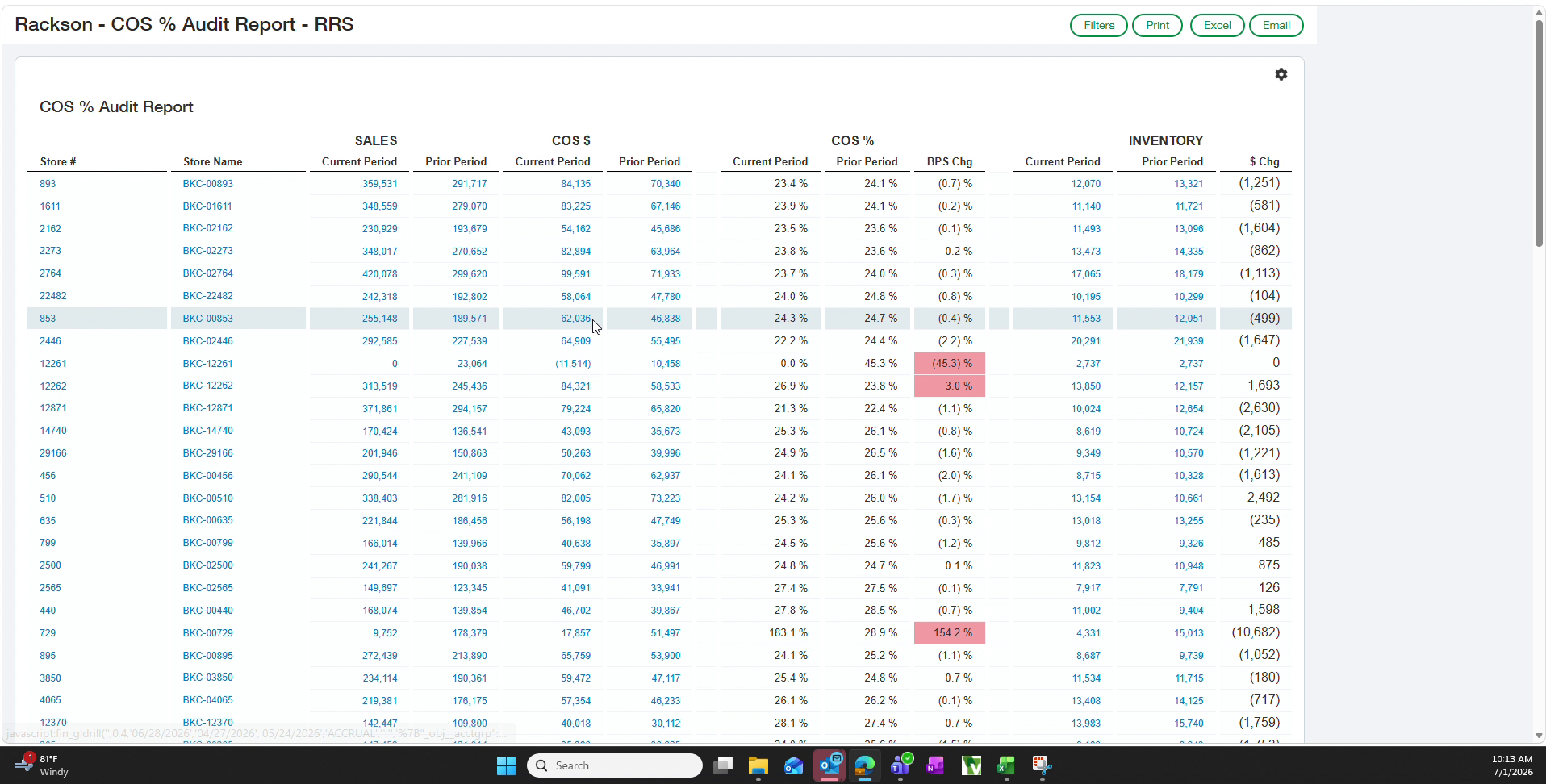
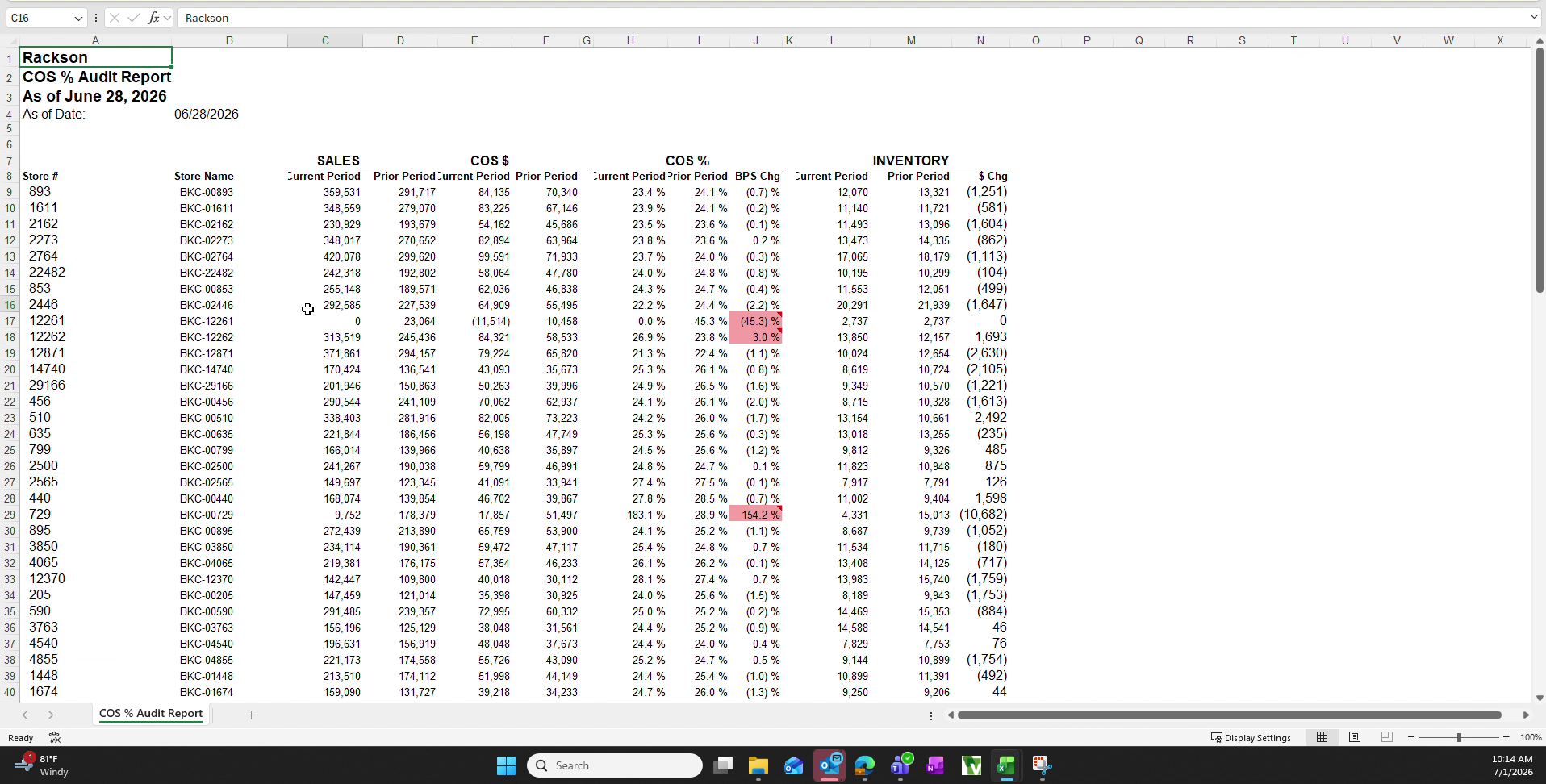
 The report opens showing, for every store: current and prior period **Sales**, **COS $**, **COS %**, the basis point change in COS % (**BPS Chg**), and current and prior period **Inventory**.
**Stores whose BPS Chg falls outside the normal range are automatically shaded pink.**
The pink shading is a **built-in conditional format keyed to the BPS Chg column**, flagging any change of **positive 3.0% or greater, or negative 3.0% or less.**
The report opens showing, for every store: current and prior period **Sales**, **COS $**, **COS %**, the basis point change in COS % (**BPS Chg**), and current and prior period **Inventory**.
**Stores whose BPS Chg falls outside the normal range are automatically shaded pink.**
The pink shading is a **built-in conditional format keyed to the BPS Chg column**, flagging any change of **positive 3.0% or greater, or negative 3.0% or less.**
 Click **Excel** in the report toolbar. The exported file carries the report title, the As of date, and the full store-level detail.
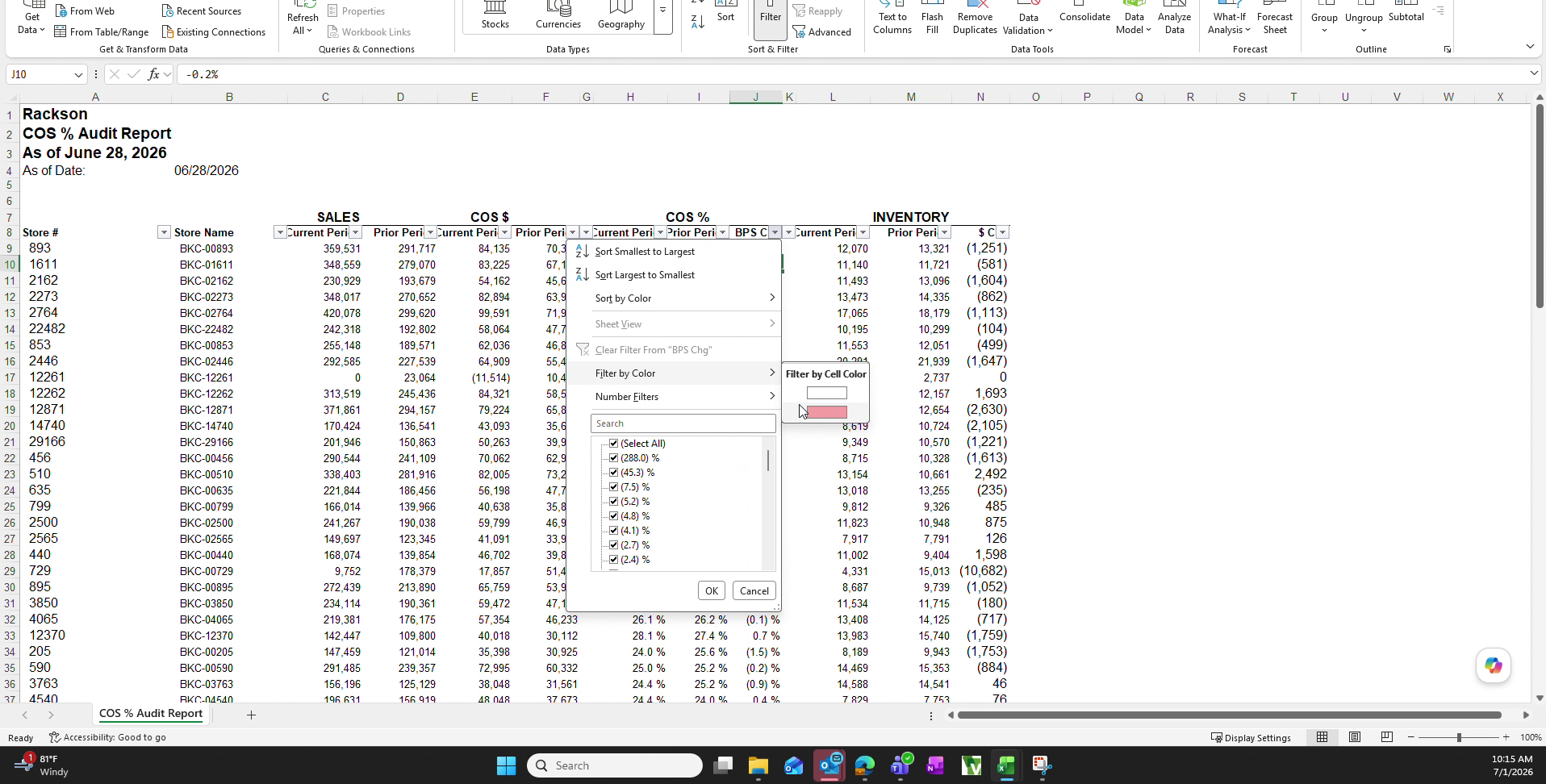
 With the workbook open, turn on **AutoFilter**, click the filter arrow on the **BPS Chg** column, choose **Filter by Color**, and select the pink cell colour. This limits the visible rows to only the stores flagged as outliers.
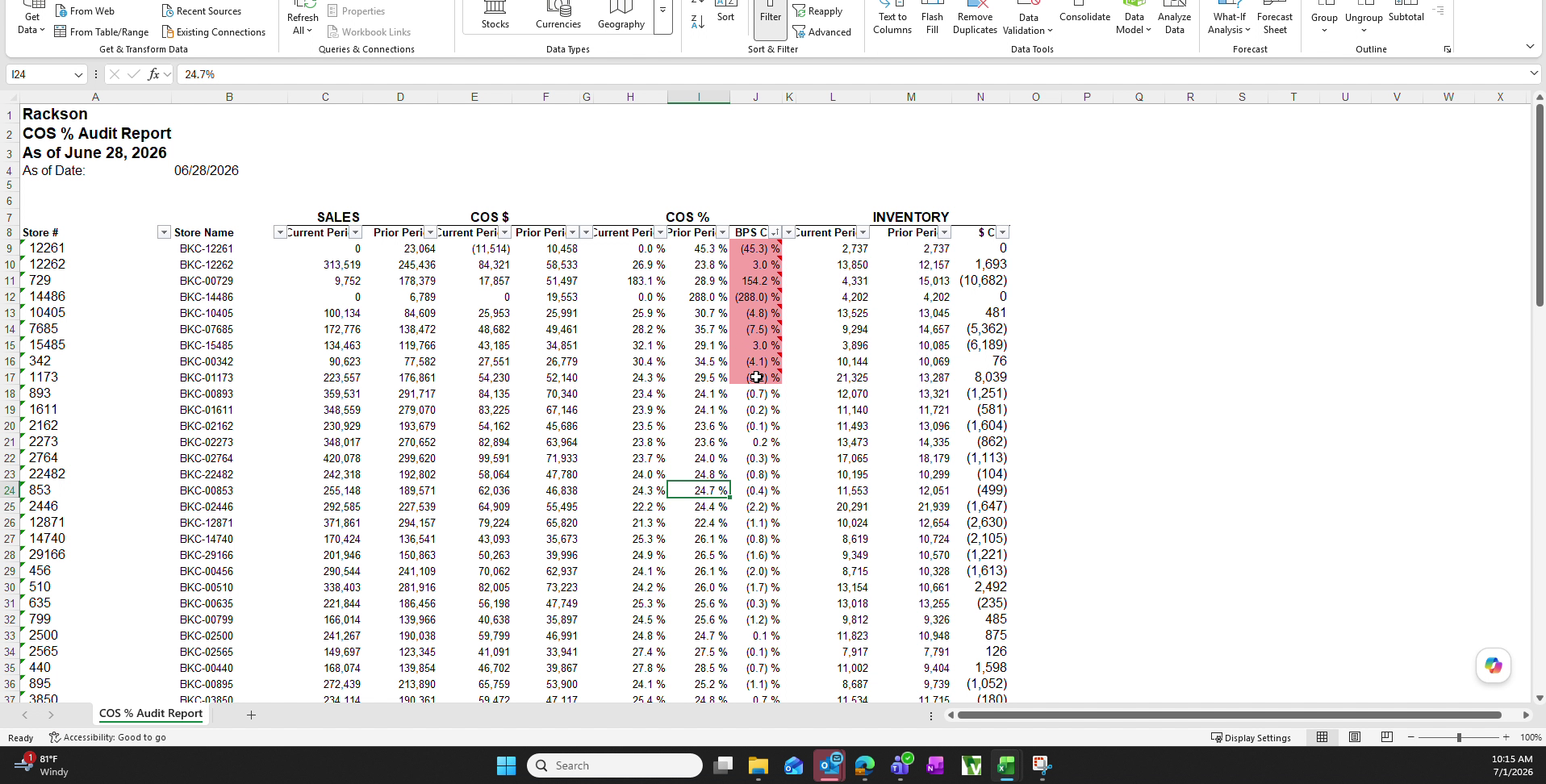
 Use **Sort by Color** on the same column so the pink shaded rows sit at the top of the report, above the remaining stores. **This keeps the full store list intact** while making the outliers easy to scan and discuss.
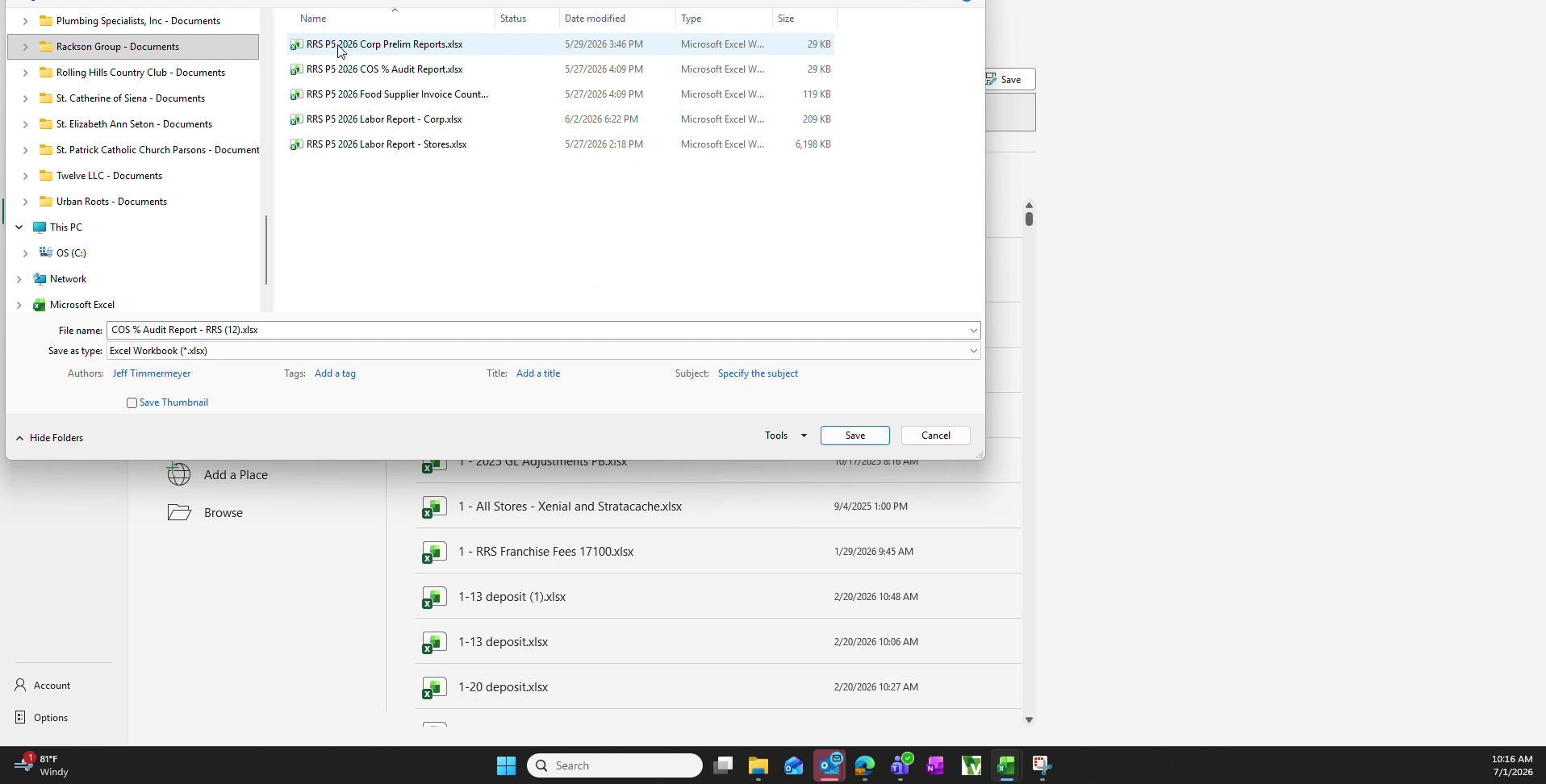
 Choose **Save As** and browse to:
```text
Rackson Group Documents → [entity folder] → 2026
→ Period Close → [current period] → Financials → Prelims
```
Name the file in the established format — for example `RRS P6 2026 COS % Audit Report.xlsx` — **matching the naming used for the prior period's file in the same folder.**
Choose **Save As** and browse to:
```text
Rackson Group Documents → [entity folder] → 2026
→ Period Close → [current period] → Financials → Prelims
```
Name the file in the established format — for example `RRS P6 2026 COS % Audit Report.xlsx` — **matching the naming used for the prior period's file in the same folder.**
 Return to the Financial Reports list and repeat steps 3 through 8 using the **`COS % Audit Report - RCY`** definition, saving the resulting workbook into the Rackson Cayenne entity's own Prelims folder with the matching RCY file name.
## Summary
Pull the period COS % Audit Report for each Rackson entity from Sage Intacct, use the report's built-in outlier shading together with Excel's colour filter and sort to surface the stores with the largest cost of sales swings, and file the finished workbook in the correct Period Close folder for review.
**What to do with the flagged stores** — the investigation thresholds, the expected-outlier cases (fire, flood, remodel), and the reconciliation back to the corp prelim — is covered on [RRS prelims](/internal/customers/rackson/workpapers/rrs-prelims) and [RCY prelims](/internal/customers/rackson/workpapers/rcy-prelims).
The report's own conditional format flags at **±3.0%**, while the workpaper review guidance flags **300–400 basis points** for investigation. The shading is the first pass; the wider band is the reviewer's judgment threshold.
## Related
- [RRS prelims](/internal/customers/rackson/workpapers/rrs-prelims) — the ~145-store BK review and the food supplier invoice count cross-reference
- [RCY prelims](/internal/customers/rackson/workpapers/rcy-prelims) — the DHC review
- [Inventory review](/internal/customers/rackson/review-process/inventory) — the upstream dependency
Return to the Financial Reports list and repeat steps 3 through 8 using the **`COS % Audit Report - RCY`** definition, saving the resulting workbook into the Rackson Cayenne entity's own Prelims folder with the matching RCY file name.
## Summary
Pull the period COS % Audit Report for each Rackson entity from Sage Intacct, use the report's built-in outlier shading together with Excel's colour filter and sort to surface the stores with the largest cost of sales swings, and file the finished workbook in the correct Period Close folder for review.
**What to do with the flagged stores** — the investigation thresholds, the expected-outlier cases (fire, flood, remodel), and the reconciliation back to the corp prelim — is covered on [RRS prelims](/internal/customers/rackson/workpapers/rrs-prelims) and [RCY prelims](/internal/customers/rackson/workpapers/rcy-prelims).
The report's own conditional format flags at **±3.0%**, while the workpaper review guidance flags **300–400 basis points** for investigation. The shading is the first pass; the wider band is the reviewer's judgment threshold.
## Related
- [RRS prelims](/internal/customers/rackson/workpapers/rrs-prelims) — the ~145-store BK review and the food supplier invoice count cross-reference
- [RCY prelims](/internal/customers/rackson/workpapers/rcy-prelims) — the DHC review
- [Inventory review](/internal/customers/rackson/review-process/inventory) — the upstream dependency